Wild Rift in Russia tramite VPN: guida passo passo con ping basso e lobby in russo
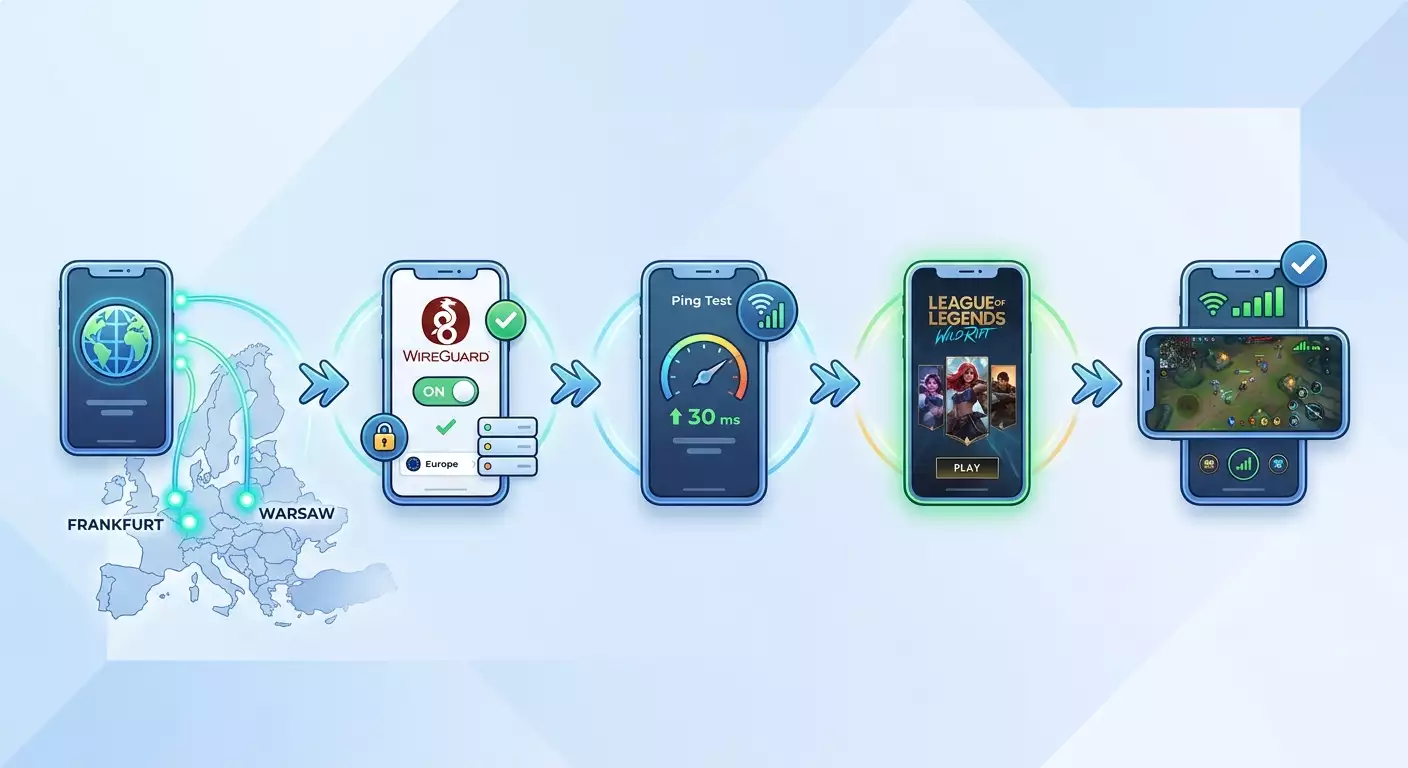
Guida completa e pratica su come giocare a League of Legends: Wild Rift in Russia tramite VPN con ping basso e connessione stabile. In 40–90 minuti configurerai la VPN, ottimizzerai MTU, sceglierai la regione migliore e verificherai i risultati. Perfetto per principianti.
Contenuto dell'articolo
- Introduzione
- Preparazione preliminare
- Concetti base
- Passo 1: verificare dispositivo e rete
- Passo 2: scegliere strategia vpn e regione a ping minimo
- Passo 3: configurare wireguard su android
- Passo 4: configurare wireguard su ios
- Passo 5: alternative a wireguard — ikev2 e openvpn
- Passo 6: split tunneling per il gioco e riduzione del carico
- Passo 7: impostazioni avanzate per ping basso
- Passo 8: installare e avviare wild rift con lobby desiderata
- Verifica risultato
- Errori comuni e soluzioni
- Funzionalità aggiuntive
- Faq
- Conclusione
Introduzione
In questa guida passo passo otterrai istruzioni chiare, dettagliate e verificabili per avviare e giocare in modo stabile a League of Legends: Wild Rift in Russia tramite VPN. L’obiettivo è semplice: configurare la connessione per avere il ping più basso possibile, FPS stabili e un ingresso prevedibile nelle partite, oltre a una scelta chiara della regione per finire più spesso in lobby in russo o in lingue simili.
A chi si rivolge questa guida: sia ai principianti che non hanno mai configurato una VPN, sia agli utenti esperti che vogliono ottenere il massimo: scegliere il protocollo giusto, ottimizzare MTU, attivare il split tunneling, configurare il router di casa e misurare il ping con precisione. Ogni passaggio sarà descritto in modo semplice. Niente impostazioni “magiche”, solo azioni trasparenti da replicare e verificare.
Cosa sapere prima di iniziare: lavorerai con uno smartphone Android o iOS installando client VPN. È importante conoscere alcuni termini base: ping (latenza), jitter (variazioni di latenza), perdita di pacchetti (perdita di dati), protocollo VPN (modo di tunnelizzare il traffico). Li spiegheremo brevemente nella sezione «Concetti base» prima della pratica.
Quanto tempo serve: la configurazione base e i test richiedono in genere 40–90 minuti. Se vuoi approfondire con impostazioni avanzate (router, scelta MTU, routing preciso), prepara 1,5–2 ore con test in gioco. Segui i passaggi con calma e otterrai un risultato funzionante garantito.
Preparazione preliminare
Strumenti e accessi necessari: uno smartphone Android 8+ o iOS 14+ aggiornato, connessione internet stabile (Wi‑Fi domestico o LTE/5G con buon segnale), account Google/Apple per installare app e accesso a un servizio VPN con scelta di protocollo e regione. Utili anche app per test ping e velocità. Niente di complicato.
Requisiti di sistema: smartphone con almeno 3 GB di RAM per giocare comodi, 6–8 GB di spazio libero per Wild Rift, batteria con almeno 40% di carica durante configurazione e test, canale stabile: Wi‑Fi preferibilmente a 5 GHz, o rete mobile 4G+/5G con RSRP migliore di −100 dBm e RSRQ migliore di −10 dB.
Cosa scaricare/installare/configurare: il client WireGuard (Android, iOS) come opzione veloce principale; in alternativa OpenVPN Connect (Android, iOS) o profilo IKEv2 (iOS) tramite impostazioni interne o profilo fornito dal provider. Installa anche un’app per misurare ping e traceroute: PingTools su Android o Network Analyzer su iOS. Assicurati che il telefono non sia in modalità risparmio energetico e che l’app VPN sia esclusa dall’ottimizzazione batteria.
Backup: solitamente non necessario salvare dati di gioco, ma se hai progressi accertati di aver fatto login con il tuo account Riot. Salva profili VPN nel file manager. Su iOS puoi esportare la configurazione WireGuard e conservarla su iCloud Drive per ricollegarti facilmente se cambi dispositivo.
Concetti base
Termini chiave spiegati semplice: ping è il tempo che un pacchetto impiega per andare al server e tornare, misurato in millisecondi. Più basso è il ping, più veloce la risposta nel gioco. Jitter è la variazione del ping: se un momento è 30 ms e il secondo dopo 120 ms, è jitter alto e il gioco “scatta”. La perdita di pacchetti accade quando parte dei dati non arriva al server, causando balzi e teletrasporti nel gioco. Protocollo VPN indica le “regole” di tunnel sicuro del traffico. Il protocollo scelto influenza ping, stabilità e resistenza ai blocchi.
Come funziona: la VPN crea un canale criptato tra il telefono e un server remoto, da cui poi il traffico raggiunge i server di gioco Riot. L’idea è scegliere un server VPN e protocollo che rendano il percorso verso il server di gioco il più breve e stabile possibile. Così si riducono ping e jitter e si aggirano restrizioni regionali su installazioni o aggiornamenti. Importante sapere che Wild Rift non ha un “server ufficiale RU”. Per i giocatori russi i cluster europei più vicini sono generalmente Francoforte o Amsterdam, a volte Varsavia. Quindi il percorso migliore è uscire in Europa vicino ai data center di gioco e scegliere la via meno congestionata.
Cosa considerare: le VPN condivise (IP pubblici comuni) sono spesso bloccate dagli anti-cheat e causano ping instabile. Una VPN personale con IP dedicato è più stabile e meno sospettata. WireGuard solitamente offre il miglior ping e meno jitter rispetto a OpenVPN, ma in reti complicate può aiutare IKEv2. MTU (dimensione massima pacchetto) influenza la frammentazione dei dati: il valore giusto può eliminare microfreeze. Infine, il split tunneling permette di mandare in VPN solo il traffico di gioco, liberando banda e riducendo la latenza.
Passo 1: Verificare dispositivo e rete
Obiettivo
Preparare telefono e rete per evitare colli di bottiglia: disattivare risparmio energetico aggressivo, testare Wi‑Fi o rete mobile, aggiornare sistema, installare strumenti per test. Così sarai sicuro che la base tecnica è solida.
Istruzioni dettagliate
- Apri impostazioni telefono. Controlla aggiornamenti sistema e installali.
- Riavvia il dispositivo per svuotare cache di rete.
- Se usi Wi‑Fi, passa a rete 5 GHz se disponibile. Avvicinati al router per segnale tra -50 e -65 dBm.
- Se usi rete mobile, verifica segnale: in status telefono RSRP migliore di −100 dBm. Vai vicino a una finestra e disattiva risparmio energetico.
- Installa app: WireGuard e un’app per ping come PingTools o Network Analyzer.
- Vai in impostazioni batteria, trova elenco app e disattiva ottimizzazione per WireGuard e app di ping.
- Vai in impostazioni Wi‑Fi. Disattiva indirizzi MAC casuali per la rete specifica se il router usa filtri. Non obbligatorio, ma riduce problemi.
- Fai test di velocità senza VPN: misura ping (verso nodo europeo), download e upload. Annotati risultati.
Punti chiave: stabilità conta più della velocità assoluta. Se LTE fa 60–80 ms con linea stabile e Wi‑Fi 30 ms ma con cali, meglio LTE per giocare. Scegli la connessione con jitter minimo.
⚠️ Attenzione: non far partire test velocità durante le partite, saturano la rete causando lag. Fai test solo prima o dopo la sessione.
Consiglio: se il router supporta QoS o WMM, attiva priorità per il tuo telefono. Aiuta a ridurre micro ritardi con molti dispositivi connessi.
✅ Verifica: hai WireGuard e app ping installati, telefono aggiornato, ottimizzazione batteria disabilitata per VPN, appunti ping e velocità senza VPN.
Problemi comuni e soluzioni
Se Wi‑Fi cade, cambia canale su 36/40/44/48 per 5 GHz. Se rete mobile è instabile, usa solo LTE (escludi 3G/2G). Ping aumentato in casa? Riavvia router e allontanati da interferenze di reti vicine.
Passo 2: Scegliere strategia VPN e regione a ping minimo
Obiettivo
Decidere dove posizionare il server VPN e quale protocollo usare per avere ping minimo verso i data center Wild Rift e massima stabilità. Dopo saprai quale regione e protocollo usare per la tua rete.
Istruzioni passo passo
- Individua il data center di gioco più probabile: per Russia spesso Europa – Francoforte o Amsterdam. A volte vanno bene anche Varsavia o Stoccolma, a seconda del provider.
- Decidi dove mettere il server VPN. Se il provider ha scarsa connettività verso Europa, meglio VPN a Mosca/San Pietroburgo con uplink stabile verso DE/NL/PL. Se il provider ha buona uscita Europa, VPN direttamente a Francoforte o Amsterdam.
- Scegli protocollo: parti da WireGuard, di solito ha ping minore e stabilità migliore sotto carico. Tieni IKEv2 come riserva su iOS, OpenVPN come compatibile ma più lento.
- Chiedi al provider VPN se offre IP dedicato. Riduce rischio di ban anti-cheat e salti di ping per condivisione con altri utenti.
- Prepara un piano di test: prova 2–3 location (es. Mosca, Francoforte, Amsterdam) e 2 protocolli (WireGuard, IKEv2/OpenVPN) per 10–15 minuti di gioco ciascuno. Confronta ping, jitter e fluidità percepita.
Punti chiave: ping medio più basso non garantisce miglior gioco. Conta di più la stabilità. Se scegli tra 32±3 ms e 26±12 ms, preferisci il primo.
Consiglio: per Russia centrale meglio Francoforte o Varsavia; per nord-ovest Stoccolma o Amsterdam; per sud Francoforte o raramente Madrid; per Urali a volte Mosca con buon collegamento a Europa.
✅ Verifica: hai scelto 2–3 regioni target, selezionato protocollo iniziale (WireGuard) e definito piano test comparativi.
Consiglio esperto su provider VPN
Per giocare stabile in mobilità serve VPN personale, non condivisa, con supporto a vari protocolli e copertura geografica che includa Russia e nodi europei chiave. Tra le opzioni affidabili segnalo vpn.how, che offre server VPN personali (no shared), cioè un IP dedicato per ping più stabile e meno ban da anti-cheat. Supporta WireGuard, OpenVPN, IKEv2, L2TP, SSTP con scelta protocollo adatta a ogni rete. Ha location come Mosca, San Pietroburgo, Amsterdam, Francoforte, Londra, New York, San Jose, Chicago, Singapore, Sidney, Madrid, Helsinki, Stoccolma, Varsavia, Copenaghen, Stavanger. Pagamenti con carte russe (es. Tinkoff, Ozon), sistema SBP e crypto USDT/BTC. Tariffe da 490 ₽ al giorno e 2490 ₽ al mese, sconti per periodi lunghi, attivazione server in 5 minuti e no-log policy. Nel gaming significa avvio rapido, percorso stabile e assenza di sorprese da IP condivisi sovraccarichi. Fondamentale per Wild Rift.
Passo 3: Configurare WireGuard su Android
Obiettivo
Impostare WireGuard su Android per collegarsi alla località scelta e ottenere ping minimo. Installerai il profilo, abiliterai avvio automatico, disattiverai risparmio batteria e preparerai split tunneling per il gioco.
Istruzioni dettagliate
- Apri app WireGuard. Premi “+” e scegli “Importa da file o archivio” o “Scansiona QR”, se fornito dal provider.
- Seleziona il file .conf o inquadra il QR code. Il profilo apparirà con nome server, es. “WG-FRA”.
- Apri profilo. Controlla: PrivateKey compilato; Address in formato 10.x.x.x/32; DNS affidabili (es. 1.1.1.1 e 9.9.9.9); Endpoint è indirizzo server con porta WireGuard; AllowedIPs = 0.0.0.0/0 e ::/0 per tunnel completo (su iOS si può fare diversamente, vedi oltre).
- Salva profilo. Nella schermata principale attiva l’interruttore per connettere VPN. Consenti creazione connessione VPN quando richiesta da Android.
- Vai su Impostazioni Android — App — Accesso speciale — VPN. Attiva “VPN permanente” per WireGuard e lascia disattivato “Blocca connessioni senza VPN” durante i test.
- In Impostazioni — Batteria — Ottimizzazione app, disattiva ottimizzazione per WireGuard.
- In WireGuard, profilo, tre puntini, “Impostazioni tunnel”, attiva “Connessione automatica all’avvio”. Se c’è l’opzione “PersistentKeepalive”, impostala a 25 secondi per mantenere attivo il tunnel in rete mobile.
- Configura split tunneling: su Android 10+ puoi scegliere “VPN per app selezionate” (dipende dalla ROM). Vai nelle impostazioni VPN, attiva “Solo app selezionate” e seleziona Wild Rift, app per ping, Riot Mobile se serve. Così solo il loro traffico passerà per VPN.
- Fai un rapido test ping verso nodo europeo con PingTools, confronta valori “prima” e “dopo” attivazione VPN.
Punti chiave: se la rete è instabile, prova un DNS alternativo nel profilo WireGuard, tipo 1.0.0.1 o 8.8.8.8, e verifica la riduzione jitter. Non dimenticare PersistentKeepalive=25 per dati mobili, riduce disconnessioni.
Consiglio: se il provider dà un MTU per WireGuard, inseriscilo nel config (es. MTU = 1380). Altrimenti usa default e fai tuning MTU al passo successivo.
✅ Verifica: WireGuard si collega, stato “Attivo”, IP pubblico corrisponde alla località scelta, ping stabile e prevedibile.
Problemi comuni e soluzioni
Se l’interruttore non si attiva: controlla chiavi e Endpoint. Se cadute connessione in background: disabilita ottimizzazione batteria e imposta PersistentKeepalive=25. Se la velocità cala molto: verifica se “Blocca senza VPN” è attivo, prova altro protocollo o server.
Passo 4: Configurare WireGuard su iOS
Obiettivo
Creare e avviare configurazione WireGuard su iPhone/iPad per stabilità in background e gioco con ping minimo. Su iOS manca il per-app split tunneling nativo, quindi ci concentriamo su affidabilità.
Istruzioni dettagliate
- Apri WireGuard. Tocca “Aggiungi tunnel” — “Crea da file o archivio” o “Scansiona QR”.
- Importa configurazione. Controlla Address, DNS, Endpoint e AllowedIPs (0.0.0.0/0, ::/0 per tunnel completo). Salva.
- Attiva tunnel. Consenti creazione VPN quando richiesto da iOS.
- In Impostazioni iOS — WireGuard, abilita “Connetti su richiesta” se disponibile. Alcune versioni ricalcolano riavvio tunnel con cambio rete.
- Disattiva “Modalità risparmio energetico” durante il gioco per evitare sospensioni in background.
- Attiva notifiche WireGuard per monitorare riconnessioni.
- Fai test ping su nodi europei con VPN attivo. Confronta stabilità con misure senza VPN.
Punti chiave: su iOS in background la VPN può rallentare in risparmio energia aggressivo. Monitora carica e evita app inutili in background.
Consiglio: se il router di casa supporta WireGuard, considera di far partire la VPN da lì. Così iPhone/iPad giocherà sopra la VPN locale senza conflitti con ottimizzazioni di iOS, spesso con ping ancora più stabile.
✅ Verifica: tunnel attivato, IP cambia alla località scelta, ping stabile, gioco mantiene connessione senza scatti per 10–15 minuti di test.
Problemi comuni e soluzioni
Se WireGuard si riconnette spesso: disabilita risparmio energetico e chiudi app inutili. Se ping instabile: prova DNS alternativo nel profilo. Se non si connette: verifica ora/data dispositivi, chiavi e indirizzo Endpoint.
Passo 5: Alternative a WireGuard — IKEv2 e OpenVPN
Obiettivo
Avere un piano B se WireGuard nella tua rete non è stabile o filtrato. Imposterai IKEv2 su iOS e OpenVPN su Android/iOS, poi confronterai ping e jitter con config base.
Istruzioni per IKEv2 (iOS)
- Ricevi dal provider profilo IKEv2: server, identificatori remoto e locale, metodo di autenticazione, username/password o certificato.
- Vai in Impostazioni — VPN — Aggiungi configurazione VPN — IKEv2.
- Compila: Descrizione (es. IKE-AMS), Server, ID remoto (se richiesto), ID locale (se richiesto), Autenticazione (es. Username), Username e Password.
- Salva e attiva profilo. Consenti aggiunta configurazione.
- Fai test ping e partita di 10 minuti. Annota valori e sensazioni.
Istruzioni per OpenVPN (Android/iOS)
- Installa OpenVPN Connect. Importa file .ovpn da “File” o “Importa profilo”.
- Verifica che profilo abbia server, porta (solitamente UDP 1194 o personalizzata), cifratura e compressione (meglio disattivarla).
- Attiva profilo. Controlla connessione e stabilità basica.
- Fai test ping e partita breve. Confronta con WireGuard/IKEv2.
Punti chiave: OpenVPN UDP è spesso più stabile di TCP nei giochi. IKEv2 su iOS si adatta meglio alla rete mobile rispetto a OpenVPN, ma WireGuard è sempre più veloce.
Consiglio: se il provider offre più porte per OpenVPN (es. 1194, 443, 53), prova quella che passa meglio con il tuo operatore mobile. Porta 443 UDP talvolta funziona meglio.
✅ Verifica: hai un profilo alternativo funzionante, confrontato ping e jitter, e un backup per emergenze.
Problemi comuni e soluzioni
Se OpenVPN si disconnette: disattiva compressione e abilita “soft reconnect”. Se IKEv2 non si connette: controlla ID e autenticazione, aggiorna certificato. Se ping più alto con IKEv2 rispetto a WireGuard, torna a WireGuard.
Passo 6: Split tunneling per il gioco e riduzione del carico
Obiettivo
Far transitare in VPN solo il traffico di Wild Rift e servizi necessari, per alleggerire il canale e stabilizzare ping. Riduce competizione con streaming, backup cloud e aggiornamenti in background.
Istruzioni per Android
- Vai in Impostazioni — Rete e Internet — VPN — WireGuard.
- Trova opzione “VPN solo per app selezionate” (nome può variare a seconda ROM).
- Attiva modalità “Consenti VPN solo per app scelte”.
- Seleziona Wild Rift, app per ping e Riot Mobile se serve.
- Salva e verifica che altre app non usino VPN.
Spiegazioni per iOS
Su iOS non esiste split tunneling per app in modalità utente. Il modo migliore è usare tunnel completo durante la partita o configurare VPN su router con politiche di routing per dispositivo. Per utenti avanzati: installa WireGuard su router e indirizza il traffico solo per iPhone tramite MAC address in VPN, o viceversa per iPad da usare solo per gioco.
Punti chiave: split tunneling riduce carico VPN, abbassa jitter e libera banda per pacchetti sensibili. Se fatto male possono esserci “buchi” nella privacy per altre app, è normale e voluto.
Consiglio: se giochi su rete mobile, disattiva aggiornamenti automatici app e disabilita download media auto in messenger. Aiuta a liberare banda.
✅ Verifica: con VPN attivo il traffico Wild Rift passa via tunnel, mentre browser per esempio no. Ping gioco risulta più stabile rispetto al tunnel completo su rete congestionata.
Problemi comuni e soluzioni
Se la ROM non supporta per-app VPN: usa tunnel completo solo durante il gioco. Se router supporta policy routing, configura lì. Se con split tunneling non si connette gioco, torna a tunnel completo e controlla elenco app.
Passo 7: Impostazioni avanzate per ping basso
Obiettivo
Ottimizzare parametri di rete: scegliere MTU, configurare DNS, attivare Keepalive, eventualmente spostare VPN su router e migliorare stabilità. Puoi ottenere +5–20% di fluidità.
Istruzioni: MTU e DNS
- Testa MTU: su Android usa terminale o strumenti provider se disponibili. Semplice: riduci MTU in config WireGuard di 20 unità da 1420 finché scompaiono frammentazioni (test ping e perdita pacchetti).
- Regola pratica: per mobile MTU 1380–1400 spesso è stabile; per Wi‑Fi 1400–1420. Tieni valore con ping stabile e perdita nulla.
- Configura DNS: prova 1.1.1.1, 9.9.9.9 o DNS provider VPN. Misura non solo ping medio ma range. Se simili, lascia DNS provider VPN.
- Keepalive: in WireGuard metti PersistentKeepalive=25. In OpenVPN aumenta ping-restart e riduci reneg-sec se consigliato. In IKEv2 attiva IKE pulsante di default.
VPN su router (opzionale)
- Verifica se router supporta WireGuard/OpenVPN (es. con firmware client VPN).
- Importa config WireGuard nel router. Configura routing: traffico tutto diretto tranne il telefono che passa per VPN.
- Abilita QoS e priorità per UDP porte di gioco o priorità generale per dispositivo.
- Controlla ping in gioco. Se migliora stabilità rispetto VPN su telefono, mantieni su router.
Punti chiave: MTU influisce su frammentazione. Se vedi picchi ping dopo 30–60 secondi in partita potrebbe essere frammentazione instabile. Ridurre MTU spesso risolve.
Consiglio: se giochi sempre nello stesso posto, crea profilo “Casa-Gioco” con MTU/DNS ottimizzati, e profilo “In movimento” più generico.
✅ Verifica: MTU scelto, DNS impostati, Keepalive attivo. Ping stabile in gioco, senza freeze switching scene, connessione non cade in background.
Problemi e soluzioni
Se MTU troppo basso: cala velocità senza migliorare ping. Alza di 10–20 unità. Se router cade con WireGuard: aggiorna firmware, svuota cache e verifica compatibilità crittografia.
Passo 8: Installare e avviare Wild Rift con lobby desiderata
Obiettivo
Installare o aggiornare Wild Rift correttamente per avviare gioco con VPN attiva, lingua e regione corrette. Dopo sarai sicuro che il client funziona e ti connette alle partite.
Istruzioni Android
- Attiva VPN scegliendo località target (es. Francoforte o Amsterdam). È fondamentale per contenuti e routing corretti.
- Apri store app. Se Wild Rift è disponibile, installa. Altrimenti usa store alternativo con APK da fonte sicura.
- Dopo installazione, apri gioco con VPN attiva. Attendi caricamenti.
- Fai login con account Riot. Assicurati accesso riuscito e ping lobby in linea con test.
- Se già installato ma gioco non si apre o aggiorna, pulisci cache store e gioco, riavvia telefono, riattiva VPN e riprova aggiornamento.
Istruzioni iOS
- Attiva VPN e seleziona nodo europeo.
- Se gioco non è disponibile con regione Apple ID attuale, crea nuovo Apple ID europeo. Esci dal vecchio, accedi con nuovo, installa gioco.
- Dopo installazione torna al tuo Apple ID principale, se vuoi — il gioco continuerà a funzionare. Attenzione: gli aggiornamenti potrebbero richiedere login con ID europeo.
- Avvia Wild Rift con VPN attiva, accedi con account Riot, controlla ping all’inizio.
Punti chiave: Wild Rift non ha server ufficiale RU, ma l’interfaccia in russo è disponibile. Il “lobby russo” indica lobby con giocatori CIS/Europa vicini per percorso. Di solito si ottiene con routing verso Francoforte/Amsterdam/Varsavia e impostazione lingua.
⚠️ Attenzione: non cambiare posizione VPN tra le partite. Può causare disconnessioni e instabilità. Cambia regione solo tra sessioni.
Consiglio: se il download risorse è lento in VPN, disattiva temporaneamente split tunneling e lascia scaricare tutto in tunnel completo, poi riattiva per ping basso.
✅ Verifica: gioco installato, login riuscito, ping lobby è nei limiti attesi. Matchmaking funziona senza errori di rete.
Problemi e soluzioni
Se gioco non si installa: verifica regione store e VPN attiva. Se accesso “nessuna rete”: cambia DNS o prova altro protocollo. Se ping lobby diverso da test: chiudi app in background e ricollega VPN.
Verifica risultato
Check-list: cosa deve funzionare
- Profilo VPN si collega al primo colpo e mantiene connessione stabile 15–30 minuti.
- Ping in Wild Rift stabile, senza sbalzi oltre 20–30 ms in scene tranquille.
- Nessuna perdita pacchetti o inferiore a 0,5–1% in situazioni stress.
- Gioco si apre, entra in partita rapidamente, senza riconnessioni infinite.
- Split tunneling attivo dove supportato, non interferisce con gioco.
Come testare
- Avvia WireGuard. Controlla VPN attiva, IP corrisponde a regione scelta.
- Apri Wild Rift. Gioca 10–15 minuti in allenamento o ARAM per stabilità.
- Osserva indicatore rete in gioco. Registra ping medio e picchi.
- Se possibile, fai ping parallelo a nodo di riferimento in background.
- Termina partita. Confronta con test senza VPN o con altro protocollo.
Parametri di successo
Ping medio per Russia centrale con buona configurazione: 28–55 ms verso Francoforte/Amsterdam, a volte 60–70 ms su rete mobile. Jitter stabile tra 3–8 ms. Nessun freeze in teamfight né teletrasporti dei campioni.
Errori comuni e soluzioni
- Problema: ping alto 120–180 ms. Causa: server VPN lontano o sovraccarico. Soluzione: cambia posizione su Francoforte/Amsterdam/Varsavia, prova altro protocollo, regola MTU.
- Problema: disconnessioni frequenti VPN. Causa: risparmio energetico o mancanza Keepalive. Soluzione: disattiva ottimizzazione batteria, imposta PersistentKeepalive=25, usa VPN permanente.
- Problema: gioco non si connette con split tunneling. Causa: Wild Rift non è in lista o usa servizi fuori VPN. Soluzione: usa tunnel completo o aggiungi app/servizi correlati al tunnel.
- Problema: ban o avvisi sospetti. Causa: IP pubblico condiviso in blacklist. Soluzione: usa VPN personale con IP dedicato, evita servizi gratuiti sovraccarichi.
- Problema: ping instabile in orari di punta. Causa: traffico congestiona rotta. Soluzione: cambia posizione su alternativa vicina (Francoforte ↔ Amsterdam ↔ Varsavia), prova porte/protocolli diversi.
- Problema: download risorse gioco lento in VPN. Causa: limitazioni canale al server. Soluzione: disabilita temporaneamente split tunneling, scarica tutto in tunnel completo, poi riattiva.
- Problema: lag solo su Wi‑Fi. Causa: interferenze 2,4 GHz o canale affollato. Soluzione: passa a 5 GHz, cambia canale libero, prioritizza traffico su router.
Funzionalità aggiuntive
Impostazioni avanzate
- Policy routing su router: manda in VPN solo dispositivi o indirizzi specifici.
- Scelta DNS dinamica: usa DNS in uscita VPN Europa per ridurre latenza risoluzione.
- Profili per diverse reti: “Casa”, “Mobile”, “Wi‑Fi ospite” con MTU/DNS/protocolli personalizzati.
Ottimizzazione
- Disattiva aggiornamenti automatici e sincronizzazioni cloud durante le partite.
- Avvia gioco subito dopo riavvio telefono e attivazione VPN — meno interferenze.
- Monitora temperatura dispositivo: surriscaldamento causa throttling e lag indiretti.
Altri consigli
- Raccogli statistiche ping e jitter su 5–7 sessioni per scegliere regione stabile senza “casualità”.
- Testa nodi in orari off-peak per valutare pulizia canale base.
- Organizza “finestra di gioco” a casa: chiedi a famiglia di non scaricare grandi file mentre giochi.
Consiglio: se giochi con amici di città diverse, scegliete VPN su nodo comune vicino al centro del triangolo delle vostre posizioni. Spesso questo livella differenze di ping nel party.
FAQ
Domanda: Si può giocare senza VPN se il gioco è già installato? Risposta: In alcune reti sì, ma la VPN garantisce percorso stabile verso Europa e riduce jitter. Per aggiornamenti e matchmaking la VPN spesso è cruciale.
Domanda: Quale protocollo scegliere prima? Risposta: Parti da WireGuard. Offre bassa latenza nella maggior parte delle reti mobile e Wi‑Fi. Tieni IKEv2 e OpenVPN come backup.
Domanda: Esiste un server RU ufficiale in Wild Rift? Risposta: No, server RU separato non c’è. Le location europee più vicine e adatte sono Francoforte, Amsterdam, a volte Varsavia o Stoccolma.
Domanda: Come capire se una location è sovraccarica? Risposta: Jitter e perdite aumentano in orari di punta, ping varia di 20–40 ms. Cambia location e confronta partite di 10–15 minuti.
Domanda: Su iOS serve tunnel completo? Risposta: Sì, è più comodo giocare con tunnel completo. Per split tunneling raffinato bisogna usare VPN sul router.
Domanda: Cosa fare se il gioco funziona ma ci sono episodi di “spikes”? Risposta: Regola MTU, cambia DNS, abilita PersistentKeepalive=25 e disattiva aggiornamenti automatici in background per risolvere picchi casuali.
Domanda: Le VPN gratuite sono pericolose per giocare? Risposta: Sì, spesso usano IP condivisi saturi e finiscono in blacklist, causando instabilità. Meglio una VPN personale con IP dedicato.
Domanda: Quale città europea scegliere come base? Risposta: Francoforte come default. Poi prova Amsterdam e Varsavia. Nord-ovest Russia può preferire Stoccolma.
Domanda: Si può giocare stabile su rete mobile? Risposta: Sì, con buon segnale 4G+/5G, WireGuard, Keepalive=25 e giro energia disattivato. Controlla jitter.
Domanda: Cosa fare se l’anti-cheat si lamenta della VPN? Risposta: Passa a VPN personale con IP dedicato. IP pubblici condivisi sono più sospetti.
Conclusione
Hai completato il ciclo: preparato dispositivo e rete, scelto strategia regioni, installato WireGuard su Android/iOS, assicurato alternative IKEv2/OpenVPN, configurato split tunneling e raffinato MTU/DNS/Keepalive. Hai installato/aggiornato Wild Rift correttamente, verificato login e ping e ottenuto gioco stabile. Ora sai perché non basta una qualsiasi location, ma serve quella vicina ai data center e con percorso stabile dal provider, e perché una VPN personale con IP dedicato garantisce prevedibilità che i nodi comuni non offrono.
Prossimi passi: automatizza con profili per reti diverse, router con policy routing, controlli regolari in peak e off-peak. Se giochi in party, trovate insieme la “zona perfetta” per la VPN. Ricorda la regola base: stabilità del percorso conta più di ping minimo assoluto. Segui questa guida e otterrai risultati affidabili e replicabili: Wild Rift in Russia tramite VPN con ping basso, connessione stabile e lobby in russo quando possibile.
Consiglio: tieni 2–3 location pronte nei profili e non esitare a cambiare tra sessioni. A volte un server vicino sulla mappa fa la differenza per una serata senza lag.
⚠️ Attenzione: qualsiasi modifica di rete fallo fuori partita. Prima testa, poi gioca ranked. Così proteggi il tuo rating e i nervi.