Deauth Attacks and Evil Twin: Why You Need to Enable VPN Immediately and How to Stay Safe in 2026
Wi-Fi deauthentication attacks, deauth flood, and evil twin APs explained: what’s happening and how to protect yourself. Why turning on VPN right away matters, the role of Always-on and kill switch, WPA3 and PMF. Practical checklists, real cases, and 2026 trends for public networks and businesses.
Content of the article
- Why wi-fi deauthentication is back in the spotlight in 2026
- How deauthentication and deauth flood work—in simple terms
- Evil twin ap: how to spot it and avoid falling for it
- What vpn can and can’t do against deauth attacks
- Why you must connect to vpn immediately: the critical vulnerability window
- Practical user protection: clear checklists
- Best practices for business and security teams
- 2026 trends: wi-fi 7, wpa3 everywhere, and passpoint
- Case studies and common mistakes
- A daily step-by-step personal protection plan
- Faq: quick answers to key questions
Why Wi-Fi Deauthentication Is Back in the Spotlight in 2026
What’s Happening Behind the Scenes and Why It Matters
Let’s skip the dry theory and get straight to the facts. Wireless networks rely on special frames called management frames to handle connections. These frames announce networks, help you connect, and unfortunately, can also be exploited for attacks. Deauthentication (or deauth) is a management message telling your device, "We're no longer friends; disconnect." In many older and still common setups, these frames aren't protected at all. Anyone with the right radio gear can fake them and kick you off the network. Sounds crazy? It’s still a real threat in 2026, especially in cafes, hotels, airports, and events.
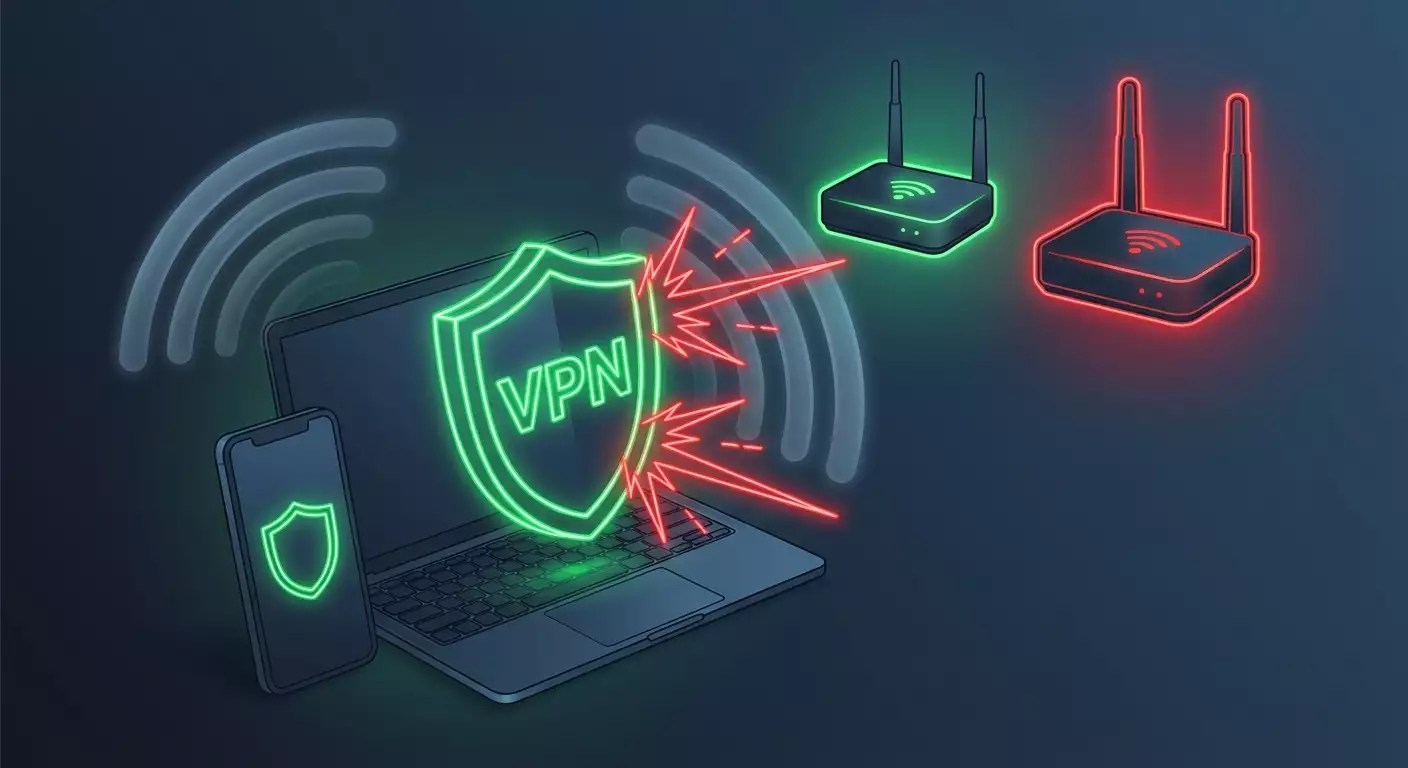
Why is this a big deal now? Our hybrid work lives, mobile payments, and apps with two-factor authentication all need seamless, secure online access. Attackers use deauth to forcibly disconnect you, then slip in an evil twin access point—a fake network with the same name—to intercept traffic, redirect you to phishing portals, or steal DNS requests. And if you’re not running a VPN immediately, there’s a vulnerable moment right after you reconnect where all the bad stuff happens—and you feel the impact.
Wi-Fi Is Safer, But Not Everywhere or for Everyone
"Doesn’t WPA3 fix this?" you might ask. Partially. The WPA3 standard and Protected Management Frames (PMF, 802.11w) block many old tricks. But in reality, compromises happen all the time: admins set PMF to optional, guests connect to open networks with captive portals, and some devices simply don’t support management frame protection properly. Additionally, roaming between access points, excess SSIDs, and compatibility settings leave gaps. In short, paper standards are forgiving, but your local coffee shop's network? Not always.
That’s why we recommend a two-tiered approach. At the Wi-Fi layer—insist on WPA3 and PMF. At the traffic layer—turn on VPN immediately, no pauses, no exceptions. This isn’t a magic button but a belt-and-suspenders strategy: secure the wireless channel where you can, and overlay a tunnel to keep attackers seeing only meaningless noise, even if you get kicked off and reconnect. Like using a seatbelt and airbags together: better safe than sorry.
VPN and Wi-Fi Myths vs. Reality
Myth #1: VPN stops all Wi-Fi attacks. Nope. Deauth happens over the air—it brutally interrupts the wireless channel to your device. VPN can’t prevent that. The truth is, VPN stops attackers from turning your forced reconnection into a MITM attack and closes the vulnerability window if it kicks in instantly and without leaks. That way, you keep your privacy—even when forced offline temporarily. Myth #2: Password-protected networks are safe. Not always. Lots of passwords are posted on sticky notes, and captive portals or "guest VLANs" often end up being less secure than they seem.
In 2026, Wi-Fi 7 and smarter client stacks on iOS, Android, and Windows are on the rise. But attackers aren’t sitting still—they use deauth floods as coercion, then bring out evil twins with identical SSIDs that even savvy users can’t spot easily. Our top advice? Make VPN a habit, like buckling your seatbelt. Turn on Wi-Fi, and immediately start your tunnel. No “later.”
How Deauthentication and Deauth Flood Work—in Simple Terms
Deauth and Disassoc Frames: Who Sends Them, to Whom, and Why
Without getting into the formulas, each Wi-Fi session has a "politeness protocol." Your client and access point can gracefully end a connection using disassociation or deauthentication frames. Attackers exploit this etiquette by faking "polite" messages to kick clients out. The trick is simple: the radio air is shared, and legacy clients trust these messages. When they receive a "time to go" command, devices obediently drop and try to reconnect.
What follows is a chain reaction: scanning for known SSIDs, trying to connect. At this moment, the attacker inserts their "mirror"—the evil twin access point using the same network name. If it’s an open or simply captive network, the odds you get tricked are high. That’s why a properly configured client and immediate VPN start are lifesavers. Your client should verify network details, and the VPN should jump in instantly, leaving no chance to send unencrypted data.
Deauth Flood: When "Politeness" Doesn’t Work
Sometimes, attackers don’t just send one or two frames—they flood the airwaves with hundreds of "go away" signals per second. That’s a deauth flood. The goal isn’t just to kick you off but to stop you from reconnecting, cause chaos, and push users toward alternatives like random free hotspots or phone hotspots. In the confusion, people make mistakes: clicking “yes” on the wrong portal, connecting to look-alike networks, and falling for phishing, proxies, and token theft.
Practically, this looks like "Wi-Fi disappears," your device keeps trying to connect endlessly, and your battery drains faster than usual. You get frustrated, clicking through every popup just to get online. That’s exactly what attackers count on. The key to defense? Calm automation: your client should reconnect only to verified networks calmly, and your VPN must activate immediately, blocking all other traffic if the tunnel isn’t up. No gray areas.
PMF and 802.11w: Savior or Compromise?
Protected Management Frames (PMF) aim to close this security gap. The idea is straightforward: to break a session, a deauth message must be cryptographically signed. Without a valid signature, the client ignores it. Sounds perfect? Almost. But there are caveats. First, PMF needs to be set to "required," not just "optional." Second, the client device must properly support it too. Third, on open captive networks, PMF is inherently powerless.
That’s where VPN steps in as a second line of defense. It can’t stop the radio command, but it makes the MITM part of the attack useless. Even if you get kicked off and automatically reconnect (or accidentally join an evil twin), the encrypted tunnel prevents attackers from reading or tampering with your traffic. Plus, a good kill switch shuts down any attempts to bypass the VPN. This turns a major threat into a minor annoyance.
The Classic Deauth and Evil Twin Combo
This scenario is well rehearsed. First, a deauth forces you offline. Then, the evil twin appears: same SSID, similar channel, sometimes even the same MAC address (BSSID) with a minor tweak. Next comes a fake captive portal “just for show,” and behind that, traffic proxying aiming to steal logins, cookies, and one-time codes. No rocket science here, just exploiting human errors and our rush.
Our solution remains unchanged: require PMF wherever possible, and start VPN instantly without manual clicks. If your corporate VPN supports Always-on and policies like "Block connections without VPN," turn them on without question. This closes the vulnerability window between reconnect and tunnel establishment. Sure, it might feel inconvenient sometimes, but your passwords and sessions will thank you with long, safe lives.
Evil Twin AP: How to Spot It and Avoid Falling for It
Three Signs Your Network Is a Twin: Looking Beyond SSID
Evil twins rarely give themselves away by changing the network name. The name might be identical, but details differ. Useful clues include a BSSID (the AP’s MAC) that doesn’t match what you’ve saved, sudden channel changes, or changes in encryption type—for example, suddenly "open" where it was always WPA2-PSK. Also, watch for unstable signals fluctuating between strong and weak, and unexpected captive portals where there were none before.
Many operating systems today remember not just SSIDs but security parameters too. If you spot an "unexpected" variant, it’s safer not to connect automatically. Instead, turn on mobile data, launch your VPN, and carefully check the network details. It might sound tedious, but it cuts your chance of falling for a MITM attack to almost zero. For convenience, set rules like "don’t auto-connect to open networks" and "always ask before connecting." Small steps that save big headaches.
Captive Portals: The Friendly Trap
Captive portals are consent pages providers use for legal reasons. Attackers copy them, add logos, and promise "free access for 60 minutes," tricking you into unknowingly entering email, passwords, or worse, corporate credentials. The rule is simple: never enter your work login on a captive portal outside your corporate domain or without a trusted Single Sign-On page. If you see a corporate login request outside the company’s domain, stop immediately. Close it, switch to LTE/5G, and access corporate services only via VPN.
The sneaky trick in 2026 is captive portals that proxy traffic—they give you internet but alter DNS and try to feed fake certificates for internal sites. If your browser warns you about untrusted certificates, that’s a red flag. Don’t ignore those warnings—they’re often what saves you from major trouble.
Modern Twin Tactics: OWE, Hotspot 2.0, and New Tech
To appear legitimate, attackers sometimes mimic new technologies. For example, OWE (Opportunistic Wireless Encryption) encrypts open networks, and Hotspot 2.0 (Passpoint) offers automatic connections like cellular roaming. On paper, these are about security and convenience. In practice, they’re another reason to double-check where and how you connect. Real Passpoint networks tie to operator or corporate profiles and install via configuration profiles—not random café click-throughs.
The takeaway? Trust only "trusted profiles" signed by known organizations. If you see a random "Install Wi-Fi Profile" popup from a browser, close it. And yes, even with these new standards, running a VPN on top isn’t a luxury—it’s a habit that protects you in murky scenarios.
Why VPN Is Your First Defense Against Evil Twins
Evil twins try to sit between you and the internet. But if all your traffic routes through a strongly encrypted VPN (like WireGuard or IKEv2 with EAP-TLS), the attacker’s role shrinks to waving empty pots—they see no logins, emails, or work schedules. Furthermore, a smart VPN client blocks all traffic until the tunnel is up so apps can’t slip out early. That means even a "successful" reconnection to an evil twin yields zero useful data for the attacker.
Our advice sounds simple and homey: make VPN part of your startup routine, enable Always-on and Kill Switch, and disable split tunneling unless absolutely necessary. Go for reliable, not flashy. Sometimes stricter means safer—especially on public Wi-Fi.
What VPN Can and Can’t Do Against Deauth Attacks
Frank Talk: VPN Doesn’t Block Radio Waves but Minimizes Damage
VPN isn’t Captain America’s shield against radio waves. Its power lies elsewhere—in encrypting and maintaining your traffic’s integrity. It turns your internet channel into an opaque pipe. Wi-Fi disconnection can still happen, but when you reconnect, the pipe is restored, and attackers see only encrypted packets. So, it’s about reducing harm, not magically making the network immune.
For smooth protection, details matter: fast re-keying, instant reconnect logic, and blocking leaks if connections drop. You want a VPN client that "holds the line" without clicking, detects restored connections automatically, and raises the tunnel on its own. With that, deauth is just a minor blip, not an open door to your emails and passwords.
Encryption Foils MITM Even If the AP Isn’t Yours
a middleman attacker is dangerous only if they can see or alter unprotected data. When your VPN is on, every app talks to servers inside a secure tunnel. Certificate spoofing fails due to TLS authentication, and DNS spoofing is thwarted if all requests go through the tunnel to trusted resolvers. The attacker ends up playing with an internet that works but reveals no secrets—not their intended role.
It’s crucial that DNS requests, SNI, and metadata also flow through the VPN. In 2026, top VPN clients use DNS-over-TLS inside the tunnel and seal off leaks from system services. Pay attention to settings like "Block connections without VPN" to prevent sneaky app traffic escaping before the tunnel is ready.
Kill Switch and Always-on: Two Essentials You Can’t Skip
Kill switch blocks all network traffic if the tunnel drops—it’s your emergency brake. Always-on means the VPN runs constantly from system startup. Together, they close the gap between "Wi-Fi connected" and "VPN active." Any microseconds without encryption are a golden opportunity for evil twins. Remove these windows, and most attacks fall apart.
Experience shows kill switch reduces "oops, I’m offline without VPN" incidents almost to zero. And Always-on shifts reliance from user discipline to reliable automation. In 2026, these features are the default for households and companies serious about protecting data.
Fast Protocol = Smaller Vulnerability Window
WireGuard, IKEv2, and modern QUIC-VPN implementations (like over TLS 1.3) offer lightning-fast reconnects—sometimes just fractions of a second. The quicker the tunnel pops back after deauth, the less chance apps send anything outside VPN or users try to "help" things manually. Plus, it’s vital the VPN handles network switches smoothly—from Wi-Fi to 5G and back. Protocols that preserve your session across such hops are your best friends.
Don’t chase exotic or unstable builds. Better stick to proven clients focused on reconnection speed and reliability rather than endless hidden options. Simplicity is security.
Why You Must Connect to VPN Immediately: The Critical Vulnerability Window
The Tiny Window After Connecting: Where the Risk Lives
You join "Coffee_WiFi_Free." Your system eagerly syncs email, opens messengers, updates widgets. If VPN isn’t up yet, those first requests go out unprotected: DNS queries leak, TLS handshakes start, sometimes even unencrypted HTTP metrics slip through. Skilled attackers can use this to learn who you are, where you go, and when to plant phishing pages or fake access points next time. Corporate devices multiply these risks.
No drama here—just facts. The first few seconds decide the outcome. If traffic never leaves without a tunnel, you stay safe. If it does, the attacker gathers metadata and might play a long game. Always-on VPN and blocking traffic before the tunnel shut down this vulnerability.
Auto-Launch, Auto-Raise, Auto-Check
Configuring VPN to turn on automatically isn’t a luxury, it’s basic digital hygiene. Auto-start clients, automatic best protocol choice, auto-session recovery after sleep or network switches, even post-captive portal failures. Great clients in 2026 let users open captive portals locally without releasing other traffic, then instantly re-establish the tunnel. Ideally, the user doesn’t have to think—policies just do their job.
Yes, some captive portals deliberately block VPN traffic. Smart clients detect this, open only the activation page, hold apps back from the internet, and restart the tunnel immediately after authorization. For users, it’s a couple clicks; for security, a smooth no-gap shield.
DNS, SNI, and ECH: Tiny Details That Give Us Away
Even with HTTPS sites, metadata reveal a lot. DNS queries show where you go. SNI in TLS reveals which domain you open. The fix? Route all this inside the VPN and encrypt metadata. In 2026, ECH (Encrypted Client Hello) is supported by major browsers and CDNs to hide domain names in handshakes. Great news—but it’s useless if your first request leaves unprotected. So, VPN must run before you browse.
On client settings, look for "force DNS through VPN," "block resolving outside tunnel," and "ECH support." Tiny options, huge impact. And remember the exception lists: the shorter, the better. Ideally, no exceptions on public networks.
Real-Life Cases: Cafe, Hotel, Airport
Cafe. A classic: someone kicks off a deauth flood, half the room loses connection, and suddenly "Coffee_WiFi_Free_5G" appears. People click a couple times and end up on an evil twin with a copycat portal. VPN users with Always-on and kill switch look boring: their apps stay silent until the tunnel’s up. Others get nervous.
Hotel. Guest Wi-Fi with IPTV gateways and weird login flows. Deauth forces guests to reverify their room number. Then a phishing page asks for card details for "deposit." Airport. Rush and a dozen "official" SSIDs. Deauth triggers a "fail—new SSID—quick click" pattern. Discipline is key: connect only to known networks and wait until VPN is on. No exceptions.
Practical User Protection: Clear Checklists
Smartphones: Android 14/15 and iOS 18
Android: enable Always-on VPN and "Block connections without VPN." Disable auto-connect to open networks. Forget unnecessary SSIDs in Wi-Fi settings, especially old "free" ones. Turn on randomized MAC addresses by default. Set alerts for suspicious captive portals. Ensure DNS goes through VPN, not your carrier’s default.
iOS: use profiles where VPN activates On-Demand (for any network). For corporate users—Always-on on supervised devices. Disable auto-joining open networks. Enable "Wi-Fi Limited Tracking" and private addressing. Make sure apps don’t send data before VPN’s icon lights up when switching Wi-Fi/5G. If a captive portal blocks VPN, authenticate and then immediately confirm the VPN restarts. Don’t launch apps before that.
Laptops: Windows 11/12, macOS 15, Linux
Windows: enable Always-on VPN policy, block traffic without VPN, disable split-tunneling on public networks. Enable interface metrics to prevent Wi-Fi from dropping VPN if Ethernet is active. Verify DNS clients (like DoH) work through the tunnel. macOS: use configuration profiles with RouteAllTraffic for public networks and enforce strict certificate checks. Linux: NetworkManager can auto-start VPN on network connect; configure it not to set default routes without VPN. On all platforms, ensure VPN is the first service up after waking from sleep.
Bonus tip: enable notifications on BSSID or security setting changes. Many clients and tools alert you if the SSID is the same but encryption differs. Small but valuable signals that "something’s off."
Home Wi-Fi: Raise the Bar
At home, configure WPA3-Personal and set PMF to required. Update your router’s firmware—this is real security, not a joke. Disable WPS, hide guest SSIDs behind simple rules: separate VLAN or at least client isolation. If devices don’t support WPA3, use mixed WPA2/WPA3 mode but keep PMF on for capable clients. Review connected devices regularly and remove unknown MAC addresses.
Why mention this in a VPN article? Because the fewer wireless holes at home, the less you fall back on risky "it’ll do" habits. Habits beat any lecture. If you’re used to a secure home, you’re less likely to click suspicious SSIDs in public. And yes, VPN at home can be useful—especially for remote corporate work.
Public Networks: Rules Made Simple
Simple rules: don’t auto-connect to open networks. Check SSID and security details. Never enter corporate credentials on captive portals. Don’t launch banking apps before your VPN is up. If the network fails, don’t jump onto the first random SSID—switch to mobile data instead. If browsers warn about certificates, don’t click "continue." Most importantly, enable VPN before your system starts syncing background tasks.
Boring? Maybe. Effective? Definitely. These small steps neutralize deauth tricks and give you control—not the attacker at the next table.
Best Practices for Business and Security Teams
VPN Policies: Always-on, Zero Trust, and Leak Prevention
In corporate environments, the question isn’t if you need VPN but how to make it invisible and mandatory. Always-on, kill switch, mandatory tunneling for all traffic outside trusted networks, strict segmentation, and ZTNA for apps are foundational. Block split-tunneling on public and sensitive networks. Use directory permissions, certificates, and a "least privilege" access policy. This drives MITM risk to zero and turns deauth into just noise—not a perimeter breach.
Ensure clients handle captive portals semi-automatically and never leak traffic outside the tunnel. Define MDM/EMM profiles that activate VPN before user login, especially on mobiles. And log any "internet access without VPN" events—ideally, there shouldn’t be any.
Wi-Fi Policy: WPA3-Enterprise and PMF Required
For offices: use WPA3-Enterprise with EAP-TLS, set PMF to required, disable old ciphers and anonymous methods. For guest networks: use OWE or isolated VLANs with mandatory captive portals and speed limits. Don’t mix production and guest SSIDs on one controller without clear isolation. Keep external guest areas physically separated when possible. Regularly check clients don’t detect "mirrors" on air—Wireless IDS helps here.
Review roaming settings: aggressive roaming can help attackers by pushing clients quickly to stronger but malicious signals. Either tone down roaming aggressiveness or enforce allow-lists on critical devices.
Monitoring: WIDS/WIPS and Deauth Metrics
Wireless IDS/IPS is essential. It spots spikes in deauth frames, flags suspicious BSSIDs, and logs SSID spoofing attempts. Mature systems in 2026 correlate this with VPN logs and application anomalies—e.g., "suspicious Wi-Fi event" alongside "12 employees lost tunnel simultaneously." This correlation enables quick responses: legally jamming attackers on site, adjusting power settings, and advising users.
Don’t forget reports: how many deauth events per day, hotspots, frequent victim devices. Sometimes the cause is simple—crowded channels, captive portal bugs, outdated firmware. Fix these and shrink your attack surface without any "cyber magic."
Training: Micro-Simulations and Reminders
People are your frontline defense. Short scenarios like "what to do if Wi-Fi drops," "how to spot a malicious captive portal," or "browser warnings signs" work better than long lectures. Add triggers in corporate messengers: when WIDS detects deauth spikes, bots warn staff "don’t connect to new SSIDs, wait for recovery, keep VPN on." Simple yet effective at stopping careless clicks.
And don’t hesitate to repeat: "VPN always. No VPN, no network." It’s not old-fashioned dogma but proven practice that stops half of attack scenarios before they start.
2026 Trends: Wi-Fi 7, WPA3 Everywhere, and Passpoint
Wi-Fi 7: Speed, Multi-Link, and New Challenges
Wi-Fi 7 (802.11be) brings Multi-Link Operation, wide channels, and crazy speeds—great for work and cloud apps. But security still depends on basics: WPA3, PMF required, and correct roaming. In multi-link mode, it’s crucial that clients carry VPN sessions seamlessly across links. The good news: modern clients can do this. The bad news: early firmware is still hit or miss. Updates are everything.
Deauth threats remain. But controllers have improved detection by correlating data across multiple radios. Admins get better visibility; attackers lose stealth.
WPA3 and OWE: The Reasonable Minimum for Guests
WPA3-Enterprise for employees and OWE for guests are becoming standards. This combo offers password-free encryption for guests and strong certificate-based authentication for staff. But remember: OWE doesn’t handle captive portals or replace VPN. It simply keeps the airwaves from being "naked." So we still recommend guest-facing tips: "Don’t enter sensitive info before enabling VPN."
Many hotels and airports switched to OWE in 2026. Still, during peak loads, admins sometimes simplify setups—security slips. Don’t rely on others’ discipline; trust your tunnel.
Passpoint/Hotspot 2.0: Convenient but Verify Sources
Passpoint makes Wi-Fi sign-in feel like cellular roaming: profiles, operators, automatic authentication—comfort and better security than universal public SSIDs. The catch: profiles must come from trusted sources. Company or operator? Yes. Random browser popup? No. Passpoint greatly reduces evil twin risks, but VPN remains essential to protect apps and data.
In corporate settings, Passpoint is great for guests: pre-installed profiles make them "trusted," while segmentation keeps chaos and phishing risks low.
VPN, ZTNA, and SASE Convergence
The line between "VPN for transport" and "ZTNA for apps" is blurring. In 2026, solutions where VPN tunnels handle transport, and app access is granted with continuous context checks, are popular. This helps against deauth: no data leaks to open internet during breaks, and apps get no access outside policies. When picking a platform, look for a unified client—less chance one component is on while the other is off.
Don’t forget observability: telemetry, latency, reconnect speed. Seeing means controlling. If your metrics say "the tunnel was always on," you sleep better. If not, grab your SRP and SLO charts.
Case Studies and Common Mistakes
Case 1: Conference and the “Official” SSID
Real scenario: a big conference with thousands attending. The official SSID sounds legit, but nearby pops up a nearly identical one with a one-letter difference. Someone launches deauth, people disconnect en masse, then connect to the fake "almost official" network. The attacker rolls out a captive portal, harvesting emails and stealing webmail tokens. Those with Always-on and kill switch look boring: their apps stay silent until the tunnel’s active. Others panic.
Lesson: don’t trust network names alone. You need device policies and the habit of watching the VPN indicator. If it’s off, you’re not online yet—no matter how tempting it is to sneak a quick peek at the schedule.
Case 2: Hotel Wi-Fi and “Confirm Your Card Number”
Hotel, late night, you’re tired. Wi-Fi drops then reconnects, but a “confirm card for deposit” page appears. Often a phishing trick delivered via a twin after deauth. Signs include strange domains, no TLS or sketchy certificates, grammar errors. The right move? Close it, switch to LTE/5G, use the official app or hotel website. Always through VPN. Ideally, tell reception—let them check their network. Believe me, they care.
These cases are unpleasant but solved with discipline and device automation. The less you do manually, the fewer mistakes you make.
Top Five User Mistakes We See Most
Mistake #1: "I’ll just click once without VPN." That one click gets discussed with security later. #2: Auto-connecting to any open network. #3: Ignoring browser certificate warnings. #4: Huge VPN exception lists. #5: Old home routers and the "it’ll do" mindset. See yourself in any point? Don’t scold yourself—just fix it. Five minutes of settings saves five headaches.
Bonus mistake: believing "password means secure." Passwords are just polite doors, not armor.
What to Do If You’re Constantly Kicked Offline
Step one: don’t panic. Switch to mobile data and give your device a couple minutes. Step two: avoid joining new or suspiciously named SSIDs. Step three: check VPN settings—Always-on on? Kill switch active? Step four: if at work, alert IT—maybe someone nearby is tampering, and WIDS can detect. Step five: update Wi-Fi drivers and firmware. Sometimes it’s just instability, not an attack.
Also, review and clean up your "forgotten" networks list. Fewer temptations mean fewer traps.
A Daily Step-by-Step Personal Protection Plan
Morning: Home and Office
At home, confirm your router firmware is up-to-date, WPA3 is enabled, and PMF is required. On laptops and phones, ensure VPN starts with the system. Before leaving, disable auto-connect to open networks. At the office, watch your VPN indicator—it should always be on, especially when moving between floors and access points. These small rituals take seconds but build a security foundation for your whole day.
If your office Wi-Fi acts odd, don’t stay silent. Alert IT. It might be a glitch, someone’s ‘‘optimization,’’ or a MITM attempt. Transparency is security’s ally.
Daytime: Cafes and Coworking
In cafes, don’t rush to accept the captive portal terms. First ensure your VPN is ready, then accept the rules and let your client reconnect silently. If the network drops unexpectedly, don’t switch to the "new version" SSID immediately. Just breathe, switch to mobile data, VPN active, and decide if the Wi-Fi is worth the stress.
In coworking spaces, ask network admins for the exact SSID and encryption type. If they promise WPA3 but you see an open captive portal, think twice. You can walk away. Your data is worth more than a faster download.
Travel: Airports and Hotels
At airports, stick to official SSIDs, preferably via Passpoint if available. Be extra vigilant with "almost identical" network names. At hotels, plan ahead: if Wi-Fi seems sketchy, use your phone’s 5G hotspot for work and payments. And always keep your VPN on. Even "just for a minute" is when problems happen.
For corporate teams, it’s useful to provide guides for airports and hotels the company frequents. This little knowledge base saves nerves and cuts risks.
Unusual Situations: Tethering, Public USB, IoT
Tethering from your phone is a handy alternative to public Wi-Fi. But remember: use a password, update your device, and limit hotspot duration. Public USB ports are dangerous: only charge via a "USB condom" or your own charger. IoT devices? Keep them on a guest network at home; don’t connect them in cafes or hotels. And yes, VPN on your phone and laptop—no exceptions.
Sometimes we seem overcautious. But experience shows: investing a little in precautions costs pennies compared to the fallout of a successful MITM attack.
FAQ: Quick Answers to Key Questions
Does VPN directly block deauth attacks?
No. Deauth is a radio message disconnecting you at the Wi-Fi layer. VPN doesn’t control the airwaves. But VPN vastly reduces deauth’s value to attackers: after reconnecting, all traffic is encrypted, and the kill switch blocks leaks outside the tunnel.
Do WPA3 and PMF prevent being kicked offline?
Yes, if PMF is set to required and the client supports it, faked deauth frames are much harder to use. It’s not a silver bullet but strong defense. On open captive networks, PMF doesn’t work—VPN is especially crucial there.
Should I enable VPN before authenticating in a captive portal?
Usually yes. Good clients let you open the captive portal page locally without leaking other traffic, then immediately restore the tunnel. If the captive portal blocks VPN, authenticate first, then confirm the VPN restarts. Don’t launch apps beforehand.
Is Passpoint/Hotspot 2.0 risky?
Passpoint itself is safer than random public Wi-Fi if the profile is from a trusted source. But it doesn’t replace VPN. You still need a tunnel to protect app data and metadata from MITM in sketchy environments.
Should I use split tunneling?
Better to disable split tunneling on public networks. The less traffic outside VPN, the smaller your attack surface. For corporate needs, fine-tune carefully—but default to "all in VPN" on unfamiliar Wi-Fi.
How can I tell if there’s an evil twin nearby?
Signs include: identical SSID but different encryption, unknown BSSID, unstable signals, unexpected captive portals, browser certificate errors, and VPN won’t connect. When these happen, switch to mobile data and don’t take risks.
What if my network keeps dropping and VPN can’t keep up?
Enable Always-on and kill switch, update clients, try faster protocols like WireGuard, and reduce VPN exceptions. If at work, notify IT—they may need to tune access points, roaming, or WIDS. For urgent tasks, switch to mobile data.
Publisher: vpn.how