VPN на роутере или на устройстве? Сравнение 2026: скорость, защита, утечки, выводы
VPN на роутере vs на устройстве в 2026 году: скорость WireGuard, безопасность, утечки DNS и IPv6, сплит-туннелинг, кейсы для дома и работы. Пошаговые рекомендации, ошибки, настройка OpenWrt и AsusWRT-Merlin, реальные цифры и практические советы.
Содержание статьи
- Что такое vpn на роутере и vpn на устройстве: суть и разница
- Производительность и скорость: железо, протоколы, цифры
- Гибкость и контроль: кого и как пускать в туннель
- Безопасность и приватность: кого защищаем и от чего
- Утечки: dns, ipv6, webrtc и другие сюрпризы
- Стоимость и сложность: время, деньги, нервы
- Игры, стриминг, торренты: каждый любит свое
- Сценарии и кейсы 2026: от квартиры до коворкинга
- Пошаговые рекомендации: как выбрать и не пожалеть
- Краткая настройка и советы: без шаманства
- Типичные ошибки и как их ловить
- Итоги: что выбрать в 2026 и почему
- Faq: коротко о главном
Если вы задумались, где держать VPN в 2026 году — на роутере или прямо на устройствах — вы не одиноки. Интернет стал быстрее, умный дом — умнее, а требования к приватности гораздо жестче. Мы живем в эпоху Wi‑Fi 7, 2.5G/10G портов и 5G-Advanced, а вместе с этим выросли и ожидания: хотим гигабит через VPN, минимальный пинг в играх и ноль утечек. Возможно ли совместить всё? Давайте разбираться честно и без сухой теории. Мы сравним производительность, гибкость, безопасность, риски утечек и дадим конкретные рекомендации на каждый жизненный сценарий. Без воды, но с живыми примерами, цифрами и проверенными практиками.
Важный спойлер. Нет единственно правильного ответа. Иногда спокойно ставим VPN на роутер и забываем о проблеме. Иногда лучше выделить конкретные устройства или даже приложения. А иногда выигрывает гибрид: роутер защищает всё «умное стадо», а ноутбук и смартфон получают тонкую настройку. Хотите разбираться как эксперт и принимать уверенные решения? Поехали.
Что такое VPN на роутере и VPN на устройстве: суть и разница
Как работает VPN на роутере
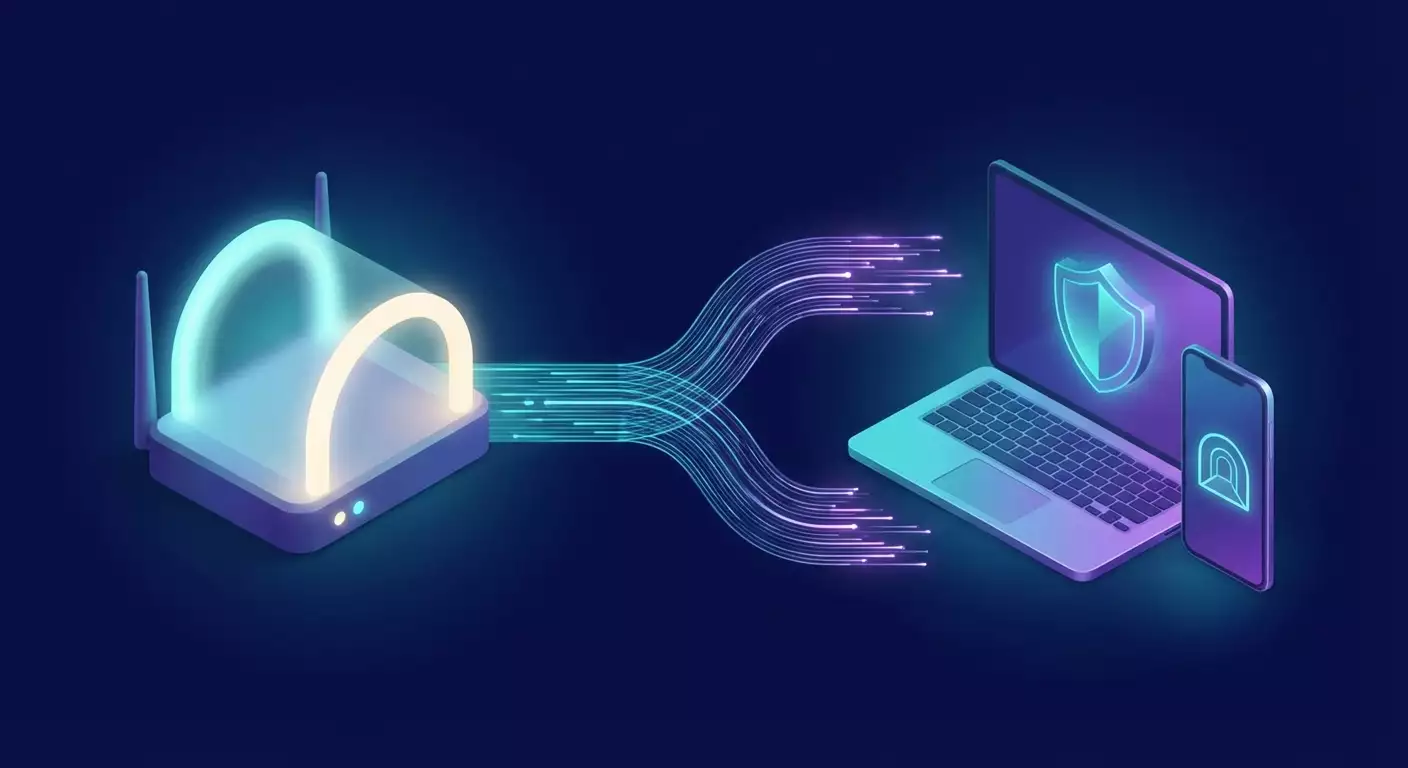
VPN на роутере — это когда сам роутер поднимает туннель к провайдеру VPN и маршрутизирует через него весь или выбранный трафик вашей локальной сети. Проще говоря, из квартиры или офиса наружу выходит одна защищенная труба. Для устройств внутри все прозрачно: они просто подключаются к Wi‑Fi и не знают, что их трафик уже зашифрован.
Звучит удобно, правда? Один клиент — и десятки гаджетов под защитой. Смарт-телевизоры, приставки, детские планшеты, лампочки, камеры и даже умный холодильник — все получают один внешний IP и шифрование. Более того, роутер может навешивать правила на уровне MAC- или IP-адресов: кто идет в туннель, кто наружу, кому нужен сплит-туннелинг, а кому блок рекламы через локальный DNS.
Как работает VPN на устройстве
VPN на устройстве — это отдельные приложения и клиенты на Windows, macOS, Linux, iOS, Android, игровых консолях и ТВ-боксах, если они поддерживаются. Каждое устройство само устанавливает сессию, выбирает протокол и сервер. Такой подход дает тонкий контроль: включили VPN только для браузера и загрузчика, но оставили локальные сервисы без шифрования. Или создали отдельные профили для стриминга и работы, переключая их в два клика.
Плюс мощные устройства тянут высокую скорость даже на тяжелом шифровании. Но есть обратная сторона. Нужно ставить и обновлять ПО на каждом девайсе. А IoT и техника без клиентов VPN остаются за бортом. Все, как водится, упирается в ваши задачи и терпение.
Почему сравнение важно именно в 2026
Сегодняшний дом — это мини-сеть с десятком, а то и тридцатью устройств. В 2026 году Wi‑Fi 7 стал мейнстримом, гигабиты по воздуху больше не мечта. Провайдеры массово дают 500 Мбит/с, 1 Гбит/с и выше. VPN-провайдеры переписали клиенты под WireGuard и подхватили QUIC-подобные улучшения для устойчивости. Но закономерность простая: чем выше скорость, тем заметнее узкие места. Чуть слабее роутер — и туннель режет потолок вдвое. Чуть неправильная политика маршрутизации — и прилетают утечки DNS или жуткий пинг.
Сделать «просто работает» уже мало. Нужно «работает быстро, безопасно и предсказуемо». Вот почему стоит взвесить обе стратегии не на пальцах, а по реальным критериям.
Производительность и скорость: железо, протоколы, цифры
Протоколы и их реальная скорость
В 2026 лидирует WireGuard: легкий, современный, быстрый. На бытовом роутере с хорошим CPU WireGuard дает 300–800 Мбит/с, на топовом x86-сервере — гигабит и выше. OpenVPN, хотя жив, обычно медленнее из-за архитектуры и нагрузки на CPU. IPSec и IKEv2 хороши для совместимости, но в домашнем сегменте реже встречаются в чистом виде. Некоторые провайдеры предлагают свои реализации на базе WireGuard (например, с двойным NAT и улучшенным управлением ключами), сохраняя скорость.
Стоит помнить: не скорость провайдера интернет решает все. Узким горлышком чаще всего становится именно железо, а еще MTU на пути, перегруженные маршруты у VPN-провайдера и ограничение одним потоком. Хотите честные цифры? Смотрите на тесты в вашей сети, а не только на рекламные бенчмарки.
Роутер против устройства: где быстрее
На ноутбуке с современным процессором WireGuard дает 800–1200 Мбит/с без особых шаманств, порой больше. Смартфоны флагманского уровня вытягивают 400–800 Мбит/с через мобильный VPN-клиент. А вот роутер — лотерея. Модель с ARMv8 и аппаратным ускорением шифрования легко покажет 300–700 Мбит/с, но бюджетные коробки падают до 80–200 Мбит/с. И это при том, что ваш тариф, скажем, 1 Гбит/с. Обидно? Еще как.
Именно поэтому любители скорости чаще ставят VPN на устройства с мощным железом. Однако если у вас Mesh на Wi‑Fi 7 и толковый роутер с 2.5G WAN, картина меняется. Хорошая прошивка, WireGuard и правильные настройки — и туннель перестает быть узким местом. Наконец-то.
Практические сценарии измерений
Кейс первый. Домашний тариф 1 Гбит/с, роутер среднего уровня. WireGuard на роутере дает 350–450 Мбит/с, на ноутбуке — до 1 Гбит/с. Вывод: для таскающих большие файлы и торренты на конкретной машине разумнее клиент на устройстве.
Кейс второй. Семья из пяти человек. Стриминг 4K, игры, видеозвонки, IoT. Один туннель на роутере с PBR гонит в VPN только ТВ, медиаприставку и детские планшеты. Ноутбук родителя — свой клиент для работы с корпоративной сетью. В итоге у каждого профиля своя скорость и минимум конфликтов. Баланс — наше все.
Гибкость и контроль: кого и как пускать в туннель
Политики маршрутизации на роутере
Сильная сторона роутера — централизованный контроль. Политики маршрутизации позволяют решить, какие устройства или подсети идут через VPN, а какие — напрямую. Добавьте сплит-туннелинг по доменам или IP-диапазонам, исключите банкинг и локальные ресурсы провайдера, направьте потоковые сервисы через нужный регион. Всё на уровне одной точки. Очень удобно, особенно если в сети десятки гаджетов.
Плюс можно подключить AdGuard Home или аналог на самом роутере. Результат — системная блокировка трекинга и рекламы для всей сети. Красиво и практично.
Тонкая настройка на устройстве
Клиенты на устройствах умеют больше в деталях. Пер-апп туннелинг, временные профили под конкретные задачи, принудительный Kill Switch и разные DNS на разные профили — все это легко настраивается без копания в iptables или nftables. Например, можно пустить весь браузер через VPN в Стамбул, чтобы смотреть нужный каталог стриминга, и параллельно оставлять Teams или Zoom напрямую для лучшей задержки и стабильности.
Еще пример. Игрок включает VPN только для защищенных загрузок, тогда как сами игры идут без туннеля ради низкого пинга. Быстро, логично, прозрачно.
Мультивпн и резервирование
На роутере можно держать несколько VPN-подключений и переключаться правилами. Например, трафик ТВ через сервер в Праге, а все остальное — через Франкфурт. При падении одного туннеля PBR перекинет нужные сети на резерв. На устройствах сделать так тоже можно, но придется поддерживать профили на каждом гаджете — не всем это подходит.
Если хотите максимум гибкости, берите гибрид: часть через роутер, часть — через локальных клиентов. В 2026 это уже стандартная практика у продвинутых пользователей.
Безопасность и приватность: кого защищаем и от чего
Защита IoT и техники без клиентов
Вот где роутер выигрывает безоговорочно. Камеры, смарт-ТВ, колонки, принтеры, роботы-пылесосы — не всегда умеют VPN. Подключив туннель на роутере, вы оборачиваете их трафик в шифрование и прячете от провайдера. Плюс можете изолировать такие устройства в отдельной VLAN и дать им доступ наружу только через VPN, без попадания в вашу основную сеть. Приватность и гигиена сети в одном флаконе.
На устройствах такой фокус невозможен, если у самого гаджета нет клиента. Так что для умного дома роутер — чуть ли не мастхэв.
Кил-суич и «все яйца в одной корзине»
На роутере очень легко сделать системный Kill Switch: нет туннеля — нет выхода в интернет. Вообще. Это защита от случайной деанонимизации, особенно если вы качаете торренты ночью или стримите через зарубежный IP. Но есть нюанс. Если сломается туннель на роутере, упадет интернет у всей сети. Удобство превращается в точку отказа. По-хорошему, нужно ставить автоматический перезапуск, резервный туннель и мониторинг.
На устройствах падение VPN бьет только по одному пользователю. Зато можно включить жесткий Kill Switch в приложении и спать спокойно. Компромисс очевиден.
Приватность, журналы и единый внешний IP
VPN на роутере дает всем устройствам один внешний IP-адрес. Это хорошо для геосервисов и управления доступом. Но иногда это палка о двух концах: платформам проще сопоставить ваши действия по одному IP и ограничить доступ, если обнаружены совпадения и подозрительная активность. С клиентами на устройствах у вас больше вариаций: разные регионы на разных устройствах, разные IP — меньше корреляций.
Отдельно помним про журналы провайдеров. Мы не даем советы по конкретным сервисам, но правило простое: читайте политику логов и доверяйте, а проверяйте тестами. Включайте свой DNS, проверяйте утечки, мониторьте логи роутера. В 2026 паранойя — это не ругательство, а здравый смысл.
Утечки: DNS, IPv6, WebRTC и другие сюрпризы
DNS-утечки и их профилактика
Классика жанра: вы думаете, что весь трафик идет через VPN, но DNS-запросы летят напрямую к провайдеру. На роутере лечится жесткой привязкой DNS через туннель, запретом 53 порта наружу и использованием DoT или DoH на самом роутере. Многие прошивки позволяют принудительно перенаправлять любой DNS-трафик на локальный резолвер, а тот уже ходит через VPN. Заводим правила — и готово.
На устройствах все проще и сложнее одновременно. Хорошие клиенты подменяют DNS автоматически, но браузеры с DoH могут пойти в обход. Выключаем DoH в браузере или настраиваем его на резолвер через VPN. Проверяем через тесты утечек. Лишняя проверка — не лишняя.
IPv6-утечки: не игнорируйте шестую версию
В 2026 IPv6 уже обычное дело. Проблема в том, что не все VPN-сети корректно маршрутизируют IPv6. Итог — IPv4 через туннель, а IPv6 наружу, привет утечка. Решение очевидно: либо полностью отключить IPv6 на интерфейсах, идущих в туннель, либо поднять полноценный IPv6 внутри VPN. На роутере это делается через настройки интерфейсов и фаервола. На устройствах — в клиенте и системе. Главное — проверяйте. Один тест — и вы спасли приватность.
Совет из практики. Если не уверены, лучше временно отключить IPv6 и включать его по мере готовности конфигурации. Лук дороже шкуры, как говорится.
WebRTC и особенности браузеров
WebRTC может палить ваш реальный IP для P2P связей и ускорения соединений. На устройствах это лечится плагинами, настройками в браузерах и системными правилами. На роутере WebRTC не «починить» напрямую, потому что это история приложения, но вы можете снизить риск, если режете прямые исходящие UDP по определенным портам вне VPN. Лучше всего комбинация: запрет прямых STUN-запросов в браузере плюс корректная маршрутизация на роутере.
И конечно, после настройки — снова тесты. Мы же не наивные романтики, мы практики.
Стоимость и сложность: время, деньги, нервы
Выбор и настройка железа
Для VPN на роутере важнее всего CPU. И не просто частота, а наличие криптоускорения. Роутер без ускорения шифрования упрется в 100–200 Мбит/с и слезы. Модели с достойным ARM и поддержкой WireGuard дают полосу в сотни мегабит. Плюс стабильная прошивка: OpenWrt, AsusWRT-Merlin, некоторые фирменные прошивки уже нативно поддерживают WireGuard и PBR.
Если хочется гигабит через туннель, подумайте о мини-ПК на x86 с pfSense, OPNsense или OpenWrt x86 и отдельной точке доступа Wi‑Fi 7. Да, дороже и чуть сложнее. Зато скорость и гибкость как у взрослых.
Поддержка и обновления
Роутер как единая точка управления — это плюс в обслуживании. Обновили один раз — вся сеть поехала в нужном направлении. Но и минус там же: ошибка в конфиге, и семья без интернета в субботу вечером. Лучше иметь бэкап настроек и план B: запасной профиль без VPN, список команд восстановления, резервный интернет через 5G.
На устройствах обновления летят сами по себе, клиенты VPN дорабатываются быстро, и вы можете не вырывать провод из стены, если что-то пошло не так. Зато придется поддерживать парк клиентов и профилей, объяснять близким, почему у них пропал стриминг после апдейта. Жизненно.
Скрытые издержки
Скрытых расходов масса. Время на тесты. Нервы на поиск утечек. Понимание логов и правил. Электричество для мини-ПК, если решите развернуться по полной. Но оно того стоит, когда вся система работает как часы. Нужна ли вам эта гибкость? Ответьте себе честно, прежде чем покупать «самый быстрый» роутер.
Игры, стриминг, торренты: каждый любит свое
Игры и задержка
Игроки знают: пару миллисекунд — и уже промах. VPN на роутере может добавить 5–20 мс в зависимости от маршрута. Иногда терпимо, иногда нет. Если у игры строгая античит-политика, дополнительный IP и латентность вызывают сомнения у сервера. В таких случаях выгоднее держать VPN на устройстве и включать его точечно для загрузок, а сами матчи вести напрямую.
Любите стабильность? Тогда настроьте PBR: игры в обход туннеля, голосовой чат и апдейты через VPN. Парадоксально, но так часто лучше и по пингу, и по безопасности.
Стриминг и геосервисы
Стриминг любит простоту. Один IP на всю квартиру — меньше танцев с бубном. Роутер с VPN решает задачу на уровне сети. Но если платформа проверяет слишком много параметров, помогает раздельная схема: ТВ и приставка через роутерный VPN в нужном регионе, ноутбук — свой клиент, который не ломает локальные банки и сервисы.
Скорость важна. Для 4K достаточно 25–40 Мбит/с, для 8K — от 80–100 Мбит/с. Даже средний роутер с WireGuard вытянет поток. Вопрос не в пике, а в стабильности. Выбирайте сервер поближе, избегайте перегруженных узлов, держите запас по пингу и джиттеру.
P2P и порты
Для торрентов важен порт-форвардинг на стороне VPN-провайдера. Не все его дают. На роутере вы централизуете P2P-клиенты и настраиваете порт один раз. На устройствах — гибче, но больше действий. Опять же, гибрид рулит: роутер закрывает менее важные устройства, а мощный ПК с клиентом получает полный контроль, включая шифры, порты и ограничения скорости на ночь.
И не забывайте про Kill Switch. Одно падение туннеля — и ваш IP в розовом свете. Неприятно.
Сценарии и кейсы 2026: от квартиры до коворкинга
Семья в квартире на гигабите
Тариф 1 Гбит/с, Wi‑Fi 7, 15–20 устройств. Роутер с WireGuard дает 500–700 Мбит/с через туннель, чего достаточно для всего дома. Включаем PBR: ТВ и детские устройства всегда через VPN, IoT — через VPN и отдельный VLAN, ноутбуки родителей — напрямую по умолчанию, но профиль VPN на устройствах — для работы и стриминга из нужного региона. DNS — через AdGuard Home, DoT наружу через туннель. Проверяем IPv6. Стабильность и контроль без «танцев» на каждом гаджете.
Результат: удобство и приватность по умолчанию, а когда нужна тонкая настройка — включаем клиент на ноутбуке.
Фрилансер с доступом к корпоративной сети
Рабочие ресурсы требуют корпоративный VPN. Личный VPN на роутере может конфликтовать с маршрутами. Решение — разнести контуры. Домашний роутер держит пользовательский VPN только для медиаприставок и IoT, а рабочий ноутбук подключается к корпоративному VPN независимо. Если нужно совмещать каналы, используем пер-апп сплит-туннелинг на ноутбуке: рабочие приложения идут в корпоративный туннель, а личный трафик — через роутерный VPN или напрямую.
Так мы избегаем конфликтов маршрутов, двойного шифрования и проблем с доступом к внутренним порталам.
Коворкинг или дача с 5G-Advanced
Мобильный интернет нестабилен по задержке, зато быстр в пике. Роутер с двумя WAN и автофейловером: основной канал — оптика, резерв — 5G. VPN на роутере фиксирует публичный IP от провайдера VPN, чтобы удаленные сервисы и клиенты всегда «видели» вас одинаково. Это важно для подключений к облачным серверам и VoIP.
Если собираются гости, значит нужна гость-сеть без VPN и без доступа к локалке. Ваши рабочие устройства — в отдельной сети, всегда через туннель и с ограничением P2P. Безопасность прежде всего, и никаких сюрпризов от чужих ноутбуков.
Пошаговые рекомендации: как выбрать и не пожалеть
Быстрый чек-лист
- Хотите защищать все устройства, включая IoT, с минимумом возни? Ставьте VPN на роутер.
- Нужна максимальная скорость на одном-двух мощных девайсах и гибкий контроль приложений? Клиенты на устройствах.
- Нужно и то, и другое? Гибридный подход: роутер плюс локальные клиенты.
- Играете с низким пингом? Игры — мимо VPN, загрузки — через VPN.
- Много стриминга из одного региона? Роутер берет эту роль, а остальное — по ситуации.
Матрица решений без таблиц
Если скорость важнее всего, а роутер слабый — VPN на устройстве. Если безопасность всего периметра важнее скорости — VPN на роутере. Если у вас корпоративные требования — избегайте лишнего туннелирования на роутере для рабочих машин. Если вы любите порядок и хотите делать меньше руками — централизуйте на роутере и подправляйте частные случаи локальными клиентами.
Похоже на оркестр. Роутер — дирижер, а устройства — солисты. Иногда дирижер ведет всю партию. Иногда солисты выходят вперед. Конечная музыка — стабильный, быстрый, приватный интернет.
Гибрид — компромисс чемпиона
Выставляем VPN на роутере для базового уровня защиты, рекламы и геосервисов. На ноутбуках и смартфонах оставляем клиентов для задач, требующих тонкого контроля и скорости. Добавляем PBR по устройствам и доменам, фильтруем DNS через туннель, проверяем IPv6. Ставим мониторинг туннеля на роутере и Kill Switch на ключевых клиентах. Готово.
И да, делаем бэкап конфигов. Лучше пять минут сейчас, чем ночь без сети потом.
Краткая настройка и советы: без шаманства
Роутер: WireGuard, PBR, Kill Switch
Выбираем прошивку с нативной поддержкой WireGuard: OpenWrt, AsusWRT-Merlin и т.д. Создаем интерфейс WG, прописываем публичный ключ, адреса и маршрут по умолчанию только для нужных сетей. Настраиваем PBR: список устройств и доменов, которые идут в туннель. В фаерволе запрещаем выход наружу при падении интерфейса WG — это и есть Kill Switch.
Добавляем локальный резолвер с DoT или DoH, принудительно перенаправляя DNS на роутере. Тестируем: DNS, IPv6, скорость, пинг. Профили сохраняем. Ставим автоматический перезапуск туннеля и оповещения при падении.
Устройство: клиенты и сплит-туннелинг
Ставим клиента с поддержкой WireGuard или собственного быстрого протокола провайдера. Создаем профили: потоковый регион, рабочий профиль, общий быстрый. Включаем Kill Switch и сплит-туннелинг по приложениям. Отдельный DNS под каждый профиль, если нужно. Проверяем WebRTC и выключаем обходные DoH в браузерах.
На смартфонах не забываем про оптимизацию батареи: включение VPN по требованию, выключение в спящем режиме или исключение тяжелых приложений. Мелочь, а приятно.
Тестирование и мониторинг
Проверяем скорость в нескольких локациях, а не только в «самой ближайшей». Тестируем пинг и джиттер, особенно для игр и звонков. И, конечно, прогоняем утечки DNS и IPv6. Смотрите на стабильность, а не только на пиковую скорость. Лучше 400 Мбит/с неизменно, чем 800 Мбит/с раз в пятницу ночью.
Логи — ваши друзья. Но не сидите в них сутками. Настройте алерты и графики, чтобы видеть тренды и ловить проблемы до того, как вам позвонят из гостиной.
Типичные ошибки и как их ловить
Конфликты маршрутов и DNS
Самая частая беда — когда маршрут по умолчанию и PBR тянут канат в разные стороны. Помните: интерфейсы и приоритеты решают все. Не смешивайте полный маршрут через VPN с выборочным PBR без понимания порядка правил. С DNS аналогично: если на устройстве включен прямой DoH, он может обойти резолвер роутера. Лечим настройками или централизованной блокировкой.
Золотое правило. Сначала простой сценарий, потом усложняйте. Шаг за шагом.
Двойной NAT и CGNAT
Если у вас провайдер под CGNAT, входящие соединения к вам не дойдут. VPN с порт-форвардингом решит проблему, но не все провайдеры его дают. Проверяйте заранее. Двойной NAT между модемом и роутером тоже вреден. Либо переводим модем в мост, либо роутер в DMZ модема. Станет легче жить.
В играх и P2P двойной NAT особенно болезненный. Уберите его — и увидите разницу сразу.
Слишком тяжелые шифры и лишние сервисы
Не всегда «самый сильный» шифр и пять прокладок — это благо. Выигрываете в теории, проигрываете на практике. WireGuard с правильной конфигурацией даст вам отличную защиту и высокую скорость. Отключайте ненужные сервисы на роутере, которые едят CPU, оставляйте только нужное. Чистота — залог скорости.
И не бойтесь пересматривать решения. Сеть — живой организм. Сегодня одно лучше, завтра другое. Гибкость — ваш козырь.
Итоги: что выбрать в 2026 и почему
Когда VPN на роутере — лучший выбор
Когда у вас много устройств, особенно IoT, и вы хотите защитить всех сразу. Когда важен единый регион для стриминга на ТВ и минимум телодвижений на каждом гаджете. Когда вы цените порядок, централизованный контроль, рекламы меньше, утечек DNS нет, и все это работает тише швейцарских часов.
Если роутер тянет хорошие скорости по WireGuard — это почти идеальный вариант для семьи или небольшого офиса.
Когда VPN на устройстве — без вариантов
Когда нужна максимальная скорость на конкретном мощном ПК или ноутбуке. Когда вы играете и считаете миллисекунды. Когда корпоративные политики не дружат с вашим домашним туннелем. Когда нужен сверхточный контроль: приложение за приложением, профиль за профилем.
Это не хуже и не лучше. Просто другой инструмент для другой задачи.
Короткое резюме для занятых
Хотите «раз и навсегда» — ставьте на роутер. Хотите «точно и максимально быстро» — ставьте на устройство. Хотите оба мира — гибрид. Пара правил PBR, аккуратный DNS, проверка IPv6, и вы уже на голову выше среднего пользователя. Да, звучит как реклама простых решений, но мы-то знаем: простота достигается опытом, а не чудом.
FAQ: коротко о главном
Вопрос: Сколько скорости я потеряю через VPN на роутере?
Ответ: Зависит от роутера и протокола. В среднем WireGuard на хорошем бытовом роутере дает 300–700 Мбит/с. На слабых моделях может просесть до 100–200 Мбит/с. На мощном ПК клиент легко даст 800 Мбит/с и выше.
Вопрос: Можно ли обезопасить IoT без VPN на роутере?
Ответ: Частично. Можно сегментировать сеть и ограничить доступ IoT к интернету, но без VPN их трафик идет открыто для провайдера. Проще и надежнее поднять туннель на роутере и пустить IoT через него.
Вопрос: Что делать с IPv6, чтобы не было утечек?
Ответ: Либо полностью отключить IPv6 на том интерфейсе, который должен идти в туннель, либо настраивать полный IPv6 через VPN. Главное — проверить тестами. Если сомневаетесь, отключите IPv6 до полной конфигурации.
Вопрос: Игры и VPN — это вообще совместимо?
Ответ: Да, но не всегда нужно. Часто выгоднее пустить сами игры напрямую ради пинга, а загрузки и голосовой чат — через VPN. Если античит ругается на VPN, играйте без туннеля, а все остальное — по ситуации.
Вопрос: У меня корпоративный VPN. Можно поверх него домашний на роутере?
Ответ: Можно, но не всегда разумно. Маршруты могут конфликтовать. Проще вынести рабочий ноутбук из роутерного VPN и использовать корпоративный клиент напрямую. Домашний VPN на роутере оставить для ТВ, IoT и личных устройств.
Вопрос: Какой протокол выбрать в 2026 году?
Ответ: Для дома и личных задач — WireGuard как первый выбор. Он быстрый, устойчивый и поддерживается большинством провайдеров. OpenVPN — для совместимости и старых сценариев. IKEv2 — когда нужна стабильность на мобильных, но скорость может уступать WireGuard.
Вопрос: Гибрид — не слишком сложно?
Ответ: Нет, если идти постепенно. Поднимите VPN на роутере для базовых устройств и стриминга, а затем добавьте по клиенту на ключевые гаджеты. Пара вечеров — и все встает на рельсы. Результат того стоит.
Издатель: vpn.how