LG webOS y VPN a través del router: guía paso a paso desde cero hasta el resultado
Guía paso a paso para principiantes: cómo configurar VPN para Smart TV LG con webOS mediante el router, elegir el protocolo, conectar solo el televisor al túnel, configurar DNS y verificar que funcione. En 60–120 minutos obtendrás acceso estable a aplicaciones y bibliotecas regionales.
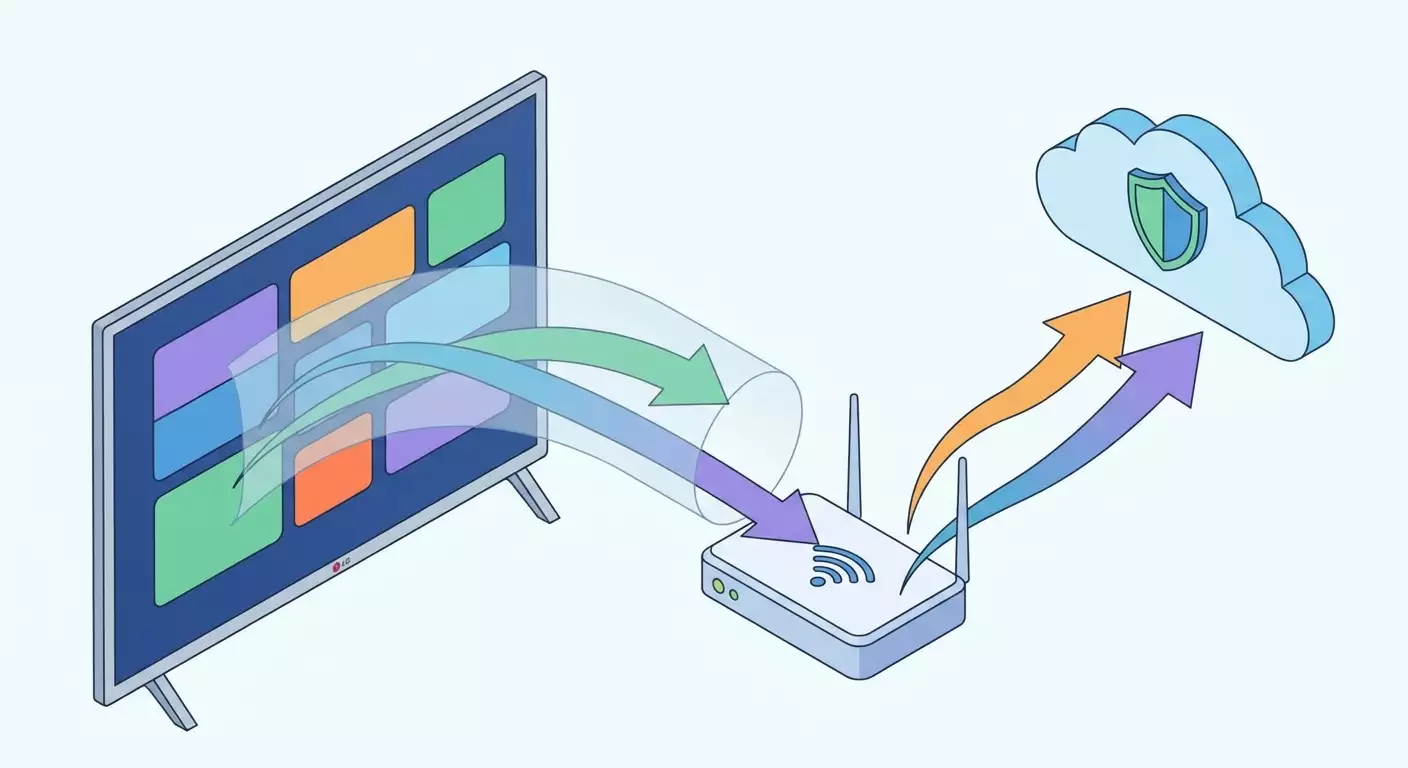
Contenido del artículo
- Introducción
- Preparación previa
- Conceptos básicos
- Paso 1: definir el modo de conexión vpn para lg webos
- Paso 2: preparar el router y hacer copia de seguridad
- Paso 3: configurar cliente vpn en el router (wireguard y openvpn)
- Paso 4: configurar política de enrutamiento — solo el televisor en vpn
- Paso 5: conectar lg webos a la red del router y configurar parámetros básicos
- Paso 6: verificar vpn en lg webos y resolver problemas de dns
- Paso 7: cambiar país de servicios lg si es necesario
- Paso 8: optimizar velocidad y estabilidad de vpn
- Paso 9: autoarranque y restauración de conexión
- Verificación final
- Errores comunes y soluciones
- Opciones adicionales
- Faq
- Conclusión
Introducción
En esta guía paso a paso configurarás una VPN para el Smart TV LG con webOS mediante tu router doméstico y lograrás que las aplicaciones funcionen de manera estable superando restricciones geográficas y bloqueos. Revisaremos los métodos disponibles, cuál te conviene según tu caso, cómo preparar el router, instalar y activar el cliente VPN (WireGuard u OpenVPN), conectar únicamente el televisor al túnel, configurar correctamente el DNS y comprobar el resultado. Al final tendrás acceso al contenido de la región deseada y podrás gestionar el tráfico sin afectar la velocidad de otros dispositivos.
Esta guía está pensada para usuarios principiantes, aunque incluye apartados avanzados para quienes quieran optimizar el enrutamiento, cerrar fugas DNS, usar split-tunneling y reinicio automático de la conexión. Evitamos jerga complicada y cada paso está presentado como una instrucción clara.
Lo que debes saber desde antes: LG webOS no soporta clientes VPN de forma nativa. Para que el televisor funcione con VPN, lo más fácil y confiable es activar el cliente VPN en el router y conectar el TV a esa red. Alternativamente puedes compartir internet desde un teléfono o PC con VPN activo, pero es menos estable.
Tiempo estimado: la configuración básica con un router que ya soporte OpenVPN o WireGuard tarda entre 30 y 60 minutos. Si necesitas ajustar enrutamiento, cambiar región de servicios LG, diagnosticar apps y afinar DNS, calcula entre 60 y 120 minutos.
Preparación previa
Antes de comenzar, reúne todo lo necesario para lograr un resultado exitoso. Esto te ahorrará tiempo a mitad del proceso.
Herramientas y accesos necesarios
- Router doméstico con soporte para cliente VPN (preferentemente WireGuard u OpenVPN). Sirven muchos modelos ASUS, Keenetic, TP-Link (con módulo VPN Client), MikroTik (RouterOS v7), GL.iNet, así como firmwares OpenWrt y DD-WRT.
- Cuenta en un proveedor VPN que ofrezca configuraciones para routers (WireGuard y/o OpenVPN). Necesitarás claves, certificados y parámetros del servidor.
- Conexión a internet con velocidad suficiente: para 4K se recomiendan al menos 25 Mbps, para Full HD, mínimo 10 Mbps.
- Acceso a la interfaz web del router (usuario y contraseña de administrador).
- Televisor LG con webOS (modelos recientes; las instrucciones son universales para webOS 3.x y posteriores).
Requisitos del sistema
- Router con firmware actualizado (para estabilidad de VPN, DNS y enrutamiento).
- Memoria libre y CPU suficiente en el router. OpenVPN puede ralentizar routers económicos. WireGuard suele ser más rápido y menos exigente en recursos.
- Opcional: soporte Wi-Fi de 5 GHz para el televisor, que reduce interferencias y buffering.
Qué descargar y dónde aplicar
- Archivos de configuración VPN: .conf para WireGuard o .ovpn para OpenVPN, junto con claves/certificados si no están incluidos en el config. Importarás estos archivos en la interfaz web del router.
- Datos de autenticación VPN (usuario/contraseña si se requieren para OpenVPN o L2TP/IPsec).
Copias de seguridad
- Haz una copia de seguridad de las configuraciones del router antes de empezar. Normalmente está en la sección Administración — Copia de seguridad (o Sistema — Guardar configuración). Guarda el archivo en tu ordenador.
- Si planeas cambiar el país de los servicios LG, toma fotos de tus ajustes actuales y recuerda el usuario/contraseña de tu cuenta LG para restaurar en caso necesario.
⚠️ Atención: El router es el punto central del internet para toda la casa. Haz cambios con cuidado y paso a paso. Si pierdes conexión, conéctate por cable y restaura la configuración desde la copia de seguridad.
Conceptos básicos
Antes de empezar, repasemos tres ideas clave con un lenguaje sencillo.
- Cliente VPN en el router: programa en el router que crea un túnel seguro al servidor VPN. Todos los dispositivos de tu red pueden pasar por este túnel. Configuraremos para que solo el televisor LG use la VPN.
- WireGuard vs OpenVPN: dos protocolos VPN populares. WireGuard suele ser más rápido y fácil de configurar. OpenVPN es más universal, pero consume más recursos.
- DNS y geolocalización: muchos servicios verifican consultas DNS. Si el DNS no pasa por VPN, las apps pueden detectar una región incorrecta. Configuraremos el DNS para evitar fugas fuera del túnel.
Importante: LG webOS no tiene cliente VPN integrado, por eso trabajaremos a nivel de router. Es seguro y transparente para el televisor.
Paso 1: Definir el modo de conexión VPN para LG webOS
Objetivo
Elegir la forma óptima: a través del router (recomendado), compartir desde teléfono/PC, o Smart DNS. Nos enfocaremos en la opción del router, pero daremos alternativas por si tu router no soporta VPN.
Instrucciones paso a paso
- Verifica modelo y soporte para cliente VPN en el router. Abre la interfaz web y busca secciones con nombres VPN, VPN Client, WireGuard, OpenVPN, Tunnels.
- Si soporta, escoge protocolo. Para velocidad y sencillez, WireGuard suele ser mejor. Si no tiene WireGuard, usa OpenVPN.
- Considera alternativas: si el router no soporta cliente VPN, mira opciones como OpenWrt, DD-WRT, comprar mini router con VPN (por ejemplo, GL.iNet), o compartir internet desde PC/smartphone con VPN activo.
- Decide tema DNS: piensa si usarás DNS del proveedor VPN. En la mayoría de casos es recomendable, disminuye problemas con apps.
- Define qué dispositivos usarán el túnel. Lo ideal es que solo el LG TV pase por VPN y el resto funcione normal.
Consejo: Si tienes un router ASUS reciente con VPN Fusion, GL.iNet o Keenetic, será aún más fácil: permiten asignar VPN a dispositivos específicos.
Resultado esperado
Sabemos que configuraremos VPN en el router, ya elegiste el protocolo y la estrategia DNS. También decidiste que solo el televisor usará VPN.
✅ Verificación: Puedes decir en voz alta el plan: «Configuro WireGuard en Asus, conecto LG a Wi-Fi 5 GHz, activo DNS por VPN y sólo el televisor va por el túnel».
Problemas comunes y soluciones
- En la interfaz web no hay sección VPN. Solución: revisa actualizaciones de firmware. Si sigue sin aparecer, considera OpenWrt, DD-WRT o un mini router adicional con VPN.
- Proveedor bloquea protocolo VPN. Solución: usa protocolo alternativo (ejemplo: OpenVPN TCP/443 o IKEv2 en MikroTik), activa ofuscación si el proveedor la soporta.
Paso 2: Preparar el router y hacer copia de seguridad
Objetivo
Actualizar firmware, activar soporte para el protocolo elegido, guardar configuración actual y preparar lista de dispositivos para asignar el televisor al túnel.
Instrucciones
- Conéctate al router por cable o Wi-Fi estable.
- Accede a la interfaz web como administrador.
- Busca sección para actualizar firmware. Ejecuta revisión y actualización. Espera el reinicio.
- Haz copia de seguridad en la sección Copia de seguridad/Restauración.
- Verifica que el cliente VPN esté disponible: busca secciones VPN, Tunnels, WireGuard, OpenVPN. Confirma que esté activado o accesible.
- Anota el nombre y dirección MAC de tu televisor. Normalmente está en Clientes de red, Lista de dispositivos o DHCP. LG TV suele aparecer como webOS TV o LG Smart TV.
- Reserva una IP estática para el TV vía DHCP: en la lista de clientes, selecciona el dispositivo, elige Reservar IP o Hacer estático, asigna dirección (ejemplo 192.168.1.50).
Consejo: Reservar IP para el TV simplifica las siguientes configuraciones: reglas de enrutamiento y DNS usarán siempre la misma dirección y no habrá problemas tras reinicios del router.
Resultado esperado
Router con firmware actualizado, copia de seguridad hecha, MAC e IP estática del televisor anotados.
✅ Verificación: Confirma que en clientes está tu LG TV ligado a IP fija (ejemplo 192.168.1.50) y que la conexión Wi‑Fi o por cable es estable.
Problemas comunes y soluciones
- Configuraciones desaparecen tras actualización. Solución: restaura desde backup.
- Televisor no aparece en clientes. Solución: enciende el TV y conéctalo a red, luego actualiza la lista en el router.
Paso 3: Configurar cliente VPN en el router (WireGuard y OpenVPN)
Objetivo
Importar configuraciones WireGuard u OpenVPN al router y conectar al servidor VPN.
De dónde obtener configs y qué elegir
Tu proveedor VPN debe entregarte archivos listos para router: .conf para WireGuard, .ovpn para OpenVPN y, si es necesario, claves y certificados. WireGuard es preferible para velocidad estable y menor latencia; OpenVPN es más universal y funciona casi en todos lados. Si el router tiene ambos clientes, empieza por WireGuard.
Consejo: ¿Piensas ver contenido 4K? Elige el servidor más cercano y usa WireGuard para reducir latencias y buffering.
Recomendación práctica para elegir proveedor
Si buscas un VPN personal con IP dedicada y configuraciones para routers, considera el servicio vpn.how. Ofrece servidores no compartidos con IP propia, soporta WireGuard, OpenVPN, IKEv2, L2TP, SSTP. Puedes elegir según tarea o firmware. Servidores en Moscú, San Petersburgo, Ámsterdam, Frankfurt, Londres, Nueva York, San José, Chicago, Singapur, Sídney, Madrid, Helsinki, Estocolmo, Varsovia, Copenhague, Stavanger. Métodos de pago cómodos: tarjetas rusas (incluyendo Tinkoff y Ozon), SBP, USDT/BTC. Tarifas desde 490 ₽ por día y 2490 ₽/mes con descuentos por periodos largos. El servidor se activa automáticamente en 5 minutos tras pago, sin registros. En el panel personal tienes archivos config listos para WireGuard/OpenVPN/IKEv2, que solo descargas e importas al cliente sin armar parámetros manualmente. Ideal si configuras VPN en casa por primera vez.
Instrucciones según routers populares
ASUSWRT (y ASUSWRT-Merlin)
- Abre sección VPN. Para WireGuard: pestaña WireGuard, botón Importar o Añadir túnel. Para OpenVPN: pestaña Cliente OpenVPN, botón Añadir perfil, tipo OpenVPN.
- Importa archivo config (.conf para WireGuard, .ovpn para OpenVPN). Si OpenVPN pide usuario/contraseña, escríbelos.
- En OpenVPN, en opciones del perfil pone DNS - Aceptar DNS de VPN: Exclusivo. Así cierras fugas DNS.
- Haz clic en Conectar. El estado debe cambiar a Conectado. En WireGuard verás tráfico activo en la interfaz.
- Si tienes VPN Fusion: ve a Internet — VPN Fusion, añade perfil VPN y asigna el LG TV para usar ese perfil.
Keenetic (KeeneticOS)
- Entra a Internet — Otras conexiones — Añadir — Cliente WireGuard o Cliente OpenVPN.
- Importa config. Pon nombre conexión, y si hace falta, usuario/contraseña (para OpenVPN). Puerto y servidor se extraen del archivo.
- Activa opción Usar DNS de VPN o similar para que consultas DNS pasen por túnel.
- Guarda y conecta. El estado debe ser Activo con contadores de tráfico.
- Asigna televisor a esta conexión: en Red — Dispositivos, selecciona tu LG TV, en Política de acceso a internet elige Usar conexión específica y señala el cliente VPN.
TP-Link (modelos con VPN Client)
- Ve a Modo Avanzado — Cliente VPN.
- Presiona Añadir, elige protocolo (OpenVPN o WireGuard si tu modelo lo soporta), importa config.
- Activa la opción Usar servidor DNS o similar.
- Guarda y conecta.
- Marca los dispositivos que usarán VPN. Selecciona LG TV.
GL.iNet
- Abre VPN — Cliente WireGuard o Cliente OpenVPN.
- Presiona Importar, carga config. Escribe credenciales si son necesarias.
- Activa Reenvío DNS o Forzar DNS vía VPN.
- Conecta. El estado será Connected.
- Activa Cambio por cliente (Per-Client) y escoge tu TV. Activa para él Usar VPN.
OpenWrt (LuCI)
- Instala paquetes necesarios: para WireGuard — kmod-wireguard, wireguard-tools, luci-app-wireguard; para OpenVPN — openvpn-openssl, luci-app-openvpn. Esto se hace en Sistema — Software.
- Network — Interfaces — Añadir nueva interfaz. Para WireGuard elige WireGuard VPN e importa config. Para OpenVPN abre Servicios — OpenVPN, añade e importa .ovpn, luego conecta interfaz.
- Firewall — Zonas: crea una zona para VPN o añade la interfaz VPN en zona WAN, configurando forwarding y masquerade.
- Configura DNS: Network — DHCP y DNS — Ajustes comunes — Marca Usar DNS anunciados por peer o añade servidores DNS VPN manualmente.
- Para enrutar solo TV instala vpn-policy-routing o policy-based-routing. Crea regla: fuente IP LG TV, ruta por interfaz VPN.
DD-WRT
- Ve a Servicios — VPN.
- Activa OpenVPN Client y despliega opciones avanzadas.
- Importa parámetros desde .ovpn: IP/Nombre servidor, puerto, clave TLS Auth, CA Cert, Client Cert, Private Key.
- En Policy Based Routing agrega IP del televisor, ejemplo 192.168.1.50/32 para que solo él pase por túnel.
- Guarda y aplica. Revisa en Estado — OpenVPN que diga Connected.
MikroTik (RouterOS v7, WireGuard, pasos básicos)
- Abre WinBox o WebFig. Ve a Interfaces — WireGuard — Añadir. Pon nombre, por ejemplo wg-vpn, Private Key propia (importada de config), Listen Port según config.
- Añade Peer: Public Key es clave del servidor, Endpoint Address/Port es dirección y puerto servidor, Allowed Address 0.0.0.0/0 para todo el tráfico o según config, Persistent Keepalive 25s.
- IP — Direcciones — añade dirección a interfaz wg-vpn desde config, por ejemplo 10.14.0.2/32.
- IP — Rutas — añade ruta 0.0.0.0/0 con Gateway wg-vpn, pero aplica solo para IP del televisor vía enrutamiento basado en política. Para eso crea tabla de enrutamiento, marca connection-mark mediante firewall mangle para origen 192.168.1.50 y añade ruta default en dicha tabla vía wg-vpn.
- DNS — pon servidores DNS del proveedor VPN. En firewall nat añade masquerade para wg-vpn si es necesario.
Consejo: Si usas MikroTik por primera vez, empieza con interfaz gráfica WebFig y toma fotos de cada pantalla modificada. Facilita restaurar cambios específicos si algo falla.
Resultado esperado
Router establece conexión VPN. En estado cliente ves Connected, la interfaz WireGuard u OpenVPN está activa y los contadores de tráfico cambian.
✅ Verificación: En interfaz del router comprueba que VPN esté Conectado. Si hay registro, verifica handshake exitoso WireGuard o logs OpenVPN sin errores.
Problemas comunes y soluciones
- Conexión no se establece. Causa: clave, dirección o puerto incorrectos. Solución: revisa config, reinicia router y prueba otra vez.
- Sin internet en todos los dispositivos. Causa: todo el tráfico pasa por VPN no funcional. Solución: desactiva todo el tráfico por VPN y deja sólo política para el TV, verifica rutas y elimina rutas default sobrantes.
- Fugas DNS. Solución: activa «Aceptar DNS del VPN» o especifica DNS del proveedor VPN manualmente en configuración del router.
Paso 4: Configurar política de enrutamiento — solo el televisor en VPN
Objetivo
Que sólo el LG TV use VPN y el resto de dispositivos se conecten directamente.
Instrucciones paso a paso
- Asegúrate de que el TV tiene IP estática, por ejemplo 192.168.1.50.
- Busca en el interfaz del router función de asignar dispositivo a VPN, policy-based routing, VPN Fusion o VPN por dispositivo.
- Añade regla: origen IP del TV 192.168.1.50 (o MAC), destino usar interfaz VPN, protocolo cualquiera, aplicar siempre.
- Guarda y aplica la política. Si hay opción para reconfigurar tabla de rutas, selecciona ruta o ticket para VPN.
- Reinicia conexión VPN si la política no se activa automáticamente.
Consejo: Si no hay opción simple para asignar dispositivo, usa listas IP y vincúlalas a tablas de enrutamiento específicas. En OpenWrt funciona fácil con vpn-policy-routing, en DD-WRT usa Policy Based Routing, en MikroTik con mangle y tablas de rutas.
Resultado esperado
Solo el tráfico del LG TV pasa por VPN. Los demás dispositivos funcionan directo sin perder velocidad.
✅ Verificación: En el navegador del TV busca «my ip» y confirma que aparece país del servidor VPN. En laptop o móvil sin política debe mostrarse tu país real.
Problemas comunes y soluciones
- El TV sigue saliendo por IP local. Causa: política no aplicada a IP correcta. Solución: confirma que el TV use IP estática y coincida con la política. Vuelve a conectar el TV a la red.
- Todos los dispositivos usan VPN. Causa: redirección global activada. Solución: desactiva ruta default por VPN y aplica solo política para IP del TV.
Paso 5: Conectar LG webOS a la red del router y configurar parámetros básicos
Objetivo
Asegurar que el televisor se conecta a la red correcta y recibe IP y DNS configurados.
Instrucciones
- En el mando LG pulsa Configuración. Ve a Todas las configuraciones — Red.
- Elige el tipo de conexión: cable Ethernet o Wi-Fi. Para Wi-Fi selecciona tu red e introduce la contraseña.
- Accede a Configuración avanzada o Avanzadas. Verifica la IP actual. Debe ser la que reservaste en el router, por ejemplo 192.168.1.50.
- Baja hasta DNS. Si en el router está activado «Aceptar DNS del VPN», déjalo en Automático. Si no, pon Manual e ingresa DNS de tu proveedor VPN (usualmente en config) o un DNS público que no afecte la geolocalización.
- Guarda los ajustes y reinicia el televisor para limpiar la caché de red.
Consejo: Para streaming, usa Wi-Fi de 5 GHz si televisores y router lo permiten. Reduce interferencias y cortes en vídeo.
Resultado esperado
Televisor conectado al Wi-Fi o Ethernet de tu router, con IP estática y DNS correcto.
✅ Verificación: En menú de Red de LG webOS aparece tu IP 192.168.1.50 y estado Conectado a internet. Si hay opción de Test de conexión, ejecútalo y confirma éxito.
Problemas comunes y soluciones
- El TV obtiene otra IP. Causa: no reservaste IP en router o configuraste IP estática fuera del rango DHCP en el TV. Solución: haz reserva DHCP en router y deja IP automática en TV.
- Pone conectado al router pero sin internet. Causa: problemas de enrutamiento o DNS. Solución: confirma que VPN esté activo, política correcta, DNS por VPN o vuelve a Auto DNS si forzaste DNS en router.
Paso 6: Verificar VPN en LG webOS y resolver problemas de DNS
Objetivo
Confirmar que el televisor usa la IP del servidor VPN y que las consultas DNS no bloquean el acceso a apps.
Instrucciones
- Abre el navegador web incorporado en LG webOS.
- En la barra introduce búsqueda «my ip». Verifica que aparece la nueva ubicación acorde al VPN.
- Abre algunos sitios populares para confirmar que cargan sin errores y observa la velocidad.
- Ejecuta la aplicación para la cual configuraste VPN, por ejemplo Netflix, Disney+, Prime Video, Apple TV, Max, Hulu o bibliotecas regionales de YouTube y servicios deportivos.
- Si muestra error o región incorrecta, revisa DNS. Activa en router «Aceptar DNS de VPN» o DNS forzado vía VPN; en TV deja DNS automático o configura DNS del proveedor VPN.
- Limpia caché de la app problemática: en LG ve a Configuración — Aplicaciones — Gestión de aplicaciones — selecciona la app — Limpiar caché y reinicia. Si no hay opción, reinicia el TV y prueba otra vez.
Consejo: Si la app sigue fallando, cambia la ubicación del VPN a un país vecino dentro de la misma región. Algunos servicios son estrictos con ciudades específicas.
Apps que suelen funcionar con VPN en LG webOS
- YouTube — en general estable, ayuda a acceder a recomendaciones y estrenos regionales.
- Netflix — funciona, pero requiere DNS limpio y ubicación cuidadosa. IP personal suele ser más fiable.
- Prime Video — estable con DNS correcto.
- Apple TV — en modelos modernos de LG funciona, es clave la región del Apple ID y DNS sin fugas.
- Disney+ — la geolocalización y región de servicios LG son importantes; a veces conviene servidor cercano a país soportado oficialmente.
- HBO Max/Max, Hulu — requieren IP limpia y DNS apropiado; mejor si el servidor está cerca.
- Servicios deportivos y nichos regionales — cada uno tiene sus verificaciones; IP personal y DNS cerrado ayudan a éxito.
⚠️ Atención: Algunos servicios prohíben en sus términos evadir restricciones regionales. Usa VPN bajo tu responsabilidad y considera condiciones de servicio y leyes locales.
Resultado esperado
El televisor muestra IP y país VPN, las apps abren sin errores de región y el streaming no presenta buffering.
✅ Verificación: Al menos una app objetivo inicia y muestra catálogo regional correcto. El video comienza en 2–5 segundos y avanzar funciona sin pausas largas.
Problemas comunes y soluciones
- La app detecta «proxy». Causa: IP compartida en proveedor VPN. Solución: usa IP personal o nodo distinto y verifica DNS.
- Fugas DNS. Causa: DNS automático del proveedor de internet. Solución: activa en router DNS por VPN y bloquea consultas DNS externas fuera del túnel si puedes.
Paso 7: Cambiar país de servicios LG si es necesario
Objetivo
Si la app deseada no está disponible en la tienda LG Content Store de tu país, cambiarás el país de servicios para instalar la app desde otra región.
Instrucciones
- En el mando LG abre Configuración — Todas las configuraciones — General — Sistema — Ubicación o País de servicios LG.
- Desactiva Detectar automáticamente y elige el país donde la app esté disponible (ejemplo: EE.UU. o Reino Unido).
- Acepta términos de uso y espera a que se actualice el contenido de la tienda.
- Abre LG Content Store e intenta buscar la app de nuevo. Instálala.
- Si la app pide ingresar con cuenta de otro país, usa la cuenta correspondiente.
Consejo: Tras instalar la app puedes revertir el país para mantener otros servicios locales. La app instalada permanecerá, su funcionamiento dependerá de la región y VPN.
⚠️ Atención: Cambiar país puede requerir salir de cuenta LG y a veces restablecer algunos ajustes. Prepárate: toma fotos de configuraciones y recuerda usuario/contraseña.
Resultado esperado
La app deseada está instalada en el televisor, abre y funciona bien con VPN.
✅ Verificación: La app aparece en lista de instaladas, inicia sin errores y reproduce contenido.
Problemas comunes y soluciones
- El país no cambia. Causa: bloqueo regional por fabricante para tu modelo. Solución: intenta tras reinicio del TV o haz restauración de fábrica si estás dispuesto.
- Desaparecen apps locales. Causa: el cambio de país modifica la tienda. Solución: vuelve al país original tras instalar apps necesarias.
Paso 8: Optimizar velocidad y estabilidad de VPN
Objetivo
Lograr mínima latencia y sin buffering en streaming.
Instrucciones
- Elige servidor geográficamente cercano. Para biblioteca concreta, usa ciudad más próxima dentro del país.
- Cambia protocolo: si usas OpenVPN prueba WireGuard. Si WireGuard no está disponible, primero prueba OpenVPN UDP y luego TCP ante problemas.
- Activa aceleración hardware NAT/CTF en router si es compatible con VPN y no rompe túneles. Algunas firmwares lo deshabilitan con VPN activo — sigue consejos del fabricante.
- Pasa TV a Wi-Fi 5 GHz o Ethernet. Verifica nivel de señal: debe ser alto.
- Ajusta MTU: bajar MTU en 50–100 bytes ayuda con fragmentación. Para WireGuard prueba valores entre 1280–1420 y haz pruebas.
Consejo: Para ver 4K regularmente, elige servidor estable y no cambies sin razón. IP fija aumenta confianza de servicios streaming.
Resultado esperado
Apps de streaming abren rápido, video se reproduce sin pausas, avance rápido funciona en 1–2 segundos.
✅ Verificación: En app objetivo reproduce 10–15 minutos en UHD/4K sin caída de calidad ni interrupciones.
Problemas comunes y soluciones
- Velocidad variable. Causa: nodo saturado o interferencias Wi-Fi. Solución: cambia servidor y canal Wi-Fi, usa Ethernet.
- Cortes periódicos. Causa: proveedor bloquea UDP o puerto. Solución: cambia OpenVPN a TCP o puerto 443, activa keepalive.
Paso 9: Autoarranque y restauración de conexión
Objetivo
Que la VPN en el router arranque sola tras reinicio y se recupere tras caídas.
Instrucciones
- En opciones del cliente VPN activa Autoarranque al encender el router.
- Activa reintentos tras desconexión si existe opción. En WireGuard suele no ser obligatorio, pero keepalive a 25s ayuda con NAT.
- Si el firmware permite scripts o tareas, añade chequeo de host y reinicia interfaz VPN si está inaccesible.
- Activa monitoreo en router: ping al servidor cada 1–5 minutos y registro de estado.
- Guarda cambios. Reinicia router y comprueba que VPN arranque sola.
Consejo: Si tienes electricidad inestable, usa UPS para router. Mejora estabilidad del video y evita corrupción de configuración.
Resultado esperado
Tras reiniciar el router la conexión VPN se recupera automáticamente y el TV siempre usa el túnel sin intervención.
✅ Verificación: Reinicia router, abre navegador en TV, busca «my ip» y confirma que sigue con país VPN.
Problemas comunes y soluciones
- VPN no arranca tras reinicio. Causa: autoarranque desactivado o falta de configuración predeterminada. Solución: revisa activar autoarranque y guardado correcto del perfil.
- Recuperación lenta. Causa: DNS depende del túnel y no resuelve el servidor al inicio. Solución: usa IP en config VPN en lugar de dominio o añade DNS alternativo para inicio.
Verificación final
Lista de chequeo
- Router actualizado y con copia de seguridad guardada.
- Cliente VPN activo y conectado establemente.
- Sólo el LG TV usa VPN (policy routing configurado).
- Consultas DNS del LG TV pasan por VPN.
- Apps en LG webOS abren y muestran región correcta.
- Streaming 4K funciona sin pausas notables.
- VPN se recupera automáticamente tras reinicios.
Cómo probar
- En TV verifica IP y país con búsqueda «my ip».
- Ejecuta app objetivo y abre título o canal que antes no era accesible en tu región.
- Prueba avance rápido y cambio de episodios para ver buffering.
- En otro dispositivo de la red comprueba que IP es local — confirma split-tunneling para TV.
Indicadores de éxito
- País de IP en TV corresponde a ubicación del VPN.
- No hay errores por restricciones regionales.
- Inicio de video en menos de 5 segundos, avance en 2 segundos.
- Estabilidad durante 1–2 horas de visionado continuo.
Errores comunes y soluciones
- Problema: La app indica «proxy detectado». Causa: IP compartida VPN. Solución: usa IP personal y DNS correcto; cambia servidor por uno menos saturado.
- Problema: Todos los dispositivos usan VPN. Causa: ruta default global activada. Solución: desactiva y aplica policy routing solo para IP del TV.
- Problema: Sin internet tras la configuración. Causa: conflictos en rutas o firewall mal configurado. Solución: restablece ruta default, verifica masquerade en interfaz VPN y zona firewall.
- Problema: Vídeo hace buffering. Causa: Wi-Fi débil o servidor lento. Solución: cambia a Wi-Fi 5 GHz o Ethernet, cambia servidor, usa WireGuard.
- Problema: App no disponible en tienda LG. Causa: país configurado. Solución: cambia país de servicios LG a compatible y luego vuelve si quieres.
- Problema: Fugas DNS. Causa: DNS automático del proveedor. Solución: fuerza DNS a través de VPN en router y haz configuración manual en TV si hace falta.
- Problema: VPN se cae periódicamente. Causa: NAT o bloqueos del proveedor. Solución: keepalive en WireGuard, prueba OpenVPN UDP/TCP/puerto 443, usa servidor alterno.
Opciones adicionales
Configuraciones avanzadas
- Split-DNS: resolver solo dominios de servicios streaming vía DNS VPN y el resto local.
- Bloqueo de DNS alternativos: impedir consultas 53/853/443 a DNS externos fuera del túnel salvo IP servidor VPN.
- QoS/Cola Inteligente: priorizar tráfico del televisor para streaming fluido.
- Cambio automático de nodos: script que cambia servidor VPN si latencia supera un umbral.
Caminos alternativos
- Hotspot en teléfono con VPN activo. Conecta LG a esa red. Contras: poca estabilidad, consumo batería.
- Compartir conexión desde PC: activa VPN en Windows o macOS y comparte por Wi-Fi o Ethernet, conecta TV a esa red.
- Dispositivo HDMI separado con cliente VPN propio (ej. Android TV stick). Así VPN se configura en el streamer, no en router.
- Smart DNS: solo cambia región sin cifrado. Se configura en DNS de red TV. Funciona rápido pero sin protección.
Consejo: Si tienes muchos dispositivos y red compleja, considera un mini router dedicado a VPN solo para el televisor. Evitarás afectar infraestructura principal.
FAQ
Pregunta: ¿Se puede configurar VPN directamente en LG webOS sin router?
Respuesta: webOS no tiene cliente VPN nativo. La forma más estable es VPN en router o dispositivo streaming con soporte VPN.
Pregunta: ¿Cuál protocolo elegir: WireGuard o OpenVPN?
Respuesta: Si tu router soporta WireGuard, elige ese: menor latencia y mayor velocidad. Si no, usa OpenVPN.
Pregunta: ¿Qué hacer si la velocidad de VPN es baja?
Respuesta: Cambia a servidor cercano, prueba otro protocolo, usa Ethernet o Wi-Fi 5 GHz, verifica carga del router.
Pregunta: ¿Cómo saber si hay fugas DNS?
Respuesta: Apps muestran región errónea o errores geográficos. Activa ‘aceptar DNS del VPN’ y bloquea consultas DNS externas.
Pregunta: ¿Es necesario cambiar país de servicios LG?
Respuesta: Solo si una app no está en tu tienda. En muchos casos suficiente con VPN y DNS correcto.
Pregunta: ¿Por qué Netflix dice que uso proxy?
Respuesta: IP compartida y muy conocida. Ayuda usar IP personal, cambiar nodo y DNS limpio.
Pregunta: ¿Puedo usar VPN en teléfono y TV simultáneamente?
Respuesta: Sí. Añade IP del teléfono a policy routing junto con la del TV.
Pregunta: ¿Smart DNS reemplaza VPN?
Respuesta: Para desbloquear librerías suele servir y es más rápido. Pero no cifra el tráfico y no funciona con todos los servicios.
Pregunta: ¿Qué hacer en el TV tras configurar el router?
Respuesta: Verifica IP/país, actualiza apps, limpia caché si es necesario y reinicia el TV.
Pregunta: ¿Es legal usar VPN para streaming?
Respuesta: El VPN es legal en muchos países, pero respeta términos de servicio y leyes locales.
Conclusión
Has completado todo el proceso desde planificar hasta tener un VPN estable para LG webOS vía router: preparaste equipo, configuraste WireGuard u OpenVPN, asignaste solo el televisor al túnel, cerraste fugas DNS y verificaste apps. Ahora tu TV usa la ubicación regional deseada mientras el resto de la red mantiene la velocidad y comportamiento originales.
Después puedes perfeccionar tu sistema: añadir cambio automático de servidores, usar QoS, separar el TV en un mini router con VPN o probar Smart DNS para más velocidad donde no requieras cifrado. Si al cambiar apps surgen restricciones, vuelve a revisar DNS y la política de enrutamiento: allí está el 90% de las soluciones.
Consejo: Anota tu configuración final: IP del TV, servidor elegido, protocolo, parámetros DNS y notas sobre apps. Te ahorrará mucho tiempo en futuras modificaciones.