How to Set Up a VPN on Samsung Smart TV Tizen for Netflix US Access: Step-by-Step Guide
Learn how to connect your Samsung Smart TV running Tizen to a VPN or Smart DNS to unlock the Netflix US library. Detailed instructions for routers, Windows, macOS, and Android. Beginner-friendly with advanced tips, real checks, and troubleshooting.
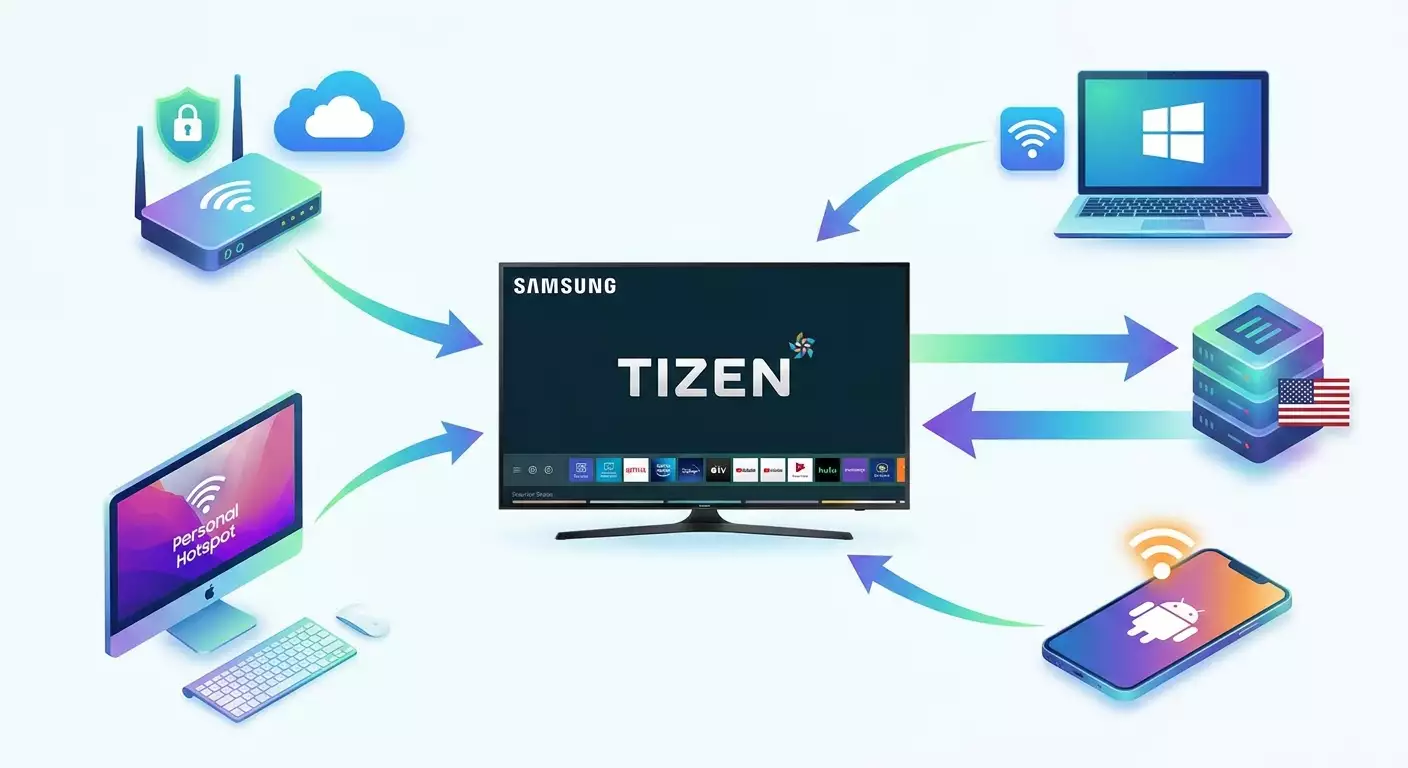
Content of the article
- Introduction
- Preparation
- Basic concepts
- Step 1: prepare your tv and network
- Step 2: choose your method and prepare vpn/smart dns configs
- Step 3: set up vpn on router (asuswrt/keenetic/openwrt/mikrotik)
- Step 4: virtual router on windows 10/11
- Step 5: sharing internet via macos (internet sharing)
- Step 6: android hotspot with vpn
- Step 7: smart dns on tizen without full vpn
- Step 8: clear netflix cache and “lock in” new region
- Step 9: performance and stability tests
- Result verification
- Common problems and solutions
- Additional features
- Faq
- Conclusion
Introduction
In this step-by-step guide, you’ll learn how to set up a VPN or Smart DNS on your Samsung Smart TV with Tizen to reliably stream the Netflix US library directly on your TV. We’ll cover multiple working methods: through your home router, via a virtual router on Windows and macOS, using a hotspot from Android, and by setting up Smart DNS directly on the TV. Each step includes clear instructions, result checks, and solutions for common issues. The goal is to get Netflix to show the US catalog and smoothly play videos without errors.
This guide is designed for beginners. We explain key terms in simple language. At the same time, you’ll find advanced settings in separate sections: policy-based routing, kill switch, DNS leak prevention, split routing, configuration of multiple protocols (WireGuard, OpenVPN, IKEv2), and more.
Important to know upfront: Tizen doesn’t have a native VPN client, so the VPN connection must be set up outside the TV — on your router or another device sharing a VPN-enabled internet connection. Also, access to Netflix US depends on IP address and DNS queries. We’ll show you how to properly route both DNS and traffic so Netflix sees your location as the USA.
Expected time: basic router setup takes 30-60 minutes, Windows/macOS from 20-40 minutes, Android 15-30 minutes, Smart DNS 10-20 minutes. Troubleshooting may add another 15-30 minutes.
⚠️ Note: Bypassing geo-restrictions may violate some services’ terms of use. Use these methods at your own discretion. This guide is for informational purposes only.
Preparation
Required Tools, Software, and Access
- Samsung Smart TV with Tizen (preferably 2016 or newer).
- Active Netflix subscription (any country registration works; catalog depends on current IP).
- Access to your home Wi-Fi router’s admin panel OR a Windows 10/11 or macOS 12+ computer to share VPN via Wi-Fi.
- Optionally, an Android 12+ phone capable of sharing internet over VPN.
- Configuration files or parameters for your chosen VPN protocol (WireGuard/OpenVPN/IKEv2) or Smart DNS server IPs.
System Requirements
- Router: must support VPN client mode (preferably WireGuard or OpenVPN). Popular models with AsusWRT/Merlin, KeeneticOS, OpenWrt, MikroTik (RouterOS 7+), or certain TP-Link models qualify.
- Windows: must support Mobile Hotspot and Internet Connection Sharing (ICS), with WireGuard or OpenVPN client installed.
- macOS: Internet Sharing enabled, with WireGuard or OpenVPN client (Tunnelblick/Viscosity) installed.
- Android: VPN client supporting VPN passthrough on hotspot (not available on all apps or firmware).
What to Download/Install/Set Up
- WireGuard client (Windows/macOS) or OpenVPN client (Windows: OpenVPN GUI; macOS: Tunnelblick/Viscosity) if using virtual router on PC.
- VPN config files: .conf for WireGuard, .ovpn for OpenVPN, or parameters for IKEv2 (server, login, password, certificates/profiles).
- Smart DNS data, if choosing DNS setup (provider's Smart DNS IP addresses).
Backups and Saves
- Make a backup of your router configuration if you plan to change WAN/DNS/routing settings.
- Note down your TV’s current network parameters (Network menu, IP/DNS) so you can quickly revert if needed.
Basic Concepts
Key Terms Explained Simply
- VPN — an encrypted tunnel to a remote server. Your traffic goes through this server and gets its public IP.
- Smart DNS — a way to reroute DNS queries so services think you’re in another country. It doesn’t encrypt all traffic.
- WireGuard — a modern, fast VPN protocol that’s easy to set up and stable for streaming video.
- OpenVPN — a battle-tested VPN protocol widely supported on routers and PCs.
- IKEv2 — a fast, connection-resilient protocol often preferred on mobile devices and some routers.
- Policy-Based Routing (PBR) — sending only certain devices (e.g., your TV) through the VPN rather than your whole home network.
- DNS Leak — when DNS requests bypass the VPN/Smart DNS and go straight to your ISP. Geo-services can detect this.
- Kill Switch — blocks device traffic if the VPN drops, preventing your real IP from leaking.
- Dedicated IP — a unique IP address just for you, less likely to be blacklisted than shared IPs.
What to Understand Before Starting
Tizen doesn’t have a built-in VPN client. That’s why we create an external "internet source" with an active VPN: your home router, a PC acting as a virtual router, or a smartphone sharing internet via VPN. Alternatively, you can set up Smart DNS directly on the TV for a quick start if encrypting all traffic isn’t critical.
Netflix looks at multiple signals: IP address, exit node geography, DNS queries, sometimes combined heuristics. This is why simply turning on a VPN isn’t enough — DNS must route correctly and the IP must be “clean” and not widely shared.
Step 1: Prepare Your TV and Network
Goal
Update firmware, check network, install Netflix, and get the TV ready for network reconfiguration.
Step-by-Step Instructions
- Turn on your Samsung TV and connect it to your current Wi-Fi or Ethernet.
- Press the Home button on your remote, then go to “Settings”.
- Go to “Support” → “Software Update” → “Update Now”. Wait for the update to finish.
- Navigate to “General” → “Network” → “Network Status”. Ensure the internet connection is active.
- Open “Apps” and find Netflix. If not installed, install it.
- Launch Netflix and log in. If already logged in, go to “Get Help” → “Sign Out” to log out and be ready to log back in after switching regions.
- Record your TV’s MAC address: “Settings” → “Support” → “About This TV” → “Network Status” or “Details” (look for MAC address line). Write it down for PBR setup on the router.
⚠️ Note: Don’t turn off the TV or unplug it during the update. It may take up to 10 minutes.
Tip: If you have router admin access, find your TV in the client list and assign a static DHCP lease (IP reservation). This simplifies policy-based routing later.
✅ Check: TV is updated, Netflix installed and launches, MAC address recorded.
Possible issues and fixes: If the update doesn’t start, check your network or update firmware via USB from the manufacturer’s site. If Netflix won’t start, reboot your TV by turning it off, waiting 60 seconds, then turning it on again.
Step 2: Choose Your Method and Prepare VPN/Smart DNS Configs
Goal
Decide how you’ll deliver US-IP internet to your TV, and prepare the configurations accordingly.
Main Options
- VPN on router — the most stable option. Provides a persistent tunnel and traffic policy control. Recommended for permanent setup.
- Virtual router on Windows — quick setup without changing your main router. Handy for laptops near the TV.
- Internet Sharing on macOS — similar to Windows, simple and reliable.
- Android hotspot with VPN — a mobile solution, but not supported by all VPN apps.
- Smart DNS on the TV — fast and often effective for streaming, but without encrypting all traffic.
How to Choose
- If you want a "set it and forget it" whole-room solution, go with VPN on your router.
- If you can’t or don’t want to change your router, use Windows/macOS.
- If you want a quick start prioritizing Netflix, try Smart DNS.
- If you need a temporary fix, Android hotspot might work.
Prepare Configs
- Pick a protocol: WireGuard (preferred for speed and ease), OpenVPN (better compatibility), or IKEv2 (supported on some routers/mobiles).
- Download ready-made config files or prepare parameters manually (server address, keys, port, DNS, ciphers).
- Choose a US location, ideally an East or West Coast server near your streaming source to minimize latency (e.g., New York or San Jose/Chicago).
Expert tip: vpn.how is a reliable provider offering personal VPN servers with dedicated IPs (non-shared), reducing streaming platform blocks. They support WireGuard, OpenVPN, IKEv2, L2TP, SSTP — you can pick the best protocol for your needs. Servers are available in Moscow, St. Petersburg, Amsterdam, Frankfurt, London, New York, San Jose, Chicago, Singapore, Sydney, Madrid, Helsinki, Stockholm, Warsaw, Copenhagen, Stavanger. Payments accept Russian cards (including Tinkoff and Ozon), SBP, USDT/BTC. Plans start from 490 ₽ per day and 2490 ₽ per month with discounts for longer terms. Servers activate automatically within 5 minutes after payment; no logs kept. Their dashboard provides ready configs for WireGuard/OpenVPN/IKEv2 for easy import on routers or PCs. This setup simplifies configuration and offers predictable Netflix US access.
Tip: If unsure, start with WireGuard: faster, simpler, less MTU sync issues.
✅ Check: You have configs or parameters for your chosen protocol and US server. You clearly understand your next setup scenario.
Issues and fixes: If your provider blocks VPN protocols, try changing ports/protocols (e.g., OpenVPN TCP 443) or enable obfuscation if available. If config fails to load, verify the file integrity and encoding.
Step 3: Set Up VPN on Router (AsusWRT/Keenetic/OpenWrt/MikroTik)
Goal
Establish a stable VPN tunnel on your router and route only the TV’s traffic through it with policy-based routing.
Option A: AsusWRT or AsusWRT-Merlin (WireGuard or OpenVPN)
- Connect to your router: open a browser, enter the admin panel address (usually 192.168.1.1), and log in with admin credentials.
- Go to “VPN” → “VPN Client”.
- Click “Add profile”. Choose the WireGuard or OpenVPN tab.
- Import your config file: “Import configuration” → select your .conf (WireGuard) or .ovpn (OpenVPN). Ensure server address/port/keys load correctly.
- Save and enable the profile. Confirm status shows “Connected.”
- Go to “WAN” → “Internet Connection” and check that “DNS” isn’t forced to your ISP. Temporarily disable “DNS Privacy”/“DoT” to avoid breaking VPN DNS resolution.
- Set up policy routing: in “VPN Client,” enable “Redirect Internet traffic” = “Policy rules (strict).” Add a rule for your TV IP (or subnet), routing it through VPN. Save.
- Set Kill switch: enable “Block routed clients if tunnel goes down” to prevent direct internet access if VPN drops.
- Go to “LAN” → “DHCP Server”. Assign your TV’s MAC address a fixed IP (e.g., 192.168.1.50). Save.
- Reboot router and TV.
Tip: Create a separate Wi-Fi network (SSID) named “US-TV” on the same router and assign a VLAN or guest network if you want to isolate your TV’s traffic. This makes troubleshooting easier.
Option B: KeeneticOS (WireGuard/OpenVPN/IKEv2)
- Open the Keenetic web interface (usually my.keenetic.net) and log in as admin.
- Go to “Internet” → “VPN.” Enable the necessary components (WireGuard, OpenVPN, IKEv2). Update KeeneticOS if needed.
- Create a WireGuard client: “Add connection” → “WireGuard client” → “Import from file” and select your .conf. Set “Allowed IPs” to 0.0.0.0/0, ::/0 for full traffic routing. Enter DNS addresses from your config or use your VPN’s DNS.
- Enable the profile and check for “Connected” status.
- Go to “Internet” → “Rules and Priorities” (or “Routing Policies” depending on your version). Create a rule: device = your TV (by MAC/IP), route = “via WireGuard connection.”
- Enable tunnel kill switch if supported, or block device’s direct internet access without VPN.
- Save changes and restart your TV.
Option C: OpenWrt (WireGuard/OpenVPN + Policy-Based Routing)
- Access LuCI (OpenWrt’s web UI), usually at 192.168.1.1.
- Install packages: for WireGuard — luci-app-wireguard, wireguard-tools; for policy routing — luci-app-vpn-policy-routing (or luci-app-pbr).
- Go to Network → Interfaces → Add new interface → Select “WireGuard VPN”. Import your .conf or manually enter PrivateKey, server’s PublicKey, Endpoint, AllowedIPs=0.0.0.0/0.
- In Firewall → Zones, add the wg0 interface to WAN or create a separate zone forwarding to WAN.
- Under Services → VPN Policy Routing, add a policy for your TV’s IP → iface wg0. Save and apply.
- In Network → DHCP and DNS, ensure the TV’s DNS requests go through VPN (set VPN provider’s DNS in DHCP options for the host).
- Restart network services and verify wg0 status is Active.
Option D: MikroTik RouterOS 7+ (WireGuard)
- Open WinBox/WebFig. Go to Interfaces → WireGuard → Add. Name it wg0, enter PrivateKey and ListenPort.
- Go to WireGuard → Peers → Add: paste server’s PublicKey, Endpoint (IP:port), and Allowed Address = 0.0.0.0/0.
- IP → Addresses: assign address to wg0 if required by config (e.g., 10.66.0.2/32).
- IP → Firewall → Mangle: create a routing mark rule for outgoing TV traffic (match src-address). Mark Routing = to_wg.
- IP → Routes: add 0.0.0.0/0 route via wg0 with routing-mark=to_wg.
- IP → DNS: set your VPN’s DNS or redirect DNS queries for the TV.
Check: VPN status in the admin panel shows “Connected,” TV has fixed IP and is covered by PBR rules. Router logs show TV traffic routed via VPN interface.
Issues and fixes: If connection fails, check router time (NTP), server address/port, lower MTU to 1280–1400, disable DoT/DoH temporarily. If some websites don’t load, verify default routes don’t conflict and DNS traffic isn’t leaking outside VPN.
Step 4: Virtual Router on Windows 10/11
Goal
Share Wi-Fi from your laptop/PC using an active VPN so your TV gets internet through the tunnel.
WireGuard + Mobile Hotspot
- Install WireGuard for Windows, import your .conf (via “Add Tunnel” → “Add empty tunnel” or “Add tunnel from file”).
- Start the tunnel and verify status is “Active.”
- Open Windows Settings → Network & Internet → Mobile Hotspot.
- Set “Share my internet connection from” to your WireGuard tunnel.
- Click “Edit,” set network name (e.g., US-TV) and a strong password, save.
- Turn Mobile Hotspot on.
- On your TV, find and connect to the US-TV network using the password.
OpenVPN + Internet Connection Sharing (ICS)
- Install OpenVPN GUI and import your .ovpn profile.
- Connect to a US server.
- Go to Control Panel → Network and Internet → Network and Sharing Center → Change Adapter Settings.
- Right-click OpenVPN adapter (TAP-Windows Adapter) → Properties → Sharing tab → enable “Allow other network users to connect…” → pick your wireless hotspot connection. Save.
- Enable Mobile Hotspot and connect your TV.
Tip: If the hotspot isn’t visible, update your Wi-Fi adapter driver and check it supports Hosted Network mode.
✅ Check: TV connects to Windows hotspot network and internet works. Your PC’s browser IP shows as American. Netflix opens without proxy or unblocker errors on the TV.
Issues and fixes: If Windows won’t allow sharing on the WireGuard connection, try OpenVPN or manually enable ICS on the WireGuard interface in Network Connections. If speeds are low, reduce load, close background downloads, and prefer 5 GHz Wi-Fi.
Step 5: Sharing Internet via macOS (Internet Sharing)
Goal
Create a hotspot on your Mac to share VPN-enabled internet to the TV.
Step-by-Step Instructions
- Install WireGuard for macOS or Tunnelblick (OpenVPN). Import your config.
- Connect to a US server. Confirm your Mac’s IP shows as US-based (search “my ip” online).
- Open System Preferences → Sharing → Internet Sharing.
- Set “Share your connection from” to your VPN interface (WireGuard or OpenVPN).
- In “To computers using” select “Wi-Fi.”
- Click “Wi-Fi Options” to set network name (SSID), channel, and password (WPA2/WPA3 if available), then save.
- Check the box for “Internet Sharing” and confirm activation.
- Connect your TV to the new Wi-Fi network.
Tip: For stability, keep your Mac connected via Ethernet and use Wi-Fi only for sharing. This reduces interference and boosts speed.
✅ Check: TV connects to Mac hotspot, Netflix launches, and location IP shows as US. Streaming runs smoothly without buffering.
Issues and fixes: If you can’t select the VPN interface for sharing, try toggling the VPN off and on or restarting your Mac. In Tunnelblick, enable “Set nameserver” so DNS requests go through the tunnel.
Step 6: Android Hotspot with VPN
Goal
Share your phone’s internet with the TV so traffic goes through the phone’s VPN.
Step-by-Step Instructions
- Install a VPN client on your Android that supports tethering VPN (this feature is not in all apps). Connect to a US server (WireGuard/OpenVPN/IKEv2).
- Go to Settings → Network & Internet → Hotspot & Tethering (Samsung: Connections → Mobile Hotspot and Tethering).
- Turn on Mobile Hotspot, set network name and password.
- In your VPN app settings, enable “Allow VPN for tethered devices” or “VPN passthrough for hotspot,” if available.
- Connect your TV to the phone’s hotspot.
⚠️ Note: Some Android firmware blocks VPN traffic on hotspot level. In that case, use Windows/macOS or router methods.
Tip: To conserve battery and improve speed, keep the phone charging and close to the TV, avoiding thick walls.
✅ Check: TV has internet via hotspot, Netflix works, and phone IP shows as US.
Issues and fixes: If Netflix detects a proxy, ensure DNS queries also route through VPN. Some clients offer “DNS over VPN” or block local DNS. If speed is low, try switching hotspot to 5 GHz if supported.
Step 7: Smart DNS on Tizen Without Full VPN
Goal
Set up Smart DNS directly on the TV to route streaming DNS requests through the US without encrypting all traffic.
Step-by-Step Instructions
- On the TV, open “Settings” → “General” → “Network” → “Network Status.”
- Select “IP Settings” or “DNS Settings,” depending on your Tizen version.
- Set “DNS” to “Enter Manually.”
- Enter the Smart DNS IP provided by your provider (e.g., 203.0.113.10 — example only, use your real DNS).
- Save and reboot the TV (turn it off, wait 60 seconds, then power back on).
- Open Netflix, log in, and check the catalog.
Tip: Disable IPv6 on your router if your Smart DNS doesn’t support it to prevent DNS leaks.
✅ Check: Netflix opens without errors, content matches the US catalog, and other apps work normally.
Issues and fixes: If apps stop working, revert to “Automatic DNS.” If Netflix shows errors, verify your Smart DNS is current; some providers require you to “activate your IP” from a phone or PC on the same network.
Step 8: Clear Netflix Cache and “Lock in” New Region
Goal
Reset Netflix’s local data so the service properly recognizes your new IP/DNS location.
Step-by-Step Instructions
- Open Netflix on the TV. Go to “Get Help” → “Sign Out.”
- Return to the Tizen home screen. Open “Apps.”
- Locate Netflix, hold the “OK/Enter” button on the remote, select “Reinstall” or “Reinstall App.”
- After reinstalling, reboot the TV (turn off for 60 seconds).
- Open Netflix again and log back in.
Tip: To fully unload apps from memory, disable Fast Startup: “Settings” → “General” → “System Manager” → “Fast Start” = “Off.”
✅ Check: Netflix catalog updates (changes in recommendations and top picks), and “proxy/unblocker detected” errors don’t appear.
Issues and fixes: If nothing changes, make sure your TV really uses the VPN/Smart DNS network. Check IP location using a phone on the same Wi-Fi. Sometimes signing out and back into Netflix helps.
Step 9: Performance and Stability Tests
Goal
Confirm your streaming quality (HD/4K) meets expectations, buffering is absent, and VPN/Smart DNS remains stable over time.
Step-by-Step Instructions
- Open Netflix and start playing known 4K content if supported by your plan and TV.
- Watch for several minutes, observe buffering, switch between trailers or episodes.
- Check quality: on some models, you can access diagnostic info via “Get Help” → “Network Check” in the Netflix menu.
- If your TV has a browser, check your IP by searching “my ip” to confirm it’s US-based; alternatively, use a phone on the same network.
- Restart the TV and confirm everything still streams through VPN/Smart DNS.
Tip: If speed is slower than expected, try switching to a different US node (East Coast vs. West Coast). Sometimes your ISP’s route is shorter to one city.
✅ Check: Netflix streams consistently, IP changes confirmed, rebooting devices doesn’t break the setup.
Issues and fixes: If instability happens daily, check if your VPN IP changes or tunnel drops. Enable auto-reconnect, schedule periodic restarts, or use a dedicated IP.
Result Verification
Checklist
- TV connects to a VPN-enabled US network or Smart DNS.
- Netflix launches without proxy/unblocker errors.
- Catalog and recommendations reflect US content (notice trends and exclusives).
- Video streams in HD/4K without buffering.
- No DNS leaks detected (indirect signs: smooth Netflix operation, correct region).
How to Test
- Compare Netflix recommendations before and after setup.
- Have a phone on the same network check “my ip” and reported country.
- Try watching movies or series usually unavailable outside the US.
Success Indicators
- No Netflix proxy errors.
- Steady bitrate and video quality.
- No dropouts after device restarts.
Common Problems and Solutions
- Problem: Netflix says proxy/unblocker detected. Cause: DNS leak or flagged shared IP. Fix: Confirm DNS routes through VPN/Smart DNS; use dedicated IP; change server or protocol.
- Problem: VPN connects but speed is slow. Cause: congested server, poor route, incorrect MTU. Fix: Switch US location; lower MTU to 1280–1400; use WireGuard.
- Problem: TV isn’t routed via VPN in PBR. Cause: TV IP changes without static lease. Fix: Assign static IP via MAC; update PBR rules and reboot router.
- Problem: VPN routes traffic but DNS leaks. Cause: router forces local DNS or DoT. Fix: Disable DoT/DoH temporarily; set VPN provider DNS for TV; redirect port 53 on firewall.
- Problem: Internet Sharing on macOS/Windows can’t see VPN interface. Cause: interface init order. Fix: Restart VPN then hotspot/sharing; reinstall drivers.
- Problem: Android hotspot doesn’t use VPN. Cause: firmware doesn’t route VPN on tethering. Fix: Use PC or router; or VPN app supporting hotspot on compatible devices.
- Problem: Setup breaks after about a day. Cause: tunnel sleeps or session refreshes. Fix: Enable auto-reconnect; schedule interface restarts every 24 hours.
Additional Features
- Split Routing: route only your TV and streaming domains via VPN, leaving other devices on regular internet.
- Kill Switch on Router: always enable traffic blocking for the TV if the VPN tunnel drops.
- Disable IPv6: if your VPN/Smart DNS doesn’t support IPv6, turn it off on your router to avoid leaks.
- DNS Interception: redirect all outgoing DNS queries on ports 53/853 to your chosen resolver to prevent bypassing.
- Two Wi-Fi Networks: one “regular” and one “US-TV” via VPN, convenient for quick device switching.
- Monitoring: set up ping monitoring on your tunnel with auto-restart if the node goes offline.
FAQ
Can I watch Netflix US without changing my Samsung account region?
Yes. To access the US catalog, an American IP and correct DNS are enough. Changing your Samsung account region is not required.
What’s the most stable method for Tizen?
VPN on a router with policy-based routing and a dedicated IP is usually the most stable and transparent for your TV.
Do I need to change the TV’s time zone?
No. Netflix primarily looks at IP and DNS. You can keep your local time zone.
WireGuard or OpenVPN?
WireGuard is generally faster and simpler, especially on budget routers. OpenVPN is better if your router supports it more reliably or you need TCP 443.
Why is Smart DNS sometimes more effective than VPN?
Because it specifically handles geo-location of streaming domains without adding encryption overhead. But it doesn’t protect all traffic.
What if Netflix shows proxy errors again?
Change your IP/server, ensure DNS isn’t leaking, clear Netflix app cache (reinstall), and reboot your TV/router.
Can I combine Smart DNS and VPN?
Yes. For example, route traffic via VPN and use Smart DNS provider’s servers for DNS. Just avoid conflicts and leaks.
Will this affect other devices at home?
With policy-based routing, no. Only the TV or the dedicated network goes through VPN.
How do I revert everything back?
Disable the VPN profile on your router/PC, set the TV’s DNS back to automatic, and reboot devices. Your router backup can restore settings quickly.
Can Netflix block my account?
Typically, Netflix just restricts playback if proxy use is suspected. Follow terms of service and be aware of the risks.
Conclusion
You’ve now set up a practical system to access Netflix US on your Samsung Smart TV running Tizen. We covered four main methods: VPN on your router, virtual router on Windows, sharing via macOS, Android hotspot, and the alternative of Smart DNS. You learned how to select protocols (WireGuard/OpenVPN/IKEv2), import configs, use policy-based routing and kill switch, prevent DNS leaks, and verify and troubleshoot your setup. For the most stable and predictable results, use VPN on a router with dedicated IP. For a quick start, Smart DNS or PC sharing works well. From here, you can enhance automation (auto-reconnect, monitoring), network segmentation (separate SSIDs/VLANs for streaming), and fine-tune routing for the best 4K streaming quality. Happy streaming and enjoy your setup!