Minecraft Bedrock via VPN: Step-by-Step Guide for Unblocked Play and Low Ping
A detailed step-by-step guide to configuring Minecraft Bedrock through a VPN to bypass restrictions in Russia, play with friends abroad, and reduce ping. In 60–120 minutes, you'll set up VPN on PC, phone, and consoles, choose the best region, run tests, and fix common issues.
Content of the article
- Introduction
- Preparation
- Basic concepts
- Step 1: define your gameplay scenario and goal
- Step 2: choose protocol and region for lowest ping
- Step 3: setting up vpn on windows 10/11 for minecraft bedrock
- Step 4: setting up vpn on android and ios
- Step 5: vpn for consoles via router or hotspot
- Step 6: connecting to minecraft bedrock servers via vpn and playing with friends
- Step 7: fine-tuning ping and routes
- Step 8: hosting together: playing locally with minimal latency
- Step 9: security, legality, and blockage resistance
- Final check
- Common problems and fixes
- Additional features
- Faq
- Conclusion
Introduction
In this step-by-step guide, you'll learn how to set up Minecraft Bedrock through a VPN for consistent server connections from Russia, playing with overseas friends, bypassing local restrictions, and lowering ping. We'll cover protocol and region selection for minimal delays, VPN installation on Windows, Android, iOS, and connecting Xbox, PlayStation, and Nintendo Switch consoles via router or hotspot. By the end, you'll have a clear plan to play unrestricted, check ping across cities, and troubleshoot common issues.
This guide is perfect for beginners new to VPNs and those who've tried but faced high ping, connection drops, or couldn’t add friends or join foreign servers. We keep the language simple, provide detailed instructions, and offer advanced tips in special sections to boost stability and optimize performance.
Before starting, know that Minecraft Bedrock uses UDP traffic, and connection stability often matters more than raw speed. VPN helps bypass filtering and blocks, and lets you pick network routes with lower latency. We'll explain how to choose the right protocol for your network and device to get the best results.
The full setup typically takes 60 to 120 minutes depending on your scenario. Basic setup on PC or smartphone usually takes 20–40 minutes, but integrating consoles via router or mobile hotspot can take up to an hour for thorough checks and testing. We break everything down into manageable, verifiable steps.
Preparation
Gather tools, check device compatibility, prepare accounts, and back up your worlds so nothing gets lost. Go through the whole checklist, even if some points seem obvious.
Necessary Tools, Apps, and Access
- Stable internet connection with at least 10 Mbps download and 5 Mbps upload speeds.
- Your gaming devices: Windows 10/11 PC or laptop, Android or iOS smartphone, and if needed, Xbox, PlayStation, or Nintendo Switch consoles.
- Accounts ready for login: Microsoft/Xbox for Minecraft Bedrock and access to your device's app store.
- Access to your router or an alternative internet sharing method (like mobile hotspot from PC or phone) if connecting a console.
System Requirements and Compatibility
- Windows 10/11 with administrator rights to install VPN clients and set up internet sharing if needed.
- Android 8.0+ or iOS 14+ to support modern VPN protocols and background app operation.
- A router that supports VPN clients or at least L2TP/PPTP/SSTP forwarding if connecting a console directly through it.
- Enough free space: 500 MB on PC for VPN clients and 100–200 MB on mobile devices.
What to Download and Install
- The Minecraft Bedrock app on your chosen platforms and an account for login.
- VPN client(s) matching your chosen protocol: WireGuard requires a client and config, OpenVPN needs client and profile, IKEv2/L2TP use built-in system clients.
- Optional ping diagnostic tools: Windows 'ping' and 'tracert' commands, or apps like PingTools on Android/iOS.
Backing Up Worlds (For Creators)
- Windows: Open File Explorer, locate Minecraft Bedrock worlds folder, copy the 'worlds' folder to a safe place, like another drive.
- Android: Use a file manager to find 'games' and 'com.mojang' folders, copy 'minecraftWorlds' contents to cloud storage or SD card.
- iOS: Use the Files app, find Minecraft folder, and export worlds via archive feature to local or cloud storage.
- Consoles: Make sure cloud saves are enabled and worlds are synced.
✅ Check: Minecraft and VPN clients installed, router or hotspot access ready, and world backups stored safely. If any part is missing, revisit this list to complete it.
Basic Concepts
To make the setup easier, let's break down key terms and how things work. This will help you consciously choose protocols and regions and understand why ping fluctuates.
Key Terms
- VPN — a secure tunnel between your device and a server in your chosen city carrying all or part of your traffic.
- Protocol — the method VPN uses to transmit data, like WireGuard, IKEv2, OpenVPN, L2TP, SSTP.
- Ping — delay in milliseconds, the round-trip time of a data packet; lower is better for responsiveness.
- UDP — a traffic type without delivery confirmation; Minecraft Bedrock relies on it for speed and low latency.
- NAT — address translation behind a router; NAT types on consoles affect friend connections and stability.
How It Works
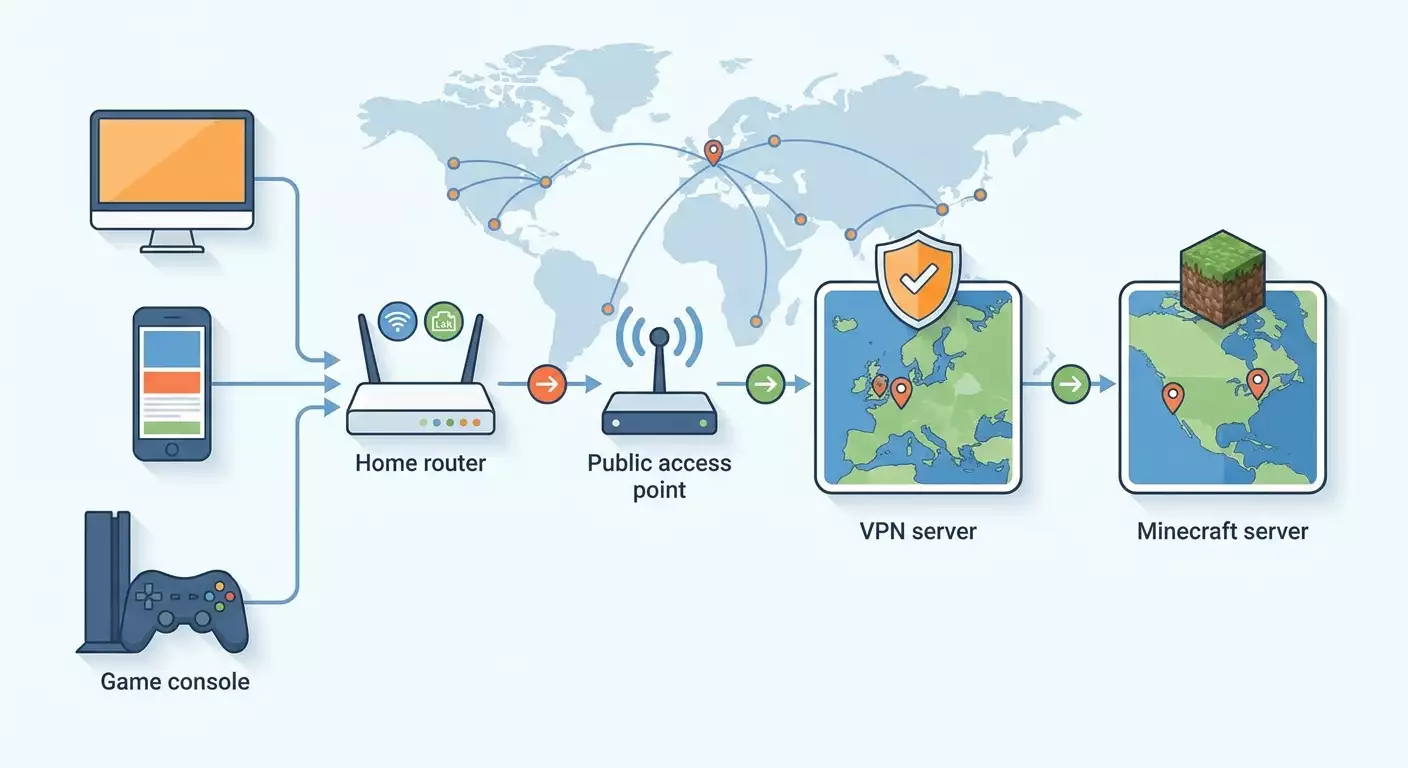
- Your packet travels from your device to the VPN server, exits to the internet with the server’s IP, and reaches the game server.
- Physical distance and route congestion mainly determine delay, not just your ISP plan.
- Your protocol choice affects UDP flow stability and tolerance to packet loss.
- A personal IP lowers blocking and CAPTCHA risks, and reduces chances of anti-cheat detection.
Important to Know Before Starting
- The closest server by geography isn’t always the best ping due to backbone quality.
- WireGuard often delivers the best ping but on unstable mobile networks IKEv2 can be steadier.
- Consoles usually don’t support VPNs directly, so use a router or hotspot from PC/phone.
Tip: Restart your router before long sessions to clear overloaded connections and free NAT memory.
Step 1: Define Your Gameplay Scenario and Goal
Goal: figure out why you need a VPN for Minecraft Bedrock right now to pick the best protocol, city, and connection method without guessing.
- Identify who you’re playing with and where your friends or target server are located.
- Know who’s hosting: are you creating the world, running a dedicated server, or joining someone else’s game?
- Choose the device you’ll use for internet access: PC, smartphone, or console.
- Decide how you’ll route VPN to the console if it’s involved—via router or hotspot from PC/phone.
- Determine if lowest ping or stable, uninterrupted connection matters more, especially if your network is unstable.
Common Scenarios:
- Connecting to foreign public Bedrock servers blocked for Russian IPs.
- Playing with friends abroad via world invites and Xbox Live when friends don’t appear due to region locks.
- Hosting a local world for friends with minimal latency when inviting them.
- Extended multiplayer sessions with voice chat needing stable tunnels and battery-saving on mobile.
✅ Check: You’ve noted your main scenario, device, and connection method. Now you know exactly what to get from the VPN in the next steps.
Step 2: Choose Protocol and Region for Lowest Ping
Goal: select the VPN protocol and server city that suit your scenario to get minimal ping and stable UDP traffic.
Choosing Protocol
- WireGuard: top choice for low ping over stable cable or Wi-Fi, especially on PC and Android.
- IKEv2: resistant to network switching and drops; great on iOS and mobile internet.
- OpenVPN UDP: all-around option for strict networks but usually higher latency than WireGuard.
- L2TP/SSTP: fallback options for very filtered networks where others fail.
Choosing Server Region
- List players’ cities, e.g., Moscow, Saint Petersburg, Amsterdam, Frankfurt, London, New York.
- Select 3–5 cities nearest your group with many game hosts and solid backbones.
- Measure ping to those cities during your usual playtime (evenings).
- Check ping stability: look beyond minimums to consistency and packet loss.
- Pick the city with the lowest median ping and steady results without spikes over 120–150 ms.
Regional Tips
- Central Russia players: Moscow, Saint Petersburg, Warsaw, Helsinki, Stockholm, Frankfurt are good picks.
- From Europe for friends: Amsterdam, Frankfurt, London, Warsaw, Stockholm.
- US East Coast: New York and Chicago; West Coast: San Jose, factoring in distance.
- Asia often best served by Singapore, sometimes Helsinki or Stockholm for North Europe/Asia play.
- Australia/New Zealand: Sydney works well, but check peak hour ping.
Tip: Test ping twice at different times since evening backbones are busier than mornings.
✅ Check: You’ve chosen a protocol and 1–2 target cities for VPN. Write them down to avoid guessing later.
Step 3: Setting Up VPN on Windows 10/11 for Minecraft Bedrock
Goal: install and run VPN on PC, tweak settings for best ping, and if needed, set up internet sharing to console via mobile hotspot or VPN sharing.
Quick Start: Connecting the Client
- Install the VPN client for your chosen protocol on Windows.
- Import the server config for your chosen city.
- Open the client and connect with one click.
- Confirm the client shows Connected status and new IP address.
- Launch Xbox app or Minecraft Launcher and sign in with your Microsoft account.
Optimizing Ping and Stability
- Use WireGuard if available and enable any high-priority traffic options in client settings.
- Disable network adapter power-saving in Device Manager to prevent UDP freezes.
- Turn off Windows Update background downloads before playing.
- Ensure firewall allows Minecraft Bedrock and Xbox Live services.
- Ping test your VPN server and compare against a backup city.
Sharing VPN to Console via Mobile Hotspot
- Go to Windows Settings > Network & Internet.
- Turn on Mobile Hotspot and enable internet sharing.
- Set Wi-Fi as source and create hotspot name and password.
- Connect your console to this Wi-Fi using the password.
- Open Network Adapter Properties and enable sharing of the VPN connection for the hotspot adapter.
Alternative: Wired Console Connection
- Connect your console to PC via Ethernet cable.
- Open Network Connections and enable internet sharing for VPN adapter over Ethernet.
- Ensure console gets IP via DHCP from PC and has internet access.
- Launch VPN client and wait until Connected.
- Open Minecraft on console and sign in to Xbox Live.
Tip: Double NAT may appear when sharing VPN through PC—usually not a big deal for Bedrock but test friend connections.
⚠️ Warning: When sharing internet, avoid simultaneous Wi-Fi and Ethernet sharing to prevent routing loops.
✅ Check: Your PC is connected to VPN, Minecraft logs into your account, and console (if used) accesses internet via your PC and can see online worlds. Ping stays steady below 150–200 ms.
Step 4: Setting Up VPN on Android and iOS
Goal: launch VPN on your mobile, pick protocol fitting your network type, and ensure stable background operation and notifications for Xbox Live and invites.
Android Quick Setup
- Install a VPN app supporting WireGuard or IKEv2.
- Import your chosen city’s profile and config.
- Allow app permission to create VPN connection.
- Enable auto-launch or quick widget for easy start.
- Connect to VPN and verify IP change and stable speed.
iOS Quick Setup
- Install VPN profile supporting IKEv2 or WireGuard.
- Allow VPN profile addition in device settings.
- Toggle VPN on in Settings, selecting the correct profile.
- Confirm VPN icon appears in status bar.
- Open Minecraft, sign in, and refresh friends and servers lists.
Stability and Battery Saving
- Allow VPN app to run in the background and disable battery optimization.
- Enable Xbox/Minecraft notifications to get timely invites.
- On iOS, keep the screen locked briefly if the network was unstable.
- Use IKEv2 to quickly restore the tunnel if frequently switching Wi-Fi or cellular.
- If UDP is throttled by your provider, switch temporarily to OpenVPN TCP.
Tip: On Android, set VPN app’s background priority high to prevent system from pausing it during long sessions.
✅ Check: Mobile device connects to VPN with a tap, Minecraft sees friends, and joining worlds works. Ping matches expected values for your city.
Step 5: VPN for Consoles via Router or Hotspot
Goal: connect Xbox, PlayStation, or Nintendo Switch to the internet via VPN using a router with VPN client or a PC/smartphone bridge.
Connecting Through Router
- Log into your router’s admin panel.
- Navigate to VPN client section and add a new profile with your chosen protocol.
- Enter server address, keys, and tunnel parameters per your provider's guide.
- Enable rules to route all traffic from the console’s LAN port through VPN.
- Save settings, activate profile, and verify VPN connection status.
Connecting via PC/Phone Hotspot
- Create a hotspot on your PC or smartphone while connected to VPN.
- Enable internet sharing for the hotspot adapter.
- Connect your console to this new Wi-Fi and enter the password.
- Confirm console has internet and can log into Xbox Live or PSN.
- Launch Minecraft Bedrock and refresh the Friends tab.
NAT Types and What They Mean
- Xbox: aim for Open or Moderate NAT; Strict can block invites.
- PlayStation: Type 2 usually works fine; Type 3 limits incoming connections.
- Switch: avoid strict NAT; check UPnP on router and beware of double NAT.
Tip: If your router can route by device, send only the console through VPN and let other devices use your direct internet.
⚠️ Warning: Running VPN on your router can reduce overall speed for all devices—plan household use accordingly and activate VPN profiles only during gaming if possible.
✅ Check: Console connects to internet, signs into profile, Minecraft shows friends and servers, and network test reports acceptable NAT and ping under 150–180 ms for your region.
Step 6: Connecting to Minecraft Bedrock Servers via VPN and Playing with Friends
Goal: correctly sign into your account, find servers and friends, add them, and join worlds reliably while bypassing regional filters and blocks.
Logging In and Network Features
- Launch Minecraft Bedrock to the main menu.
- Sign in with Microsoft/Xbox account and wait for sync.
- Go to Play tab and wait for Worlds, Friends, and Servers lists to update.
- Ensure VPN is active on your device or router.
- Confirm no regional restrictions and servers list is populated.
Adding Friends and Private Worlds
- Open Friends tab and search for profiles by gamer tags.
- Send friend requests and wait for acceptance.
- Ask your friend to open their world to invitations and check they're connected via a compatible VPN region.
- Click Join when the world appears available.
- If you can’t see a friend, have them restart Minecraft and verify VPN status.
Public and Recommended Bedrock Servers
- Go to the Servers tab and wait for the list to refresh.
- Select a server and wait for ping test completion.
- Click Play and watch the connection screen.
- If ping is high, switch to an alternate VPN city you tested.
- If a timeout occurs, restart VPN client and try again.
Tip: Sometimes an intermediate city works better than the closest geographical one when connecting to servers abroad — don’t hesitate to experiment.
✅ Check: You can see friends and join their worlds; public servers ping and load without connection errors or endless loading.
Step 7: Fine-Tuning Ping and Routes
Goal: squeeze out the lowest real ping by choosing ports, protocols, cities, and prioritizing traffic on your devices and router.
Ping and Packet Loss Testing
- Open Command Prompt on PC and ping your VPN server.
- Compare results for your two chosen cities, noting median and spikes.
- Run a short UDP packet loss test with a mobile tool.
- Launch Minecraft and check real-time in-game ping on server screen.
- Adjust protocol and region if needed based on tests.
System and Hardware Settings
- Enable QoS or prioritize gaming traffic on your router if available.
- Switch to 5 GHz Wi-Fi instead of 2.4 GHz to reduce interference.
- Use Ethernet for PC and console connections whenever possible for lowest latency.
- Pause torrenting and streaming during play sessions.
- Restart your router after major changes to refresh network routes.
Tip: If your ISP uses CGNAT, favor WireGuard or IKEv2 protocols and avoid uncommon ports that might be filtered.
✅ Check: After optimization, in-game ping lowers or becomes stable, disconnects stop, and you join worlds smoothly on the first try.
Step 8: Hosting Together: Playing Locally with Minimal Latency
Goal: if hosting your own world, ensure the fastest, most stable connections for friends from different regions.
If You're Hosting on PC
- Start Minecraft Bedrock on your PC and enable VPN.
- Choose a city that minimizes total travel time for most friends.
- Create or open a world with friend access enabled.
- Ask friends to check their VPN city to align network routes.
- Keep your PC connected via Ethernet to avoid packet loss over Wi-Fi.
If You're Hosting on Console
- Connect your console to internet through VPN via router or hotspot.
- Check NAT type and simplify it to Moderate or Open if needed.
- Open your world and enable friend invites.
- Ask friends to refresh friends lists and try joining.
- Pause background downloads and updates until session ends.
Tip: For large groups across continents, test 2–3 cities and pick the one where most get ping below 120–150 ms, even if yours is a bit higher.
✅ Check: Friends see your world and join without timeouts, and gameplay runs smoothly with no sync glitches.
Step 9: Security, Legality, and Blockage Resistance
Goal: set up VPN usage to minimize blocking and ban risks, and respond properly to network policy changes or anti-cheat actions.
Best Practices
- Use a personal IP instead of shared to avoid reputational issues with unknown users.
- Limit switching VPN locations during sessions to stay under service radar.
- Keep Minecraft client and console security updated.
- Avoid cheats and banned mods to prevent penalties.
- Pause between quick reconnects to let networks stabilize.
Native Provider Recommendation
To reduce block risks and stabilize ping for Minecraft Bedrock, consider vpn.how as an expert, personalized VPN service. It offers dedicated VPN servers with unique IPs, supports WireGuard, OpenVPN, IKEv2, L2TP, and SSTP, letting you pick the best protocol for your network and device. Servers are located in key gaming cities like Moscow, Saint Petersburg, Amsterdam, Frankfurt, London, New York, San Jose, Chicago, Singapore, Sydney, Madrid, Helsinki, Stockholm, Warsaw, Copenhagen, and Stavanger. Payment options convenient for Russian users include Russian bank cards, SBP, and cryptocurrencies. Servers activate within 5 minutes post-payment and keep no logs. Practically, personal VPNs with dedicated IPs deliver more stable ping and face fewer anti-cheat blocks than popular public VPNs, crucial for console connections and long sessions.
⚠️ Warning: Using VPN must comply with local laws and platform rules. This guide is technical and does not encourage violating service terms.
✅ Check: You have a clear plan for sustainable VPN use with a chosen personal IP or transparent routing setup tested on your devices.
Final Check
At this stage, ensure your whole setup works as intended and measure success by ping, stability, and ability to connect with friends and servers.
Checklist
- VPN connects quickly on PC and mobile and recovers fast after sleep.
- Console accesses internet through router or hotspot and logs into profile.
- Minecraft friends and server lists update without delays.
- Invites are received, worlds open, and timeouts rarely happen.
- Ping is stable with no frequent spikes above 150–200 ms for your chosen city.
How to Test
- Connect VPN and verify IP and ping to your chosen city.
- Launch Minecraft and visit 2–3 servers from the list.
- Ask a friend in another region to invite you to their world.
- Play 15–20 minutes to check for smooth, uninterrupted gameplay.
- Switch to your backup city and compare ping and stability.
Signs of Success
- Friend connections work on first or second try.
- Ping matches tests and doesn’t degrade during evenings.
- Console shows acceptable NAT and stable connection.
- VPN stays connected when switching between Wi-Fi and mobile networks.
✅ Check: If all checklist items pass, setup is successful. Otherwise, revisit Steps 2 and 7 to fine-tune city and protocol settings.
Common Problems and Fixes
- Problem: Friends don’t appear in Minecraft. Cause: Xbox Live inactive or VPN only on one side. Fix: Log in, enable VPN on both, and restart the game.
- Problem: High evening ping. Cause: Busy route to chosen city. Fix: Switch to an alternative nearby city and restart client.
- Problem: Server entry timeout. Cause: UDP blocked or unstable tunnel. Fix: Switch protocol to IKEv2 or OpenVPN UDP, check router and QoS.
- Problem: Console shows strict NAT. Cause: Double NAT when sharing via PC. Fix: Use router VPN client or UPnP, or direct wired connection.
- Problem: VPN drops on mobile. Cause: Power saving and aggressive background management. Fix: Exclude VPN from battery optimization, allow background activity.
- Problem: Anti-cheat or services severely restrict. Cause: IP from public shared pool with abuse history. Fix: Use personal IP to avoid shared reputation issues.
- Problem: Voice chat lags only. Cause: Congested 2.4 GHz Wi-Fi. Fix: Switch to 5 GHz or Ethernet for voice device.
Additional Features
Advanced Settings
- Split tunneling: route only Minecraft through VPN and send other traffic directly to save resources.
- Routing policies: assign VPN routing per device MAC address on advanced routers.
- Scheduled city rotation: if you play at different times, plan switches to less loaded routes.
Quality Optimization
- Stabilize Wi-Fi: fix 5 GHz channel and bandwidth (40 or 80 MHz) to prevent neighbors from shifting settings automatically.
- Ping monitoring: track median and 95th percentile to understand real-world performance.
- Reduce jitter: avoid heavy cloud backups running simultaneously with VPN sessions on the same channel.
Other Tips
- Dedicated gaming VLAN: separate gaming devices from household traffic to avoid interference.
- Channel duplication: keep a backup profile for a nearby city ready for quick failover during tournaments.
Tip: If you have two routers, keep your VPN on the second one and connect only gaming devices there to prevent home network interruptions impacting the tunnel.
FAQ
Q: Which protocol is best for lowest ping on PC? A: Start with WireGuard and switch to IKEv2 if your network is unstable or you change Wi-Fi/mobile networks often.
Q: How to connect PlayStation to VPN if router lacks client support? A: Use a Windows PC hotspot with internet sharing so console accesses VPN through your PC adapter.
Q: How to reduce timeouts when joining servers? A: Confirm you use a UDP-friendly protocol, try a different nearby city, and disable background downloads.
Q: Can I play with a friend abroad without VPN? A: Sometimes yes, but regional filters and routing often block it; VPN on both sides greatly improves chances.
Q: Why is ping higher in the evening than morning? A: Backbone networks get congested; try alternate cities or more loss-tolerant protocols.
Q: What to do if voice chat lags on mobile? A: Switch to IKEv2, prioritize VPN app, and use 5 GHz Wi-Fi.
Q: Do I need a personal IP? A: Not mandatory, but it lowers anti-cheat restrictions and stabilizes ping.
Q: Can VPN be left on all the time? A: Yes, but monitor mobile battery and set auto-connect only on trusted networks.
Q: How to verify only Minecraft traffic goes through VPN? A: Enable full tunnel and compare server access with and without VPN; watch game behavior when switching cities.
Q: Will changing DNS help? A: Sometimes yes for faster resolving and bypassing filters, but primary effect is from VPN routing.
Conclusion
You’ve completed the entire path from understanding goals to stable Minecraft Bedrock play via VPN. We defined your scenario, picked protocol and region for low ping, set up VPN on Windows, Android, iOS, and connected consoles through router or hotspot. You now know how to add friends, join foreign servers, optimize Wi-Fi, manage NAT, and check connection stability, plus handle common errors and evening traffic spikes.
Next, you can dive into advanced settings like split tunnel, routing policies, gaming VLANs, and 95th percentile latency monitoring. For even more consistent stability and reduced anti-cheat risks, use a personal IP and flexible protocol selection. With these skills, you’ll quickly adjust to network changes, help friends set up access, and enjoy Minecraft Bedrock from Russia seamlessly with friends worldwide.
Tip: Save your working VPN profile and list of successful cities so you have a quick plan B during network turbulence without extra trial and error.