Playing Valorant via VPN from Russia: Step-by-Step Guide with Server Selection and Anti-Ban Tips
A detailed step-by-step guide on running Valorant through a VPN from Russia: choosing servers with the lowest ping, configuring WireGuard/OpenVPN/IKEv2, ensuring stable Riot Client and Vanguard launches, plus anti-ban practices. Perfect for beginners. Result: smooth gameplay within 60–90 minutes.
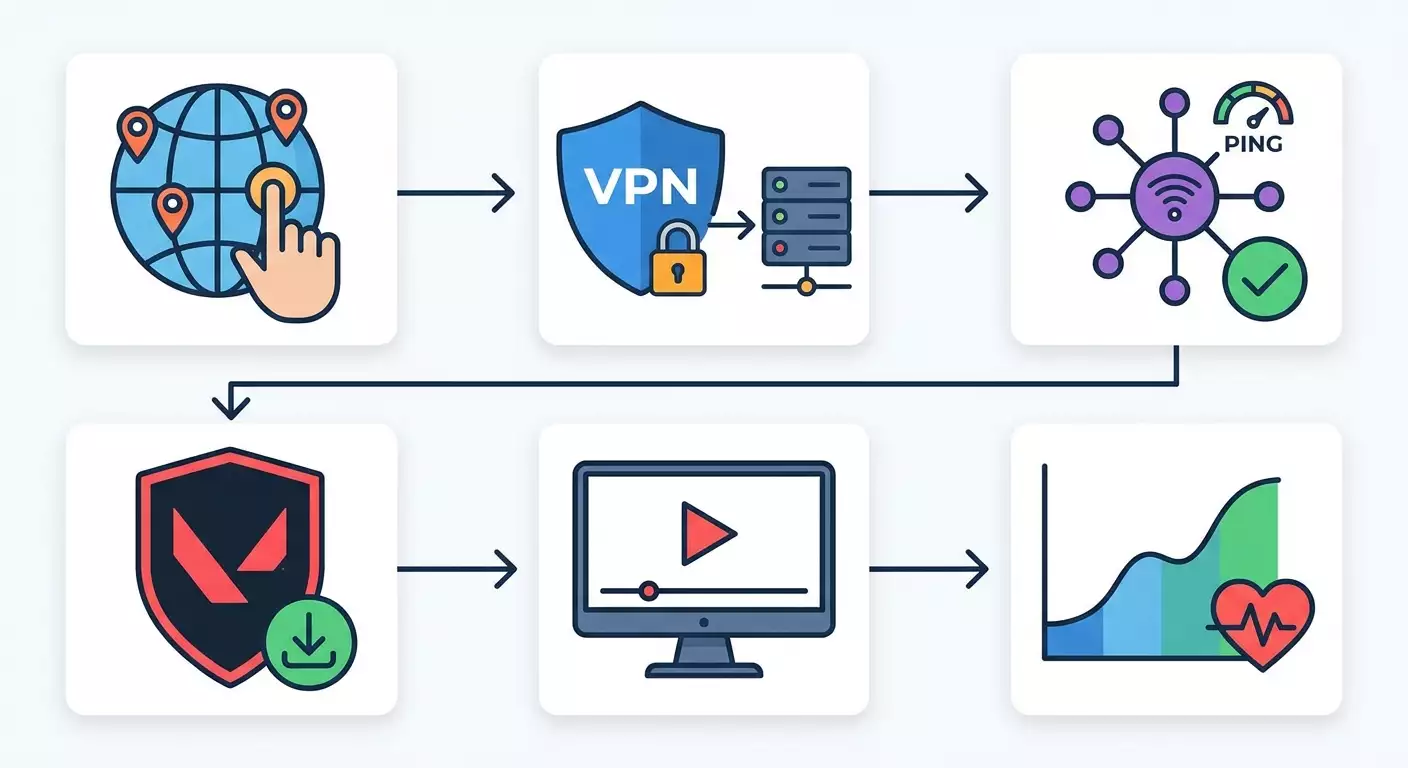
Content of the article
- Introduction
- Preparation
- Basic concepts
- Step 1: measure ping and choose target region
- Step 2: choose and pay for a vpn with anti-ban in mind
- Step 3: configure vpn client (wireguard, ikev2, openvpn)
- Step 4: lock in network settings for stable ping
- Step 5: prepare your riot account and region
- Step 6: install riot client and vanguard
- Step 7: launch through vpn, verify route, and optimize
- Step 8: optimize client and game for low ping
- Step 9: anti-ban practices and account hygiene
- Result verification
- Common issues and solutions
- Additional features and optimization
- Faq
- Conclusion
Introduction
In this step-by-step guide, you'll learn how to run and consistently play Valorant from Russia using a VPN, how to choose the best region for the lowest ping, configure WireGuard, OpenVPN, and IKEv2 protocols, optimize your network for a stable connection, and reduce the risk of automatic bans. We’ll cover everything from scratch: selecting the server to successfully entering matches, plus anti-ban techniques to keep your account safe and compliant with game rules.
This guide is designed for beginners but includes advanced sections for fine-tuning. If you’re new to VPNs or unsure which region to pick, just follow the steps in order. Each step is verified with checkpoints and ready-made troubleshooting scripts.
What you'll get in the end: a working VPN setup for Valorant, clear server selection by ping, properly installed Riot Client and Vanguard, stable launches without interruptions, and tips to minimize the risk of bans due to suspicious activity. Completing all steps takes about 60–90 minutes, including downloads and system restarts.
Before starting, keep in mind: using a VPN must comply with your country’s laws and the developer’s rules. We do not encourage bypassing restrictions that break laws or game policies. This guide focuses on safe and transparent configurations aimed at stable connections and fair play without cheats.
Preparation
Gather all necessary tools and check your system before starting. This will save time and help avoid common mistakes.
Required Tools and Access
- A Windows 10/11 PC, macOS 12+, or Linux (Ubuntu/Debian/Fedora). Valorant officially supports Windows; macOS/Linux users can only run the game through cloud or unofficial means, so this guide focuses on Windows for playing and all OS for VPN setup.
- A Riot account with verified email and access.
- Payment method for VPN: credit card, SBP (Russian payment system), or cryptocurrency, depending on provider.
- Stable internet connection (preferably wired Ethernet; 5 GHz Wi-Fi if cable is not available).
System Requirements and Windows Setup
- Free disk space: at least 30 GB for Valorant and updates.
- Windows updates: install the latest security patches to ensure Vanguard works correctly.
- Administrator rights needed to install Riot Vanguard and VPN network adapters.
What to Download and Install
- VPN client or configuration files for your chosen protocol (WireGuard, OpenVPN, IKEv2). Prepare config files, keys, and MTU settings if your provider recommends them.
- Riot Client and Valorant (download from Riot Client after logging in).
Backups and Restore Points
- Create a Windows system restore point before installing Vanguard drivers to easily revert if needed.
- Backup important documents in case network driver reinstallation becomes necessary.
Tip: Prepare a secondary internet connection (like mobile data) for quick ping and route checks if your primary ISP’s route is unstable.
✅ Check: At this stage, you have a Riot account, updated Windows system, administrator rights, and the clients ready for your selected VPN protocols.
Basic Concepts
To understand why we configure things a certain way, let’s break down key terms simply.
- VPN – a secure tunnel routing your traffic through a remote server. The game sees the IP of that server.
- Ping (latency) – the time in milliseconds it takes for a packet to reach the server and return. For smooth Valorant gameplay, ping up to 50–70 ms is ideal; up to 90 ms is acceptable; over 100 ms causes noticeable lag.
- Packet loss – percentage of lost packets. Ideal is 0%. Acceptable up to 1%. Above 2% causes stutters and unreliable hit registration.
- Jitter – variation in delay. Lower jitter means a more predictable connection. Norm is up to 5–10 ms.
- WireGuard/OpenVPN/IKEv2 – VPN protocols. WireGuard usually offers the lowest ping and best stability. OpenVPN is versatile but slower over UDP. IKEv2 handles mobile and unstable Wi-Fi well.
- MTU/MSS – maximum packet size. Wrong MTU can cause micro-lags and losses. We'll find a safe value.
- Riot Vanguard – anti-cheat driver running at kernel level. Requires reboot and proper installation.
⚠️ Warning: Any attempts to bypass anti-cheat, use cheats, or macros will lead to bans. This guide is about setting a stable connection for fair play.
Step 1: Measure Ping and Choose Target Region
Goal
Identify the nearest Valorant server region/city by network path to get minimal ping and stable performance.
Step-by-Step
- Determine your location: Central/Northwest/South European Russia, Ural, Siberia, Far East. This affects server choice.
- List priority cities: for Moscow and Central Federal District – Helsinki, Warsaw, Frankfurt, Stockholm; for Saint Petersburg – Helsinki, Stockholm, Warsaw; for the South – Istanbul, Warsaw, Frankfurt; for Ural – Warsaw, Frankfurt; for Siberia – Stockholm, Helsinki; for Far East – Singapore.
- Ping these cities without VPN using OS tools or ping command. Note stability and packet loss.
- Record the results and pick the 2–3 best cities with lowest ping and consistent values.
- Check routing with traceroute. Many hops or big jumps may indicate bottlenecks with your ISP; VPN routing can help.
Important Notes
- Shortest physical distance isn’t always best. Actual ISP and international route quality matters more.
- Peak hour accessibility: evening pings often rise. Test between 6 PM and 10 PM.
Tip: If you have fiber with good European peering, Helsinki and Warsaw often deliver steadier ping than Amsterdam or London.
✅ Check: You’ve selected your VPN server city (or two) and logged baseline ping and packet loss without VPN for comparison.
Step 2: Choose and Pay for a VPN with Anti-Ban in Mind
Goal
Get a personal, stable VPN using a protocol suited for your network and an IP that won’t trigger game service suspicion.
Step-by-Step
- Decide if you need a dedicated IP or shared. For gaming, dedicated is better to avoid blacklists caused by other users.
- Choose protocol: start with WireGuard for minimal ping; keep IKEv2 for unstable Wi-Fi/mobile; OpenVPN UDP as a compatible fallback.
- Choose server location based on Step 1’s city list (e.g., Helsinki, Warsaw, Frankfurt, Stockholm, Istanbul, Singapore).
- Check payment options: Russian cards, SBP, crypto. Confirm server startup speed and logging policy (no logs for privacy and stability).
- Subscribe for at least 24 hours for a full test during peak hours. After successful assessment, consider monthly or longer plans with discounts.
Expert Recommendation
vpn.how provides personal VPN servers with dedicated IP addresses. Available locations, protocols and current prices are shown on the website and in your account. Payment methods and the final amount are displayed at checkout. Choose a server
Attention
⚠️ Warning: Review game rules and local laws. Avoid connections prohibited by terms. This guide promotes fair, stable play without cheat circumvention.
✅ Check: You have active VPN access with dedicated IP in chosen city and config files for at least one protocol (WireGuard/IKEv2/OpenVPN).
Step 3: Configure VPN Client (WireGuard, IKEv2, OpenVPN)
Goal
Establish a VPN tunnel with minimal ping, correct MTU, and no traffic leaks.
WireGuard on Windows
- Install official WireGuard client (admin rights required).
- Import .conf file: click “Add Tunnel” → “Add empty tunnel” or “Import tunnel from file.”
- Check settings: Endpoint – server address; AllowedIPs – 0.0.0.0/0 and ::/0 for full tunnel; MTU – default 1420, lower to 1380 or 1360 if issues arise.
- Click “Activate.” Confirm virtual adapter appears and status is “Active.”
- Open command prompt: ping server IP and closest major node (e.g., your ISP backbone) to assess latency.
IKEv2 on Windows
- Go to Settings → Network & Internet → VPN → Add VPN connection.
- Provider: “Windows (built-in).” Connection name: anything. Server name/address: enter domain or IP. VPN type: IKEv2.
- Sign-in info: username and password if required. Save.
- Click “Connect.” If certificate prompt appears, approve trust.
OpenVPN on Windows
- Install OpenVPN Community or GUI client.
- Place .ovpn file into config folder. Run client as admin.
- Right-click icon → select profile → “Connect.” Enter credentials if needed.
- If ping is high, try UDP profile; TCP only if your network is problematic.
MTU/MSS Setup
- Check fragmentation by pinging with large packet size and 'do not fragment' flag. If packets drop, lower MTU.
- For WireGuard start with MTU 1380; for OpenVPN UDP – 1400–1450; for IKEv2 – 1380–1420, adjusting based on fragmentation loss.
DNS and Leak Protection
- Set DNS to 1.1.1.1 and 8.8.8.8 in VPN adapter properties or use provider DNS to reduce resolution delays.
- Disable IPv6 if your VPN provider doesn’t tunnel it to prevent leaks and routing issues.
Tip: For WireGuard, set PersistentKeepalive to 25 to keep the tunnel alive between rounds and avoid ping spikes.
✅ Check: Tunnel connected, ping to selected city stable, DNS resolving quickly, no IPv6 leaks, MTU set for fragmentation-free operation.
Step 4: Lock in Network Settings for Stable Ping
Goal
Fix common causes of lag and packet loss: incorrect MTU, noisy Wi-Fi, traffic priority, and firewall rules.
Step-by-Step
- Switch to Ethernet cable. If unavailable, use 5 GHz Wi-Fi on a clear router channel.
- Enable QoS or WMM on your router if available to prioritize game UDP packets.
- In Windows Defender Firewall → Advanced Settings → Outbound Rules: ensure Valorant and Vanguard are allowed. Allow UDP ports 7000–9000 for the game client.
- Stop background downloads: cloud sync, torrents, auto-updates for other games/launchers.
- Set power plan to “High Performance” so network drivers don’t sleep.
Tip: On Wi-Fi, fix channel width to 40 MHz on 5 GHz and avoid “auto” in busy buildings to reduce jitter fluctuations.
✅ Check: Ping to chosen city has minimal variance, no packet loss, firewall allows UDP 7000–9000, background services are disabled.
Step 5: Prepare Your Riot Account and Region
Goal
Ensure proper Riot Client login, match region alignment, and lower account protection triggers from sudden IP changes.
Step-by-Step
- Enable two-factor authentication on your Riot account to reduce login blocks from suspicious activity.
- Log into Riot Client via VPN on your chosen region so the system registers your typical IP range.
- If your account's region doesn't match desired servers, request a region change through Riot support (accessible in the client). Explain honestly you want to play with your actual ping.
- Don’t switch IP every 10 minutes. Use the same VPN server for sessions. Consistent IP reduces security alerts.
Tip: Always end sessions in the client before changing VPN servers or protocols. Logging in anew mid-session can trigger extra checks.
✅ Check: Account logs in without CAPTCHA or extra confirmations, region matches server pool, and email/phone contacts are verified.
Step 6: Install Riot Client and Vanguard
Goal
Correctly install the game client and anti-cheat for stable match startups.
Step-by-Step
- Run Riot Client as administrator and log in.
- Find Valorant in the library and start installation. Wait for all files to download.
- When prompted, install Vanguard and reboot your system. The game won’t start without this restart.
- After reboot, confirm Vanguard is running – an anti-cheat icon appears in the system tray.
- Launch Valorant. The first run may check for file integrity; please wait for completion.
Important Notes
- Secure Boot in your BIOS can sometimes interfere with Vanguard. If driver errors occur, check and adjust Secure Boot settings.
- Antivirus: whitelist Riot Client, Valorant, and Vanguard to avoid delays accessing game files.
⚠️ Warning: Don’t run Valorant in a virtual machine or use tools that interfere with game processes; this almost certainly causes bans.
✅ Check: Vanguard is installed and active, Valorant launches to lobby login screen without errors.
Step 7: Launch Through VPN, Verify Route, and Optimize
Goal
Ensure the game runs fully through VPN, ping matches expectations, and route is stable.
Step-by-Step
- Connect VPN to your chosen server (e.g., Helsinki via WireGuard).
- Check your IP: make sure it reflects the server city, not your ISP.
- Open Riot Client and Valorant. Go to game settings → Network tab and enable display of ping and packet loss.
- Start the practice range. Monitor ping and stability. It should be close to your Step 1 measurements plus VPN overhead (+2–10 ms).
- If ping is 20+ ms higher than expected, switch protocols: WireGuard → IKEv2 or OpenVPN UDP and retest.
- If ping fluctuates widely, test Ethernet (if possible) and stop background processes.
Tip: Keep the same route throughout your gaming session. Don’t switch VPN nodes mid-ranked match to avoid disconnects.
✅ Check: Ping stays stable in practice, no losses, minimal jitter, and the session runs fully through VPN.
Step 8: Optimize Client and Game for Low Ping
Goal
Adjust game and system settings to fully leverage a stable VPN route.
Step-by-Step
- In-game Video settings: cap FPS slightly above your monitor’s refresh rate or set to unlimited to reduce input lag if your PC can handle it.
- Enable Network RTT (ping), Total Frame Time, and Packet Loss in Gameplay settings for visual feedback.
- Disable overlays that interfere with the game (third-party overlays, screen recording, skin changers). They cause lag and anti-cheat suspicion.
- In Task Manager, set Valorant and RiotClientServices priority to “Above Normal.”
- Enable low-latency mode in your GPU control panel (NVIDIA Low Latency Mode/AMD Anti-Lag) and avoid excessive upscaling.
Tip: For minimal input lag, use exclusive fullscreen mode and turn off vertical sync if you don’t notice visual tearing.
✅ Check: Ping and loss displayed, stable latency, and smooth gameplay in test match without shooting stutters.
Step 9: Anti-Ban Practices and Account Hygiene
Goal
Minimize risk of sanctions from suspicious network activity and rule violations while keeping play fair.
Step-by-Step
- Use a dedicated IP and avoid switching nodes every 10–20 minutes. IP consistency is key to fewer security alerts.
- Don’t log into the same account from different continents in short time frames. If playing locally, stick to one VPN server.
- Don’t run suspicious programs alongside the game: macro clickers, injectors, driver-level mouse/keyboard modifiers.
- Keep Windows, drivers, and Vanguard updated. Old drivers might cause false detections.
- Avoid smurfing and selling accounts. Suspicious behavior draws anti-cheat scrutiny.
- Never use free public VPNs. Their IPs are often blacklisted due to abuse.
Tip: If you temporarily need to switch server cities (e.g., moving), close all sessions, log out of Riot Client, switch servers, then log back in and verify via email/2FA.
✅ Check: Over several sessions, use the same node, avoid unexpected auth prompts, and play without disconnects or anti-cheat errors.
Result Verification
Checklist
- VPN stays connected steadily for 2–3 hours with no drops.
- In-game ping matches expectations (+2–10 ms over baseline).
- Packet loss at 0–1%, low jitter, no drops switching sides or round start.
- Riot Client and Vanguard launch without errors.
- Matches found and start quickly; no bans or surprise CAPTCHAs.
How to Test
- Play 2–3 matches at different times (day and evening). Compare ping and stability.
- Simultaneously measure ping to VPN server; check if in-game lag spikes align with ping jumps.
- If you experience rare freezes every 10–15 minutes, check background activity and Wi-Fi channels, and try lowering MTU by 20 points.
Success Indicators
- In-game ping stable within 5–10 ms variance.
- No connection drops, matchmaking uninterrupted.
- No anti-cheat warnings or login issues.
Tip: Keep a log of your setup: server, protocol, MTU. It helps quickly restore a working profile if settings change.
✅ Check: Final tests passed, stable sessions with low ping, error-free.
Common Issues and Solutions
- Issue: Game won’t start after installing Vanguard. Cause: Missing reboot or Secure Boot conflict. Solution: Restart PC; check BIOS Secure Boot on/off; whitelist Vanguard in antivirus.
- Issue: High ping with VPN compared to no VPN. Cause: Wrong node region or protocol. Solution: Switch servers (e.g., Frankfurt to Warsaw/Helsinki); test WireGuard vs OpenVPN TCP; adjust MTU to 1360–1400.
- Issue: Fluctuating ping and micro-lags. Cause: Busy Wi-Fi or background processes. Solution: Use Ethernet; close cloud sync apps; enable router QoS.
- Issue: 2–5% packet loss. Cause: MTU fragmentation or overloaded route. Solution: Lower MTU by 20–40 points; switch to closer node; check cables and connectors.
- Issue: Frequent Riot login verification prompts. Cause: Frequent IP and region switches. Solution: Stick to one node; enable 2FA; always end sessions before switching servers.
- Issue: Anti-cheat error at match start. Cause: Overlays or driver conflicts. Solution: Disable third-party overlays; update GPU and chipset drivers; reinstall Vanguard.
- Issue: Ping spikes in the evening. Cause: Peak backbone load. Solution: Choose less loaded city (e.g., Helsinki or Warsaw instead of Frankfurt) and use dedicated IP.
Tip: Run short A/B tests: 10 minutes per node with ping/loss logging for faster optimal choice.
Additional Features and Optimization
Advanced Settings
- MSS Clamping: On OpenWrt/AsusWRT routers, use MSS clamp set to MTU-40 to smooth TCP traffic.
- Split-tunneling: Route only Valorant and Riot traffic through VPN, keeping other traffic local to avoid tunnel overload.
- Failover: Configure a backup node in a nearby city with quick protocol switchover if the main one drops.
Region-Based Optimization
- Moscow/Central FD: Helsinki, Warsaw offer the best balance; Frankfurt as an evening peak alternative.
- Saint Petersburg/NW FD: Helsinki and Stockholm tend to deliver the most stable jitter.
- Southern Russia: Istanbul or Warsaw; Frankfurt if overloaded.
- Ural/Siberia: Warsaw/Stockholm; test Helsinki for stability.
- Far East: Singapore — best compromise between latency and route stability.
Other Tips
- Link your account to a reliable email and phone for smooth protections during rare IP changes.
- Keep a dedicated “gaming” Windows profile with minimal startup apps for a clean environment.
- Schedule system and client updates during non-peak gaming hours to avoid unexpected restarts.
Tip: If your ISP uses CG-NAT causing evening instability, a personal VPN server often improves European routing due to better peering than local nodes.
FAQ
- Can I play ranked matches with a VPN? Yes, if your connection is stable, ping is low, and you don’t switch nodes mid-match. Always follow game rules.
- Which protocol offers the lowest ping? Usually WireGuard, but test IKEv2 on noisy Wi-Fi as it may maintain stability better.
- What matters more: city proximity or channel quality? Channel quality. Sometimes a farther city has lower jitter and packet loss.
- Should I disable IPv6? Yes, if your VPN provider doesn’t route IPv6 to prevent leaks and asymmetric routing.
- What ports to open in firewall? Allow outbound UDP 7000–9000 for Valorant client; ensure Riot Client TCP ports (e.g., 443/8443) aren’t blocked.
- What to do if rare freezes occur every 10–15 minutes? Check if backup/cloud runs; reduce MTU by 20; test another node.
- Can dedicated IP reduce ban risk? Yes, it lowers chances of blacklisted IPs and keeps IP behavior consistent for anti-cheat.
- Should I change Riot account region? Only if your real ping and matchmaking suffer. Request through client support and don’t overuse.
- Will voice chat and group search work? Yes, with proper DNS and allowed UDP traffic, they function normally.
- How to tell if a VPN provider is bad for gaming? Ping fluctuates, packet loss stays over 1%, unbearable evening spikes, and node switching doesn’t help. Time to change provider.
Tip: Keep a backup VPN profile with the same city on an alternate protocol to switch quickly if network issues arise.
Conclusion
You’ve completed the full process: identified the best ping region, selected and configured a dedicated VPN with the best protocol, optimized network and system settings, correctly installed Riot Client and Vanguard, and verified stability in practice and matches. You also know how to troubleshoot common issues and minimize ban risks by keeping a stable IP, avoiding suspicious software, managing regions carefully, and enabling two-factor authentication.
Next, you might explore advanced network setups: split-tunneling to reduce channel load, MSS clamping on routers to improve TCP, failover scripts to nearby cities. Regularly run quick A/B tests during your peak gaming hours — sometimes changing your evening route greatly boosts quality.
The key is to play fair and consistent, stick with one trusted route, and avoid shady software. This will protect your account and deliver the predictable low ping you aimed for. Wishing you great matches!
Publisher: vpn.how