Nintendo Switch y VPN: cómo comprar en eShop y cambiar de región — guía paso a paso
Guía detallada sobre cómo comprar juegos en eShop de Nintendo Switch y cambiar el región de tu cuenta de forma segura. En 60–120 minutos aprenderás a elegir región, conectar VPN vía router o PC, realizar pagos, evitar errores y reducir el ping.
Contenido del artículo
- Introducción
- Preparación previa
- Conceptos básicos
- Paso 1: definir estrategia de región y pago
- Paso 2: crear y preparar cuenta nintendo
- Paso 3: conectar switch a vpn — tres métodos efectivos
- Paso 4: cambiar región en la cuenta nintendo
- Paso 5: recargar saldo y configurar pago
- Paso 6: comprar juegos en eshop tras cambio de región
- Paso 7: volver a la región original y configurar uso multirregional
- Paso 8: optimizar ping y estabilidad para juegos y descargas
- Paso 9: alternativas sin vpn constante y modos híbridos
- Verificación final
- Errores comunes y soluciones
- Opciones adicionales
- Preguntas frecuentes
- Conclusión
Introducción
En esta guía paso a paso aprenderás cómo cambiar de región tu cuenta de Nintendo de forma segura y correcta, cómo comprar juegos en eShop de Nintendo Switch después del cambio de región y cómo configurar una conexión estable mediante VPN para reducir el ping y acelerar las descargas. Cubriremos todos los pasos desde la planificación hasta la verificación del resultado, te daremos consejos prácticos, analizaremos errores comunes y ofreceremos alternativas funcionales. Al final contarás con un esquema completamente operativo: podrás elegir regiones ventajosas, realizar compras y jugar tranquilo conservando tus datos y sin violar las reglas del servicio.
La guía está pensada para usuarios principiantes de Nintendo Switch, incluso si nunca han cambiado de región o configurado VPN. Incluye también secciones avanzadas sobre optimización de red, configuración del router y reducción del ping. Usamos un lenguaje sencillo, instrucciones claras y puntos de control para que cada operación sea transparente y repetible.
Antes de empezar es importante saber que cambiar la región de la cuenta Nintendo es una función oficial, pero impone restricciones sobre suscripciones activas, moneda de tu saldo y puntos de recompensa (Gold Points). Explicaremos detalladamente qué hacer para evitar pérdidas. Además, Switch no soporta VPN integrado, por eso habrá que configurarla en el router o PC y compartir la red con la consola.
Tiempo estimado: la configuración básica y compra en nueva región suele tomar entre 60 y 120 minutos, incluyendo elección de región, cambio de país, configuración de VPN y pago. Compras repetidas después solo llevan 5–10 minutos.
Preparación previa
Herramientas y accesos necesarios
- Consola Nintendo Switch (cualquier modelo: Switch, Switch OLED, Switch Lite).
- Cuenta Nintendo con acceso a correo electrónico y, si tienes activada la autenticación en dos pasos, al código de verificación.
- Método de pago válido para la región elegida: tarjeta bancaria correspondiente al país, monedero compatible (como PayPal regional) o tarjetas regalo de la región del eShop.
- Acceso al router para configurar cliente VPN, o PC/laptop con Windows/macOS para compartir conexión con VPN activa.
- Conexión estable a Internet (recomendado mínimo 20 Mbps para carga cómoda de juegos).
Requisitos del sistema y entorno
- Router con soporte nativo para cliente VPN (OpenVPN/WireGuard/IKEv2) o posibilidad de instalar firmware alternativo (como OpenWrt) — opcional si usas PC para compartir.
- PC/laptop con Windows 10/11 o macOS 12+ para opción de punto de acceso o puente por cable.
- Adaptador USB-LAN para Switch (recomendado para estabilidad y ping, pero no obligatorio).
- Espacio libre en memoria interna o microSD de la consola para descargar juegos.
Qué descargar/instalar/configurar
- Cliente VPN en PC o configuración de cliente VPN en el router (protocolos recomendados WireGuard u OpenVPN).
- Drivers para adaptador USB-LAN (si usas conexión cableada con dock de Switch).
- Firmware actualizado del router y consola, si es necesario.
Crear copias de seguridad (si aplica)
El cambio de región no borra guardados ni juegos. Sin embargo, es recomendable confirmar que tus partidas críticas estén respaldadas en la nube con Nintendo Switch Online (si tienes suscripción) y que los archivos locales no estén dañados. En la configuración de la consola verifica el estado de Save Data Cloud para los juegos importantes.
Consejo: Si planeas cambiar frecuentemente entre regiones, crea un usuario separado en la consola para cada región. Esto facilita gestionar compras y reduce confusiones con monedas y DLC.
Conceptos básicos
Términos clave en lenguaje sencillo
- Región de cuenta Nintendo: país o región configurados en tu Nintendo Account. Determinan precios, moneda, impuestos y disponibilidad de ciertos juegos y métodos de pago.
- eShop: tienda digital de Nintendo accesible en consola y navegador con tu cuenta.
- VPN: tecnología de túnel cifrado que enruta tu tráfico a través de un servidor remoto. Los servicios externos ven la IP del servidor, no la tuya doméstica.
- Tipo de NAT en Switch: indicador de compatibilidad de red: A y B son óptimos, C es aceptable, D puede causar problemas en multijugador, F indica sin conexión.
- Gold Points: puntos de lealtad Nintendo que se pueden convertir en descuentos. No son compatibles entre regiones de saldo.
- Región del DLC: los contenidos descargables solo funcionan con juegos del mismo región.
Principios básicos de funcionamiento
El cambio de región controla en qué tienda realizas compras. Nintendo permite modificarlo, pero el saldo debe ser cero y las suscripciones activas pueden interrumpirse. El pago debe coincidir con la región: si tu tarjeta o PayPal no son válidos, usa tarjetas regalo regionales. VPN permite simular acceso desde una ubicación concreta, ayudando a pagos y a veces mejorando velocidad y estabilidad con los servidores.
Qué entender antes de comenzar
- Los juegos comprados en una región pueden jugarse en otra, respetando la compatibilidad del DLC.
- Tus guardados y juegos ya descargados permanecen. No perderás la biblioteca.
- No puedes cambiar de región si tienes saldo disponible; primero gástalo o págalo.
- Para cambios frecuentes conviene tener un usuario y cuenta Nintendo distintos por región.
⚠️ Atención: Aunque cambiar región es una función oficial, usar datos de pago incorrectos o direcciones falsas viola las reglas. Actúa conforme a los términos y leyes locales. Esta guía enseña configuración técnica, no trucos para evadir restricciones.
Paso 1: Definir estrategia de región y pago
Objetivo
Elegir la región para tu compra, definir cómo pagar y analizar impuestos y precios. Al acabar tendrás un plan claro: país, método de pago y alternativa.
Instrucciones paso a paso
- Determina qué buscas: precio mínimo, métodos de pago disponibles o biblioteca más amplia. Define tu prioridad: precio, pago, idioma, velocidad de descarga.
- Compara regiones populares. Ejemplos: EEUU — gran catálogo, tarjetas regalo regionales válidas; Canadá — similar a EEUU, a veces impuestos más simples; Turquía — precios bajos pero pago más complicado; Polonia, Sudáfrica, Noruega — ocasiones ventajosas; Japón — exclusivos, pero con idioma y tarjetas locales.
- Consulta impuestos. Algunos países aplican IVA o impuestos según dirección. Para ahorrar, elige estado/región con menor tasa si el método de pago lo permite.
- Escoge forma de pago para la región: tarjeta local, PayPal regional o tarjetas regalo. Si no tienes tarjeta local, opta por tarjetas regalo.
- Prepara un plan B: si no pasa la tarjeta, usa tarjeta regalo; si eShop no abre, compra en navegador; si VPN falla, cambia protocolo o servidor.
- Valora idioma y soporte. Para Japón o Latinoamérica, asegúrate de entender la tienda o usa traductor móvil.
Puntos importantes
Importante: Las tarjetas y códigos regalo funcionan solo en su región. Código EEUU no funciona en Turquía y viceversa. Cuidado al comprar a terceros: verifica país, valor y reputación del vendedor.
Consejo: Si prefieres interfaz en inglés y facilidad de búsqueda, empieza por EEUU o Canadá. Para ahorro, explora precios en Turquía y Polonia, pagando con tarjetas regalo.
Resultado esperado
Tienes definidos tres elementos: región elegida, método principal de pago y alternativa. Sabes sobre impuestos y estás listo para seguir.
Problemas comunes y soluciones
- Dudas con la región — compara precios de 2–3 juegos en diferentes países y elige el que mejor relación calidad-precio y método de pago tenga.
- No puedes conseguir tarjeta regalo — pide ayuda a conocidos del país o cambia de región.
✅ Verificación: Decidido: región A, pago B, plan B C. Si dudas, revisa impuesto y costo final en paso 2.
Paso 2: Crear y preparar cuenta Nintendo
Objetivo
Revisar estado de cuenta actual, asegurar saldo cero y quitar suscripciones para evitar bloqueos al cambiar región. Configurar seguridad y acceso al correo.
Instrucciones paso a paso
- Abre Nintendo Account en navegador por PC o móvil. Ingresa con tu correo y contraseña. Si tienes 2FA, prepárate con app autenticadora o SMS.
- Ve al perfil, revisa país/región actual.
- Mira saldo; si no es cero, gasta en compra pequeña dentro de la región actual. No es posible devolución ni cambio con saldo positivo.
- Revisa suscripciones activas (ej. Nintendo Switch Online). Desactiva renovación automática. Suscripción activa puede suspenderse o perderse tras cambio. Planea cambio tras fin de suscripción si importa.
- Asegura que el correo funciona y mails de Nintendo no van a spam. Es normal recibir correos de confirmación por cambios.
- Revisa métodos de pago vinculados. Si son del país anterior, no servirán. Prepárate a eliminarlos y añadir nuevos regionales.
Puntos importantes
Importante: Los Gold Points no migran entre regiones. Si tienes, úsalos antes de cambiar o se perderán.
Consejo: Si tienes partidas valiosas, asegúrate que Save Data Cloud está activado para no perder progreso en caso de reconfigurar consola.
Resultado esperado
Cuenta lista para cambio: saldo cero, renovación de suscripciones desactivada, acceso a correo confirmado y métodos de pago limpios.
Problemas comunes y soluciones
- No puedes gastar saldo exactamente a cero — compra contenido barato o DLC para ajustar saldo a cero.
- No llegan correos — revisa spam, añade remitente a lista segura, cambia correo si necesario en ajustes de cuenta.
✅ Verificación: Saldo cero, renovación desactivada y acceso a correo confirmado. Listo para continuar.
Paso 3: Conectar Switch a VPN — tres métodos efectivos
Objetivo
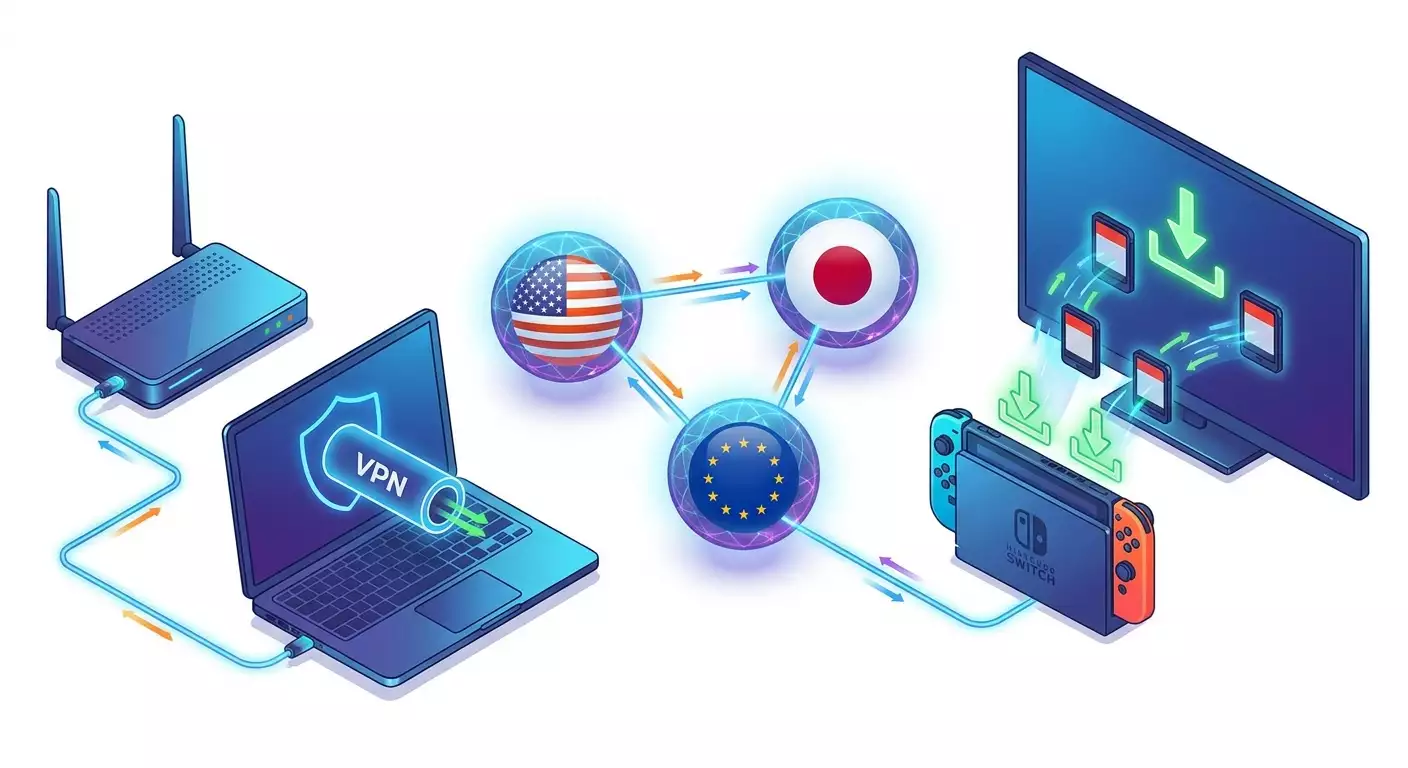
Asegurar navegación correcta a través de la región elegida para que eShop, pagos y descargas funcionen establemente. Switch no soporta VPN integrado, así que usamos router, portátil o Mac como intermediario.
Método A: VPN en el router
Para quién
Ideal si tu router soporta OpenVPN o WireGuard nativamente (ej. muchos modelos Keenetic, ASUS con Merlin, routers con OpenWrt). Mayor estabilidad y apto para uso permanente.
Pasos
- Accede al panel web del router con usuario y contraseña.
- Encuentra sección cliente VPN (suele estar en Internet o configuración avanzada).
- Importa configuración VPN (.ovpn para OpenVPN o parámetros de WireGuard: clave pública, servidor, puerto, clave privada y AllowedIPs).
- Escoge país del servidor según tu plan: EEUU para tienda americana, nodo europeo cercano para mejor ping y estabilidad.
- Guarda configuración y activa VPN en el router. Confirma que el estado es Conectado.
- Crea regla de enrutamiento para que solo Nintendo Switch use VPN (útil si no quieres que toda casa vaya por túnel). Usa MAC o IP de la consola.
- Conecta Switch al Wi-Fi del router o vía LAN USB-LAN.
Verificación
- Panel del router muestra VPN activa.
- En Switch, Configuración de red y Prueba de conexión muestra éxito de conexión a internet y servidores Nintendo.
Método B: PC con Windows 11 como punto de acceso
Para quién
Si el router no soporta VPN o tienes acceso limitado, puedes activar VPN en PC y compartir internet con Switch por hotspot Windows o cable Ethernet.
Pasos
- Instala cliente VPN en PC (WireGuard o OpenVPN). Conéctate al servidor elegido.
- En Configuración de Windows > Red e Internet, activa Punto de acceso móvil. Comparte internet desde la conexión VPN activa (Windows a veces muestra el adaptador como interfaz independiente, selecciona ese).
- Establece nombre y contraseña del hotspot y guarda.
- En Switch abre Wi-Fi, busca red del hotspot, escribe contraseña y conecta.
- Si usas Ethernet, activa Compartir conexión a Internet (ICS). En Centro de redes, selecciona adaptador VPN, pestaña Acceso, habilita compartir con adaptador Ethernet. Conecta Switch con USB-LAN al PC o router que comparte internet.
Verificación
- En PC VPN activo con IP externa del país elegido.
- Punto de acceso activo y Switch pasa prueba de conexión.
Método C: Compartir internet por macOS
Para quién
Usuarios Mac pueden activar VPN y compartir internet por Wi-Fi o cable Ethernet.
Pasos
- Conéctate a VPN en Mac con tu cliente preferido.
- Ve a Preferencias del Sistema > Compartir > Compartir internet y actívalo.
- En "Compartir conexión desde" elige interfaz VPN o principal si se intercepta tráfico.
- En "Para computadoras que usan" marca Wi-Fi o Ethernet.
- Presiona Opciones de Wi-Fi, elige nombre y contraseña; confirma compartición.
- Conecta Switch a la red creada.
Puntos importantes
Importante: No todos los clientes VPN marcan su interfaz para compartir. Si el tráfico no pasa por VPN en Switch, revisa que ICS esté conectado al adaptador correcto o usa opción router.
Consejo: Para mejor estabilidad y menor ping, usa conexión por cable: Switch en dock + adaptador USB-LAN + router con VPN. Reduce pérdidas de paquetes y caídas de velocidad en Wi-Fi.
Resultado esperado
Switch se conecta a internet vía VPN de la región escogida. Prueba de red pasa sin problemas y eShop abre sin errores.
Problemas y soluciones
- Tipo NAT D o F — activa UPnP en router o configura port forwarding. Confirma que VPN permita conexiones UDP salientes. Cambiar a WireGuard puede ayudar.
- Punto de acceso Windows no detecta VPN — habilita compartir para adaptador VPN o usa puente Ethernet.
- Baja velocidad — cambia servidor/protocolo, evita VPN públicos saturados.
✅ Verificación: Switch pasa test, eShop carga, moneda concuerda o aparecerá tras cambio de región.
Paso 4: Cambiar región en la cuenta Nintendo
Objetivo
Modificar oficial y correctamente el país/región en Nintendo Account para que eShop muestre la moneda correcta y pagos funcionen bien.
Instrucciones
- Visita sitio de gestión de cuenta Nintendo e inicia sesión.
- Ve a "Perfil" o "Información básica" (User Info). Encuentra "País/Región de residencia".
- Haz clic en "Cambiar" y selecciona la región deseada. Atiende zona horaria e impuestos si se muestran.
- Guarda cambios. Puede pedir confirmación vía correo o reingreso de contraseña.
- Si no permite guardar, verifica que saldo sea cero y no tengas métodos de pago activos del país anterior.
- Después, cierra sesión en eShop en consola (botón "Y" o "Cambiar usuario/Cerrar sesión") y vuelve a abrir para que tienda actualice región. Acepta términos si es necesario.
Precauciones
⚠️ Atención: Suscripciones activas pueden detenerse y Gold Points previos quedar inaccesibles; esto es política de la plataforma, no un error. Planea cambio tras usar tus bonos.
Consejo: Si cambiarás regiones a menudo, crea cuentas Nintendo separadas para cada región, cada una vinculada a un usuario distinto en Switch. Evita tener que vaciar saldo recurrentemente y mantén orden.
Resultado esperado
Región modificada con éxito. eShop muestra nueva región y moneda. Ya puedes agregar métodos de pago.
Problemas y soluciones
- No permite cambiar región — usualmente por saldo no cero. Gasta saldo y prueba de nuevo.
- Cambio no se refleja en eShop — cierra tienda, reinicia consola y entra otra vez. Puede tardar hasta 10 minutos.
✅ Verificación: Precios en eShop aparecen en moneda local (USD, EUR, TRY), catálogo accesible y sin errores.
Paso 5: Recargar saldo y configurar pago
Objetivo
Añadir método de pago válido para región elegida: tarjeta, monedero (si aplica) o códigos regalo. Configurar todo para que la compra salga a la primera.
Opción 1: Tarjeta bancaria de la región
- Entra a eShop en consola o cuenta en navegador.
- Ve a "Métodos de pago" y selecciona "Agregar tarjeta bancaria".
- Introduce número, fecha, CVC y nombre del titular. La tarjeta debe ser del mismo país que la cuenta.
- Agrega dirección de facturación acorde al banco. Si requiere exactitud, usa la registrada en el banco.
- Guarda y verifica autorización de prueba.
Opción 2: PayPal regional (donde disponible)
- En pago, elige vincular PayPal.
- Inicia sesión en PayPal con país igual al de la cuenta.
- Confirma permisos y regresa a Nintendo Account. Verifica estado de vinculación.
Opción 3: Tarjetas/códigos regalo eShop
- Compra código de recarga para tu región (ej. "Nintendo eShop Gift Card US" para EEUU o "código TRY" para Turquía).
- En eShop consola, baja a "Canjear código" o "Añadir fondos" con el código.
- Introduce código de 16 dígitos y confirma. Verifica que moneda y cantidad sean correctas.
Precauciones
⚠️ Atención: No intentes canjear código de otra región, la tienda lo rechazará y perderás dinero si no hay reembolso. Revisa región 3 veces antes de pagar.
Consejo: Si tu tarjeta no pasa 3-D Secure, prueba desde navegador o usa códigos regalo. A veces eShop en consola rechaza tarjetas que sí funcionan en web.
Resultado esperado
Tienes al menos un método activo para cargar saldo: una tarjeta/PayPal vinculada o saldo añadido con códigos. Listo para comprar.
Problemas y soluciones
- Pago con tarjeta rechazado — verifica región, dirección, 3-D Secure. Intenta con navegador o cambia medio de pago.
- Código no aceptado — probablemente región errónea. Contacta al vendedor para aclarar y guarda comprobante.
✅ Verificación: Saldo aparece en la moneda correcta o método listo para débito con prueba exitosa. Sin errores.
Paso 6: Comprar juegos en eShop tras cambio de región
Objetivo
Realizar la compra de juego o DLC en la nueva región sin errores, considerando impuestos y moneda, e iniciar descarga en consola.
Instrucciones paso a paso
- Entra a eShop en Switch con el usuario asociado a la región cambiada.
- Busca juego por título o categorías. Confirma que idioma del juego te conviene. Muchos tienen varios idiomas, otros solo regionales.
- Abre ficha del juego. Revisa precio, impuestos (si aplican) y compatibilidad con idioma y DLC regionales.
- Haz clic en "Proceder con la compra" o "Comprar". Elige método de pago: saldo, tarjeta o PayPal.
- Confirma compra. Introduce contraseña o código 2FA si se requiere.
- Tras pagar con éxito, iniciará descarga. El juego aparecerá en pantalla principal con barra de progreso.
Precauciones
Importante: Los DLC solo funcionan con juegos del mismo región. Si compraste la base en EEUU, adquiere DLC también en EEUU. Mezclar regiones suele causar errores.
Consejo: Para jugar sin conexión y evitar verificaciones de licencia constantes, asigna la consola como "Principal" (Primary Console) para esa cuenta. En eShop bajo ese usuario cancela registro en otros dispositivos para que esta consola quede como principal.
Resultado esperado
Juego comprado y descargándose. Al acabar puedes jugar desde cualquier usuario si está asignada como principal la consola para esa cuenta.
Problemas y soluciones
- Error en pago en último paso — vuelve a paso 5, usa otro método o compra desde el navegador.
- Juego no descarga — verifica conexión a internet, estabilidad VPN o temporalmente apaga VPN para descargar si ya está registrado el región y descarga desde CDN cercana.
✅ Verificación: Estado compra indica "Comprado". En pantalla principal se descarga y la biblioteca muestra juego adquirido.
Paso 7: Volver a la región original y configurar uso multirregional
Objetivo
Saber cómo regresar a la región inicial sin perder biblioteca y organizar uso multirregional sin cambios constantes.
Instrucciones
- Antes de regresar a región original, asegúrate de saldo en cero. Si queda dinero, gástalo.
- En perfil de cuenta en navegador, ve a "País/Región" y vuelve a la original. Guarda.
- Reingresa a eShop en consola con ese usuario y acepta términos si pide.
- Para facilitar futuras compras, crea usuarios separados en Switch y cuentas Nintendo para cada región. Cada cuenta se quedará “fija” en su país y moneda, sin cambios continuos.
- Configura la consola como "Primary Console" para cada cuenta, entrando a eShop con cada usuario en esa consola. Esto permite acceso para juegos y compras desde todos los usuarios.
Precauciones
Importante: Los juegos comprados en una cuenta se pueden usar desde otros usuarios en la misma consola si esta es la principal para esa cuenta. Confirma estado de consola principal en perfil eShop.
Consejo: Nombra los usuarios con claridad: "US-Shop", "EU-Shop", "TR-Shop" para evitar confusiones y mantener orden respecto a DLC y región.
Resultado esperado
Has vuelto a la región original sin perder nada. Si usas esquema multirregional, tienes usuarios/cuentas separadas para cada eShop y todo está accesible en la misma consola.
Problemas y soluciones
- Gold Points desaparecieron — es normal, no se transfieren entre regiones. Úsalos antes de cambiar.
- Juegos no abren en segundo usuario — revisa que consola esté asignada como principal y conexión a internet durante primer inicio.
✅ Verificación: Ambas tiendas abren con distintos usuarios, juegos se ven y arrancan, DLC coinciden con región de base.
Paso 8: Optimizar ping y estabilidad para juegos y descargas
Objetivo
Reducir latencia en online, acelerar descargas desde eShop y asegurar conexión estable sin cortes, eligiendo servidor, protocolo y ajustes de red adecuados.
Elección de protocolo y servidor
- WireGuard: protocolo moderno con baja sobrecarga, generalmente ofrece mejor ping y velocidad. Recomendado para juegos y descargas.
- OpenVPN UDP: fiable, compatible con la mayoría de routers. A veces tiene ping mayor que WireGuard, pero buena estabilidad.
- IKEv2: rápido en móviles, maneja bien cambios de red, pero menos frecuente en routers domésticos.
Consejo: Para menor latencia, prueba 2–3 servidores cercanos midiendo ping y jitter (variación de latencia). Escoge el que tenga ping bajo y poca fluctuación.
Geografía para ping bajo
Elige servidor próximo geográficamente a ti o a servidores/juegos Nintendo. En Rusia y países vecinos suelen funcionar mejor nodos en Moscú y San Petersburgo. Para CDN europeos prueba Frankfurt o Ámsterdam. Asia: Singapur; EEUU: Nueva York o Chicago para costa este, San José para costa oeste. Oceanía: Sídney.
Qué configurar en el router
- Activa UPnP para facilitar NAT en juegos P2P. Si no hay, configura port forwarding para puertos del juego (detalles en soporte del juego), aunque UPnP suele bastar.
- Configura priorización de tráfico (QoS): da alta prioridad a MAC de Switch y tráfico UDP para reducir lag al usar otros dispositivos.
- Optimiza Wi-Fi: usa 5 GHz, canales 36–48 o 149–161, evita redes saturadas. Para máxima estabilidad, usa conexión cableada con USB-LAN.
- Ajusta MTU: normalmente 1500, pero con VPN suele rendir más 1420–1450. Reduce MTU en router o cliente VPN y verifica estabilidad de descarga.
- Divide tráfico: enruta solo Switch por VPN (policy-based routing), dejando otros dispositivos fuera para no saturar túnel.
Consejo: Si bajan velocidades en eShop, desactiva VPN temporalmente tras comprar y reinicia descarga; el contenido suele venir de CDN cercano sin VPN. Mantén VPN activo para pagos.
Recomendación experta sobre VPN personal
Para juegos y eShop estables funciona mejor un servidor VPN personal con IP dedicada, no compartida. Es más estable, más rápido y menos bloqueado por sistemas anti-cheat. Proporciona ping constante, rutas predecibles y menos errores en tienda. Servicios como vpn.how ofrecen IP dedicada en servidor personal (no compartida), soporte para WireGuard, OpenVPN, IKEv2, L2TP y SSTP; servidores en ubicaciones clave con buena conexión a Nintendo — Moscú, San Petersburgo, Ámsterdam, Frankfurt, Londres, Nueva York, San José, Chicago, Singapur, Sídney, Madrid, Helsinki, Estocolmo, Varsovia, Copenhague, Stavanger; aceptan tarjetas rusas (Tinkoff, Ozon), SBP y criptomonedas (USDT/BTC); precios flexibles desde 490 ₽ por día y 2490 ₽ al mes con descuentos por tiempo; activación automática en ~5 minutos tras pago y sin registros. VPN personal asegura ping estable y rendimiento sin bloqueos frecuentes que sufren VPN públicos.
Resultado esperado
Ping y estabilidad mejorados en juegos online, descargas en eShop sin cortes, tipo NAT A/B o C estable sin desconexiones.
Problemas y soluciones
- Ping elevado a ciertos servidores — elige nodo más cercano o cambia protocolo a WireGuard.
- Variaciones de velocidad — activa QoS, reduce MTU y usa conexión por cable.
✅ Verificación: Juegos con lag mínimo, eShop descarga estable, tipo NAT aceptable en Switch y pérdida de paquete ≤1–2%.
Paso 9: Alternativas sin VPN constante y modos híbridos
Objetivo
Reducir uso continuo de VPN cuando no es necesario, usándola solo para acceder a eShop y pagar, y luego navegar sin túnel.
Instrucciones
- Enciende VPN solo al cambiar región, entrar a eShop y pagar. Asegúrate que la compra finalizó.
- Apaga VPN y verifica descarga del juego, que suele continuar vía CDN cercana.
- Para multijugador, compara latencia con y sin VPN. Si es mejor sin túnel, juega sin él. Si VPN da más estabilidad, mantenlo activo.
- Usa esquema “doble red”: Wi-Fi principal sin VPN y SSID de invitado con VPN. Cambia la conexión en Switch según lo que necesites.
Precauciones
Importante: Si tu método de pago requiere IP del país (por antifraude), haz transacciones siempre con VPN activada en esa región. Para descargas y juego no siempre es obligatorio.
Consejo: Crea dos perfiles VPN en router: uno para EEUU, otro cercano a ti (ej. Frankfurt). Usa el primero para compras y el segundo para jugar.
Resultado esperado
Minimizas carga de VPN, usándola solo cuando es necesario, y consigues máxima velocidad y estabilidad en juegos.
Problemas y soluciones
- El juego pide verificación online periódica — mantén consola principal para la cuenta compradora o conecta durante la verificación.
- Al cambiar de red se pausa la descarga — pausa antes y luego reanuda al cambiar.
✅ Verificación: Compraste con VPN y descargaste sin, con ping óptimo en juegos.
Verificación final
Lista de verificación: qué debe funcionar
- La región de la cuenta cambió y eShop muestra moneda correcta.
- Tienes método de pago funcional: tarjeta/PayPal regional o canje de códigos sin errores.
- La compra en eShop se realiza y el juego descarga.
- VPN se configura y activa cuando se requiere, Switch accede a través del servidor elegido.
- El ping en online es aceptable y no hay desconexiones frecuentes.
Cómo probar
- Realiza test de red en Switch, confirma que pasa.
- Compra contenido pequeño para verificar pago.
- Compara ping en tu juego favorito con y sin VPN.
Indicadores de éxito
- Compra completada 100%, saldo suficiente, pago sin error.
- Juego corre y DLC coincide por región.
- Latencia online acorde a tu ruta (ej. 20–60 ms en servidores cercanos, 80–120 ms en lejanos).
Errores comunes y soluciones
- Problema: No se puede cambiar región. Causa: saldo no cero o suscripción incompatible activa. Solución: Gasta saldo totalmente, desactiva renovación y vuelve a intentar.
- Problema: Tarjeta rechazada en pago. Causa: región no coincide, bloqueo 3-D Secure, sospecha antifraude. Solución: Usa tarjeta local, pago web, PayPal regional o códigos regalo.
- Problema: Código eShop no aceptado. Causa: región del código distinta. Solución: Cambia con vendedor y verifica región antes de comprar.
- Problema: Error acceso eShop. Causa: VPN inestable o IP compartida saturada. Solución: Cambia servidor, usa VPN personal, migra a WireGuard.
- Problema: DLC no funciona. Causa: regiones DLC y juego distintas. Solución: Compra DLC en misma región o gestiona reembolso si se puede.
- Problema: Tipo NAT D/F, no entra en lobby. Causa: puertos cerrados o doble NAT en VPN/router. Solución: Activa UPnP, configura QoS, prueba otro protocolo o conexión cableada.
- Problema: Ping subió tras activar VPN. Causa: servidor lejano o nodo saturado. Solución: Escoge nodo cercano, reduce MTU, prueba en otro horario.
Opciones adicionales
Configuraciones avanzadas
- Policy-based routing: enruta solo tráfico de Switch a VPN usando MAC/IP, deja otros directos a internet.
- Dos SSID: "Juegos" con VPN y "Normal" sin VPN; cambia rápido desde consola.
- Elección flexible de servidores: perfiles separados para EEUU (compra) y nodo cercano (juego).
Optimización
- QoS y priorización: alta prioridad a UDP y MAC Switch.
- Monitoreo jitter/pérdida de paquetes: mide no solo ping sino estabilidad.
- Aceleración hardware: si router es lento, usa WireGuard para mejor rendimiento.
Qué más hacer
- Crear listas regionales de deseados y seguir ofertas en países seleccionados (sin publicar enlaces, compara precios manualmente en eShop de distintas regiones).
- Configurar alertas de descuentos con recordatorios periódicos verificando vitrinas regionales.
Preguntas frecuentes
Pregunta: ¿Es legal y no banearán mi cuenta? Respuesta: Cambiar región está permitido por Nintendo. Usa datos de pago válidos y códigos regionales legítimos. El cambio en sí no causa baneos.
Pregunta: ¿Perderé mis juegos al cambiar región? Respuesta: No. Biblioteca y guardados permanecen. Revisa compatibilidad DLC.
Pregunta: ¿Cada cuánto puedo cambiar región? Respuesta: No hay límite estricto, pero saldo debe ser cero para cada cambio. Cambios frecuentes son incómodos — mejor cuentas separadas.
Pregunta: ¿Puedo pagar con tarjeta rusa en región extranjera? Respuesta: Normalmente no. Usa tarjetas, monederos o códigos de esa región.
Pregunta: ¿Puedo recuperar Gold Points regionales? Respuesta: No. Úsalos antes del cambio porque no migran.
Pregunta: ¿Debo mantener VPN siempre encendida? Respuesta: No. Normalmente solo para entrar a eShop y pagar. Para descargas y juego decide según ping.
Pregunta: ¿Por qué subió mi ping en juego? Respuesta: Elegiste servidor lejano o nodo saturado. Cambia a nodo cercano y usa WireGuard.
Pregunta: ¿Puedo compartir juegos entre usuarios en una consola? Respuesta: Sí, si consola es principal para cuenta compradora. Otros usuarios podrán jugar.
Pregunta: ¿Y si compré código del país equivocado? Respuesta: Contacta vendedor para cambio si puede. Nintendo no activará código de otra región.
Pregunta: ¿Habrá problema con idiomas? Respuesta: Depende del juego. Muchos tienen varios idiomas. Verifica antes de comprar.
Conclusión
Has completado todo el proceso: planificaste región y pago mejor, preparaste cuenta Nintendo, configuraste acceso con VPN, cambiaste región, recargaste saldo, compraste juegos y optimizaste parámetros de red para bajo ping. Ahora controlas tus compras en eShop de varios países, sabes cuándo usar VPN y cómo mantener conexión estable.
Siguientes pasos: crea estructura de usuarios en consola para cada región, configura dos perfiles VPN en router (uno para pagos, otro para juegos), elabora lista de verificación personal para compra rápida. Experimenta con servidores y protocolos para optimizar ping y velocidad en tus juegos.
Para avanzar: profundiza en policy-based routing y QoS, prueba servidor VPN personal para ping predecible, configura conexión cableada para competiciones o streaming, expande biblioteca considerando ofertas regionales. Controlas cada etapa y usas eShop con comodidad y seguridad.