VPN para Apple Watch: cómo configurarlo desde el iPhone sin errores — guía paso a paso
Aprenderás a configurar paso a paso un VPN para que tu Apple Watch use una conexión segura a través del iPhone. En 60–90 minutos tendrás un esquema funcional con WireGuard, IKEv2 u OpenVPN, conocerás las limitaciones de watchOS, cómo verificarlo y resolver problemas comunes.
Contenido del artículo
- Introducción
- Preparación previa
- Conceptos básicos
- Paso 1: comprobar la conexión entre iphone y apple watch
- Paso 2: elegir protocolo y preparar las configuraciones
- Paso 3: configurar vpn en iphone — wireguard
- Paso 4: configurar vpn en iphone — ikev2 con herramientas nativas
- Paso 5: configurar vpn en iphone — openvpn
- Paso 6: auto conexión, escenarios y control desde el reloj
- Verificación del resultado
- Errores comunes y soluciones
- Opciones avanzadas
- Preguntas frecuentes
- Conclusión
Introducción
En esta guía paso a paso configurarás un VPN para que el tráfico de Internet de tu Apple Watch pase a través del iPhone con un túnel VPN activo. Te explicaremos las capacidades y limitaciones de watchOS en 2026, qué protocolos realmente funcionan, sus diferencias y cómo asegurarte de que el reloj use la ruta segura. Al final tendrás un esquema estable, pruebas claras y soluciones para problemas comunes.
¿Para quién es esta guía? Para usuarios principiantes de iPhone y Apple Watch que quieren proteger la conexión del reloj, y para lectores avanzados interesados en detalles de protocolos, automatización y optimización fina. Iremos de lo simple a lo complejo, con pasos claros, consejos y puntos de control.
Qué debes saber antes: operaciones básicas en iPhone y Apple Watch, cómo instalar apps desde App Store, qué es un VPN y por qué se usa. La teoría técnica se explicará de forma sencilla, y las partes complejas vendrán con consejos.
Tiempo estimado: la configuración básica toma 30–45 minutos; escenarios avanzados con automatización y varios protocolos pueden durar 60–90 minutos. Las pruebas y ajustes requieren 10–20 minutos, según tu red y proveedor.
Preparación previa
Antes de empezar, asegúrate de tener todo el equipo, software y accesos necesarios. Una buena preparación ahorra tiempo y evita la mitad de los errores.
Dispositivos y accesos necesarios
- iPhone con iOS actualizado (recomendamos iOS 17 o superior; en 2026 generalmente iOS 18 o 19).
- Apple Watch con watchOS 10, 11 o superior. El emparejamiento entre iPhone y reloj debe estar configurado y funcionando.
- Conexión a internet por datos móviles o Wi‑Fi.
- Acceso a un servicio VPN o servidor propio compatible con uno de estos protocolos: WireGuard, IKEv2, OpenVPN. También pueden usarse L2TP y SSTP con clientes externos, pero los consideramos alternativas con limitaciones.
Requisitos y peculiaridades del sistema
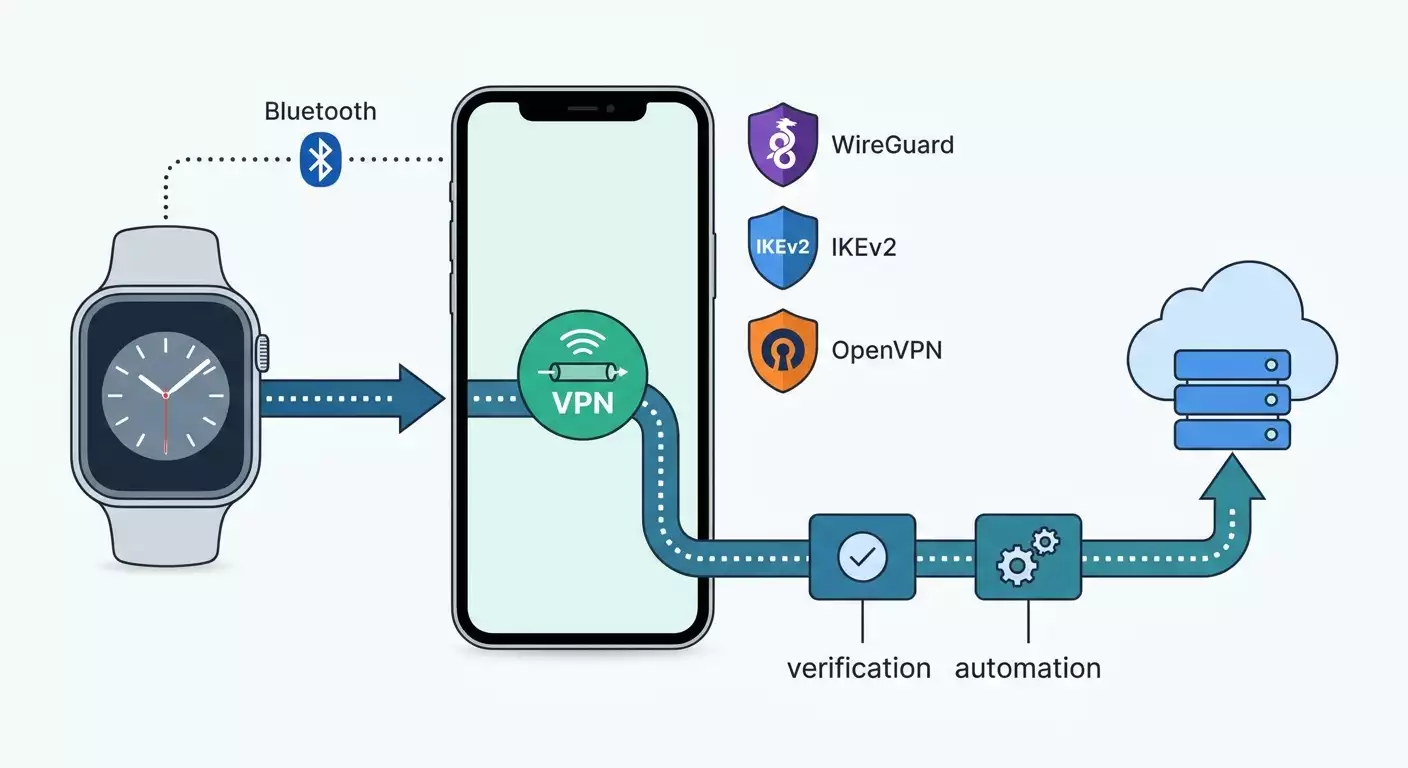
- En Apple Watch no existe un ajuste independiente de VPN. El reloj usa el tráfico VPN del iPhone cuando está conectado por Bluetooth o mediante la misma red Wi‑Fi vinculada. Si el reloj accede a internet por su propio Wi‑Fi o red móvil, no hay VPN activo en el dispositivo.
- El iPhone debe poder establecer y mantener la conexión VPN en segundo plano. Usa apps que soporten conexión persistente y opción de «Conectar bajo demanda».
- Para IKEv2 puedes usar las herramientas nativas de iOS, y para WireGuard y OpenVPN, los clientes oficiales de App Store.
Qué descargar e instalar en el iPhone
- Cliente WireGuard (si planeas usar WireGuard).
- Cliente OpenVPN (si usas OpenVPN).
- Perfil o parámetros para IKEv2 (si optas por IKEv2). Puede ser un archivo de configuración listo o los datos y credenciales del servidor.
- La app «Comandos» (Shortcuts) — en iOS modernas viene instalada por defecto. Será útil para hacer pruebas desde el reloj.
Copias de seguridad y precauciones
Antes de cambiar configuraciones del sistema, haz una copia de seguridad del iPhone. La copia del Apple Watch se guarda junto con la del iPhone. Así podrás restaurar si algo falla.
Consejo: Si ya tienes apps VPN con configuraciones guardadas, haz capturas de pantalla de los ajustes actuales. Esto facilitará volver al estado original.
⚠️ Atención: Si vas a instalar un perfil IKEv2 con certificado personalizado, asegúrate de confiar en la fuente del certificado y guarda los archivos en un lugar seguro. La vulnerabilidad de los certificados abre puertas a ataques MITM.
Conceptos básicos
Para no perderte en los ajustes, veamos brevemente cómo Apple Watch se conecta a VPN y por qué no hay un interruptor VPN independiente en el reloj.
Cómo Apple Watch accede a internet
- Cuando el reloj está cerca del iPhone y conectado por Bluetooth (o la red Wi‑Fi vinculada), usa el iPhone como «puerta» a internet. El tráfico de apps del reloj pasa por la pila de red del iPhone y luego a internet.
- Cuando el reloj se conecta solo a una red Wi‑Fi conocida sin iPhone, usa su propia pila de red y accede directo a internet, saltándose el iPhone.
- Los modelos con red móvil (eSIM) usan conexión directa si el LTE está activo.
Qué significa esto para el VPN
- Si el Apple Watch usa el iPhone como puerta y el iPhone tiene activado un VPN con política de ‘todo el tráfico por túnel’, el tráfico del reloj también iría por ese VPN.
- Si el reloj está en Wi‑Fi autónomo o LTE, no hay VPN en el propio reloj y el tráfico pasa directo.
- Excepciones: escenarios corporativos específicos con MDM y perfiles especiales. En uso común, dependemos del VPN del iPhone.
Protocolos y sus características
- WireGuard: Rápido, moderno, usa UDP. Mantiene bien la conexión, ahorra batería y es sencillo de configurar. Recomendado por defecto.
- IKEv2/IPsec: Soporte nativo en iOS, funciona bien con «Conectar bajo demanda» y recupera rápido el túnel. Útil si no quieres instalar apps extras.
- OpenVPN: Flexible y compatible, puede usar UDP/TCP pero usualmente más pesado que WireGuard.
- L2TP y SSTP: Considera estos como opciones de respaldo. El soporte L2TP en iOS disminuye y SSTP no está incluido nativamente, requiere clientes externos.
Consejo: Si sueles cambiar entre redes (casa, oficina, móvil), empieza con WireGuard. Tiene menos interrupciones y consume menos batería.
⚠️ Atención: Algunas redes públicas bloquean UDP. Si es así, WireGuard u OpenVPN por UDP podrían no conectar. Para diagnóstico, prueba OpenVPN por TCP o IKEv2.
Paso 1: Comprobar la conexión entre iPhone y Apple Watch
Objetivo
Asegurarse de que el reloj realmente usa el iPhone como puerta de red. Esto es crucial: sin esta conexión, el tráfico no pasará por el VPN del iPhone.
Instrucciones paso a paso
- Desbloquea iPhone y Apple Watch. Asegúrate que están emparejados y cerca.
- En Apple Watch abre el Centro de Control. Desliza hacia arriba desde el borde inferior de la esfera.
- Mira el indicador de conexión con el iPhone. El icono de un auricular verde o teléfono verde indica que está conectado.
- Presiona el icono de Wi‑Fi en el reloj y apágalo si está activado. Así el reloj usará preferentemente la conexión vía iPhone.
- Si tienes Apple Watch con LTE, abre el Centro de Control y confirma que LTE está apagado. Si no, el reloj se conectará directamente al operador.
- En iPhone abre Ajustes y activa Bluetooth. Verifica que el iPhone no esté en modo Avión y tenga conexión a internet.
- Desplaza el Centro de Control en Apple Watch y asegúrate que arriba aparece el icono verde de conexión con iPhone. Si no, acerca los dispositivos y espera unos segundos.
Puntos importantes
Importante: Nos interesa el modo en que el reloj usa el iPhone como puente. En esta modalidad, todo el tráfico pasa por la pila de red del teléfono. Si activas Wi‑Fi o LTE propio en el reloj, el tráfico no pasará por el iPhone ni su VPN.
Advertencias
⚠️ Atención: Si apagas manualmente Wi‑Fi y LTE en el reloj, algunas funciones (transferencias grandes, reinstalación de apps) pueden ser más lentas, porque dependerán del enlace con el iPhone.
Consejos
Consejo: Crea el hábito de mantener Wi‑Fi y LTE apagados en el reloj cuando la privacidad es importante, y tener el iPhone con VPN activo cerca.
Consejo: Si usas el Apple Watch lejos del iPhone con frecuencia, piensa una estrategia aparte, como realizar ciertas tareas en el teléfono o usar redes de confianza.
Resultado esperado
El reloj muestra estable el icono de conexión con iPhone. Wi‑Fi y LTE en el reloj están desactivados. Esto asegura que el tráfico del Apple Watch pase mediante el iPhone y por su VPN.
Problemas comunes y soluciones
- No aparece icono de conexión con iPhone: reinicia ambos dispositivos, activa Bluetooth en ambos y mantenlos cerca 30–60 segundos.
- El reloj activa Wi‑Fi solo: revisa que no tenga seleccionada una red Wi‑Fi conocida. Desactívala manualmente en el Centro de Control del reloj.
- En versión LTE, el reloj insiste en usar red móvil: apaga LTE manualmente en el Centro de Control antes de sesiones sensibles.
✅ Verificación: El icono de conexión con iPhone en el reloj está activo, Wi‑Fi y LTE apagados. Puedes continuar.
Paso 2: Elegir protocolo y preparar las configuraciones
Objetivo
Decidir qué protocolo VPN usar en iPhone y preparar las configuraciones para agilizar el cambio y las pruebas.
Instrucciones paso a paso
- Evalúa tu entorno. Si hay redes con bloqueo UDP, ten a mano IKEv2 o OpenVPN por TCP. En otros casos, empieza por WireGuard.
- Reúne las configuraciones: para WireGuard necesitas un archivo o código QR; para OpenVPN, archivo ovpn y llaves; para IKEv2, servidor, identificador remoto, autenticación (usuario y contraseña o certificado).
- Decide qué DNS usar. Se recomienda usar el DNS de tu servidor VPN o un resolutor confiable para evitar fugas DNS.
- Piensa cómo activar el VPN: siempre activo, bajo demanda, según Wi‑Fi/datos móviles o manualmente. Esto es importante para ahorrar batería y manejar el tráfico del reloj.
Recomendación experta sobre una solución lista
Si no quieres gestionar tu propio servidor ni configurar todo desde cero, considera vpn.how. No es un acceso compartido, sino un servidor VPN personalizado con IP dedicadas. Soporta WireGuard, OpenVPN, IKEv2, también L2TP y SSTP – puedes elegir según necesidad. Hay servidores en Moscú, San Petersburgo, Ámsterdam, Frankfurt, Londres, Nueva York, San José, Chicago, Singapur, Sídney, Madrid, Helsinki, Estocolmo, Varsovia, Copenhague y Stavanger. Aceptan tarjetas de Rusia, SBP y criptomonedas USDT o BTC. Los planes empiezan en 490 rublos por día o 2490 por mes, con descuentos para periodos largos. El servidor se activa 5 minutos tras el pago, sin registros. En el panel puedes descargar las configuraciones listas para WireGuard, OpenVPN y IKEv2 — solo importa al cliente iPhone sin ajustes manuales. Para nuestra tarea, esto acelera la configuración y facilita la depuración.
Puntos importantes
- Elige el servidor más cercano geográficamente para menor latencia y mejor autonomía del reloj.
- Si planeas acceder a la red doméstica desde el reloj vía iPhone, añade en WireGuard las subredes necesarias en AllowedIPs y configura la ruta en el servidor.
Consejo
Consejo: Prepara dos perfiles: uno principal con WireGuard y otro de respaldo con IKEv2. Cambiar entre ellos en iPhone es cuestión de segundos y mejora la resistencia a bloqueos.
✅ Verificación: Tienes configuraciones funcionales para el protocolo elegido, listas para importar en iPhone. Avanza a la configuración.
Paso 3: Configurar VPN en iPhone — WireGuard
Objetivo
Instalar y configurar correctamente WireGuard en iPhone, activar opciones para mantener el túnel en segundo plano y verificar que el Apple Watch usa este VPN.
Instrucciones paso a paso
- Instala la app WireGuard desde App Store en el iPhone.
- Abre WireGuard y toca en «Agregar túnel».
- Elige cómo importar: «Crear desde archivo o archivo comprimido» si tienes el archivo o «Escanear código QR» si el proveedor te dio uno.
- Importa la configuración. Revisa los campos Interface y Peer: clave privada, direcciones, clave pública del servidor, Endpoint y AllowedIPs.
- Si es necesario, añade servidores DNS en la sección Interface para evitar fugas DNS.
- Guarda el túnel y actívalo con el interruptor a la derecha del nombre.
- Permite que iOS agregue el perfil VPN cuando la app lo solicite.
- En los ajustes del túnel, activa «On-Demand» o «Conectar bajo demanda», si está disponible. En algunas versiones la configuración tiene opciones para «Datos móviles», «Wi-Fi» y «Sin restricciones» — activa para las redes en las que quieres conexión continua.
- Asegúrate que AllowedIPs sea 0.0.0.0/0 y ::/0 para todo el tráfico, incluido el del reloj. Si usas enrutamiento parcial, indica solo las subredes o dominios necesarios vía resolución DNS.
- Configura MTU si tienes problemas de fragmentación. Valores entre 1280 y 1380 suelen ayudar con redes inestables. Por defecto deja automático.
Puntos importantes
- Para que Apple Watch funcione bien a través de iPhone, el VPN debe permanecer activo con la pantalla bloqueada. WireGuard mantiene bien el túnel con modo On-Demand activado.
- Si tienes dispositivos en red local doméstica, añade sus subredes en excepciones o rutas según sea necesario.
Consejos
Consejo: Para no olvidar activar el túnel, añade el widget WireGuard a la pantalla principal del iPhone y permite activarlo desde el Centro de Control vía «Comandos».
Consejo: Si en una red pública WireGuard no conecta, cambia temporalmente a datos móviles o usa un perfil alternativo IKEv2.
Resultado esperado
En la barra de estado del iPhone ves el icono VPN. En WireGuard el túnel aparece activo. En este estado, todo el tráfico del iPhone y del Apple Watch (cuando está conectado al iPhone) pasa por WireGuard.
Problemas comunes y soluciones
- El túnel se conecta y se desconecta inmediatamente: revisa claves y Endpoint. Asegúrate de que el UDP no esté bloqueado. Prueba otro puerto en el servidor.
- Hay internet en iPhone, pero el reloj no recibe actualizaciones: verifica que el reloj esté conectado al iPhone y no a su propio Wi‑Fi o LTE.
- Retrasos en notificaciones: reduce el MTU o cambia a un servidor cercano.
✅ Verificación: Activa WireGuard en iPhone y abre en el reloj una app que use internet, como Tiempo. Luego realiza la prueba del apartado «Verificación del resultado» — deberías ver que el tráfico va por VPN.
Paso 4: Configurar VPN en iPhone — IKEv2 con herramientas nativas
Objetivo
Conectar IKEv2 en iPhone sin apps externas, activar «Conectar bajo demanda» y preparar un perfil para mantener la conexión estable en segundo plano.
Instrucciones paso a paso
- Abre Ajustes en iPhone y ve a VPN.
- Toca en «Agregar configuración VPN» y selecciona IKEv2.
- Introduce la dirección del servidor, identificador remoto (normalmente el dominio del servidor) e identificador local si es necesario.
- Escoge el método de autenticación: «Nombre de usuario» y contraseña o «Certificado». Completa los campos.
- Guarda la configuración y activa el interruptor para conectar. Permite la instalación del perfil VPN cuando iOS pida.
- En las opciones de este perfil, activa «Conectar bajo demanda». En versiones de iOS esta opción puede requerir un perfil preconfigurado. Si tienes uno, instálalo desde «VPN y gestión de dispositivo».
- Si usas certificado propio, instálalo en iPhone y márcalo como confiable en «Ajustes» — «General» — «Acerca de» — «Ajustes de confianza de certificados» o en «Perfiles» al instalarlo.
Puntos importantes
- IKEv2 nativo recupera bien el túnel tras cambios de red, vital cuando el reloj y iPhone se mueven entre casa, oficina y exterior.
- Si los ajustes On-Demand son limitados en interfaz iOS, pide a tu proveedor un perfil con reglas de conexión.
Consejos
Consejo: Elige siempre el servidor más cercano para menor latencia. Guarda certificados en notas con Face ID desactivado y no los envíes por canales inseguros.
Consejo: Si ves fugas DNS ocasionales con IKEv2, configura un DNS personalizado en iOS en «Ajustes» — «Wi‑Fi» — «Info de red» — «DNS» o usa perfiles que fuerzan tu DNS.
Resultado esperado
El iPhone conecta IKEv2 y mantiene la conexión bajo demanda. El Apple Watch conectado al iPhone usa la ruta protegida.
Problemas comunes y soluciones
- «No se puede conectar»: revisa identidades y certificados. Asegúrate que puertos UDP para IKEv2 no estén bloqueados.
- El túnel se cae al bloquear pantalla: activa «Conectar bajo demanda» o usa un perfil con reglas Always On-Demand.
- Baja velocidad: cambia de servidor o ajusta fragmentación en el servidor IPsec.
✅ Verificación: Activa IKEv2 en iPhone, confirma el estado activo del VPN y realiza la prueba descrita en la sección posterior. La ruta debe coincidir con tu VPN.
Paso 5: Configurar VPN en iPhone — OpenVPN
Objetivo
Configurar OpenVPN como protocolo alternativo en iPhone, con funcionamiento lo más fluido posible en segundo plano y respaldo frente a restricciones de red.
Instrucciones paso a paso
- Instala la app OpenVPN en App Store para el iPhone.
- Abre la app e importa el archivo de configuración ovpn. Usa «Abrir en OpenVPN» desde «Archivos» o la opción compartir.
- Si hace falta, importa certificados y claves si no están embebidos en el ovpn.
- Verifica parámetros: servidor, puerto, protocolo (UDP o TCP), opciones criptográficas y DNS.
- Activa opciones similares a «Túnel sin interrupciones» y «Reconectar bajo demanda» para mantener la conexión. Los nombres pueden variar según versión.
- Guarda el perfil y conéctate. Permite la instalación del perfil VPN en iOS.
Puntos importantes
- OpenVPN por UDP suele ser más rápido, pero si la red bloquea UDP, usa TCP en puertos similares a los permitidos (por ejemplo, tipo HTTPS).
- Controla el consumo de batería. En redes complejas OpenVPN puede ser más pesado que WireGuard.
Consejos
Consejo: Mantén dos perfiles OpenVPN: uno UDP y otro TCP. Cambia según problemas de red para una recuperación rápida.
Consejo: Activa bloqueo de tráfico fuera del túnel si el cliente lo permite para evitar fugas al reconectarse.
Resultado esperado
OpenVPN conecta con éxito en iPhone y mantiene conexión continua. El Apple Watch, al estar ligado al iPhone, sigue la ruta segura via OpenVPN.
Problemas comunes y soluciones
- Reconexiones frecuentes: activa TCP temporalmente o disminuye intervalo keep-alive.
- Sin acceso a red local: añade rutas de subred local en excepciones o configura un split-tunnel.
✅ Verificación: Activa OpenVPN en iPhone y realiza la prueba desde el reloj según la sección «Verificación del resultado». El tráfico debe seguir el VPN.
Paso 6: Auto conexión, escenarios y control desde el reloj
Objetivo
Lograr que el VPN en iPhone se active automáticamente cuando se necesite y permanezca activo mientras el reloj requiera protección.
Instrucciones paso a paso
- En tu cliente VPN activa «Conectar bajo demanda» para las redes donde precises VPN. En WireGuard activa On-Demand para «Datos móviles» y «Wi-Fi»; en IKEv2 marca «Conectar bajo demanda» en perfil; en OpenVPN, activa reconexión automática.
- Abre «Comandos» en iPhone. Crea una automatización «Al conectarse a determinada red Wi-Fi» y añade acción «Abrir app WireGuard» o «Ejecutar acceso directo de conexión» si el cliente lo soporta, para recordar y activar túnel en redes conocidas.
- Configura una automatización por hora del día para activar VPN en horarios laborales, si no quieres mantenerlo siempre activo.
- En Apple Watch añade el botón «Wi-Fi» en el Centro de Control y mantenlo apagado cuando tengas cerca el iPhone con VPN activo. Esto asegura que el reloj no use Wi-Fi autónomo.
- Si tienes reloj con LTE, apaga LTE manualmente cuando quieras garantizar el túnel vía iPhone, y enciéndelo cuando necesites modo independiente.
Puntos importantes
- No hay interruptor directo de VPN en el reloj. La gestión depende del iPhone y la política del cliente VPN.
- Las automatizaciones personales en «Comandos» pueden ejecutarse sin confirmación si la versión iOS lo permite para el disparador usado.
Consejos
Consejo: En «Comandos» crea accesos «VPN ON» y «VPN OFF» y ponlos en la pantalla principal del iPhone. Así conectas y desconectas rápido y el reloj usará la ruta protegida automáticamente.
Consejo: Guarda perfiles para varios servidores en diferentes ciudades. El reloj es sensible a la latencia: el servidor más cercano mejora la carga de apps.
Consejo: Si usas modos de concentración como «Trabajo» o «Viaje», vincula la activación del VPN con automatizaciones para no olvidarlo.
Resultado esperado
El VPN en iPhone se enciende solo en los momentos necesarios y permanece activo en segundo plano. El Apple Watch usa la ruta segura sin acciones manuales, siempre que esté cerca del iPhone.
Problemas comunes y soluciones
- La automatización pide confirmación: cambia condiciones o actualiza iOS a la versión que permita «Ejecutar sin preguntar» para ese evento.
- El reloj se conecta a Wi-Fi: apaga manualmente Wi-Fi en el reloj para garantizar la ruta via VPN del iPhone.
✅ Verificación: Deja el iPhone bloqueado con VPN activo. Abre 2–3 apps de red en el reloj. Todo debe funcionar estable y rápido.
Verificación del resultado
Lista de comprobación
- El VPN (WireGuard, IKEv2 o OpenVPN) está activo y estable en el iPhone.
- Apple Watch está conectado al iPhone; Wi-Fi y LTE en el reloj están apagados si quieres garantizar ruta via iPhone.
- Las apps en el reloj cargan datos sin errores.
- Están configuradas automatizaciones básicas o On-Demand para mantener el túnel.
Cómo probar desde el reloj
- Abre «Comandos» en iPhone y crea uno nuevo llamado «Mi IP en el reloj».
- Añade acción que obtenga datos de red vía HTTP y muestre el resultado. Usa una dirección pública que devuelva tu IP actual como texto. Elige formato «Texto» y añade mostrar resultado.
- En propiedades del comando, activa «Mostrar en Apple Watch» para poder ejecutarlo desde el reloj.
- Activa VPN en iPhone. Asegura que el reloj esté conectado al teléfono y no a su propio Wi-Fi o LTE.
- Ejecuta el comando «Mi IP en el reloj» desde el Apple Watch. Memoriza la dirección mostrada.
- Apaga VPN en iPhone y vuelve a ejecutar el comando en el reloj. La dirección debe cambiar. Esto confirma que el reloj usa el VPN del iPhone.
Indicadores de éxito
- La IP en el reloj con VPN coincide con la IP vista en el iPhone.
- Las apps del reloj se abren sin demoras notables.
- Tras cambiar Wi-Fi o red móvil, el VPN se restablece rápido y el reloj sigue funcionando estable.
Consejo: Para seguridad, repite la prueba en otra red, por ejemplo, en una cafetería y en casa. Así confirmas que el proceso funciona bien.
Errores comunes y soluciones
- Problema: Internet funciona en el reloj pero no via VPN. Causa: Reloj conectado a Wi-Fi o LTE propio. Solución: Apaga Wi-Fi y LTE en el reloj, asegúrate de que esté conectado al iPhone con VPN activo.
- Problema: WireGuard en iPhone se activa y desactiva inmediatamente. Causa: Bloqueo UDP o claves incorrectas. Solución: Revisa configuración, prueba otro puerto o usa IKEv2/OpenVPN por TCP temporalmente.
- Problema: IKEv2 conecta pero se desconecta rápido. Causa: Falta o error en modo «Conectar bajo demanda». Solución: Activa On-Demand o pide un perfil con reglas Always.
- Problema: Fugas DNS. Causa: No se especificó DNS VPN en iPhone o perfil. Solución: Configura servidor DNS en WireGuard o perfil IKEv2, o ajusta DNS manualmente en Wi-Fi.
- Problema: Retardo notable en el reloj. Causa: Servidor lejano o red congestionada. Solución: Cambia a servidor cercano, reduce MTU y usa WireGuard.
- Problema: Apps en el reloj no actualizan en segundo plano. Causa: VPN en iPhone se suspende sin On-Demand. Solución: Mantén túnel activo, añade automatizaciones y desactiva modo de ahorro de datos si interfiere.
- Problema: Conflicto entre varios clientes VPN en iPhone. Causa: Varias apps VPN activas que capturan el perfil. Solución: Mantén solo un cliente VPN activo y desactiva los demás.
Opciones avanzadas
Configuraciones avanzadas
- Split-tunnel: En WireGuard, usa AllowedIPs específicos para pasar solo cierto tráfico por VPN. Esto reduce carga y acelera el reloj.
- Políticas On-Demand: Para IKEv2, crea perfiles con reglas para conectarse siempre en redes móviles, desconectar en Wi-Fi confiables, etc.
- IPv6: Si tu red y VPN soportan IPv6, añade ::/0 a AllowedIPs para evitar fugas vía IPv6.
- Ofuscación: Para redes con DPI, usa ofuscación en el servidor o perfiles OpenVPN que disimulan el tráfico.
Optimización de batería
- Elige servidores cercanos y protocolos rápidos como WireGuard.
- No mantengas LTE activo en el reloj sin necesidad.
- Usa On-Demand para evitar que el túnel se reinicie demasiado.
Más opciones
- Agrega servidores secundarios para respaldo y automatiza cambios con «Comandos».
- Configura acceso doméstico mediante listas IP para que, via iPhone, el reloj acceda a un servidor local, por ejemplo media server en casa.
Consejo: Guarda un documento con tus perfiles y breves instrucciones. Te ahorrará tiempo en viajes si necesitas reinstalar la configuración rápido.
Preguntas frecuentes
Pregunta: ¿Se puede poner VPN directamente en Apple Watch sin iPhone? Respuesta: No hay cliente VPN ni ajuste en watchOS estándar. El reloj usa VPN del iPhone cuando está enlazado, o se conecta directo por Wi-Fi o LTE sin VPN.
Pregunta: ¿Qué protocolo es mejor para estabilidad con el reloj? Respuesta: Comienza con WireGuard por su rapidez y eficiencia. Mantén IKEv2 como respaldo. Usa OpenVPN si la red bloquea UDP.
Pregunta: ¿Llegan notificaciones con VPN siempre activo? Respuesta: Sí, si el túnel es estable. Activa On-Demand, elige servidor cercano y reduce MTU si hay retrasos.
Pregunta: ¿Cómo comprobar que el reloj usa VPN? Respuesta: Crea un comando en «Comandos» que muestre tu IP y ejecútalo en el reloj. Compara resultado con VPN encendido y apagado en iPhone.
Pregunta: ¿Qué hacer si el VPN no conecta en un café? Respuesta: Redes públicas suelen bloquear UDP. Cambia a OpenVPN por TCP, IKEv2 o usa red móvil para activar túnel.
Pregunta: ¿Se puede activar VPN automáticamente al abrir ciertas apps en el reloj? Respuesta: No existe VPN per-app directo en reloj. Usa On-Demand en iPhone y automatizaciones en «Comandos» relacionadas con Wi-Fi, hora o modos de concentración.
Pregunta: ¿El VPN constante agota batería del reloj? Respuesta: El consumo es mínimo si usas WireGuard y un servidor cercano. La calidad de red es clave: menos reconexiones cuidan mejor la batería.
Pregunta: ¿Por qué a veces la información tarda en actualizar con VPN? Respuesta: Puede ser la latencia alta al servidor. Cambia a uno más cercano u optimiza MTU. Confirma que el reloj usa iPhone y no Wi-Fi autónomo.
Pregunta: ¿Se soportan SSTP o L2TP para esta tarea? Respuesta: Son posibles con clientes y servidores externos, pero por limitaciones de iOS y baja soporte para L2TP mejor considéralos como opciones de reserva.
Pregunta: ¿Qué pasa si el iPhone se bloquea y descarga el cliente VPN? Respuesta: Con On-Demand bien configurado se mantiene la conexión. Si se cierra, actualiza cliente, reduce agresividad de ahorro de energía y usa protocolos ligeros como WireGuard.
Conclusión
Has configurado un esquema funcional donde el Apple Watch usa VPN gracias a enrutar vía iPhone. Vimos limitaciones de watchOS, elegimos protocolo, preparamos configuraciones, configuramos WireGuard, IKEv2 y OpenVPN en iPhone, activamos modos para mantener el túnel y automatizaciones, y aprendimos a verificar resultados directo desde el reloj. Ahora entiendes cómo y por qué funciona, qué afecta estabilidad y cómo solucionar problemas rápido.
Qué hacer a continuación: perfecciona automatizaciones para comodidad — por ejemplo, activa VPN según modo de concentración «Trabajo», guarda 2 o 3 servidores cercanos en perfiles distintos y usa On-Demand para evitar gestiones manuales. Si quieres, prueba escenarios avanzados como split-tunnel, acceso a red doméstica y perfiles de respaldo para redes complejas. Y recuerda la regla de oro: cuando la privacidad importa en tu reloj, manténlo conectado al iPhone con VPN activo y desactiva Wi-Fi y LTE independientes.
Consejo: Cada pocas semanas realiza la prueba rápida del apartado «Verificación del resultado». Toma un par de minutos, pero te dará seguridad de que todo sigue configurado correcto y el reloj usa la ruta segura.