VPN en el router para PS5 y Xbox: guía paso a paso para Mikrotik y Keenetic
Aprende a configurar VPN en routers Mikrotik y Keenetic para PS5 y Xbox: desde la elección del servidor y protocolo hasta la ruta solo para el tráfico de la consola. Pasos detallados, verificación, optimización de ping y NAT en 60-90 minutos.
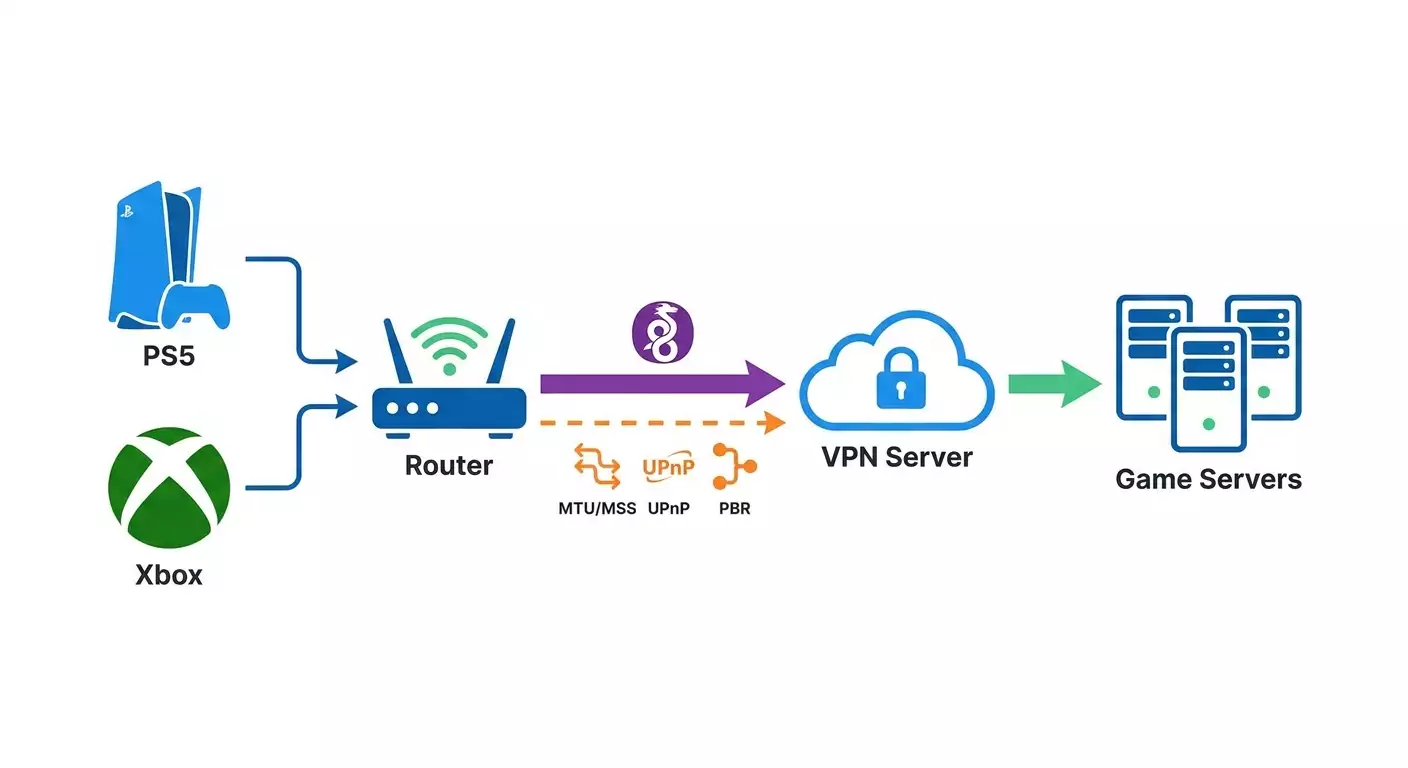
Contenido del artículo
- Introducción
- Preparación previa
- Conceptos básicos
- Paso 1: elegir protocolo y región del servidor, preparar accesos
- Paso 2: configurar wireguard en mikrotik (routeros 7)
- Paso 3: configurar wireguard en keenetic
- Paso 4: enrutar solo tráfico de consola en mikrotik (pbr)
- Paso 5: enrutar solo tráfico de consola en keenetic
- Paso 6: optimización de ping, nat y estabilidad (mtu, upnp, qos)
- Verificación del resultado
- Errores comunes y soluciones
- Funciones adicionales
- Preguntas frecuentes
- Conclusión
Introducción
En esta guía detallada configurarás una VPN en tu router para consolas PS5 o Xbox para tener una conexión estable, ping predecible y NAT correcto. Abordaremos la configuración en dos plataformas populares — Mikrotik (RouterOS 7) y Keenetic (NDMS 4) — y te asesoraremos cómo elegir protocolo y región para minimizar la latencia. Al completar los pasos, tendrás una VPN funcionando en el router con enrutamiento solo del tráfico de tu consola, parámetros MTU y MSS bien ajustados, UPnP activado y reglas optimizadas para lograr la mejor experiencia de juego en red posible.
La guía está diseñada para usuarios principiantes, pero incluye secciones avanzadas como políticas de enrutamiento (PBR), afinación fina de QoS y particularidades del NAT en consolas. Las instrucciones son claras y detalladas. Cada acción está explicada paso a paso: dónde hacer clic, qué introducir, qué parámetros elegir. También ofrecemos alternativas: si usas Mikrotik, puedes usar WinBox o WebFig; si usas Keenetic, el conveniente interfaz web. Para expertos, proponemos una sección de optimizaciones avanzada.
Conviene conocer los conceptos básicos de VPN de antemano, pero no es obligatorio: en la sección de términos fundamentales explicamos todo con un lenguaje sencillo. El proceso toma entre 60 y 90 minutos. Si sigues nuestros checklists con calma y atención, evitarás errores. Indicaremos posibles riesgos y cómo revertir cambios rápida y fácilmente para restaurar la configuración inicial del router.
Al final tendrás: una VPN configurada en el router para jugar con PS5/Xbox, región óptima elegida, enrutamiento solo para la consola, estado NAT verificado y procedimiento claro para diagnóstico en caso de fallos. Además, entenderás cómo cambiar por ti mismo servidor o protocolo según el juego y la región para lograr un ping bajo y estabilidad máxima.
Preparación previa
Antes de empezar, asegúrate de tener todo lo necesario y cumplir los requisitos mínimos de hardware y software. Esto evitará sorpresas a mitad del proceso y reducirá el tiempo total de configuración.
Herramientas y accesos necesarios
- Acceso administrativo al router Mikrotik (RouterOS 7.x) o Keenetic (NDMS 4.x).
- PC o portátil en la misma red que el router, con un navegador moderno.
- Para Mikrotik: WinBox o acceso a WebFig. WinBox es más práctico para cambios rápidos y exportar configuraciones.
- Datos del servidor VPN: dirección, claves/certificados o usuario/contraseña, tipo de protocolo (WireGuard, IKEv2, OpenVPN, L2TP/IPsec, SSTP).
- Dirección IP de tu consola (estática o asignada por reserva DHCP). Es vital para la ruta correcta.
Requisitos del sistema
- Mikrotik: se recomienda RouterOS versión 7.7 o superior (para WireGuard nativo). Asegúrate que el router tiene la potencia suficiente para cifrar el protocolo elegido.
- Keenetic: versión actual de NDMS 4.x. Para clientes VPN (WireGuard, OpenVPN, IPsec) requieren componentes específicos, que mostraremos cómo instalar.
- Consola PS5 con firmware actualizado o Xbox Series/One con últimas actualizaciones.
- Acceso estable a internet sin pérdidas altas de paquetes. Si usas PPPoE, presta atención al MTU.
Qué descargar/instalar/configurar antes
- WinBox para Mikrotik (si planeas usarlo). Pon un acceso directo en el escritorio para rápido uso.
- Datos de conexión VPN. Para WireGuard: claves pública/privada, dirección del servidor, puerto, AllowedIPs. Para OpenVPN: perfil .ovpn. Para IKEv2: parámetros de autenticación e identificador.
- Plan de direccionamiento IP: anota la IP actual de tu consola o crea una reserva DHCP para que no cambie.
Crear copias de seguridad
- En Mikrotik: abre WinBox, ve a Files, pulsa Backup, pon nombre y contraseña al respaldo. Haz un export adicional: abre New Terminal y escribe /export file=pre_vpn_export. Verás un archivo .rsc en Files. Descarga ambos archivos a tu PC.
- En Keenetic: entra en interfaz web, sección Sistema — Configuración — Copia de seguridad. Guarda la configuración a tu ordenador para restaurar rápidamente.
Consejo: Nombra tus backups con fecha y descripción corta, ejemplo pre_vpn_2026-05-26. Así será más fácil encontrar el archivo si necesitas revertir.
Conceptos básicos
Un repaso breve para entender por qué hacemos cada paso y cómo afecta el ping y la estabilidad.
- VPN: túnel cifrado entre tu router y servidor remoto. El tráfico de la consola pasa por ahí, cambiando ruta en internet y región de matchmaking.
- WireGuard: protocolo VPN moderno y rápido. Usualmente la mejor opción para juegos: baja latencia, simple de configurar y alto rendimiento.
- OpenVPN: protocolo versátil y compatible, pero con más sobrecarga. Útil para perfiles existentes o escenarios especiales.
- IKEv2/IPsec: protocolo estable y rápido, ideal en móviles. En routers con aceleración hardware ofrece buena velocidad y latencia moderada.
- L2TP/IPsec: sencillo de configurar pero suele rendir menos que WireGuard/IKEv2 bajo carga.
- SSTP: VPN via TLS, útil para superar firewalls estrictos, pero generalmente no óptimo para juegos.
- MTU/MSS: tamaño máximo de paquete y segmento TCP. Reducir MTU y usar Clamp MSS evita fragmentación, lo que reduce lag y pérdidas.
- UPnP: abre puertos automáticamente para aplicaciones. Crucial en consolas para obtener NAT abierto.
- Tipos NAT: en PS5 — Tipo 1/2/3, en Xbox — Open/Moderate/Strict. Buscamos Tipo 2 (PS5) o Open (Xbox). Un servidor VPN con IP dedicada mejora las chances de NAT correcto.
- Políticas de enrutamiento (PBR): permiten enviar solo el tráfico de la consola por VPN, dejando otros dispositivos ir directo a internet.
⚠️ Atención: Algunos juegos y sistemas anti-trampa penalizan VPNs compartidas con IPs «ruidosas». Usar servidor personal con IP dedicada suele ser más seguro y estable para ping y matchmaking.
Paso 1: Elegir protocolo y región del servidor, preparar accesos
Objetivo de esta etapa
Definir el mejor protocolo VPN, seleccionar la región del servidor óptima para tus juegos y reunir los datos para configurar rápido y sin errores el router.
Instrucciones paso a paso
- Identifica dónde están los servidores de los juegos que juegas más. Para MMOs o shooters europeos, centros típicos son Ámsterdam, Frankfurt, Londres, Varsovia y Estocolmo. Para América Norte: Nueva York, Chicago, San José. Para Asia: Singapur. Para Australia: Sídney. Si juegas en servidores europeos, Frankfurt o Ámsterdam suelen dar el mejor RTT medio.
- Elige protocolo: para juegos recomendamos WireGuard. Ofrece menor latencia y es fácil de configurar. Si tu router tiene CPU débil pero aceleración hardware IPsec, puedes probar IKEv2/IPsec. OpenVPN UDP es buen respaldo universal, pero espera algo más de ping.
- Verifica que tu router soporte el protocolo elegido. Mikrotik con RouterOS 7 incluye WireGuard nativo. Keenetic soporta WireGuard, OpenVPN e IPsec instalando componentes correspondientes.
- Revisa la situación NAT: para NAT abierto a menudo se necesita IP dedicada en el servidor VPN. Esto reduce conflictos de puertos y bloqueos. Si el proveedor ofrece servidor personal o IP dedicada, es una ventaja.
- Prepara los datos de conexión: dirección del servidor (FQDN o IP), puerto, tipo de autenticación, claves/certificados. En WireGuard: PublicKey/PrivateKey, Endpoint y AllowedIPs (usualmente 0.0.0.0/0 para enrutamiento completo o selectivo para PBR).
- Haz pings rápidos desde tu PC a varias posibles regiones. Usa consola y haz ping a direcciones nodales equidistantes. Escoge donde RTT sea estable y mínimo. Una diferencia de 5–10 ms ya se nota en shooters rápidos.
- Decide si quieres enviar TODO el tráfico doméstico por VPN o solo la consola. Recomendamos PBR: solo consola. Así reduces carga en VPN y mantienes internet normal para otros dispositivos.
- Fija la IP local de tu consola. En el router crea reserva DHCP: asigna IP fija por MAC, por ejemplo 192.168.1.50. Así las reglas de enrutamiento serán constantes.
Consejo: Si tienes dos regiones cercanas en ping (por ejemplo, Ámsterdam y Frankfurt), analiza la variabilidad del camino y cantidad de nodos en traceroute. Menos saltos y jitter suele significar matchmaking más estable.
En la práctica, para Europa son óptimos Frankfurt o Ámsterdam por la concentración de datacenters de juegos y hubs de intercambio. Para jugadores en Rusia a veces Moscú/San Petersburgo es más rápido para ciertos servicios, pero si el juego está distribuido por Europa, mejor usar Frankfurt. Para multijugador con amigos de Escandinavia, elige Estocolmo o Copenhague. Si juegas en servidores americanos, compara Nueva York y Chicago: en costa este el tiempo a muchos servidores suele ser menor, pero para algunos juegos Chicago es un nodo central con ping predecible.
✅ Verificación: Tienes seleccionado: región, protocolo, accesos listos (claves/login), y IP fija para consola en tu red local.
Problemas comunes y soluciones
- Desconoces dónde están los servidores de tu juego. Solución: revisa opciones de región dentro del juego o apóyate en centros conocidos (Frankfurt, Ámsterdam, Londres, Varsovia).
- Ping igual en varias ciudades. Solución: elige la que tenga menor jitter (variación de latencia) y menos pérdida de paquetes en ping prolongado (1–2 minutos).
- Router no soporta protocolo deseado. Solución: actualiza firmware o usa protocolo alternativo. En último caso, OpenVPN UDP.
⚠️ Atención: Al elegir VPNs públicas compartidas con IP «shared» corres riesgo de NAT estricto (Strict/Tipo 3) y baneos de anti-trampas. IP personal dedicada mejora estabilidad y reduce riesgos.
Recomendación profesional: el servicio vpn.how ofrece servidores VPN personales con IP dedicada (no shared) y soporte WireGuard, OpenVPN, IKEv2, L2TP, SSTP. En 5 minutos tienes conexión, sin logs, con servidores en Moscú, San Petersburgo, Ámsterdam, Frankfurt, Londres, Nueva York, San José, Chicago, Singapur, Sídney, Madrid, Helsinki, Estocolmo, Varsovia, Copenhague y Stavanger. Pagos con tarjetas rusas (Tinkoff, Ozon), SBP, USDT/BTC. Tarifa desde 490 ₽ por día y 2490 ₽ al mes, con descuentos a largo plazo. Lo más importante en juegos es IP personalizada: da ping más estable y evita bloqueos masivos de anti-trampas, a diferencia de soluciones públicas shared.
Paso 2: Configurar WireGuard en Mikrotik (RouterOS 7)
Objetivo de esta etapa
Crear y habilitar interfaz WireGuard en Mikrotik, añadir peer, configurar ruta y verificar conexión.
Instrucciones paso a paso
- Abre WinBox y conéctate a tu Mikrotik. Asegúrate que RouterOS sea versión 7.x. Lo ves en la ventana o en System — Packages. Actualiza si hace falta en System — Packages — Check For Updates — Install. El reinicio dura 2–3 minutos.
- Crea interfaz WireGuard. En WinBox ve a Interfaces — pestaña WireGuard — + — WireGuard. Pon nombre, ejemplo wg-gaming. Configura Listen Port, ejemplo 51820 (o el que pida tu proveedor). MTU pon 1420 para empezar.
- Genera claves si es necesario. Si proveedor te dio clave pública y pide la tuya, usa Generate Key (si está) o su generador y pega Private Key en interfaz.
- Añade peer remoto. En misma ventana WireGuard ve a Peers — +. Pega Public Key del servidor. En Endpoint pon IP o dominio y puerto, ejemplo vpn.example.com:51820. En Allowed Address (AllowedIPs) escribe 0.0.0.0/0 si será ruta default para consola vía PBR. Pon Persistent Keepalive 25 seg para estabilidad en NAT.
- Asigna dirección al túnel. Ve a IP — Addresses — +. Selecciona interfaz wg-gaming. Pon dirección, por ejemplo 10.6.0.2/32 si así lo asigna proveedor, o 10.6.0.2/24 si indica subred. Usa datos exactos del proveedor VPN.
- Crea ruta marcada para PBR. Ve a IP — Routes — +. En DST Address pon 0.0.0.0/0. En Gateway escoge interfaz wg-gaming (o dirección Next Hop si aplica). Coloca Routing Table o Routing Mark como to-wg según versión.
- Confirma acceso a DNS. En IP — DNS pon resolvers confiables, ejemplo 1.1.1.1 y 8.8.8.8. Si PBR enviará también DNS de consola por VPN, asegúrate que servidor permita salida a esos DNS.
- Verifica estado del túnel. En Interfaces — WireGuard — selecciona wg-gaming — pestaña Peers. Campo Last Handshake debe actualizarse cada 20–30 segundos. Si está vacío, revisa claves, endpoint y puerto.
Consejo: Si proveedor te dio AllowedIPs específicos, usa esos en lugar de 0.0.0.0/0 para controlar qué tráfico pasa por el túnel y reducir carga.
✅ Verificación: En Peers ves Last Handshake actual, contadores Rx/Tx suben al hacer ping desde router. Interfaces wg-gaming tiene dirección asignada.
Puntos importantes
Claves y sincronización: La clave pública de tu router debe estar en el servidor para que haya handshake. MTU: comienza en 1420, si ves fragmentación o inestabilidad, baja en pasos de 20 bytes hasta 1380.
Problemas y soluciones comunes
- No hay Last Handshake. Causa: Endpoint o puerto incorrecto, o clave pública no añadida en servidor. Solución: revisa dirección y puerto, sincroniza claves con admin del servidor.
- Handshake sí, pero sin tráfico. Causa: AllowedIPs o ruta errónea. Solución: pon AllowedIPs 0.0.0.0/0 para ruta total y crea ruta correcta en tabla adecuada.
- Túnel se cae intermitente. Causa: NAT del proveedor o CGNAT. Solución: sube Persistent Keepalive a 25–30 seg, revisa que puerto no esté bloqueado.
Paso 3: Configurar WireGuard en Keenetic
Objetivo de esta etapa
Instalar componente WireGuard, crear conexión, introducir claves y parámetros, activar túnel.
Instrucciones paso a paso
- Entra al interfaz web de Keenetic. Ingresa contraseña admin. Confirma que el dispositivo esté actualizado a la última versión NDMS 4.x: Sistema — Actualización. Instala si hace falta. Reinicia 2-3 minutos.
- Instala el componente WireGuard. Ve a Sistema — Componentes. Encuentra "WireGuard VPN" y activa. Espera instalación y reinicio si lo pide.
- Ve a Internet — Conexiones — Añadir conexión. Escoge tipo "WireGuard". Pon nombre, por ejemplo wg-gaming.
- Pega Private Key si usas clave del proveedor, o genera localmente (en la interfaz si disponible). Introduce Public Key del servidor y Endpoint (dirección y puerto), ejemplo fr1.example.com:51820.
- En Allowed IPs pon 0.0.0.0/0 si quieres que el túnel sea ruta principal para la consola vía PBR. Si proveedor dio una subred, usa esa. Marca "Enviar todo por VPN" solo si planeas que todo el tráfico del hogar pase por allí; usualmente se deja desmarcado para usar reglas per dispositivo.
- Introduce la dirección del interfaz WireGuard dada por el proveedor, ejemplo 10.6.0.3/32. Guarda y activa la conexión.
- Revisa estado. En la tarjeta de la conexión debe aparecer "Conectado". Los contadores de bytes subirán con tráfico.
Consejo: Keenetic es cómodo para tener varias conexiones VPN (por ejemplo, Ámsterdam y Frankfurt) y cambiar rápido entre ellas mediante prioridades o reglas de enrutamiento por dispositivo.
✅ Verificación: En Internet — Conexiones para wg-gaming ves "Conectado". Contadores cambian al hacer pruebas con PC usando "Enviar todo el tráfico por esta conexión" temporalmente.
Problemas comunes y soluciones
- Conexión no se establece. Causa: claves o Endpoint mal ingresados. Solución: chequea pares de claves, confirma que la clave pública del router está en servidor.
- Interrupciones periódicas. Causa: canal inestable o CGNAT. Solución: en ajustes avanzados pon Keepalive 25–30 seg y verifica MTU.
Paso 4: Enrutar solo tráfico de consola en Mikrotik (PBR)
Objetivo de esta etapa
Configurar que solo la consola PS5/Xbox use VPN, mientras el resto de dispositivos navega directo a internet. Esto reduce carga y facilita diagnósticos.
Instrucciones paso a paso
- Confirma IP estática en consola. En IP — DHCP Server — Leases busca MAC de la consola y crea IP estática, por ejemplo 192.168.1.50. Pulsa Apply.
- Crea regla mangle para marcar ruta. Ve IP — Firewall — Mangle. Pulsa +. Chain: prerouting. Src. Address: 192.168.1.50. Acción: mark routing. Nueva marca: to-wg. Marca Passthrough si conviene. Apply.
- Verifica orden de reglas mangle. Tu regla debe estar antes que reglas generales para que la marca se aplique primero. Reordénalas si hace falta.
- Confirma que en IP — Routes tengas ruta 0.0.0.0/0 con Routing Table/Mark to-wg apuntando a gateway wg-gaming. Si no, crea esa ruta (ver paso 2). Esta pareja de marca y ruta es clave.
- Agrega DNS para consola. En IP — DHCP Server — Networks pon DNS 1.1.1.1 y 8.8.8.8 o los del proveedor VPN. Esto previene conflictos en resolución para matchmaking.
- Activa Clamp TCP MSS. En IP — Firewall — Mangle — +. Chain: forward. Protocol: tcp. TCP Flags: syn. Out Interface: wg-gaming. Acción: change MSS. New MSS: clamp-to-pmtu. Así reduces fragmentación.
- Guarda configuración: Files — Backup crea respaldo nuevo tras aplicar reglas.
Consejo: Si usas múltiples VLAN o subredes, crea reglas mangle separadas por consola o segmento para control fino del tráfico.
✅ Verificación: Desde PC haz ping a cualquier IP para confirmar que tráfico va directo. Desde consola haz test de red. En “Estado de red” debe verse IP externa igual al IP del servidor VPN. En Mikrotik, en IP — Firewall — Connections para conexiones de consola se verá ruta por wg-gaming.
Problemas tipos y soluciones
- La consola no accede a internet. Causa: falta DNS o ruta mal creada. Solución: asigna DNS en DHCP Network y verifica ruta with marca to-wg.
- Algunos servicios no cargan. Causa: MTU. Solución: activa Clamp MSS y reduce MTU del interfaz WireGuard a 1400–1380.
- Todos dispositivos van por VPN. Causa: ruta default sin marca. Solución: revisa tablas de enrutamiento y reglas mangle, corrige marcas.
Paso 5: Enrutar solo tráfico de consola en Keenetic
Objetivo de esta etapa
Configurar reglas en Keenetic para que solo dispositivos seleccionados usen VPN, y los demás naveguen directo.
Instrucciones paso a paso
- Asigna IP fija a consola. En Hogar — Dispositivos localiza tu PS5/Xbox. Abre su ficha. Activa "IP permanente" y pon, por ejemplo, 192.168.1.50.
- En Internet — Reglas y prioridades (o Internet — Conexiones — Reglas de acceso) crea regla nueva de enrutamiento. Apunta dispositivo (consola) como fuente.
- Como conexión para esta regla elige el perfil WireGuard (wg-gaming). Guarda y mueve esta regla por encima de reglas generales si necesitas prioridad.
- Verifica que en perfil WireGuard esté desmarcada opción "Enviar todo por esta conexión" si no quieres VPN global para todo el hogar.
- Configura DNS para la consola si posible en ficha del dispositivo. Si no, pon DNS global en Internet — IP Settings (1.1.1.1 y 8.8.8.8) y asegúrate que reglas de enrutamiento incluyen DNS para la consola.
- Activa Clamp MSS. En conexión WireGuard ve a Configuraciones avanzadas y activa "Corrección MSS" (si disponible). Esto evita fragmentación.
Consejo: En Keenetic es cómodo crear varias reglas para distintas consolas y activarlas o desactivarlas rápido. Por ejemplo, PS5 por Frankfurt, Xbox por Ámsterdam.
✅ Verificación: En estadísticas de conexión WireGuard se ve aumento de tráfico al hacer test de red en consola. La IP externa de la consola es la del servidor VPN.
Problemas y soluciones comunes
- La regla no funciona. Causa: prioridad más baja que regla general. Solución: sube regla de consola en la lista.
- Algunos servicios de PlayStation Network o Xbox Live no funcionan. Causa: MTU. Solución: activa Clamp MSS y baja MTU a 1400–1380.
Paso 6: Optimización de ping, NAT y estabilidad (MTU, UPnP, QoS)
Objetivo de esta etapa
Lograr la máxima estabilidad de conexión y NAT correcto vía VPN.
Instrucciones paso a paso
- Confirma política NAT en servidor VPN. Para NAT abierto se recomienda IP dedicada sin CGNAT. Si alquilas servidor personal, podrás configurar reenvío de puertos fino si hace falta.
- Activa UPnP en tu router. En Mikrotik: IP — UPnP — habilita Enable, configura interfaz WAN como External y LAN como Internal. En Keenetic: Seguridad — UPnP — activa "Permitir UPnP para dispositivos domésticos". Guarda cambios.
- Revisa tipo NAT en consola. En PS5 ve a Ajustes — Red — Prueba conexión internet. En Xbox: Ajustes — Red — Comprobar conexión y NAT. Buscamos Tipo 2 (PS5) o Open (Xbox). Si sale Moderate/Strict, sigue optimizando.
- Ajusta MTU. Empieza con 1420 para WireGuard. Si consola muestra inestabilidad o pantallas de conexión colgadas, baja MTU en pasos de 20: 1400, 1380, a veces 1360. En Mikrotik en interfaz wg-gaming. En Keenetic en parámetros avanzados de WireGuard o activa Clamp MSS.
- Activa QoS para priorizar tráfico de juego. En Mikrotik marca tráfico de consola por IP y protocolo en IP — Firewall — Mangle, luego crea queue de alta prioridad en Queue Tree. En Keenetic en Hogar — Prioridades asigna alta prioridad a consola. Esto reduce latencia en picos de carga hogareña.
- Chequea pérdidas y jitter. Desde PC lanza ping largo (60-120 seg) a nodo del servidor VPN. Jitter debe ser bajo (fluctuaciones de pocos milisegundos), pérdidas nulas o muy esporádicas.
- Ajuste fino de puertos (opcional). Si tienes servidor personal, configura DNAT en él para puertos de juego necesarios y redirige al túnel. Es avanzado y requiere manejo del servidor.
Consejo: Si tienes Smart TV o alguien descarga torrents en casa, limita ancho de banda o asigna baja prioridad. El tráfico de juegos es sensible a latencia, no tanto a ancho de banda.
✅ Verificación: Consola muestra NAT tipo 2 (PS5) o Open (Xbox). Ping estable, sin saltos de decenas de ms. Juegos conectan rápido a partidas y chat funciona sin cortes.
Problemas típicos y soluciones
- NAT sigue siendo Strict/Tipo 3. Causa: IP compartida VPN o imposibilidad de abrir puertos. Solución: usa IP dedicada o cambia a otra región con mejor política de red.
- Chat de voz escapa/crujidos. Causa: saturación canal en casa. Solución: activa QoS y prioriza consola, limita descargas en segundo plano.
- Alta latencia en ciertos juegos. Causa: matchmaking en región distinta. Solución: cambia región VPN a más cercana o reinicia búsqueda de partidas para refrescar ruta.
⚠️ Atención: Algunos juegos bloquean región al iniciarse. Si cambias región VPN, reinicia juego o consola para que matchmaking detecte servidores próximos.
Verificación del resultado
Checklist
- VPN conectada y estable (se ve Handshake/Connected).
- Enrutamiento por dispositivo funciona: solo consola usa VPN.
- UPnP activado sin conflictos con firewall.
- MTU/MSS ajustados: sin bloqueos ni pantallas de conexión colgadas.
- NAT en consola es tipo 2 (PS5) o Open (Xbox), chat estable.
- Ping en juegos estable, jitter bajo, pérdidas nulas o raras.
Cómo probar
- En consola lanza test de red estándar. Apunta ping y tipo NAT.
- Abre tu juego favorito y prueba matchmaking en región seleccionada. Observa latencia si el HUD la muestra.
- Desde PC abre ping continuo a nodo VPN para chequear estabilidad del túnel.
- Prueba chat de voz con un amigo. Ausencia de demoras o distorsiones es buen indicador.
Indicadores de éxito
- Ping cercano a esperado para región (ejemplo, 25–45 ms en Frankfurt con buena conexión).
- NAT correcto, partidos se conectan rápido.
- Chat estable, sin interrupciones.
- Carga del router no supera 80% CPU durante sesión de juego.
Errores comunes y soluciones
- Problema: VPN no se conecta. Causa: claves, puerto o Endpoint incorrectos. Solución: verifica claves públicas y privadas, sincronízalas con servidor, confirma puerto abierto y sin error en dominio.
- Problema: Consola tiene internet, pero no encuentra partidas. Causa: MTU incorrecto o fragmentación. Solución: activa MSS Clamping, baja MTU de túnel de 1420 a 1380–1360, prueba tras cada ajuste.
- Problema: NAT sigue estricto. Causa: IP compartida en VPN. Solución: usa IP dedicada en servidor o configura reenvío de puertos en tu servidor.
- Problema: Toda la red pasa por VPN. Causa: ruta default sin marca. Solución: ajusta PBR: marcas mangle en Mikrotik o reglas por dispositivo en Keenetic y desactiva "Enviar todo tráfico por VPN".
- Problema: Cortes en chat de voz. Causa: saturación de canal hogareño. Solución: activa QoS, prioriza consola y limita ancho de banda a otras tareas.
- Problema: Algunos servicios PSN/Xbox Live no funcionan. Causa: fugas DNS o bloqueos regionales. Solución: manda tráfico DNS de consola por VPN, usa resolvers confiables y limpia caché DNS reiniciando consola.
- Problema: Alta carga CPU en router. Causa: protocolo pesado o bitrate elevado. Solución: cambia a WireGuard o IKEv2 si hay aceleración hardware, reduce cargas concurrentes, actualiza router.
Funciones adicionales
Configuraciones avanzadas
- Protocolos alternativos: Si no hay WireGuard, Mikrotik puede usar IKEv2/IPsec. Configura peer, proposal con cifrados modernos, Mode Config y Policy. En Keenetic instala componente IPsec y crea perfil IKEv2 con autenticación EAP. Para OpenVPN usa perfil .ovpn y UDP con Cipher recomendado por proveedor.
- Enrutamiento selectivo por prefijos: En AllowedIPs pon subredes de servidores de juego en vez de 0.0.0.0/0 para que solo IPs de juego pasen por VPN, reduciendo latencia en otros servicios. Considera que direcciones de servidores pueden cambiar.
- Failover/Backup: En Mikrotik crea segunda conexión VPN y usa rutas con distances distintas. En Keenetic define prioridades en conexiones y reglas con fallback al WAN principal.
- Monitoreo: Configura Netwatch en Mikrotik para hacer ping a host remoto y cambiar rutas si hay falla. En Keenetic usa monitor del sistema o ping periódico vía Diagnóstico.
- Reenvío de puertos en servidor personal: Si tienes servidor propio, usa nftables/iptables para redirigir puertos UDP/TCP necesarios al IP de consola vía túnel. Mejora probabilidad de NAT abierto.
Optimización
- Ajuste automático del MTU: Haz ping desde PC con bandera "Don’t Fragment" a recurso en internet, bajando tamaño de paquete hasta que no fragmenta, luego considera overhead VPN para fijar MTU del túnel.
- QoS por DSCP: Marca tráfico de juego con valores DSCP (ejemplo CS5/EF para VoIP) y priorízalo en colas. Muy útil para chat de voz.
- Registros de eventos: Revisa logs del router. Entradas repetidas de desconexión indican problemas de línea o bloqueo de puertos con ISP.
Consejo: Ten dos perfiles VPN para distintas regiones y prueba ping anticipadamente. Cambiar rápido antes de juego ahorra tiempo y frustración.
Consejo: Si tienes dos proveedores, usa multi-WAN: uno para tráfico general y otro para VPN de juegos. Da mayor estabilidad.
Preguntas frecuentes
- ¿Se puede tener NAT tipo 1 en PS5 por VPN en router? Casi nunca. Tipo 1 es conexión directa a internet sin NAT. Por VPN en router usualmente obtienes tipo 2, que es plenamente suficiente para juegos y chat.
- ¿Cómo elegir ciudad para servidor? Mira ping y estabilidad al datacenter del juego. Para Europa — Frankfurt/Ámsterdam, USA — Nueva York/Chicago, Asia — Singapur. Compara 2-3 opciones y elige la de menor ping estable.
- ¿Puedo ser baneado por usar VPN? Rara vez usando IP personal y sin romper reglas del juego. IPs públicas compartidas a veces son sancionadas por anti-trampas. IP personal reduce riesgos.
- ¿Por qué ping con OpenVPN es más alto que con WireGuard? OpenVPN tiene más sobrecarga y es más lento en routers. WireGuard es más sencillo y rápido, ofrece menor latencia.
- ¿Debo apagar VPN para servicios de streaming en TV? No siempre. Mejor usar PBR: pasar por VPN solo la consola. Así TV va directo y evita limitaciones o ralentizaciones regionales.
- ¿VPN ayuda a superar pérdida alta en proveedor? Si las pérdidas son en «última milla», VPN no ayuda. Pero si el problema está en ruta lejana o peers, VPN por otro nodo puede mejorar.
- ¿Qué hacer si por la noche todo va bien y en horas pico ping sube? Probablemente saturación de rutas del proveedor. Prueba otra región VPN en la misma zona horaria o cambia a proveedor alternativo o perfil secundario.
- ¿Puedo conectar varias consolas por una sola VPN? Sí, solo añade reglas de ruta para cada IP. Controla capacidad del router y ancho de banda del túnel.
- ¿Cómo revertir cambios rápido? Restaura backup: en Mikrotik vía Files — Restore, en Keenetic en Sistema — Configuración — Restaurar. Reinicia router.
Conclusión
Has completado el ciclo completo: elegiste protocolo y región, configuraste VPN en Mikrotik o Keenetic, activaste enrutamiento solo para consola, optimizaste MTU/MSS, activaste UPnP y priorizaste tráfico. Así obtuviste conexión estable para PS5/Xbox con ping predecible y NAT correcto. Si algo falla, tienes backups y un proceso claro de diagnóstico: revisión de Handshake/Connected, rutas, MTU y UPnP, y elección correcta de región.
Ahora puedes avanzar hacia políticas avanzadas de enrutamiento, automatizar failover, configurar perfiles múltiples para distintos juegos y zonas horarias, y monitorizar calidad de línea. Recuerda que para juegos es más importante estabilidad y bajo jitter que solo el ping más pequeño en pruebas cortas. Practica, compara regiones y protocolos, guarda perfiles exitosos y tu experiencia en línea será predecible y agradable.
Consejo: Haz costumbre antes de partidas nocturnas hacer test de ping de 30 segundos a tu nodo VPN. Si ves picos, cambia a región alternativa — eso suele salvar toda la noche.