Android 15 et 16 : Always-on et VPN par application — guide pas à pas avec configuration sur Pixel
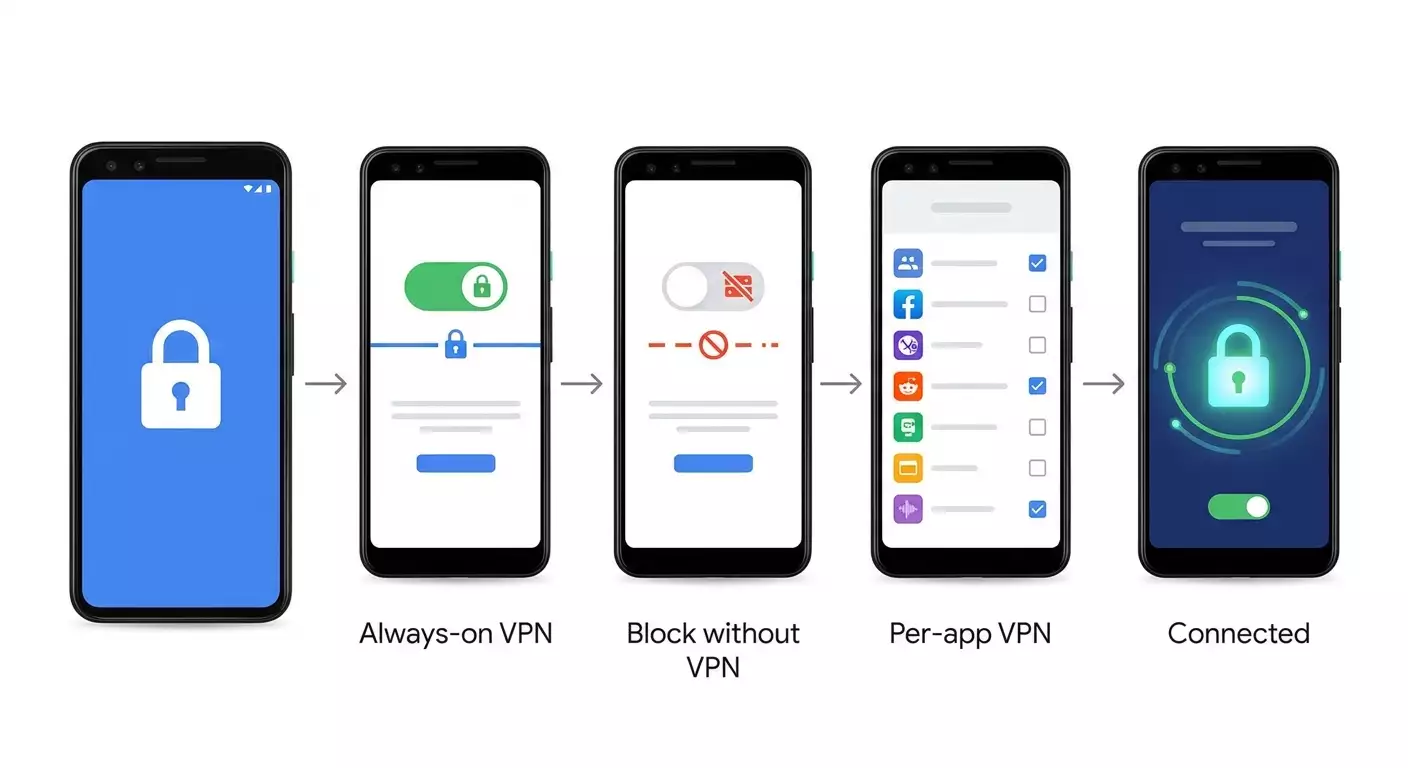
Apprenez à configurer Always-on et VPN par application sur Android 15/16 : de zéro à une utilisation stable. Nous couvrirons WireGuard, OpenVPN, IKEv2, le mode blocage sans VPN, les profils d’utilisation et les tests de fuites. Un guide étape par étape avec vérifications et conseils en 60 à 90 minutes.
Contenu de l'article
- Introduction
- Préparation
- Concepts de base
- Étape 1 : mettre android à jour et préparer l'appareil
- Étape 2 : installer le client vpn et importer la config
- Étape 3 : activer always-on vpn et mode blocage sans vpn
- Étape 4 : configurer vpn par application système et dans les clients
- Étape 5 : profils d’usage et scénarios multi-utilisateurs
- Étape 6 : vérifier le trafic, régler le mtu et diagnostiquer les fuites
- Vérification finale
- Erreurs courantes et solutions
- Fonctionnalités complémentaires et réglages avancés
- Faq
- Conclusion
Introduction
Dans ce guide pas à pas, vous configurerez un VPN stable et sécurisé sur Android 15 ou Android 16, activerez le mode Always-on, limiterez le trafic uniquement via le VPN (mode blocage), et définirez des règles VPN par application, c’est-à-dire que vous dirigerez le VPN uniquement pour certaines applications ou, au contraire, les en excluerez. Nous examinerons deux options client fiables sur Android — WireGuard et OpenVPN, ainsi que IKEv2 pour le client intégré. Vous obtiendrez un résultat qui fonctionne en continu, se relance automatiquement après un redémarrage et empêche le trafic de contourner le VPN. Vous apprendrez aussi comment vérifier l’absence de fuites DNS et IPv6, et comment diagnostiquer les problèmes si quelque chose ne fonctionne pas.
Pour qui est ce guide. Pour les débutants qui ont besoin d’instructions claires à partir de zéro, et pour les utilisateurs avancés — nous avons inclus des sections spécifiques sur l’optimisation du MTU, le split tunneling, les profils d’entreprise et un aperçu des changements dans l’API VPN pour Android 15/16. Si vous configurez un VPN sur un téléphone professionnel, les sections sur le Profil géré et la politique Always-on via la gestion de l’appareil sont faites pour vous. Si vous êtes développeur de client VPN, vous trouverez des conseils pratiques sur ce qu’il faut surveiller avec targetSdk 35/36.
Ce qu’il faut savoir avant de commencer. Rien de compliqué. Nous expliquerons tout en termes simples et sans sauter les étapes évidentes. Si vous avez déjà installé une application depuis Google Play et ouvert les réglages Android, vous y arriverez. Nous détaillerons précisément où cliquer, quoi saisir et comment vérifier.
Durée estimée. La configuration de base de WireGuard avec Always-on et le blocage du trafic hors VPN prend environ 20–30 minutes. Pour les règles par application et les tests, comptez encore 20–30 minutes. Les optimisations avancées et scénarios entreprise prennent de 15 à 30 minutes selon les besoins.
Préparation
Avant de commencer, assurez-vous d’avoir tout ce qu’il faut. Cela vous fera gagner du temps et réduira les risques d’erreur.
Outils et accès nécessaires
- Un smartphone sous Android 15 ou Android 16. Pour ce tutoriel, nous utilisons l’interface Google Pixel avec Android pur. Nous donnerons aussi des alternatives pour Samsung (One UI) et Xiaomi/POCO/Redmi (HyperOS/MIUI).
- Accès internet sur le smartphone (Wi-Fi ou réseau mobile).
- Accès à un serveur VPN et à ses configurations. Vous pouvez utiliser vos configs WireGuard ou OpenVPN existantes, ainsi que les paramètres pour IKEv2.
- Possibilité d’installer des applications depuis Google Play (WireGuard, OpenVPN Connect, OpenVPN for Android) si besoin.
Exigences système
- Android 15 ou Android 16. Si vous avez Android 14, la plupart des instructions restent valides, mais certains noms de menus peuvent légèrement varier.
- Au moins 30% de batterie. Il est préférable de brancher le chargeur avant de commencer.
- 50–100 Mo d’espace libre pour installer les clients et stocker les configs.
Ce qu’il faut télécharger et installer
- WireGuard (client officiel). Compatible avec les fichiers .conf et l’import QR.
- OpenVPN Connect (officiel) ou OpenVPN for Android (avec beaucoup d’options avancées). Compatible avec les fichiers .ovpn.
- Pour IKEv2, aucune application séparée n’est nécessaire, vous utiliserez les réglages intégrés d’Android, mais vous aurez besoin des paramètres serveur et certificats.
Sauvegardes
Une sauvegarde système séparée n’est pas obligatoire. Toutefois, il est conseillé de stocker les configurations VPN en lieu sûr, par exemple dans un gestionnaire de mots de passe ou un cloud chiffré. Si vous importez des configs depuis un autre appareil, assurez-vous qu’elles ne soient pas présentes dans la galerie photo ou dans des dossiers ouverts sans chiffrement.
Conseil : Si vous travaillez sur un smartphone professionnel, consultez votre administrateur IT avant d’activer Always-on et le mode blocage. Certaines politiques d’entreprise peuvent gérer ces options de manière centralisée et les rendre indisponibles à l’utilisateur.
Concepts de base
Termes clés expliqués simplement
- VPN — un tunnel sécurisé pour votre trafic internet. Il chiffre les données et les envoie via un serveur, empêchant les fournisseurs et réseaux tiers de voir le contenu et la destination de vos connexions.
- Always-on VPN — un mode où le VPN s’active automatiquement après un redémarrage et cherche à rester actif en permanence.
- Blocage sans VPN (parfois appelé Lockdown) — option qui interdit tout trafic internet si le VPN est désactivé. Cela évite les fuites accidentelles.
- VPN par application — mode où vous choisissez les applications dont le trafic passe par le VPN, ou au contraire, celles qui en sont exclues.
- Split tunneling — terme technique pour la division du trafic : une partie passe par le VPN, une autre part directement. En pratique, cela correspond souvent au VPN par application ou à des règles plus complexes.
- Config ou profil — fichier de réglages pour le client VPN, par exemple .conf pour WireGuard, .ovpn pour OpenVPN, ou un ensemble de paramètres et certificats pour IKEv2.
Points importants avant de commencer
- Le client VPN doit rester en mémoire pour que la connexion ne soit pas interrompue. Sur Android 15/16, le système gère finement les processus en arrière-plan, mais nous vous expliquerons comment garantir une stabilité optimale.
- Always-on est géré au niveau système, mais le tunnel est assuré par l’application. Si celle-ci est forcée à quitter ou perd le réseau, le tunnel se ferme, mais avec une configuration correcte, il se relancera automatiquement.
- Le VPN par application dépend en partie des capacités du client. Nous montrerons la méthode système quand elle est disponible, ainsi que les options intégrées dans WireGuard et OpenVPN.
⚠️ Attention : Les protocoles PPTP et L2TP sans IPsec sont considérés comme obsolètes ou peu sûrs sur les versions modernes d’Android. Privilégiez WireGuard, OpenVPN ou IKEv2/IPsec. Cela compte aussi bien pour la sécurité que pour la performance.
Étape 1 : Mettre Android à jour et préparer l'appareil
Objectif de l’étape
Vérifier la version d’Android, mettre à jour le système et préparer le téléphone pour l’installation et un fonctionnement stable du VPN.
Instructions détaillées
- Ouvrez les Paramètres sur votre smartphone.
- Faites défiler vers le bas et appuyez sur Système ou À propos du téléphone selon le modèle.
- Trouvez la ligne Version Android et assurez-vous qu’elle indique 15 ou 16.
- Retournez en arrière et allez dans Système → Mise à jour du système. Cliquez sur Rechercher des mises à jour. Installez tous les patches de sécurité disponibles. Attendez la fin.
- Redémarrez le smartphone après la mise à jour si demandé.
- Ouvrez Paramètres → Applications → Accès spécial → Accès illimité aux données. Trouvez le futur client VPN (WireGuard ou OpenVPN), ou revenez plus tard ici après installation. Activez le curseur Autoriser un accès illimité aux données pour le client VPN.
- Allez dans Paramètres → Batterie → Économie d’énergie. Désactivez les modes agressifs qui bloquent le fonctionnement en arrière-plan, ou ajoutez l’application VPN aux exceptions. Sur Pixel : Paramètres → Applications → Toutes les applications → WireGuard → Batterie → Illimité. Sur Samsung : Paramètres → Applications → WireGuard → Batterie → Autoriser activité en arrière-plan. Sur Xiaomi : Paramètres → Batterie → Économie d’énergie des applications → WireGuard → Pas de restrictions.
- Si vous utilisez un launcher avec des optimisations, désactivez les tueurs de tâches pour le client VPN.
Astuce : Ajoutez directement un raccourci du client VPN sur l’écran principal pour pouvoir redémarrer rapidement le tunnel en un tap si besoin.
Résultat attendu
L’appareil est à jour, le fonctionnement en arrière-plan du client VPN n’est pas limité, la préparation est terminée.
✅ Vérification : Ouvrez Paramètres → Applications → WireGuard (ou votre client) → Batterie. Le statut doit être Pas de restrictions ou Illimité.
Problèmes possibles et solutions
- Mises à jour indisponibles. Cause : le fabricant n’a pas encore déployé le patch. Solution : réessayez plus tard, continuez avec la version actuelle.
- Menu batterie introuvable. Cause : interface différente. Solution : cherchez un équivalent via la recherche dans les paramètres avec les mots Batterie ou Arrière-plan.
Étape 2 : Installer le client VPN et importer la config
Objectif de l’étape
Installer le client choisi, importer la configuration et s’assurer que le tunnel de base se connecte bien.
Instructions détaillées pour WireGuard
- Ouvrez Google Play et cherchez WireGuard. Installez l’application.
- Lancez WireGuard. Sur l’écran principal, appuyez sur l’icône +.
- Choisissez Importer depuis un fichier ou une archive si vous avez un fichier .conf, ou Scanner un QR-code si votre fournisseur vous a donné un QR.
- Trouvez le fichier .conf dans le gestionnaire de fichiers et sélectionnez-le. Accordez les permissions si demandé.
- Donnez un nom clair au profil, par exemple WG-Domicile ou WG-Travail.
- Enregistrez. Un interrupteur apparaîtra à côté du profil. Activez-le. Confirmez la création de la connexion VPN dans la boîte système en appuyant sur OK.
Instructions détaillées pour OpenVPN
- Installez OpenVPN Connect ou OpenVPN for Android via Google Play.
- Lancez l’application. Appuyez sur Importer.
- Sélectionnez Importer depuis un fichier et désignez le .ovpn. Si des certificats ou identifiants supplémentaires sont nécessaires, l’app vous les demandera. Entrez-les et sauvegardez le profil.
- Cliquez sur Connecter. Confirmez la création de la connexion VPN dans la boîte système.
Instructions détaillées pour IKEv2 (client Android intégré)
- Ouvrez Paramètres → Réseau et Internet → VPN.
- Cliquez sur l’icône + ou Ajouter un VPN.
- Dans Type, choisissez IKEv2/IPSec PSK ou IKEv2/IPSec RSA selon votre serveur.
- Entrez le Nom, l’Adresse du serveur, l’Identifiant, la Clé prépartagée (PSK) ou sélectionnez le Certificat utilisateur (RSA). Enregistrez.
- Cliquez sur le profil créé → Connecter. Entrez les identifiants si demandé.
Astuce : Si vous hésitez, commencez par WireGuard. Simple à configurer, économe en batterie et stable sur Android.
⚠️ Attention : Avant d’importer des configs, assurez-vous qu’elles proviennent d’une source fiable. N’utilisez jamais de clés publiques ni de logins partagés — c’est un risque de piratage et de blocage par les services.
Résultat attendu
Vous pouvez vous connecter manuellement au VPN et voir le statut Connecté. Une icône en forme de clé apparaît dans la barre d’état.
✅ Vérification : Ouvrez un navigateur et tapez "Mon IP" dans la recherche. Vérifiez que l’adresse externe affichée correspond à celle de votre serveur VPN.
Problèmes possibles et solutions
- Connexion impossible. Cause : adresse ou clé incorrecte. Solution : vérifiez la config, la connexion internet et redémarrez le téléphone.
- OpenVPN demande identifiant/mot de passe inconnus. Cause : serveur configuré avec authentication. Solution : demandez-les à votre fournisseur ou utilisez un profil avec certificat.
- WireGuard connecté mais pas de trafic. Cause : erreur dans AllowedIPs, absence de route 0.0.0.0/0. Solution : corrigez la config côté serveur ou client.
Recommandation pratique pour le choix du serveur
vpn.how propose des serveurs VPN personnels avec une adresse IP dédiée. Les emplacements, protocoles et tarifs disponibles figurent sur le site et dans votre compte. Les moyens de paiement et le montant final sont affichés lors du paiement. Choisir un serveur
Étape 3 : Activer Always-on VPN et mode blocage sans VPN
Objectif de l’étape
Faire en sorte que le VPN se lance automatiquement et qu’aucun trafic ne fuite lors d’une coupure. C’est la couche de sécurité essentielle sur Android 15/16.
Instructions sur Google Pixel (Android 15/16)
- Ouvrez Paramètres → Réseau et Internet → VPN.
- Trouvez l’application VPN installée dans la liste. Cliquez sur la roue dentée à droite du nom ou sur le nom pour ouvrir les paramètres du profil.
- Activez le curseur Always-on VPN (VPN Toujours activé).
- Activez le curseur Bloquer les connexions sans VPN (parfois nommé Blocage sans VPN ou protection VPN). Confirmez l’avertissement indiquant que le trafic sera bloqué sans VPN.
- Quittez les paramètres et redémarrez le téléphone pour vérifier que le profil se lance automatiquement.
Instructions sur Samsung (One UI)
- Ouvrez Paramètres → Connexions → Paramètres supplémentaires → VPN.
- Appuyez sur l’icône réglages du profil souhaité.
- Activez Toujours activé.
- Activez Bloquer sans VPN si option disponible. Confirmez.
- Redémarrez pour tester l’auto démarrage.
Instructions sur Xiaomi/POCO/Redmi (HyperOS/MIUI)
- Ouvrez Paramètres → Connexions et partage → VPN.
- Cliquez sur le profil ou sur l’icône des paramètres.
- Activez Always-on ou équivalent, le nom varie.
- Trouver et activer Bloquer le trafic sans VPN si fourni.
- Redémarrez le téléphone, puis vérifiez la présence de l’icône clé après activation du Wi-Fi ou réseau mobile.
Astuce : Si l’option Bloquer sans VPN manque, cherchez dans les options générales de sécurité ou dans les paramètres avancés du profil. Certains fabricants la cachent dans un sous-menu Avancé.
Résultat attendu
Après redémarrage, l’icône VPN s’affiche automatiquement. Toute tentative d’accès internet sans VPN actif est bloquée par le système.
✅ Vérification : Désactivez le VPN depuis l’application. Essayez d’ouvrir un site web. Une erreur de connexion doit apparaître tant que le VPN n’est pas réactivé. Réactivez-le et vérifiez que les sites s’ouvrent normalement.
Problèmes et solutions
- Après redémarrage, VPN ne démarre pas. Cause : restrictions batterie ou Always-on activé sur mauvais profil. Solution : revérifiez la batterie au point 1, assurez-vous que Always-on est bien activé sur le profil utilisé.
- Pas d’option Bloquer sans VPN. Cause : interface ou politique cachée l’option. Solution : utilisez un client avec kill-switch intégré (ex. OpenVPN for Android gère le blocage via règles de routage) ou vérifiez Paramètres → DNS Privé et désactivez toute config bloquant le VPN.
Étape 4 : Configurer VPN par application système et dans les clients
Objectif de l’étape
Faire en sorte que le VPN transporte tout le trafic, ou uniquement certaines applications, ou tout sauf quelques exceptions. Utile pour la banque, les jeux ou les applis locales qui ne doivent pas passer par VPN.
Réglages système VPN par application sur Android 15/16 (selon disponibilité)
- Allez dans Paramètres → Réseau et Internet → VPN.
- Sélectionnez votre VPN et ouvrez Paramètres supplémentaires. Sur certains appareils, vous trouverez une section Applications utilisant le VPN ou Exceptions d’applications.
- Si elle est disponible, cochez les applications à contourner le VPN ou au contraire celles devant l’utiliser. Enregistrez.
Note. La présence d’une liste système pour VPN par application dépend du fabricant et du client VPN. Sur Android pur, cette fonction est souvent déléguée à l’application VPN elle-même. Voici la méthode garantie via WireGuard et OpenVPN.
VPN par application avec WireGuard
- Ouvrez WireGuard → ouvrez le profil → icône crayon (Modifier).
- Descendez à la section Options du tunnel. Trouvez l’entrée Applications utilisant le VPN ou Allowed applications. Elle peut être dans un sous-menu selon la version du client.
- Ajoutez les applications qui DOIVENT utiliser le VPN si vous activez la liste blanche, ou signalez les applications exclues pour le mode inverse. Sauvegardez.
- Désactivez puis réactivez le profil pour appliquer les changements.
VPN par application avec OpenVPN for Android
- Lancez OpenVPN for Android → appui long sur le profil → Modifier.
- Allez dans la section Comportement ou Routage (parfois Apps).
- Ouvrez Gestion des applications. Choisissez Mode "Seules les sélectionnées utilisent le VPN" ou "Exclure les sélectionnées du VPN". Sélectionnez les applications souhaitées. Sauvegardez.
- Reconnectez le profil pour appliquer.
Astuce : Si vous n’êtes pas sûr par où commencer, préférez le mode "Exclure du VPN" pour la banque ou applis locales, souvent soumises à géoblocages ou protections anti-fraude.
Résultat attendu
Vous avez défini la liste des applications dont les connexions passent par le tunnel, et celles qui en sont exclues. Le système et le client appliquent les règles de façon stable.
✅ Vérification : Lancez une application exclue et vérifiez son IP externe via navigateur intégré ou bouton test si disponible. Lancez une appli forcée via VPN et vérifiez que l’IP correspond bien à celle du VPN.
Problèmes possibles et solutions
- VPN par application indisponible dans WireGuard. Cause : version client ou build. Solution : mettez à jour le client ou utilisez OpenVPN for Android, plus flexible pour cette fonction.
- L’application passe quand même par VPN. Cause : cache de routage ou fonctionnement spécifique. Solution : reconnectez le profil, redémarrez l’application, videz son cache, faites le test à nouveau.
Étape 5 : Profils d’usage et scénarios multi-utilisateurs
Objectif de l’étape
Organiser le VPN pour un profil professionnel, un second utilisateur ou un mode enfant de façon à éviter conflits et coupures du tunnel.
Profil professionnel (Managed Profile) et Always-on
- Si votre téléphone est géré par un agent IT d’entreprise, ouvrez Paramètres professionnels ou l’application de gestion de l’appareil.
- Allez dans la politique réseau ou VPN. Trouvez l’option Always-on VPN pour le profil professionnel.
- Choisissez l’application VPN gérée et activez Bloquer sans VPN dans le cadre du profil. Sauvegardez la politique.
- Synchronisez l’appareil avec le serveur de gestion. Attendez l’application de la politique.
Si vous êtes administrateur, Device Policy Controller peut forcer Always-on par politique et activer le blocage. Les réglages utilisateur pourront être bloqués ou en lecture seule.
Mode multi-utilisateurs
- Ouvrez Paramètres → Système → Plusieurs utilisateurs. Activez si nécessaire.
- Créez un second utilisateur. Passez à ce compte.
- Installez le client VPN et configurez son profil séparément. Chaque utilisateur a ses propres réglages VPN, Always-on et blocage.
- Répétez les étapes pour l’utilisateur principal si vous souhaitez des politiques différentes.
Astuce : Pour les enfants, activez Always-on et le blocage, et limitez la modification des paramètres via le Profil enfant ou Family Link, pour garantir que tout le trafic passe par un serveur filtrant.
Résultat attendu
Les profils professionnels et personnels utilisent des profils VPN distincts avec leurs propres règles. Les conflits sont minimisés et le tunnel reste stable.
✅ Vérification : Passez d’un utilisateur à l’autre et vérifiez le statut VPN et l’adresse IP externe. Dans le profil professionnel, assurez-vous que le blocage empêche le trafic hors VPN.
Problèmes et solutions
- Utilisateur ne voit pas l’option blocage. Cause : politique qui bloque le réglage. Solution : modifiez la politique côté DPC ou contactez votre administrateur.
- Changement d’utilisateur coupe le tunnel. Cause : chaque utilisateur a sa propre configuration. Solution : c’est normal. Configurez Always-on sur chaque profil séparément.
Étape 6 : Vérifier le trafic, régler le MTU et diagnostiquer les fuites
Objectif de l’étape
Confirmer que le VPN est rapide et sécurisé, sans fuite DNS ni IPv6, avec un MTU adapté et une stabilité conforme à vos attentes sur Android 15/16.
Test de vitesse et ping
- Connectez-vous au VPN.
- Lancez une application de test de vitesse reconnue ou un test intégré dans votre navigateur.
- Mesurez ping, débit descendant et montant. Notez les résultats.
- Désactivez le VPN, refaites le test sur le même réseau puis comparez.
Une différence de 5 à 25 % sur la vitesse avec VPN est normale, selon le serveur, la route et le protocole. WireGuard est généralement plus rapide et moins consommateur que OpenVPN.
Test des fuites DNS et IPv6
- Connectez le VPN.
- Ouvrez un navigateur et faites des vérifications en ligne d’IP et DNS via des services connus. Observez les serveurs DNS qui s’affichent.
- Si vous voyez les DNS publics de l’opérateur mobile au lieu de ceux du VPN, configurez des serveurs DNS forcés dans le client (OpenVPN for Android) ou côté serveur (WireGuard, push DNS pour OpenVPN).
- Vérifiez la présence d’une adresse IPv6. Si le serveur ne fournit pas d’IPv6 mais que le réseau en délivre, assurez-vous que le client bloque les fuites IPv6. Sur WireGuard, vous pouvez désactiver IPv6 dans AllowedIPs ou router correctement ::/0.
Astuce : Le moyen le plus sûr d’éviter les fuites DNS est de configurer un résolveur sur le serveur et de fournir l’adresse DNS dans la config client. OpenVPN gère cela via la directive dhcp-option DNS, et WireGuard en routant tout le trafic via le serveur avec DNS configuré dans l’application.
Réglage du MTU pour la stabilité
- Si vous constatez des coupures ou des sites qui chargent mal, réduisez le MTU de 20 à 40 octets sous la valeur standard. Sur WireGuard, un MTU entre 1280 et 1380 est souvent efficace.
- Dans WireGuard Android : ouvrez le profil → Modifier → Avancé → MTU, entrez 1280. Enregistrez et reconnectez.
- Dans OpenVPN for Android : profil → Modifier → Paramètres → MSS-fix ou options fragment/tun-mtu si supportées par le serveur. Testez au cas par cas.
Astuce : Vérifiez si votre routeur ou opérateur mobile n’altère pas le MTU. Parfois, seul le réseau mobile cause des soucis alors que le Wi-Fi fonctionne bien.
Résultat attendu
La vitesse correspond aux attentes, le DNS passe via VPN, IPv6 ne fuit pas, le MTU est bien ajusté, la connexion est stable sans coupures étranges.
✅ Vérification : Refaire les tests de vitesse et DNS après modification du MTU. Si les résultats se dégradent, revenez aux valeurs précédentes.
Problèmes et solutions
- Fuites DNS persistantes. Cause : le client ignore le DNS de la config. Solution : définissez le DNS dans l’application ou côté serveur, assurez-vous que le routage 0.0.0.0/0 et ::/0 est complet.
- Certaines jeux ne fonctionnent pas via VPN. Cause : anti-triche ou géo-restriction. Solution : excluez le jeu via VPN par application ou choisissez un serveur proche du data center du jeu.
Vérification finale
Check-list
- Vous pouvez activer et désactiver manuellement le VPN.
- Always-on est activé et fonctionne après redémarrage.
- Le blocage sans VPN est actif, le trafic est bloqué si le VPN est désactivé.
- Les règles VPN par application sont appliquées, les exclusions fonctionnent.
- Pas de fuite DNS/IPv6, MTU est adapté.
- Les politiques dans le profil professionnel ne se contredisent pas.
Comment tester
- Redémarrez le téléphone et attendez l’apparition automatique de l’icône VPN sans intervention.
- Désactivez le VPN et vérifiez que l’internet est bloqué (si blocage actif).
- Testez l’IP dans les applications exclues du VPN puis dans celles obligatoires, elles doivent être distinctes comme prévu.
- Effectuez tests de vitesse et DNS.
Indicateurs de succès
- Le basculement Wi-Fi/réseau mobile ne coupe le tunnel que quelques secondes.
- Le client VPN ne cause pas de pics inhabituels de consommation batterie.
- Les applications exclues du VPN fonctionnent normalement avec leur IP locale.
Erreurs courantes et solutions
- Problème : VPN ne démarre pas automatiquement. Cause : mauvais profil sélectionné pour Always-on. Solution : Paramètres → Réseau et Internet → VPN → sélectionnez le profil correct et activez Always-on dessus, désactivez-le sur l’ancien.
- Problème : Internet fonctionne sans VPN malgré le blocage activé. Cause : option désactivée après mise à jour, ou autre profil actif sans blocage. Solution : vérifiez le flag Bloquer sans VPN sur le profil actif, redémarrez l’appareil.
- Problème : L’application ne respecte pas le VPN par application. Cause : cache de routage ou limite du client. Solution : mettez à jour le client, videz le cache de l’app, redémarrez le téléphone et réappliquez les règles.
- Problème : vitesse lente via VPN. Cause : serveur saturé, protocole inadapté, paquets trop gros. Solution : changez de serveur, passez à WireGuard, réglez MTU à 1280–1380.
- Problème : pas d’accès aux appareils locaux sur le réseau. Cause : tout le trafic passe par le tunnel. Solution : ajoutez les sous-réseaux locaux 192.168.0.0/16, 10.0.0.0/8, 172.16.0.0/12 dans les exclusions du client ou utilisez le split tunneling.
- Problème : l’application bancaire bloque le VPN. Cause : anti-fraude ou géo-restrictions. Solution : excluez l’application bancaire via VPN par application, redémarrez et reconnectez.
- Problème : coupures lors du verrouillage écran. Cause : économie batterie agressive. Solution : en mode Batterie, donnez un accès illimité au client, désactivez l’optimisation du fabricant et autorisez l’activité en arrière-plan.
Fonctionnalités complémentaires et réglages avancés
Split tunneling intelligent
Pour un routage précis, combinez exclusions système et règles internes au client. Par exemple, faites passer tout le trafic via VPN mais gardez en liste blanche les sous-réseaux locaux et les applis bancaires. Cela limite les fuites et garantit un comportement prévisible.
Automatisation
- Tasker ou équivalent peut activer/désactiver le profil selon le Wi-Fi connecté.
- Certains clients proposent un Quick Settings Tile. Ajoutez-le pour un contrôle rapide du profil.
Optimisation pour streaming vidéo
- Choisissez un serveur proche du CDN du service utilisé.
- Pour OpenVPN, préférez UDP tant que les blocages n’existent pas. Sur réseaux instables, essayez TCP en tenant compte des surcharges.
Compatibilité IPv6
- Si votre fournisseur et serveur supportent IPv6, vérifiez que la route ::/0 est présente dans le profil.
- Sinon, bloquez IPv6 côté client pour éviter les fuites.
Réglages fins pour OpenVPN
- Activez la compression uniquement si nécessaire, elle est souvent préférable désactivée.
- Sur réseaux mobiles, réglez reneg-sec plus rare et keepalive par défaut.
Pour les développeurs de clients VPN sur Android 15/16
- VPN par application et Always-on reposent toujours sur VpnService. Gérez correctement Builder.setAllowedApplications et Builder.addDisallowedApplications selon les cas d’utilisation. Testez le comportement avec targetSdk 35/36 en tenant compte des limitations des services en arrière-plan et des notifications.
- Respectez les politiques batterie et service au premier plan. Lancez une notification foreground pour le tunnel actif, gérez correctement les changements de réseau.
- Vérifiez la compatibilité avec les profils Work Profile et multi-utilisateurs, en séparant stockage des clés et identifiants par profil.
- Implémentez de manière fiable la gestion DNS, notamment pour DoH/DoT au niveau système. Affichez clairement les résolveurs utilisés dans le tunnel.
- Testez le comportement avec le blocage système sans VPN activé et lors du changement Always-on entre profils.
Note. Les changements API spécifiques à Android 15/16 dépendent des builds et des fabricants. Les modèles stables pour VpnService, la gestion des packages autorisés ou exclus, les notifications foreground et le fonctionnement en profils restent valides. Les risques majeurs viennent des restrictions sur les services en fond et des politiques de sécurité qui se durcissent d’une version à l’autre. Testez systématiquement vos clients avec les niveaux SDK ciblés et couvrez tous les scénarios de ce guide avec des tests automatisés.
FAQ
Question : Comment activer Always-on VPN sur Android 16 si l’option est introuvable ?
Réponse : Allez dans Paramètres → Réseau et Internet → VPN → roue dentée du profil → activez Always-on VPN. Si absent, cherchez dans Options avancées ou mettez à jour l’application VPN.
Question : Comment faire un VPN par application si la liste n’apparaît pas dans les réglages système ?
Réponse : Configurez le VPN par application directement dans le client. Dans WireGuard, ouvrez le profil → Modifier → Applications autorisées. Dans OpenVPN for Android, utilisez Gestion des applications et cochez les exclusions.
Question : Que choisir — WireGuard ou OpenVPN ?
Réponse : Commencez par WireGuard. Plus rapide, simple et moins gourmand en batterie. Pour compatibilité avec des serveurs plus anciens ou options spécifiques, OpenVPN for Android reste une bonne option.
Question : Pourquoi activer le blocage sans VPN ?
Réponse : Pour éviter toute fuite de trafic en cas de coupure du tunnel. Indispensable pour la confidentialité et le respect des politiques d’entreprise.
Question : Pourquoi la banque ne marche pas via VPN ?
Réponse : À cause de l’anti-fraude ou restrictions géographiques. Excluez l’application bancaire avec VPN par application et reconnectez.
Question : Faut-il utiliser un DNS Privé avec un VPN ?
Réponse : En général non, mieux vaut utiliser les serveurs DNS fournis par le VPN. Sinon, fuites et comportements imprévus peuvent survenir.
Question : Comment importer un profil IKEv2 ?
Réponse : Via Paramètres → VPN → Ajouter un VPN → choisissez IKEv2/IPSec, remplissez adresse, identifiants, clé ou certificats et sauvegardez. Connectez-vous et vérifiez l’IP.
Question : Que faire en cas de coupures sur réseau mobile ?
Réponse : Activez l’accès illimité aux données pour le client, désactivez l’économie batterie agressive, réduisez le MTU à 1280 et choisissez un serveur proche.
Question : Peut-on partager internet via hotspot avec VPN ?
Réponse : Android ne route généralement pas le trafic VPN vers le hotspot. Ça dépend de l’appareil et du client. Pensez à un VPN sur le client ou un routeur VPN dédié.
Question : Comment changer rapidement de serveur ?
Réponse : Créez plusieurs profils dans le client pour différentes villes et ajoutez un raccourci Quick Settings. Basculez en deux tapotements.
Conclusion
Vous avez parcouru tout le processus de configuration VPN sur Android 15/16 : installation et connexion du client, activation d’Always-on, activation du blocage sans VPN, définition des règles par application, configuration des profils personnels et professionnels, optimisation des performances et vérification de l’absence de fuites. Votre smartphone utilise désormais un VPN stable et sécurisé, qui se restaure automatiquement après redémarrage et n’autorise aucun trafic hors tunnel. Pour une IP dédiée fiable et des configs prêtes à l’emploi sur plusieurs protocoles, pensez à un serveur personnel chez un fournisseur reconnu, avec paramètres personnalisés et déploiement rapide. Ensuite, vous pouvez approfondir l’automatisation, écrire vos propres scripts de monitoring serveur, affiner le split tunneling et tester les nouvelles versions Android en anticipant les changements sur les services en arrière-plan et les profils. Vous avez posé une base solide de sécurité sur votre Android.
Conseil : Chaque mois, ouvrez vos paramètres VPN pour vérifier que les profils sont à jour et que les mises à jour client n’ont pas désactivé les flags Always-on et Blocage sans VPN.
⚠️ Attention : Toute modification d’un profil désactive le tunnel quelques secondes. Avant un changement important, connectez-vous au Wi-Fi et désactivez temporairement le blocage sans VPN pour ne pas perdre l’accès aux ressources critiques. Restaurez-le ensuite.
✅ Vérification : Pour finir, assurez-vous qu’après redémarrage, l’icône VPN s’affiche automatiquement, que les sites s’ouvrent, et que les applications exclues fonctionnent en direct comme configuré.
Éditeur : vpn.how