Настройка VLESS+Reality для Windows
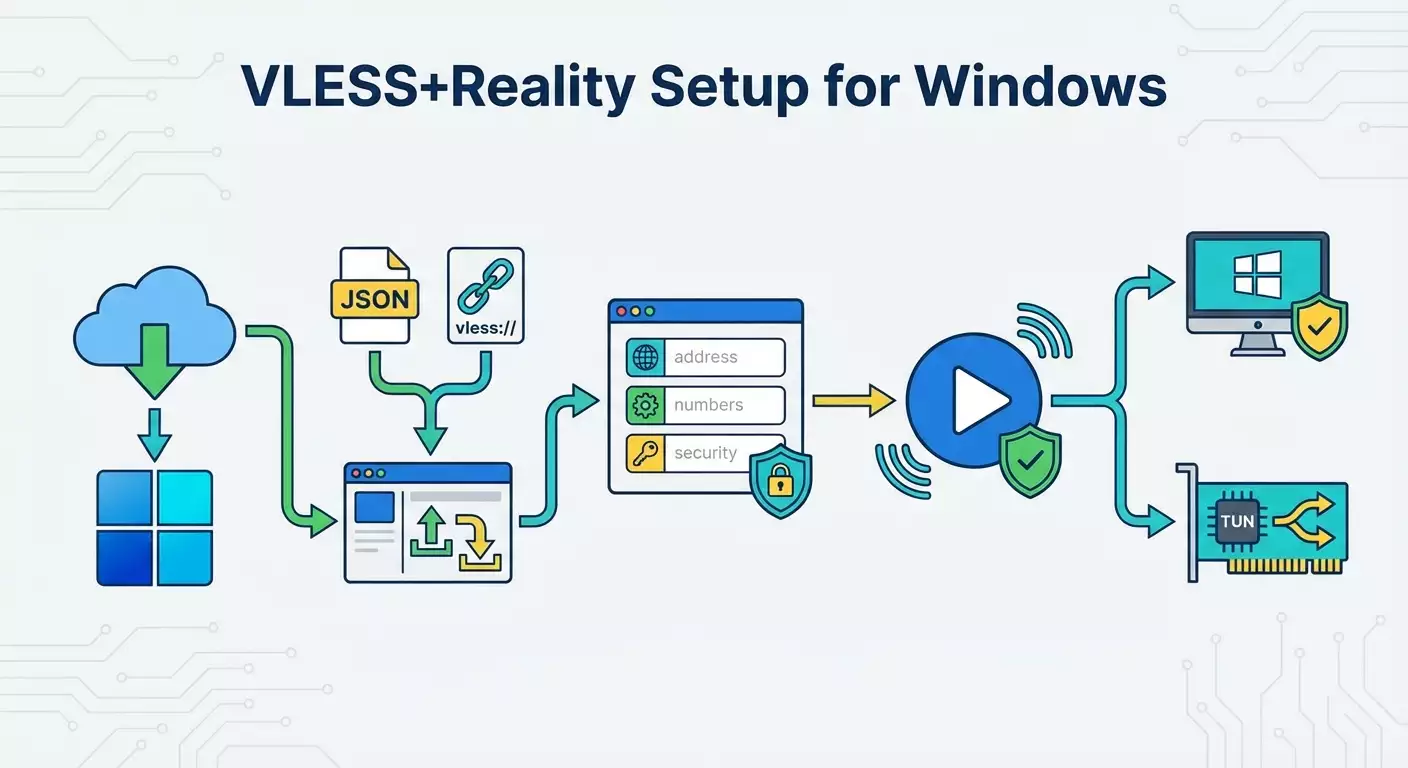
Пошаговая инструкция по настройке VLESS+Reality для Windows через v2rayN и альтернативно через Nekoray. За 20–40 минут вы научитесь скачивать, импортировать конфиги vpn.how (JSON и vless://), запускать подключение, выбирать системный прокси или TUN и устранять типичные ошибки.
Содержание статьи
- Введение
- Предварительная подготовка
- Базовые понятия
- Шаг 1: установка v2rayn
- Шаг 2: импорт конфигурации json
- Шаг 3: импорт через ссылку vless://
- Шаг 4: ручная настройка vless+reality
- Шаг 5: запуск — выбрать сервер, нажать enter, проверить подключение
- Шаг 6: системный прокси vs tun-режим — когда что использовать
- Шаг 7: альтернатива — nekoray (windows, linux, macos)
- Проверка результата
- Типичные ошибки и решения
- Faq
- Заключение
Введение
В этом пошаговом гайде вы узнаете, как настроить безопасное и стабильное подключение VLESS+Reality на Windows с помощью приложения v2rayN. Мы последовательно пройдем путь от скачивания программы до выбора режима работы сети (системный прокси или TUN), а также разберем три способа добавления сервера vpn.how: импорт JSON, импорт по ссылке vless:// и ручную настройку с заполнением всех полей (адрес, порт, UUID, Flow, Security: reality, SNI, Public Key, Short ID, Fingerprint: chrome). По итогам вы получите готовое к работе подключение и четкое понимание, как проверять результат и что делать, если что-то пошло не так.
Этот гайд подойдет начинающим и опытным пользователям: мы избегаем сложного жаргона, все действия сопровождаем простыми пояснениями и контрольными точками проверки. Предварительных знаний не требуется, кроме базовой уверенности в работе с Windows.
На выполнение уходит примерно 20–40 минут: меньше, если вы импортируете готовый конфиг из личного кабинета vpn.how, и чуть больше, если выберете ручную настройку или TUN-режим с установкой драйвера.
Цель: настроить рабочий VLESS+Reality, научиться быстро импортировать серверы vpn.how и уверенно переключаться между режимами работы под ваши задачи.
Предварительная подготовка
Что понадобится
- Компьютер с Windows 10 или Windows 11 (актуальные на 2026 год).
- Доступ в интернет (для скачивания и авторизации в vpn.how).
- Личный кабинет vpn.how с активной подпиской или выданными вам данными доступа.
- Свободное место на диске (200–500 МБ достаточно).
Системные требования
- Права пользователя, позволяющие запускать программы и при необходимости устанавливать драйвер для TUN-режима.
- Свежие обновления Windows и драйверов сетевых адаптеров для лучшей совместимости.
Что скачать и где взять конфиг
- Приложение v2rayN для Windows. Его можно найти через официальный репозиторий разработчиков, открыв сайт популярного каталога исходников и выполнив поиск по названию v2rayN. Ориентируйтесь на раздел releases и файл с названием, в котором обычно присутствует With-Core или 64-bit. Скачайте ZIP-архив, чтобы просто распаковать и запустить без установки.
- Конфигурацию VLESS+Reality из личного кабинета vpn.how. В кабинете будет отдельная вкладка или раздел с названием VLESS+Reality. Вы сможете загрузить конфиг JSON или скопировать ссылку vless://.
Совет: заранее создайте папку, например C:\Tools\v2rayN, чтобы удобно держать программу и конфиги в одном месте. Так вы быстро найдете нужные файлы при импорте.
О резервных копиях
Если у вас уже стоит v2rayN, перед началом сделайте резервную копию текущих настроек: скопируйте папку с программой (включая файл настроек guiNConfig.json). Это позволит легко вернуться к прежней конфигурации.
⚠️ Внимание: если вы используете корпоративный компьютер, уточните у администратора, можно ли ставить сетевые драйверы (для TUN) и изменять системный прокси. В некоторых организациях это ограничено политиками безопасности.
Базовые понятия
Ключевые термины простым языком
- VLESS — современный легковесный протокол, используемый клиентом и сервером для обмена данными.
- Reality — технология маскировки и шифрования трафика на уровне TLS 1.3, позволяющая выглядеть как обычное безопасное подключение без установки сертификатов на клиенте.
- UUID — уникальный идентификатор вашей учетной записи на сервере. Его предоставляет vpn.how, копируйте без пробелов и лишних символов.
- SNI — доменное имя, на которое маскируется трафик. Его дает vpn.how, указывать нужно точно, с правильными точками и без лишних пробелов.
- Public Key — публичный ключ сервера Reality. Без него подключение не установится.
- Short ID — короткий идентификатор, который тоже выдает vpn.how. Он участвует в проверке соответствия клиента и сервера.
- Flow: xtls-rprx-vision — рекомендуемый режим для VLESS+Reality. Он настраивается в клиенте отдельно.
- Системный прокси — способ, когда v2rayN проксирует только программы, которые уважают системные настройки прокси (браузеры, мессенджеры и пр.).
- TUN-режим — виртуальный сетевой адаптер, через который можно проксировать весь трафик Windows на более низком уровне, включая приложения, не поддерживающие системный прокси.
Что важно понимать
С v2rayN вы можете добавить сервер любым из трех способов. Импорт JSON подходит, если вы скачали готовый конфиг из vpn.how. Импорт по ссылке vless:// удобен, когда конфиг передают одной строкой. Ручная настройка пригодится, если вы хотите полный контроль или быстро перепроверить значения. Режим подключения (системный прокси или TUN) вы выбираете в зависимости от задач: для браузера часто достаточно системного прокси; для игр и программ, игнорирующих прокси, используйте TUN.
Совет: если сомневаетесь, начните с системного прокси. Он проще, быстрее запускается и не требует установки драйверов. При необходимости позже переключитесь на TUN.
Шаг 1: Установка v2rayN
Цель этапа
Скачать, распаковать и запустить v2rayN на Windows, чтобы подготовиться к импорту серверов vpn.how.
Пошаговая инструкция
- Откройте браузер и выполните поиск по фразе: v2rayN releases. Откройте официальный репозиторий разработчиков с разделом выпусков.
- Найдите последнюю стабильную версию. Ориентируйтесь на дату и пометку latest stable.
- Скачайте архив, в названии которого есть признаки полной сборки, например With-Core или 64-bit. Такой архив содержит необходимые исполняемые файлы.
- Создайте папку, например C:\Tools\v2rayN.
- Распакуйте ZIP-архив в созданную папку. Проверьте, что появился файл v2rayN.exe и подпапка с ядром v2ray или Xray (в зависимости от сборки).
- Запустите v2rayN.exe. Если появится запрос контроля учетных записей (UAC), подтвердите запуск.
- При первом запуске окно может быть пустым. Вверху будет меню с пунктами, включая Servers, Subscriptions, Settings. Это нормально.
⚠️ Внимание: если антивирус или SmartScreen предупреждают о неизвестном издателе, нажмите Дополнительно и Разрешить, при условии что вы скачали архив из официального репозитория. Неподписанные open-source инструменты часто вызывают такие предупреждения, это не означает вредоносную активность.
Совет: добавьте папку v2rayN в исключения антивируса, чтобы избежать ложных срабатываний при обновлениях ядра или использовании TUN.
✅ Проверка: вы видите главное окно v2rayN, пункт Servers доступен, ошибок при запуске нет. В системном трее может появиться иконка программы.
Возможные проблемы и решения
- Проблема: программа не запускается. Причина: блокировка SmartScreen. Решение: открыть контекстное меню файла, выбрать Свойства, установить Разрешить, применить и запустить снова.
- Проблема: отсутствуют файлы ядра. Причина: скачан архив без ядра. Решение: скачайте сборку With-Core или используйте механизм загрузки ядра в настройках v2rayN.
Шаг 2: Импорт конфигурации JSON
Цель этапа
Импортировать готовый JSON-конфиг VLESS+Reality из личного кабинета vpn.how, чтобы быстро создать рабочее подключение без ручного ввода параметров.
Пошаговая инструкция
- Откройте личный кабинет vpn.how и перейдите в раздел или вкладку VLESS+Reality.
- Нажмите кнопку Скачать конфиг JSON. Сохраните файл на диск, например в папку C:\Tools\v2rayN\configs.
- Запустите или переключитесь в v2rayN. В верхнем меню нажмите Servers.
- Выберите Import client config from file. Откроется окно выбора файла.
- Перейдите к вашему файлу JSON и нажмите Открыть.
- После импорта сервер появится в списке. Убедитесь, что название понятное (часто в имени указана локация или пометка vpn.how).
Совет: если в vpn.how есть кнопка Копировать конфиг JSON в буфер, вы можете выбрать Servers → Import client config from clipboard и вставить данные напрямую, не сохраняя файл.
✅ Проверка: в списке v2rayN появился новый сервер. При выделении сервера вы видите его тип VLESS и параметры Reality в правой или нижней панели (в зависимости от версии интерфейса).
Возможные проблемы и решения
- Проблема: импорт не активен. Причина: буфер пустой или выбран неверный файл. Решение: убедитесь, что копируете именно JSON, или повторите импорт из файла.
- Проблема: в логе ошибка парсинга. Причина: поврежденный файл. Решение: скачайте конфиг заново в личном кабинете vpn.how.
Шаг 3: Импорт через ссылку vless://
Цель этапа
Добавить сервер с помощью короткой ссылки vless:// из кабинета vpn.how. Это быстрее, чем работать с файлом JSON.
Пошаговая инструкция
- В личном кабинете vpn.how откройте VLESS+Reality и найдите кнопку Копировать URI или ссылку vless://.
- Нажмите Копировать, чтобы поместить ссылку vless://... в буфер обмена. Убедитесь, что копирование прошло успешно.
- Переключитесь в v2rayN. Откройте меню Servers.
- Выберите Import from clipboard. В скобках рядом обычно указано Ctrl+V, но важно именно меню Import from clipboard.
- Если все сделано верно, v2rayN создаст запись сервера из этой ссылки и добавит ее в список.
Совет: если у вас несколько ссылок vless://, выделяйте и копируйте их по одной. v2rayN корректнее парсит одиночные записи, особенно если в буфере нет лишнего текста.
✅ Проверка: новый сервер появился в списке. В его свойствах виден протокол VLESS и включенная Security: reality, а также Flow: xtls-rprx-vision.
Возможные проблемы и решения
- Проблема: после Import from clipboard сервер не добавился. Причина: в буфере не ссылка vless://. Решение: снова скопируйте точную ссылку из vpn.how и повторите импорт.
- Проблема: залетел лишний пробел в начале/конце. Причина: некорректное копирование. Решение: скопируйте стандартным способом через кнопку в кабинете vpn.how.
Шаг 4: Ручная настройка VLESS+Reality
Цель этапа
Создать подключение вручную, чтобы четко понимать назначение каждого поля и уметь самостоятельно проверять значения.
Пошаговая инструкция
- Откройте v2rayN. Нажмите меню Servers.
- Выберите Add [VLESS] server (добавить VLESS сервер). Откроется окно настроек сервера.
- В поле Address введите адрес сервера, указанный в вашем кабинете vpn.how. Пример: nodeX.vpn.how или IP-адрес. Вводите точно.
- В поле Port введите порт, который указан в кабинете для VLESS+Reality. Пример: 443 или иной, как выдано.
- В поле UUID вставьте ваш уникальный идентификатор из vpn.how. Пример: 123e4567-e89b-12d3-a456-426614174000 (просто пример формата, используйте свой).
- Найдите поле Flow и выберите xtls-rprx-vision. Это обязательный параметр для корректной работы Reality с VLESS.
- В поле Security выберите reality. Это ключевой шаг: именно этот тип шифрования и обфускации используется на сервере.
- Появятся дополнительные поля для Reality. Заполните SNI значением домена, которое дает vpn.how. Пример: cdn.example.com (пример формата).
- Вставьте Public Key (публичный ключ сервера Reality), который указан в кабинете. Вводите без лишних символов.
- Укажите Short ID. Скопируйте его из кабинета vpn.how. Обычно это короткая строка из 8–16 символов, но ориентируйтесь на ваш реальный short id.
- Найдите поле Fingerprint и выберите chrome. Этот отпечаток имитирует клиент Chrome и повышает совместимость.
- Проверьте транспорт: для VLESS+Reality в v2rayN транспорт по умолчанию TCP, а TLS не включается отдельно, поскольку Security: reality уже реализует нужный уровень. Убедитесь, что режим TCP выбран, а опции типа gRPC или WebSocket выключены, если не указано иное в кабинете vpn.how.
- Убедитесь, что опция AllowInsecure выключена (false). Reality не требует доверия к сертификату, но безопасность должна оставаться строгой.
- Сохраните настройки (OK или Save).
Совет: перед сохранением еще раз сравните значения с кабинетом vpn.how: Address, Port, UUID, SNI, Public Key, Short ID, Flow и Fingerprint. Одна неверная буква или пробел часто ломает подключение.
✅ Проверка: в списке серверов появился ваш вручную созданный VLESS+Reality. При открытии свойств вы видите Flow: xtls-rprx-vision и Security: reality с заполненными SNI, Public Key, Short ID и Fingerprint: chrome.
Возможные проблемы и решения
- Проблема: нет вкладки Reality. Причина: старая версия v2rayN. Решение: скачайте более свежую сборку с поддержкой Reality (версия 2024+), затем повторите настройку.
- Проблема: сервер не подключается. Причина: опечатка в SNI или Short ID. Решение: перепроверьте точное совпадение с данными vpn.how.
Шаг 5: Запуск — выбрать сервер, нажать Enter, проверить подключение
Цель этапа
Активировать выбранный сервер, запустить соединение и убедиться, что трафик пошел через VLESS+Reality.
Пошаговая инструкция
- Откройте список серверов в v2rayN. Кликните по нужному серверу из vpn.how, чтобы выделить его.
- Нажмите клавишу Enter или контекстное меню и выберите Подключить (или Set as active and connect, в зависимости от локализации).
- В нижней части окна откройте вкладку Логи (или Console/Log), чтобы видеть статус. Должно появиться сообщение о запуске сервиса без ошибок.
- Убедитесь, что системный прокси включен, если вы используете режим системного прокси. Это можно сделать кнопкой Enable System Proxy в интерфейсе v2rayN.
- Откройте браузер и проверьте IP через любой популярный сервис показа IP (вбейте в поисковик запрос мой ip). IP должен отличаться от вашего провайдера и соответствовать локации сервера (или близкой ей, в зависимости от балансировки).
Совет: если у вас несколько серверов vpn.how (например, разные локации), подключайте по одному и проверяйте IP. Так вы быстро поймете, какой узел лучше по задержке и скорости именно для вас.
✅ Проверка: в логах нет критических ошибок, в браузере IP изменился, сайты открываются быстро и стабильно. Значит подключение активно.
Возможные проблемы и решения
- Проблема: нет интернета после запуска. Причина: включен системный прокси, но браузер кешировал DNS. Решение: перезапустите браузер, обновите DNS-кэш (ipconfig /flushdns) или используйте TUN-режим.
- Проблема: логи показывают handshake error. Причина: неверный Public Key или SNI. Решение: перепроверьте значения, переимпортируйте конфиг из vpn.how.
Шаг 6: Системный прокси vs TUN-режим — когда что использовать
Цель этапа
Понять различия режимов, выбрать подходящий и грамотно его включить.
Системный прокси
Системный прокси меняет настройки прокси в Windows. Большинство браузеров и мессенджеров уважают эти настройки. Это самый простой стартовый вариант.
Как включить
- В v2rayN найдите кнопку Enable System Proxy (или через меню: System Proxy → Set system proxy).
- Убедитесь, что подключение к серверу активно (см. Шаг 5).
- Откройте браузер и проверьте, что сайты грузятся, IP изменился.
Совет: если используете несколько браузеров, убедитесь, что они не игнорируют системный прокси (редко, но возможно в отдельных сборках).
TUN-режим
TUN создает виртуальный сетевой интерфейс, и весь трафик Windows проходит через него, включая приложения, не поддерживающие системный прокси. Это полезно для игр, стриминговых клиентов и любой программы, которая игнорирует настройки прокси.
Как включить
- В v2rayN откройте меню TUN и выберите Enable TUN mode (или аналогично по интерфейсу вашей версии).
- При первом включении программа предложит установить драйвер виртуального адаптера (обычно Wintun). Подтвердите установку.
- Дождитесь завершения. В трее вы можете увидеть новый сетевой интерфейс или индикатор активности.
- Проверьте, что сервер подключен и лог не содержит ошибок маршрутизации.
⚠️ Внимание: в некоторых системах политики безопасности или корпоративные средства защиты могут блокировать установку виртуальных адаптеров. Если установка не проходит, используйте системный прокси или обратитесь к администратору.
Совет: для игр с чувствительностью к задержке выбирайте ближайший к вам сервер vpn.how и используйте TUN, чтобы трафик игры точно шел через туннель.
✅ Проверка: в режиме TUN у вас меняется путь всего трафика. Проверьте IP в браузере, затем запустите приложение, которое раньше игнорировало прокси, и убедитесь, что оно теперь работает через туннель (например, по скорости/доступу или встроенному индикатору сети в игре/клиенте).
Возможные проблемы и решения
- Проблема: после включения TUN пропал интернет. Причина: конфликт маршрутов. Решение: отключите TUN, перезапустите v2rayN, снова включите TUN; при необходимости перезагрузите Windows.
- Проблема: драйвер не ставится. Причина: ограничение прав. Решение: запустите v2rayN от имени администратора или используйте системный прокси.
Шаг 7: Альтернатива — Nekoray (Windows, Linux, macOS)
Цель этапа
Показать альтернативный клиент, если v2rayN вам неудобен или вы используете несколько платформ. Nekoray кроссплатформенный и отлично работает с VLESS+Reality.
Пошаговая инструкция для Windows
- Найдите официальный репозиторий Nekoray через поиск по названию nekoray releases. Скачайте сборку для Windows (архив ZIP).
- Распакуйте архив в папку, например C:\Tools\Nekoray.
- Запустите исполняемый файл Nekoray. При первом запуске программа создаст рабочие каталоги.
- Чтобы импортировать сервер из vpn.how, используйте два способа: импорт по ссылке vless:// (кнопка Import from clipboard в главном окне) или импорт JSON (кнопка Import, затем выберите файл).
- Выберите профиль в списке и нажмите Start или Activate, чтобы включить подключение. В статусной строке увидите состояние Connected.
Совет: если вы используете Linux или macOS, Nekoray позволит работать с одним и тем же vless:// конфигом, который вы копируете из vpn.how, без дополнительных правок. Это удобно, если вы часто переключаетесь между системами.
✅ Проверка: в Nekoray статус профиля изменился на подключен, а проверка IP в браузере подтверждает маршрут через VLESS+Reality.
Возможные проблемы и решения
- Проблема: не виден Reality. Причина: старая версия Nekoray. Решение: скачайте актуальную сборку 2025–2026 годов с поддержкой Reality.
- Проблема: нет интернета в приложениях. Причина: не включен системный прокси в настройках Nekoray. Решение: включите системный прокси или TUN (если поддерживается в вашей версии).
Проверка результата
Чек-лист
- v2rayN установлен и запускается без ошибок.
- Сервер vpn.how добавлен одним из способов: JSON, vless:// или вручную.
- Параметры VLESS+Reality корректны: Flow: xtls-rprx-vision, Security: reality, SNI, Public Key, Short ID, Fingerprint: chrome.
- Подключение активно: в логах нет критических ошибок.
- IP в браузере изменился, сайты открываются стабильно.
- Вы понимаете разницу между системным прокси и TUN и можете включать подходящий режим.
Как протестировать
- Откройте 2–3 популярных сайта и оцените скорость открытия страниц.
- Скачайте тестовый файл или запустите потоковое видео в 1080p, проверьте стабильность без буферизации.
- Если используете TUN, проверьте приложение, которое ранее игнорировало прокси (игры, клиенты). Оно должно работать через туннель.
Показатели успеха: стабильное соединение без обрывов, неизменный внешний IP через 10–15 минут работы, отсутствие ошибок handshake, скорость соответствует возможностям вашей сети и сервера vpn.how.
Типичные ошибки и решения
- Проблема: невозможно подключиться, лог пишет handshake failure. Причина: неверный Public Key или SNI. Решение: сравните поля с кабинетом vpn.how, переимпортируйте ссылку vless:// или JSON.
- Проблема: подключение устанавливается, но сайты не открываются. Причина: системный прокси не включен или браузер кешировал DNS. Решение: включите системный прокси в v2rayN, перезапустите браузер, выполните ipconfig /flushdns.
- Проблема: скорость ниже ожиданий. Причина: выбран удаленный сервер с высокой задержкой. Решение: переключитесь на ближний узел vpn.how, проверяйте по пингу/скорости.
- Проблема: приложения игнорируют туннель. Причина: вы используете только системный прокси. Решение: включите TUN-режим в v2rayN, установите драйвер, проверьте маршруты.
- Проблема: v2rayN не импортирует ссылку vless://. Причина: ссылка скопирована не полностью. Решение: заново используйте кнопку Копировать в vpn.how и выполните Servers → Import from clipboard.
- Проблема: после сна ноутбука соединение нестабильно. Причина: сбой сетевого адаптера. Решение: отключите и включите подключение в v2rayN, при необходимости перезапустите TUN или перезагрузите Windows.
- Проблема: антивирус блокирует v2rayN. Причина: ложное срабатывание. Решение: добавьте папку v2rayN в исключения, убедитесь в подлинности скачанного архива.
Совет: если проблема не воспроизводится стабильно, включите подробные логи и запишите время возникновения ошибки. Так вы быстрее поймете причину.
FAQ
Вопрос: Как понять, какой способ импорта выбрать — JSON или vless://? Ответ: Оба способа равнозначны по результату. vless:// быстрее, так как не нужно сохранять файл. JSON удобнее, если вы хотите хранить конфиги локально и делиться ими офлайн.
Вопрос: Безопасно ли использовать Reality без клиентского сертификата? Ответ: Да. Reality реализует безопасность на стороне сервера без необходимости устанавливать клиентские сертификаты. Важно корректно указать Public Key, SNI и Short ID.
Вопрос: Зачем нужен Flow: xtls-rprx-vision? Ответ: Это рекомендуемый режим передачи для VLESS+Reality, повышающий эффективность и совместимость. Без него сервер может отказать в подключении.
Вопрос: Нужно ли включать TLS отдельно в v2rayN? Ответ: Нет. Для Reality в качестве Security: reality все нужно задается в полях Reality (SNI, Public Key, Short ID). Отдельный TLS не включается.
Вопрос: Когда лучше использовать TUN вместо системного прокси? Ответ: Если приложение игнорирует системный прокси или вам нужен перехват всего трафика. Для браузеров обычно достаточно системного прокси.
Вопрос: Почему после подключения IP не меняется? Ответ: Вероятно, системный прокси не включен или браузер использует собственные настройки сети. Включите системный прокси или используйте TUN, перезапустите браузер и очистите DNS-кэш.
Вопрос: Можно ли использовать эти же конфиги на другом ПК? Ответ: Да, но соблюдайте лимиты подключений, если они есть у вашего тарифа vpn.how. Импортируйте тот же JSON или ссылку vless:// на другом устройстве.
Вопрос: Что делать, если v2rayN пишет outdated core? Ответ: Обновите сборку v2rayN до актуальной версии With-Core, либо обновите ядро Xray/V2Ray в настройках клиента.
Вопрос: Влияет ли выбор Fingerprint на скорость? Ответ: Непрямо. Fingerprint: chrome обеспечивает лучшую совместимость. Скорость больше зависит от канала и ближнего сервера.
Вопрос: Можно ли работать без прав администратора? Ответ: Да, для системного прокси часто достаточно обычных прав. Для TUN обычно требуются права администратора для установки драйвера.
Заключение
Вы настроили VLESS+Reality на Windows с помощью v2rayN, научились импортировать серверы vpn.how разными способами (JSON, vless://) и при необходимости создавать конфигурацию вручную. Вы также поняли, как запускать подключение, проверять IP, читать логи, и в чем разница между системным прокси и TUN-режимом. При возникновении ошибок вы теперь знаете, где искать причину и как действовать — от перепроверки SNI и Public Key до обновления ядра и включения TUN.
Что дальше: сохраните рабочие конфигурации, отметьте для себя оптимальные серверы vpn.how по скорости и задержке, настройте автозапуск v2rayN вместе с Windows, если вы пользуетесь подключением постоянно. Освойте горячие клавиши, чтобы быстрее подключаться и переключаться между серверами. Если вы работаете на нескольких ОС, рассмотрите Nekoray как кроссплатформенную альтернативу.
Совет: раз в несколько недель проверяйте обновления v2rayN и актуальность конфигов vpn.how. Свежие версии повышают стабильность и совместимость, а иногда дают заметный прирост скорости.