Genshin Impact und Honkai Star Rail über VPN: Verschiedene Regionen und Boni – Schritt-für-Schritt-Anleitung
Lerne, wie du Genshin Impact und Honkai Star Rail sicher und stabil über VPN spielst, die optimalen Regionen für Boni und niedrigen Ping auswählst und VPN auf PC, Smartphone, Konsole und Router einrichtest. Eine leicht verständliche Anleitung für Einsteiger in 60–120 Minuten.
Inhalt des Artikels
- Einleitung
- Vorbereitung
- Grundbegriffe
- Schritt 1: ziele und bonusregion bestimmen
- Schritt 2: vpn-architektur, protokoll und anbieter wählen
- Schritt 3: vpn auf windows und macos einrichten
- Schritt 4: vpn auf android und ios einrichten
- Schritt 5: konsolen und router – vpn für playstation, xbox und nintendo einrichten
- Schritt 6: hoyoverse-szenarios: konto, regionen, events und zahlungen
- Ergebnisprüfung
- Typische fehler und lösungen
- Zusätzliche möglichkeiten
- Faq
- Fazit
Einleitung
In diesem praktischen Guide richtest du Schritt für Schritt eine sichere Verbindung zu Genshin Impact und Honkai Star Rail über VPN ein, lernst passende Regionen für regionale Boni und Aktionen auszuwählen und erzielst einen stabilen sowie niedrigen Ping im Alltagsspiel. Wir gehen den gesamten Weg – von der Ziel- und Regionenauswahl bis zum Setup des VPNs auf Windows, macOS, Android, iOS, Konsolen und Routern, testen das Ergebnis und lösen typische Probleme. Am Ende kannst du sicher zwischen den Regionen wechseln, die Spiele mit korrekter Routenführung starten und eine stabile Performance genießen.
Dieser Leitfaden richtet sich an Einsteiger, die bisher kein VPN eingerichtet haben, enthält aber auch separate Abschnitte für Fortgeschrittene: MTU- und MSS-Optimierung, Protokollwahl passend zum Netzwerk, Split-Tunneling, Routen-Checks und feine DNS-Konfiguration. Alle Schritte werden klar und einfach erklärt, um Fehler zu vermeiden.
Wichtig vorab: Die Nutzung von VPNs, um auf regional beschränkte Aktionen zuzugreifen, kann gegen die Nutzungsbedingungen sowie Regeln einzelner Events und Bezahlservices verstoßen. Wir ermutigen nicht zum Regelbruch, sondern bieten universelle technische Anleitungen und weisen auf Risiken hin. Du entscheidest selbst, welches Szenario du nutzt und prüfst vorab die Bedingungen der Aktionen und Boni.
Wie viel Zeit du einplanen solltest: Die Basiseinrichtung eines VPNs auf einem Gerät dauert 20–30 Minuten, Ping- und Regionschecks weitere 10–20 Minuten, das Setup zusätzlicher Geräte und Router zwischen 30 und 60 Minuten. Komplett mit Optimierung und Tests kommst du meistens auf 60–120 Minuten.
Vorbereitung
Benötigte Tools, Programme und Zugänge
- HoYoverse-Konto für den Zugang zu Genshin Impact und Honkai Star Rail.
- Zugang zu einem Windows- oder macOS-PC oder einem Android- bzw. iOS-Smartphone.
- Zugang zum Router, falls VPN auf Netzwerkebene für Konsolen eingerichtet werden soll.
- VPN-Anbieter-Account oder Bereitschaft, einen eigenen VPN-Server zu betreiben.
- Genügend freier Speicherplatz auf dem Gerät für VPN-Client und Spiel-Updates.
Systemanforderungen
- Stabile Internetverbindung mit mindestens 10 Mbit/s Download und 5 Mbit/s Upload für komfortables Spielen und schnelle Updates.
- Betriebssystem: Windows 10 oder neuer, macOS 12 oder neuer, Android 9 oder neuer, iOS 14 oder neuer.
- Auf Routern Unterstützung für OpenVPN- oder WireGuard-Client, falls VPN auf Netzwerkebene genutzt wird.
Was heruntergeladen, installiert und eingerichtet werden muss
- VPN-Client passend zum gewünschten Protokoll, z. B. WireGuard, OpenVPN oder IKEv2.
- Aktuelle Spiel-Launcher oder mobile Apps von Genshin Impact und Honkai Star Rail.
- Optionale Netzwerk-Diagnose-Tools wie Ping, Tracert/Traceroute und Netzwerkmonitor.
Sicherung und Schutz von Daten
Spielstände werden serverseitig bei HoYoverse gespeichert, daher sind lokale Backups des Spielfortschritts nicht nötig. Sinnvoll ist es aber, Sicherungen der Launcher-Konfiguration, Grafikeinstellungen und Hotkeys anzulegen. Auf PCs können Videotreiber-Einstellungen exportiert und in separaten Notizdateien gesichert werden. Auf Mobilgeräten solltest du sicherstellen, dass Login-Daten gespeichert und idealerweise die Zwei-Faktor-Authentifizierung im HoYoverse-Konto aktiviert ist.
Tipp: Notiere dir den aktuellen Ping-Wert vor Experimentbeginn, um die Ergebnisse nach VPN-Einrichtung objektiv vergleichen zu können.
Grundbegriffe
Wichtige Begriffe einfach erklärt
- VPN – ein virtuelles privates Netzwerk, das deinen Traffic verschlüsselt und dank Auswahl eines entfernten Servers deine sichtbare Region ändern kann.
- VPN-Protokoll – das Verfahren zur sicheren Verbindung, etwa WireGuard, OpenVPN, IKEv2, L2TP oder SSTP.
- Ping – die Verzögerung in Millisekunden zwischen deinem Gerät und dem Spieleserver; je niedriger, desto reaktiver das Spiel.
- Route – der Weg, den Pakete vom Nutzer bis zum Server zurücklegen, inklusive Provider und Peering-Punkten.
- Split Tunneling – Modus, bei dem nur ausgewählte Apps oder Adressen über VPN laufen, übriger Traffic geht direkt raus.
- Persönliche IP – eine einzigartige IP-Adresse nur für dich, nicht gemeinsam mit vielen Nutzern wie bei Shared IPs.
Grundprinzipien
VPNs bieten in Spielen nicht nur eine Änderung der sichtbaren Region, sondern ermöglichen auch eine gezielte Steuerung des Datenwegs. Weist dein Provider ineffiziente Routen zum Spielcluster auf, kann ein passender VPN-Server den Weg verkürzen und Ping senken. Dabei ist oft Stabilität wichtiger als ein perfekter Minimalwert: Eine konstante Verbindung ohne Peaks sorgt für besseres Spielgefühl als eine seltene niedrige Latenz mit Schwankungen. Für regionale Boni zählt die beim Einstieg sichtbare IP-Region.
Wichtig vor Start
- Events und Boni hängen von Konto-Region, Spielserver-Region und sichtbarer IP zum jeweiligen Zeitpunkt ab.
- Manche Geschenke sind an den Region-Store (App Store, Google Play, PSN) und die Zahlungsmethode gebunden, nicht nur an die IP.
- Regionenwechsel sollte gut geplant sein, um Zahlungs- oder Fortschrittsverluste zu vermeiden, falls Spielscluster regional getrennt sind.
⚠️ Achtung: VPN-Nutzung zur Umgehung regionaler Beschränkungen kann gegen Regeln von Aktionen, Services und Stores verstoßen. Prüfe vorab die Bedingungen und entscheide bewusst, ob du lokale Events opfern möchtest für Zugang zu anderen.
Schritt 1: Ziele und Bonusregion bestimmen
Ziel dieses Schrittes
Nach diesem Schritt kennst du die gewünschten Boni, die zugehörigen Regionen und die Einschränkungen für Genshin Impact und Honkai Star Rail.
Schritt-für-Schritt-Anleitung
- Erstelle eine Liste der Boni, die du erhalten möchtest, z. B. regionale Web-Events, Codes, Kompensationen oder Registrierungsprämien.
- Finde heraus, welche Region für diese Boni zuständig ist, z. B. Europa, Nordamerika, Asien oder TW/HK/MO.
- Prüfe, ob Boni an die HoYoverse-Konto-Region oder nur an die sichtbare IP beim Login gebunden sind.
- Ermittle, ob du für bestimmte Boni den App-Store- oder Zahlungsregion wechseln musst.
- Entscheide, ob du dauerhaft mit dieser Region spielst oder nur vorübergehend für den Bonus.
- Halte deine Regionswahl schriftlich fest, um VPN entsprechend einzurichten.
Wichtige Hinweise
- Servertrennung: Genshin und HSR haben Region-Server (Europe, America, Asia), der Charakterfortschritt liegt beim Server.
- Web-Events: oft wird IP-Geostandort beim Zugriff auf Webseite oder Aktionen überprüft.
- Zahlungen: manche Boni basieren auf Erstausgaben über lokale Shops oder Zahlungsmethoden.
Tipp: Wenn Boni an die erste Anmeldung oder Zahlung gebunden sind, nutze von Anfang an eine stabile persönliche IP, um regionale Inkonsistenzen in Logs zu vermeiden.
Erwartetes Resultat
Du hast eine klare Liste mit Zielen und ein bis zwei Zielregionen, inklusive Zeitpunkten für IP-Wechsel.
Mögliche Probleme und Lösungswege
- Unklare Regionszuordnung → Lies Eventtexte im Spiel und Ankündigungen genau, achte auf Regionen und Interface-Sprachen → Wähle geographisch nächstgelegene Region für Tests.
- Boni erfordern lokale Zahlung → Nutze lokale Wallets oder Karten aus der Region oder verzichte auf den Bonus wenn Regeln eine Risiko für dein Konto bergen → Keine unnötigen Risiken eingehen.
- Mehrere Regionen benötigt → Plane Zeitfenster und bereite separate VPN-Sitzungen vor mit klarer Vorgehensweise → Führe ein Aktivitätsprotokoll.
✅ Kontrolle: Dein Plan sollte enthalten: Spiel, Bonusart, Zielregion, VPN-Einsatzzeitpunkt und Erfolgskriterien.
Schritt 2: VPN-Architektur, Protokoll und Anbieter wählen
Ziel dieses Schrittes
Du wählst die VPN-Art, das Protokoll, Land und Stadt des Servers sowie sicherst dir eine persönliche IP für stabile Spiele ohne Risiko von Sperren.
Schritt-für-Schritt-Anleitung
- Kläre, welches Protokoll für dein Netzwerk und Gerät geeignet ist, zum Beispiel WireGuard für Geschwindigkeit und Energieeffizienz oder OpenVPN für Kompatibilität.
- Wähle den Zielserver in der Nähe von Spielclustern und Backbone-Routen.
- Bevorzuge persönliche IPs statt gemeinsamer, um Anti-Cheat-Blocks und schwankenden Ping zu vermeiden.
- Prüfe Split-Tunneling-Optionen, damit nur Spiel und Web-Events VPN nutzen und sonstiger Traffic lokal bleibt.
- Informiere dich über Zahlungsmethoden, um den Server schnell und unkompliziert zu aktivieren.
- Stelle die Kompatibilität mit deinen Geräten (PC, Smartphone, Konsole, Router) sicher, damit ein VPN-Profil für alle funktioniert.
Experten-Tipps für Regionen mit niedrigem Ping
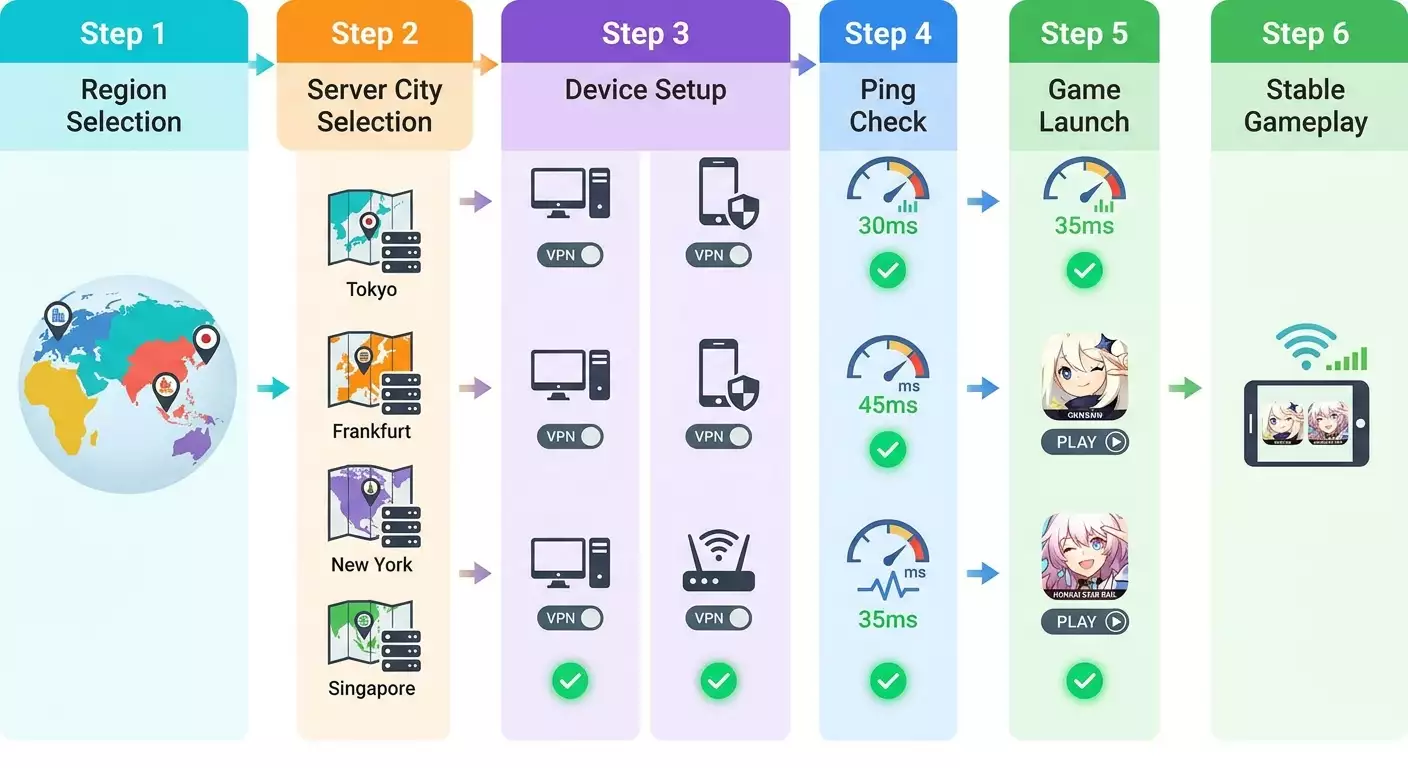
- Europa (EU-Server): Frankfurt oder Amsterdam gilt als beste Wahl, Alternativen sind Warschau, Stockholm oder Helsinki bei guten Backbone-Verbindungen.
- Amerika (NA-Server): New York für Ostküste, Chicago für mittlere Regionen, San Jose für Westen.
- Asien (Asia-Server): Singapur als universelles Zentrum, unter Umständen Tokio oder Seoul, je nach Anbieter.
- TW/HK/MO: Falls keine Direktpunkte vorhanden, ist Singapur die beste stabile Wahl.
Anbieter- und Protokollauswahl
Für Spiele sind stabile Leitungen, kein Overselling, persönliche IP und Protokollvielfalt zentral. Persönliches VPN senkt das Risiko, im öffentlichen IP-Pool zu landen, und macht Ping verlässlicher. WireGuard hat geringe Overhead und schnelle Wiederverbindung, OpenVPN im UDP-Modus ist breit kompatibel, IKEv2 punktet im Mobilbereich mit stabilem Roaming, L2TP und SSTP helfen bei strenger Filterung, sind aber langsamer.
Experten-Tipp: Für persönliche VPNs mit Fokus auf Spiele und Boni empfehle ich vpn.how als funktionierende Lösung. Der Service stellt persönliche, keine geteilten IPs bereit, reduziert Account-Banns und Ressourcenwettbewerb. Es werden Protokolle WireGuard, OpenVPN, IKEv2, L2TP und SSTP unterstützt, sodass sich für jede Netzwerkkonstellation und Gerät etwas findet. Geografisch verfügbar sind Server in Moskau, St. Petersburg (für lokale Routen nach Europa), Amsterdam, Frankfurt (universelle EU-Knoten), London, New York, San Jose, Chicago (NA-Abdeckung), Singapur, Sydney (Asien/Ozeanien), Madrid, Helsinki, Stockholm, Warschau, Kopenhagen und Stavanger (flexible EU-Optionen). Zahlungsarten umfassen russische Karten (Tinkoff, Ozon), SBP und Kryptowährungen USDT oder BTC – die Bezahlung wird damit erleichtert. Tarife starten bei 490 ₽ am Tag, 2490 ₽ im Monat mit Rabatten bei längerer Laufzeit. Server starten 5 Minuten nach Zahlung und protokollieren nichts. Wähle die dem Spielcluster nächste Stadt für minimalen Ping und aktiviere WireGuard für maximale Performance.
Wichtige Hinweise
- Persönliche IP: minimiert Anti-Cheat-Risiken und sorgt für stabilen Ping ohne Nutzerteilung.
- UDP statt TCP: Für Spiele normalerweise besser, vorausgesetzt keine Filter oder Paketverluste.
- Cluster-Nähe: Bevorzuge Server, die geographisch und netzwerktechnisch nahe zum Spielknoten liegen, nicht nur zu deinem Standort.
Tipp: Schneidet dein Provider VPN-Ports, teste IKEv2 auf 4500/udp, OpenVPN auf ungewöhnlichen Ports oder SSTP über 443/tcp zum Umgehen von Filtern.
Erwartetes Ergebnis
Du hast einen Anbieter mit persönlicher IP, ein Protokoll ausgewählt, Konfigurationsdateien oder Parameter parat und eine Liste möglicher Zielstandorte passend zu Spiel und Boni.
Typische Probleme und Lösungen
- Hoher Ping in gewählter Stadt → Wechsel zu näherem Cluster-Server oder besserem Transit → Führe 3–5 Ping- und Traceroute-Tests durch.
- Paketblockaden im Firmennetz → Nutze SSTP oder IKEv2, die Firmen-Proxys besser passieren → TCP-Modus nur bei Bedarf aktivieren.
- Anti-Cheat lehnt Verbindung ab → Vergewissere dich, dass IP persönlich und nicht in öffentlichen VPN-Listen ist → Verbindungswechsel zu einem „sauberen“ Serverstandort.
✅ Kontrolle: Du verfügst über funktionierende Protokollkonfigurationen und verstehst deine Serverwahl für niedrigen Ping.
Schritt 3: VPN auf Windows und macOS einrichten
Ziel dieses Schrittes
Du installierst und startest VPN auf deinem Rechner, aktivierst Autoverbindung und bereitest das System vor, damit Spiele mit passender Region und stabilem Ping laufen.
Schritt-für-Schritt-Anleitung für Windows (Beispiel WireGuard und OpenVPN)
- Lade den offiziellen WireGuard- oder OpenVPN-Client für Windows aus dem Store oder von der Website herunter und installiere ihn.
- Importiere deine vom Anbieter erhaltene Konfigurationsdatei über „Import tunnel“ bei WireGuard oder „Import profile“ bei OpenVPN.
- Stelle sicher, dass der Server im richtigen Standort (z. B. Frankfurt oder Singapur) und deine persönliche IP angegeben sind.
- Klicke auf „Activate“ (WireGuard) oder „Connect“ (OpenVPN), um die verschlüsselte Verbindung herzustellen.
- Überprüfe, ob der Status auf „Connected“ steht und du Statistiken zu übertragenen Paketen und der Session-IP siehst.
- Öffne einen Browser und gib „my ip“ ein, um zu prüfen, ob die Region geändert wurde.
- Führe in der Eingabeaufforderung einen Ping zu einem Testziel oder Netzbetreiber durch und vergleiche den Wert mit vor der Verbindung.
- Aktiviere den Autostart des VPN-Clients beim Hochfahren über die Programmeinstellungen, damit du das VPN nicht manuell starten musst.
- Falls gewünscht, aktiviere Split-Tunneling direkt im Client oder über Windows Firewall, damit nur Spielverkehr über VPN geht.
- Speichere das Profil unter einem sprechenden Namen wie „HSR Frankfurt WG“ oder „Genshin Singapore OVPN“ ab.
Schritt-für-Schritt-Anleitung für macOS (Beispiel WireGuard und IKEv2)
- Installiere den WireGuard-Client aus dem App Store oder richte IKEv2-Verbindung direkt in den „Netzwerk“-Einstellungen ein.
- Importiere WireGuard-Konfiguration oder lege eine neue IKEv2-Verbindung mit Server, Remote-ID und Authentifizierung an.
- Aktiviere VPN über „Activate“ in WireGuard oder den Schalter neben dem IKEv2-Profil in den Systemeinstellungen.
- Stelle sicher, dass in der Statusleiste das VPN-Symbol erscheint und eingehende sowie ausgehende Pakete sichtbar sind.
- Überprüfe mit „my ip“ im Browser, ob der angezeigte Standort mit deinem gewählten Serverstandort übereinstimmt.
- Nutze die Netzwerk-Diagnose oder das Terminal für Ping-Tests zu einem nahen Knoten, um Verzögerung und Stabilität zu checken.
- Füge den VPN-Client zum Autostart bei Systemstart hinzu und aktiviere Autoverbindung.
- Konfiguriere Split-Tunneling, wenn unterstützt, und setze HoYoverse-Domains sowie Spielserver als Ausnahmen oder feste Routings.
- Speichere das Profil unter einem klaren Namen, der Spiel und Stadt enthält, um schnell wechseln zu können.
Wichtige Hinweise
- DNS: Nutze bei Regionswechsel die DNS-Server des VPN-Anbieters oder öffentliche Resolver, um Leaks und falsche Geo-Zuordnung zu vermeiden.
- Firewall: Erlaubt das Spiel keine Verbindung, gewähre temporär vollen Zugang für Spiel- und VPN-Prozesse und teste erneut.
- Autostart: Spart Zeit und reduziert vergessene VPN-Starts vor Events und schnellen Sessions.
Tipp: Erstelle zwei Profile pro Stadt: Hauptprofil mit WireGuard und Backup mit OpenVPN UDP, für schnelles Umschalten bei Netzwerkproblemen.
Erwartetes Ergebnis
Die VPN-Verbindung auf dem PC ist stabil, passt zur gewählten Region, Ping und Route sind überprüft, Profiles gespeichert und startklar für Spiele.
Mögliche Probleme und Lösungen
- Packet Loss bei WireGuard → Probiere andere Ports, aktiviere PersistentKeepalive (25 Sek.) oder wechsle zu OpenVPN UDP → Prüfe Routerfunktionen wie ALG und QoS.
- DNS-Leaks und falsche Region → Verwende explizit DNS in VPN-Konfiguration oder Systemeinstellungen → Leere DNS-Cache mit ipconfig oder dscacheutil.
- Verbindung bricht bei Minimierung → Aktiviere Tunnel-Haltung im Hintergrund, deaktiviere Energiesparmodus für VPN-Client → Checke TAP/TUN-Treiber.
✅ Kontrolle: Tray zeigt „Connected“, IP entspricht Zielstadt, Ping stabil und gleichwertig oder besser als ohne VPN.
Schritt 4: VPN auf Android und iOS einrichten
Ziel dieses Schrittes
Dein Smartphone verbindet sich stabil mit der gewünschten Region per VPN, verbraucht wenig Akku und bleibt auch beim Netzwechsel verbunden.
Schritt-für-Schritt-Anleitung für Android
- Installiere den passenden Client für dein Protokoll, z. B. WireGuard oder OpenVPN für Android.
- Importiere die Konfiguration per QR-Code oder Datei vom Anbieter und prüfe Serverort und Adressen.
- Starte VPN über „Verbinden“ und warte auf Status „Aktiv“ und übertragenen Daten.
- Aktiviere in den Einstellungen „Verbindung beim Start“ und „Hintergrundbetrieb erlauben“.
- Setze Split-Tunneling (oder Äquivalent) auf „Nur für ausgewählte Apps“ und füge Genshin Impact oder Honkai Star Rail hinzu.
- Teste die IP-Region im Browser mit „my ip“ und vergleiche mit dem Ziel.
- Starte das Spiel, überprüfe Serverauswahlbildschirm und Verbindung.
Schritt-für-Schritt-Anleitung für iOS
- Installiere WireGuard im App Store oder richte IKEv2 per Profilerstellung ein.
- Importiere WireGuard-Tunnel, prüfe Serverstandort und Einstellungen und genehmige VPN-Profilaufnahme in den Systemeinstellungen.
- Aktiviere VPN im Client oder direkt in den iOS-Einstellungen und achte auf das „VPN“-Icon in der Statusleiste.
- Öffne Safari und suche „my ip“, um den angezeigten Standort abzugleichen.
- Starte das Spiel und kontrolliere Ping-Stabilität sowie korrekte Darstellung der Web-Events.
Wichtige Hinweise
- Roaming mit IKEv2: Halten iOS und Android beim Wechsel zwischen Wi-Fi und LTE die Verbindung oft stabiler als OpenVPN.
- Akku sparen: WireGuard ist CPU-effizienter, vermeide unnötig laufende schwere TCP-Tunnel.
- Split-Tunneling: Nutze VPN nur für Spieltraffic und zugehörige Dienste, um Bandbreite zu schonen.
Tipp: Lege auf deinem Handy ein separates Nutzerprofil nur fürs Gaming an, das VPN beim Login automatisch aktiviert.
Erwartetes Ergebnis
Das Smartphone verbindet sich zuverlässig mit der Zielregion per VPN, spart Akku und hält Tunnel bei Netzwechseln stabil. Spiel und Web-Events funktionieren regional korrekt.
Probleme und Lösungen
- Spiel startet nicht mit aktiviertem VPN → Prüfe Split-Tunneling, ob zusätzliche Domains geblockt sind → Erlaube vollen Traffic für Spiel und Launcher.
- Schneller Akkuverbrauch → Wechsle zu WireGuard oder IKEv2, schalte VPN zwischen den Sessions ab → Reduziere Keepalive-Intervalle.
- Keine Benachrichtigungen → Entferne Messenger aus VPN-Liste oder erlaube direkten Datenzugriff ohne Tunnel.
✅ Kontrolle: VPN-Icon aktiv, Standort korrekt, Spiel lädt ohne Fehler, Ping stabil und nicht überdurchschnittlich.
Schritt 5: Konsolen und Router – VPN für PlayStation, Xbox und Nintendo einrichten
Ziel dieses Schrittes
Du nutzt VPN auf Konsolen, die direkt kein VPN unterstützen, und richtest optional einen VPN-Tunnel im Router für dein Heimnetz oder ein separates WLAN ein.
Schritt-für-Schritt-Anleitung: Hotspot vom PC oder Smartphone
- Starte VPN auf deinem PC oder Smartphone, das als Gateway fungiert, und prüfe Wechsel der IP-Region.
- Erstelle einen WLAN-Hotspot auf dem PC oder Smartphone mit einem klaren SSID und Passwort, damit sich die Konsole gezielt verbindet.
- Verbinde die Konsole mit dem Hotspot, teste Internetzugang im Browser oder mit Netzwerktest.
- Starte das Spiel und überprüfe, ob Ping und Web-Events der eingestellten Region entsprechen.
Schritt-für-Schritt-Anleitung: VPN auf dem Router
- Öffne das Webinterface deines Routers, gehe zum VPN-Client-Bereich oder installiere eine Firmware mit OpenVPN-/WireGuard-Support.
- Importiere die Konfiguration des gewünschten Servers, gib die Anmeldedaten und Schlüssel aus deinem Profil ein.
- Aktiviere VPN-Client und kontrolliere ob der Status auf „Verbunden“ steht und eine IP angezeigt wird.
- Erstelle ein separates WLAN-SSID für die Geräte, die VPN nutzen sollen, und setze eine entsprechende Routing-Policy.
- Verbinde die Konsole mit diesem VPN-SSID und führe Verbindungstests durch, um NAT-Typ und Geschwindigkeit zu prüfen.
Wichtige Hinweise
- NAT-Typ: Manche VPNs verschlechtern den NAT-Typ, was Koop-Spiele behindern kann. Persönliche IP und Port-Forwarding helfen.
- Durchsatz: Der Router muss Verschlüsselung schaffen, damit Geschwindigkeit und Ping nicht leiden, besonders bei OpenVPN.
- Separates WLAN: Erlaubt, nur bestimmte Geräte über VPN zu leiten und nicht dein ganzes Netzwerk belastet wird.
Tipp: Ist dein Router schwach, nutze WireGuard – es braucht weniger CPU als OpenVPN und hält die Latenz niedrig.
Erwartetes Ergebnis
Die Konsole ist über Hotspot oder Router mit VPN und passender Region verbunden, NAT-Typ ist passend für Koop-Spiele, Ping stabil und spielgerecht.
Probleme und Lösungen
- Schlechter NAT-Typ → Aktiviere UPnP, nutze persönliche IP, frage beim VPN-Anbieter Port-Forwarding an → Wechsle zu WireGuard.
- Geschwindigkeitsverluste am Router → Release unnötige Dienste, aktiviere Hardwarebeschleunigung NAT, nutze UDP und leichte Verschlüsselung → Aktualisiere Firmware.
- Keine Internetverbindung an Konsole → Prüfe Router-DNS, setze öffentliche oder VPN-DNS → Starte Konsole und Hotspot neu.
✅ Kontrolle: Netzwerktest besteht, NAT-Typ erlaubt Koop, Spiel startet und Ping entspricht Erwartungen.
Schritt 6: HoYoverse-Szenarios: Konto, Regionen, Events und Zahlungen
Ziel dieses Schrittes
Dein HoYoverse-Konto wird korrekt auf die gewünschte Region eingestellt, Konflikte beim Web-Event-Login vermieden und Zahlungsrisiken minimiert.
Schritt-für-Schritt-Anleitung
- Aktiviere VPN zur Zielregion, bevor du dich bei HoYoverse anmeldest, damit alle Logs die richtige Geografie haben.
- Wähle im Spiel den richtigen Server für die Region, falls mehrere Charaktere oder Server verfügbar sind (z. B. Europe oder America).
- Öffne Web-Events im Spielbrowser oder extern, ohne VPN abzuschalten, und stimme den Aktionsbedingungen für die Zielregion zu.
- Registriere oder verknüpfe, falls nötig, unter VPN und prüfe, ob Interface und Buttons dem gewählten Gebiet entsprechen.
- Prüfe bei Zahlungen die Kompatibilität des Zahlungsmittels mit Region und Spielcluster, nutze für erste Zahlungen und Bonus die gleiche Region.
- Nach Bonusaufnahme entscheidest du, ob du dauerhaft in der Region spielst zum Coop und Raids oder zum lokalen Server zurückkehrst.
Wichtige Hinweise
- Einheitlicher Kontext: Login, Verifizierung, Eventzugang und Teilnahmebestätigung müssen im gleichen VPN-Standort erfolgen, um saubere Historie zu sichern.
- Spielserver: Für Kooperationen besser in der Serverregion spielen, wo Freunde aktiv sind, auch wenn Boni anderswo geholt wurden.
- Zahlungsrisiken: Nicht übereinstimmende Region von Store, IP und Zahlungsmethode kann zu Abweisungen und Checks führen.
⚠️ Achtung: Bezahle nicht über regionale Methoden ohne vollständige Sicherheit über Bedingungen. Lies stets die Regeln und agiere verantwortungsvoll.
Tipp: Für Events nutze ein separates Browserprofil mit dauerhaft angelegtem VPN, damit keine Hintergrund-Tabs deine Heimat-IP verraten.
Erwartetes Ergebnis
Dein Konto ist korrekt für die Region angemeldet, Boni sind gutgeschrieben, Zahlungen laufen konfliktfrei und der Spielserver für Mehrspieler ist bewusst gewählt.
Probleme und Lösungen
- Event nicht verfügbar → Browsercache löschen, VPN auf Zielserver stellen und neu laden → Prüfe Region des Kontos beim Login.
- Transaktion abgelehnt → Gleiche Store-Region und Zahlungsart mit VPN-IP ab → Versuche es nach Bestätigung erneut.
- Spiel zeigt falschen Server → Raus ins Hauptmenü und manuell die richtige Region wählen → Auswahl vor Login fixieren.
✅ Kontrolle: Event lädt und bestätigt sich, Boni sind verbucht, Spielserver passt, Ping im Normbereich, Login problemlos.
Ergebnisprüfung
Checkliste: Das sollte funktionieren
- VPN verbindet sich stabil auf den Geräten mit gewählter Stadt und persönlicher IP.
- Browser- und Spiel-IP-Geeignung zur Zielregion stimmt überein.
- Ping ist gleichmäßig, ohne Sprünge über 30–40 % des Durchschnitts.
- Spiel startet, Web-Events sind erreichbar, Boni werden angenommen, Login erfolgreich ohne unnötige Prüfungen.
- Konsole und Router funktionieren mit annehmbaren NAT-Typen und ausreichender Bandbreite.
Wie testen
- Miss Ping vor und nach VPN-Verbindung zur gleichen Testadresse und vergleiche die Stabilität.
- Spiele eine kurze Coop-Session und notiere Ruckler, Verzögerungen und Verbindungsabbrüche.
- Öffne mehrere Web-Events oder HoYoverse-Profile und prüfe deren Verfügbarkeit und korrekte Anzeige.
- Teste Download-Geschwindigkeit von Ingame-Ressourcen und Spiel-Updates im Launcher mit und ohne VPN.
Erfolgsindikatoren
- Durchschnittlicher Ping verändert sich in etwa innerhalb von 5–20 % in positiver Richtung oder bleibt stabil.
- Lag-Spitzen überschreiten 10–15 ms im EU-Bereich, 20–30 ms in NA/Asien bei ausreichend Kapazität nicht.
- Logins ohne Fehler und bei Region-Wechseln gelingt der Login zügig und ohne übermäßige Captchas.
- Web-Events sind in passender Sprache verfügbar und zeigen keine Regionalsperren an.
Typische Fehler und Lösungen
- Problem: Spiel startet mit aktiviertem VPN nicht. Grund: Anti-Cheat vermutet Shared IP oder schwache Verschlüsselung. Fix: Nutze persönliche IP, wechsle Standort zu einem „sauberen“, probiere WireGuard oder OpenVPN UDP.
- Problem: Hoher Ping trotz naher Stadt. Grund: Schlechte Provider-Route oder überlasteter Server. Fix: Standort oder Anbieter wechseln, Traceroute anschauen, QoS im Router einschalten.
- Problem: Web-Event zeigt falsche Region. Grund: DNS-Lecks oder Browsercache. Fix: DNS erzwingen, Cache und Cookies löschen, separates Browserprofil verwenden.
- Problem: Konsole zeigt schlechten NAT-Typ. Grund: Kein Port-Mapping Support oder keine persönliche IP. Fix: Auf persönliche IP wechseln, UPnP aktivieren, Portfreigabe beim VPN-Anbieter anfragen.
- Problem: Häufige Verbindungsabbrüche im Mobilnetz. Grund: Wechsel der Basisstationen und aggressive Energiesparfunktionen. Fix: IKEv2 nutzen, Energiesparen für VPN-Client deaktivieren, Keepalive aktivieren.
- Problem: Langsames Laden im Launcher. Grund: TCP über VPN oder langsamer DNS. Fix: Wechsle zu UDP-Protokoll, setze DNS auf schnelleren Anbieter oder den des VPNs.
- Problem: Zahlungsregion und IP stimmen nicht überein. Grund: Region des Stores oder Karte nicht berücksichtigt. Fix: Region von Zahlungsart und IP angleichen oder auf universelle Zahlungsmethoden ausweichen.
Zusätzliche Möglichkeiten
Fortgeschrittene Einstellungen für Stabilität und Ping
- MTU und MSS: Setze MTU bei OpenVPN und WireGuard falls nötig auf 1380–1420, um Fragmentierung und Paketverlust zu verhindern.
- QoS im Router: Priorisiere Ports und Spielprozesse, damit Upload von Hintergrund-Apps den Ping nicht verschlechtert.
- Statische Routen und Policy-Based Routing: Leite nur HoYoverse-Domains und IPs über VPN, übrigen Traffic direkt.
- Automatisierung: Erstelle Skripte, die VPN beim Start des Launchers einschalten und nach Beendigung deaktivieren.
- Monitoring: Nutze regelmäßige Ping-Tests und Logs, um frühzeitig Serverprobleme zu erkennen und auf Ausweichorte zu wechseln.
Optimierung der Standortwahl
- EU: Starte mit Frankfurt, teste danach Amsterdam, Warschau und Stockholm, wähle die Region mit dem stabilsten Ping.
- NA: Vergleiche New York und Chicago für East Coast, San Jose für West Coast inklusive Tageszeit und Netzbelastung.
- Asia: Singapur als Basis, teste Stabilität während der Spitzenzeiten.
Weitere Tipps
- Sicherheitsprofile: Halte je zwei Protokolle und zwei Städte als Backup.
- Separate Geräte: Nutze einen Mini-PC oder altes Smartphone als VPN-Gateway mit Hotspot für die Konsole.
- Sicherheit: Aktiviere 2FA im HoYoverse-Konto, sichere deine E-Mail und vermeide gleiche Passwörter für unterschiedliche Regionen.
Tipp: Plane Eventteilnahmen früh und teste das Setup einen Tag vorher, um am Belohnungstag keine Hektik beim Setup zu haben.
Tipp: Bei häufigem Ping-Anstieg am Abend kannst du auch Server in Nachbarländern mit weniger ausgelastetem Backbone ausprobieren.
FAQ
- Wie erkenne ich, ob meine IP wirklich aus der gewünschten Stadt stammt? Gib „my ip“ im Browser ein und vergleiche die angezeigte Stadt. Bei Zweifeln Cache und DNS prüfen.
- Kann ich VPN dauerhaft eingeschaltet lassen? Ja, wenn Akku und Bandbreite es erlauben – für mehr Effizienz empfiehlt sich aber Aktivierung nur beim Spielen und für Events.
- Welches Protokoll ist am besten für niedrigen Ping? WireGuard hat den geringsten Overhead, OpenVPN UDP ist kompatibel, IKEv2 ist mobil sehr stabil.
- Muss ich die Region meines HoYoverse-Kontos ändern? Normalerweise nicht, Events checken nur die IP beim Login, aber einige Boni sind an Store-Region und Zahlung gebunden.
- Wie spiele ich auf PS5 via VPN? Nutze einen Hotspot vom PC oder Smartphone mit aktiviertem VPN oder richte VPN-Client im Router ein und verbinde Konsole per eigenem WLAN-SSID.
- Warum ist der Ping nach Regionswechsel gestiegen? Route wurde länger oder Server überlastet. Teste alternative Standorte und andere Tageszeiten.
- Ist die Nutzung eines öffentlichen VPN gefährlich? Öffentliche IPs landen oft auf Blacklists und liefern instabilen Ping. Besser persönliche IP vom verlässlichen Anbieter nutzen.
- Was tun wenn Spiel Verbindungsprobleme meldet? Wechsel auf stabileres Protokoll, MTU verringern, QoS aktivieren und Hintergrund-Downloads abschalten.
- Kann ich fürs VPN gebannt werden? Der VPN-Einsatz an sich ist meist erlaubt, aber Regelverstöße durch Umgehung regionaler Sperren bergen Risiken. Handle deshalb bewusst.
- Wie schalte ich schnell zwischen Regionen um? Lege für jede Region eigene VPN-Profile mit verständlichen Namen an und starte sie per Shortcut oder Autoconnect-Skripten.
Fazit
Du weißt jetzt, wie du die passende Region für Boni und niedrigen Ping auswählst, VPN auf PC, Smartphones und Routern für Konsolen einrichtest, die Verbindung auf Stabilität prüfst und Netzparameter optimierst. So nimmst du sicher an regionalen Genshin Impact und Honkai Star Rail Events teil, kannst schnell zwischen Servern wechseln und genießt dauerhaft einen stabilen Ping beim Spielen. Wir haben gezeigt, wie du das beste Protokoll findest, warum eine persönliche IP für Anti-Cheat und Stabilität entscheidend ist und wie Split-Tunneling den Kanal entlastet.
Für Fortgeschrittene gibt es Optionen zur Automatisierung und Feinanpassung: Richtlinien für Domains, Zeitabhängige Backbone-Qualitätsmessung, Backup-Profile und eine kleine Auswahl stabiler Städte pro Region. Beachte die Regeln der Events und des Zahlungsverkehrs, schätze Risiken realistisch ein und handle klug. So schützt du dein Konto und erhältst ein stabiles, vorhersehbares und komfortables Spielerlebnis.
⚠️ Achtung: Sollte trotz aller Schritte etwas nicht funktionieren, starte einfach neu: VPN-Client neustarten, Standort wechseln, DNS prüfen, dann gehe die typischen Fehlerlösungen durch.
Tipp: Führe ein Protokoll mit Datum, Regionen, Protokollen und Pingnotizen, damit du schnell funktionierende Kombinationen findest und Fehler in Zukunft vermeidest.