HarmonyOS Next und VPN: vollständige Schritt-für-Schritt-Anleitung zur Einrichtung auf Huawei ohne Google
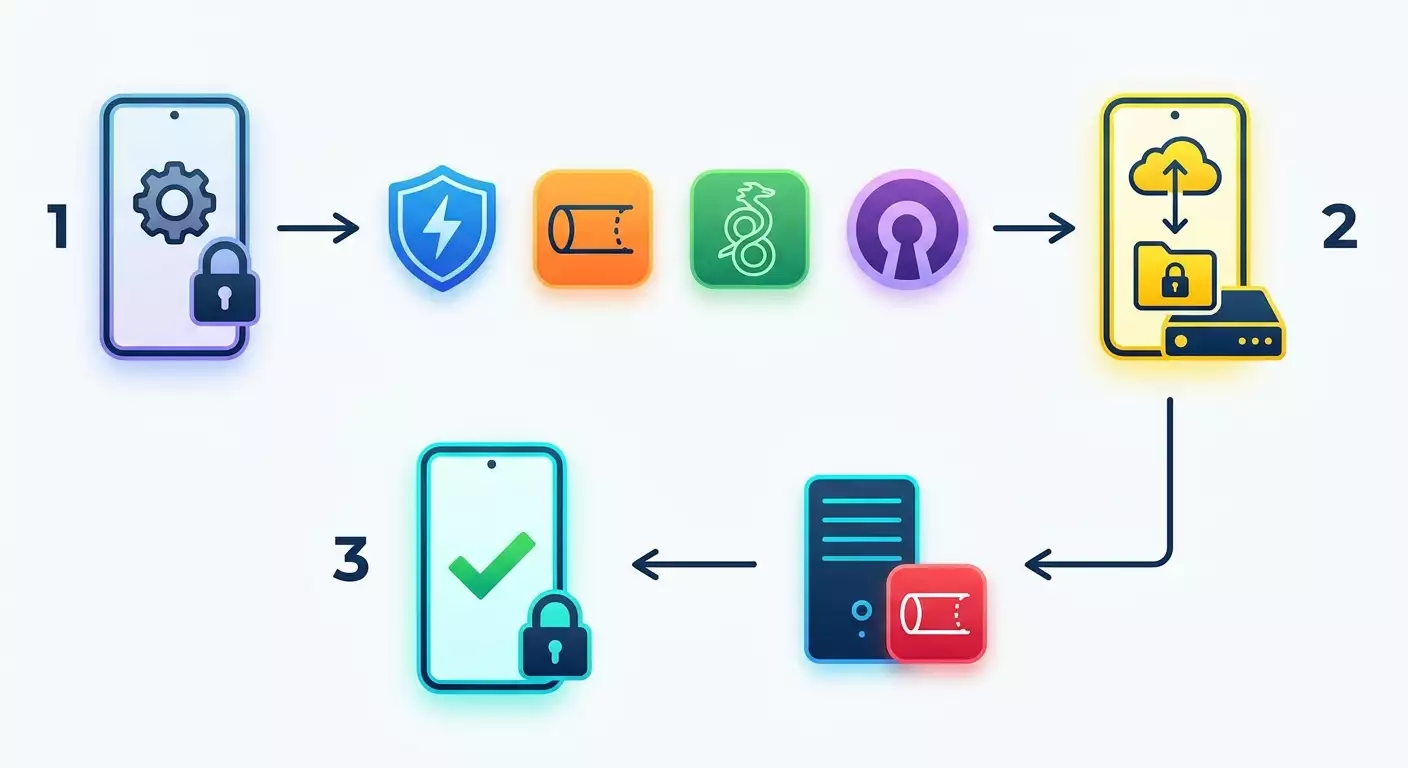
Schritt-für-Schritt-Anleitung zur VPN-Einrichtung auf HarmonyOS Next ohne Google. Innerhalb von 45–90 Minuten lernst du die Protokolle kennen, bereitest die Konfigurationen vor, richtest IKEv2/L2TP ein und verbindest bei Bedarf WireGuard und OpenVPN über Clients oder Router. Das Ergebnis ist eine stabile und sichere Verbindung.
Inhalt des Artikels
- Einführung
- Vorbereitung
- Grundbegriffe
- Schritt 1: harmonyos next-version und verfügbare menüpunkte prüfen
- Schritt 2: zugangsdaten, zertifikate und konfigurationen vorbereiten
- Schritt 3: ikev2/ipsec per system-vpn einrichten
- Schritt 4: l2tp/ipsec psk als backup einrichten
- Schritt 5: wireguard unter harmonyos next – client, import .conf/qr, verbindung
- Schritt 6: openvpn unter harmonyos next – .ovpn-import und kanal-diagnose
- Ergebnis überprüfen
- Typische fehler und lösungen
- Zusätzliche funktionen und erweiterte einstellungen
- Faq
- Fazit
Einführung
In diesem praktischen Leitfaden erhältst du eine umfassende, detailliert erklärte Schritt-für-Schritt-Anleitung zur VPN-Konfiguration auf Huawei-Smartphones und -Tablets mit HarmonyOS Next ohne Google-Dienste. Wir führen dich von den grundlegenden Begriffen bis zur präzisen Konfiguration der Protokolle IKEv2/IPSec und L2TP/IPSec mit den integrierten Systemwerkzeugen. Außerdem zeigen wir, wie du WireGuard und OpenVPN über kompatible Clients nutzt oder VPN alternativ auf Router-Ebene einrichtest. Jede Handlung wird einfach erklärt, mit klaren Bezeichnungen für Schaltflächen, Felder und Menüs, damit du alles selbst nachvollziehen und sicher einrichten kannst.
Für wen ist dieser Guide: Für Einsteiger, die VPN auf HarmonyOS Next zum ersten Mal richtig einrichten wollen, und für fortgeschrittene Nutzer, die funktionierende Lösungen, Protokollempfehlungen sowie Tipps zur Diagnose, Optimierung und Fehlerbehebung suchen.
Was du bekommst: Ein klares Verständnis, welche VPN-Protokolle auf HarmonyOS Next ohne Google tatsächlich funktionieren; fertige Schritt-für-Schritt-Anleitungen zur Einrichtung von IKEv2/IPSec und L2TP/IPSec über das Systemmenü; Optionen für WireGuard und OpenVPN via kompatible Apps; sichere Methoden zum Import von Zertifikaten und Konfigurationen; Checklisten und Diagnosehilfen. Am Ende hast du eine stabile, geprüfte und sichere VPN-Verbindung.
Was du vorab wissen solltest: Es sind keine speziellen Kenntnisse nötig. Wir erklären die Begriffe ganz einfach. Alle möglichen Risiken und wichtigen Details werden gesondert hervorgehoben, damit du nichts Wichtiges übersiehst.
Wie viel Zeit du brauchst: Eine Basiskonfiguration über das System-VPN dauert etwa 20–40 Minuten, inklusive Vorbereitung. Das Hinzufügen von Zertifikaten und erweiterten Einstellungen weitere 10–20 Minuten. Die Einrichtung über WireGuard-/OpenVPN-Apps (wenn verfügbar in deinem AppGallery) 10–30 Minuten. Alternativ die Einrichtung über den Heimrouter je nach Modell 30–60 Minuten.
Vorbereitung
Bevor wir starten, prüfen wir, ob alles Nötige bereitsteht und dein Gerät sicher konfiguriert werden kann. Dieser Schritt spart Zeit und minimiert Fehlerquellen.
Benötigte Werkzeuge und Zugänge
- Ein Huawei-Gerät mit HarmonyOS Next, mindestens 40 % Akku (ideal 60 % und mehr).
- Internetverbindung über Mobilfunk oder Wi-Fi für den Download von Konfigurationen und die Verbindungstest.
- Deine VPN-Zugangsdaten: Serveradresse, Benutzername, Passwort, ggf. ein gemeinsamer IPSec-Schlüssel (PSK) oder Zertifikate (CA und eventuell Client).
- Wenn du WireGuard/OpenVPN verwenden möchtest – Konfigurationsdateien (.conf für WireGuard, .ovpn für OpenVPN), Schlüssel und eventuell statische Routen-Dateien oder Parameter für die manuelle Eingabe.
Systemanforderungen
- Aktuelle HarmonyOS Next-Version mit sämtlichen Systemupdates installiert.
- Vorhandensein eines VPN-Systemmenüeintrags, üblicherweise unter: Einstellungen → Netzwerk & Internet → VPN, oder Einstellungen → Drahtlos & Netzwerke → VPN, oder Einstellungen → Weitere Verbindungen → VPN. Falls nicht sichtbar, nutze die Suche in den Einstellungen mit dem Stichwort „VPN“.
- Zugang zum AppGallery, um ggf. kompatible VPN-Clients zu installieren (bei Nutzung von WireGuard/OpenVPN/SSTP über App).
Was heruntergeladen/installiert/kontrolliert werden muss
- Konfigurationen und Zertifikate von deinem VPN-Anbieter oder eigenem VPN-Server (IKEv2/L2TP/WireGuard/OpenVPN/SSTP je nach Bedarf).
- Falls vorhanden – kompatibler VPN-Client aus AppGallery: Apps für WireGuard, OpenVPN oder SSTP, sofern sie in deiner Region und auf deiner HarmonyOS Next-Version verfügbar sind. Fehlen die Apps, bieten wir weiter unten Alternativen an.
Backup erstellen (falls relevant)
Wenn du Zertifikate und Zugangsdaten importieren möchtest, sichere diese an einem geschützten Ort. So kannst du bei Reset oder Gerätewechsel schnell wiederherstellen.
Tipp: Bewahre Konfigurationen und Zertifikate in einem verschlüsselten Archiv mit starkem Passwort auf. So reduzierst du das Risiko eines Datenlecks.
⚠️ Achtung: Sende private Schlüssel niemals unverschlüsselt über Messenger und speichere sie nicht ohne Passwort und Verschlüsselung in der Cloud. Ein Schlüsselverlust bedeutet Kompromittierung deiner VPN-Zugänge.
Grundbegriffe
Um sicher weiterzukommen, erklären wir die wichtigsten VPN-Begriffe und Funktionsweisen verständlich. Das hilft dir, Protokolle und Einstellungen bewusst auszuwählen.
Was ist VPN
VPN ist ein verschlüsselter „Tunnel“ zwischen deinem Gerät und einem entfernten Server. Daten im Tunnel sind für Dritte unzugänglich, dein Traffic erhält die IP des Servers, der Provider sieht nur die VPN-Verbindung, nicht den Inhalt.
VPN-Protokolle einfach erklärt
- IKEv2/IPSec: Modern, schnell, robust gegen Verbindungsabbrüche im Mobilfunk (stellt Verbindung zügig wieder her beim Wechsel Wi-Fi ↔ LTE). Passt für die meisten Anwendungen. Auf HarmonyOS Next meist systemseitig einrichtbar.
- L2TP/IPSec: Kompatibel und verbreitet, oft Plan B wenn IKEv2 nicht passt. Benötigt meist mehr Parameter und kann langsamer sein.
- WireGuard: Schnell und ressourcenschonend, leicht einzurichten, oft bessere Geschwindigkeit und Stabilität. Braucht eigene Client-App.
- OpenVPN: Flexibler und bewährter „Veteran“, läuft fast überall, manchmal langsamer als WireGuard. Ebenfalls eigene App erforderlich.
- SSTP: Protokoll über TLS/HTTPS, kommt durch strenge Netzwerke durch. Hängt vom Vorhandensein kompatibler Clients in AppGallery ab.
Wichtiges vor dem Start
- Willst du ohne zusätzliche Apps auskommen, nutze IKEv2/IPSec und L2TP/IPSec über Systemeinstellungen.
- Legst du Wert auf Geschwindigkeit, Flexibilität und Feineinstellungen, nutze WireGuard oder OpenVPN, falls verfügbar.
- Alle Protokolle brauchen korrekte Parameter: Serveradresse, Authentifizierungsart, Verschlüsselung und Schlüssel. Folge genau den Vorgaben deines Anbieters.
Tipp: Starte mit IKEv2/IPSec. Wenn die Verbindung stabil ist, bleibe dabei. Bei Kompatibilitätsproblemen probiere L2TP/IPSec. Für maximale Performance wechsle zu WireGuard.
Schritt 1: HarmonyOS Next-Version und verfügbare Menüpunkte prüfen
Ziel
Du findest den System-VPN-Bereich auf deiner HarmonyOS Next-Version und erfährst, welche Verbindungstypen standardmäßig verfügbar sind.
Schritt-für-Schritt-Anleitung
- Öffne Geräteeinstellungen.
- Tippe oben in die Suchleiste und gib „VPN“ ein.
- Öffne den gefundenen Abschnitt „VPN“ (oft zu finden unter: Netzwerk & Internet → VPN; Drahtlos & Netzwerke → VPN; Weitere Verbindungen → VPN).
- Tippe auf „VPN hinzufügen“ oder auf das Plus-Symbol (Name kann je nach Version variieren).
- Bewerte die Liste der Verbindungstypen. Meist findest du IPSec-basierte Typen: IKEv2/IPSec (manchmal als „IPSec Xauth“ oder „IPSec EAP“) und L2TP/IPSec PSK. Wenn Zertifikatsoptionen vorhanden sind, ist Authentifizierung via CA/Client-Zertifikat möglich.
- Gehe zurück, um keine Verbindung voreilig zu erstellen.
Wichtige Hinweise
- Die Oberfläche kann je nach Modell und regionaler HarmonyOS Next-Version variieren. Nutze stets die Suche nach „VPN“ in den Einstellungen.
- Die integrierte Unterstützung umfasst meistens IPSec/IKEv2 und L2TP/IPSec. Andere Protokolle wie WireGuard oder OpenVPN benötigen Apps.
Tipp: Mach einen Screenshot der verfügbaren Verbindungstypen – das hilft bei Rückfragen zur Kompatibilität mit dem VPN-Anbieter.
Erwartetes Ergebnis
Du hast den „VPN“-Bereich gefunden, siehst die Option für neue Verbindungen und kennst die verfügbaren Systemprofile auf deinem Gerät.
Probleme und Lösungen
- Problem: „VPN“ im Menü nicht auffindbar. Lösung: Suchfunktion in Einstellungen nutzen. Prüfe „Weitere Verbindungen“ oder „Netzwerk & Internet“.
- Problem: „VPN hinzufügen“-Button ist grau. Lösung: Gerät entsperren, prüfen ob MDM oder andere Einschränkungen aktiv sind, neu starten und erneut probieren.
✅ Check: Im Einstellungen → VPN-Bereich findest du die Option „VPN hinzufügen“.
Schritt 2: Zugangsdaten, Zertifikate und Konfigurationen vorbereiten
Ziel
Alle notwendigen Parameter und Dateien für eine schnelle und fehlerfreie Einrichtung der gewünschten Protokolle zusammensammeln.
Schritt-für-Schritt-Anleitung
- Kontaktiere deinen VPN-Anbieter oder öffne das Management-Panel für IKEv2/IPSec und L2TP/IPSec Parameter: Serveradresse (z. B. vpn.example.com oder IP), Authentifizierungsmethode (Benutzername/Passwort, Zertifikat), IPSec-Gemeinsamer Schlüssel (PSK) für L2TP, Gruppennamen (falls verwendet).
- Planst du IKEv2 mit Zertifikaten, lade das Root-CA-Zertifikat (.crt oder .cer) und ggf. Clientzertifikat mit privatem Schlüssel (.p12/.pfx) mit bekanntem Importpasswort herunter.
- Für WireGuard: Bereite .conf-Dateien und QR-Codes vor (falls vorhanden). Für OpenVPN: .ovpn-Datei plus zusätzliche Schlüssel-/Zertifikatsdateien, falls nicht eingebettet.
- Speichere alle Dateien im Gerätespeicher → Downloads für einfachen Import. Nutze falls möglich einen geschützten Ordner für mehr Sicherheit.
- Prüfe Zeitzone und Datum/Uhrzeit am Gerät. Falsche Zeit führt zu Zertifikatsfehlern, besonders bei IKEv2/IPSec.
Wichtige Hinweise
- Halte Passwörter und Schlüssel griffbereit. Das System fragt während der Einrichtung mehrfach danach.
- Die Zertifikatskette muss vollständig sein. Wenn ein Zwischen-CA vorliegt, importiere auch diesen.
Tipp: Lege eine Notiz „VPN-Profile“ an und trage alle Parameter mit Erklärungen ein. Das erleichtert die manuelle Eingabe und vermeidet Tippfehler.
⚠️ Achtung: Nutzt du einen eigenen Server, sorge dafür, dass die nötigen Ports offen sind und Protokolle laufen. Für IKEv2/IPSec üblicherweise UDP 500 und 4500, für WireGuard z. B. UDP 51820, für OpenVPN je nach Konfiguration UDP/TCP (z. B. 1194/UDP oder 443/TCP).
Expertentipp zu Konfigurationsquellen
vpn.how bietet persönliche VPN-Server mit dedizierter IP-Adresse. Verfügbare Standorte, Protokolle und aktuelle Preise finden Sie auf der Website und in Ihrem Konto. Zahlungsarten und Endbetrag werden beim Bezahlen angezeigt. Server auswählen
Erwartetes Ergebnis
Alle Parameter und Dateien sind übersichtlich vorbereitet, geprüft und auf dem Gerät verfügbar. Zeit und Datum stimmen. Du bist bereit für das erste VPN-Profil.
Probleme und Lösungen
- Problem: Kein CA- oder Clientzertifikat für IKEv2. Lösung: Beim Anbieter neu anfordern, Anleitung für mobiles IKEv2 prüfen.
- Problem: Dateien werden im Dateimanager nicht angezeigt. Lösung: Dateien in Downloads verschieben und Dateimanager-Zugriffsrechte prüfen.
✅ Check: Du siehst .cer/.crt/.p12 für IKEv2 (wenn nötig), .conf für WireGuard und/oder .ovpn für OpenVPN; Serveradresse, Login und Passwort liegen vor.
Schritt 3: IKEv2/IPSec per System-VPN einrichten
Ziel
Ein zuverlässiges VPN mit IKEv2/IPSec über die eingebauten HarmonyOS Next-Funktionen erstellen und starten.
Schritt-für-Schritt-Anleitung
- Öffne Einstellungen → suche und öffne „VPN“.
- Tippe auf „VPN hinzufügen“.
- Gib im Feld „Name“ einen verständlichen Namen ein, z. B. „IKEv2 – MeinVPN“.
- Im Feld „Serveradresse“ gib Domain oder IP ein (z. B. vpn.example.com).
- Wähle Authentifizierungstyp: „Benutzername/Passwort“ (EAP) oder „Zertifikat“. Bei Zertifikat zuerst CA/Client-Zertifikate importieren: Öffne Dateimanager → Datei .cer/.crt oder .p12/.pfx → Zertifikat installieren → Typ „VPN und Apps“. Passwort bei Bedarf eingeben.
- Bei Benutzername/Passwort gib Zugangsdaten ein. In „Erweiterten Einstellungen“ (falls vorhanden) trage bei Bedarf „IPSec Identität“ oder „Gruppenname“ ein. Standard-Verschlüsselungen bleiben, sofern Anbieter nichts anderes vorgibt.
- Speichere Profil, gehe zurück zur VPN-Liste. Tippe auf das Profil → „Verbinden“. Erlaube beim ersten Verbinden ggf. das Vertrauen ins Serverzertifikat.
- Gestatte das Erstellen der VPN-Verbindung im Systemdialog (Button „OK“ oder „Erlauben“).
- Warte, bis Status „Verbunden“ erscheint oder das Schlosssymbol in der Statusleiste.
Wichtige Hinweise
- Richtige Zeit und Datum sind entscheidend für die Zertifikatsprüfung. Bei Fehlern wegen „nicht vertrauenswürdigem Zertifikat“ Zeit/Zertifikatskette prüfen.
- Authentifizierungsmethode muss exakt zum Server passen (EAP, Zertifikat, XAuth). Sonst wird Verbindung abgelehnt.
Tipp: Gib dem Profil einen Namen, der Protokoll, Standort und Anbieter verschlüsselt, z. B. „IKEv2 Frankfurt – Privat“. Das erleichtert Profilwechsel bei der Fehlersuche.
⚠️ Achtung: Falls dein Anbieter spezielle Verschlüsselungen (z. B. AES-GCM, SHA2) verlangt, stelle sicher, dass diese vom System unterstützt werden. Sonst alternative Konfiguration anfragen (andere Cipher oder L2TP/IPSec).
Erwartetes Ergebnis
Das IKEv2/IPSec-Profil ist erstellt und stellt fehlerfrei die Verbindung her. Der Internettraffic läuft über VPN, Status zeigt „Verbunden“.
Probleme und Lösungen
- Problem: Authentifizierungsfehler. Ursache: Falscher Login/Passwort oder inkompatible Methode. Lösung: Zugangsdaten prüfen, Anleitung des Anbieters genau beachten, Zertifikate neu installieren wenn nötig.
- Problem: Kein Traffic trotz Verbindung. Ursache: Falsche Routen oder „nur lokales Netzwerk“-Modus. Lösung: Prüfe aktivierten Modus „Gesamter Traffic über VPN“. Verbindung neu aufbauen.
✅ Check: Browser öffnen, „what is my ip“ suchen: Die IP entspricht der VPN-Serveradresse, Apps laden stabil per VPN.
Schritt 4: L2TP/IPSec PSK als Backup einrichten
Ziel
Einen Ersatz-VPN-Profile erstellen, falls IKEv2 in deinem Netzwerk blockiert oder instabil ist.
Schritt-für-Schritt-Anleitung
- Öffne Einstellungen → VPN → VPN hinzufügen.
- Trage bei „Name“ z. B. „L2TP/IPSec – MeinVPN“ ein.
- Serveradresse eingeben.
- Typ „L2TP/IPSec PSK“ auswählen und den vom Anbieter erhaltenen gemeinsamen Schlüssel eingeben.
- Benutzername und Passwort eingeben. Falls „L2TP-Geheimnis“ Feld vorhanden ist und Anbieter nichts angibt, leer lassen.
- Profil speichern und Verbindung herstellen.
Wichtige Hinweise
- PSK ist empfindlich bei Sonderzeichen. Kein zusätzlicher Leerraum beim Kopieren, lieber manuell eingeben.
- L2TP kann in manchen Netzwerken blockiert sein. Wenn Verbindung nicht klappt, netz wechseln oder IKEv2/WireGuard/OpenVPN probieren.
Tipp: PSK im Passwortmanager speichern und auch auf Papier sichern, falls Profil kritisch ist. Ein einziger Fehler im Schlüssel verhindert die Verbindung.
Erwartetes Ergebnis
Das L2TP/IPSec PSK Profil verbindet sich erfolgreich und routet Traffic über VPN. Du hast eine funktionierende Alternative zu IKEv2.
Probleme und Lösungen
- Problem: Verbindung bleibt bei „Authentifizierung“ hängen. Ursache: Falscher PSK oder Port-Blockade. Lösung: Schlüssel prüfen, Ports und Protokolle mit Anbieter abgleichen, anderes Netzwerk testen.
- Problem: Häufige Verbindungsabbrüche. Ursache: Instabiles Netz oder doppeltes NAT. Lösung: Wechsel zu IKEv2 oder WireGuard.
✅ Check: IP-Prüfung wiederholen, Seiten laden per VPN, Speedtest vor und nach dem Verbinden durchführen, um Stabilität zu bewerten.
Schritt 5: WireGuard unter HarmonyOS Next – Client, Import .conf/QR, Verbindung
Ziel
Den schnellen, ressourcenschonenden WireGuard-Protokoll starten mit minimalem Setup-Aufwand.
Schritt-für-Schritt-Anleitung
- Im AppGallery nach „WireGuard“ suchen. Wenn ein offizieller oder kompatibler Client für HarmonyOS Next verfügbar ist, installieren.
- App starten und Berechtigungen zur VPN-Erstellung gewähren.
- Profil importieren mittels „Aus Datei importieren“ (.conf aus Dateimanager wählen) oder „QR-Code scannen“, falls vom Anbieter vorhanden.
- Profilinhalt prüfen: Serveradresse (Endpoint), Port, öffentliche Schlüssel (PublicKey/Peer), zugelassene IPs (AllowedIPs). MTU bei Standard belassen, sofern Anbieter nichts abweichendes empfiehlt.
- Profil speichern und den Verbindungsschalter aktivieren. Systemanfrage zur VPN-Erstellung bestätigen.
- Warten bis Status „Verbunden“. Bei Bedarf App-Logs auf Handshake mit Server prüfen.
Wichtige Hinweise
- WireGuard nutzt UDP. In Netzwerken mit UDP-Einschränkungen sind TCP-basierte Lösungen wie OpenVPN TCP oder SSTP nötig, oder Server-Seitige Obfuskation.
- AllowedIPs legen fest, welcher Traffic durch VPN geleitet wird. Für Full-Tunnel 0.0.0.0/0 und ::/0 nutzen, für Split-Tunnel nur bestimmte Subnetze.
Tipp: Bei Verbindungsabbrüchen beim Wechsel zwischen WLAN und Mobilfunk den Parameter „PersistentKeepalive“ (z. B. 25 Sek.) im WireGuard-Profil setzen, um Tunnel aktiv zu halten.
Alternativen, falls App nicht vorhanden
Ist kein passender WireGuard-Client im AppGallery verfügbar, kannst du VPN am Heim- oder Büro-Router einrichten und dich über dessen WLAN verbinden. Alternativ IKEv2/IPSec oder OpenVPN nutzen, falls die passenden Apps vorhanden sind. Oder einen Hotspot von einem anderen Gerät mit WireGuard-Unterstützung verwenden und deinen Huawei dort verbinden.
Erwartetes Ergebnis
WireGuard-Profil verbindet sich, liefert gute Geschwindigkeit und geringe Latenz, Apps laufen stabil über den Tunnel.
Probleme und Lösungen
- Problem: Kein Handshake. Ursache: UDP blockiert oder Schlüssel falsch. Lösung: Schlüssel und Ports prüfen, auf Server öffnen, anderes Netz ausprobieren.
- Problem: App nicht verfügbar. Lösung: System-IKEv2/L2TP verwenden oder VPN im Router einrichten.
✅ Check: Im WireGuard-Client ist aktueller „latest handshake“ erkennbar, Traffic-Zähler steigen, öffentliche IP entspricht Server.
Schritt 6: OpenVPN unter HarmonyOS Next – .ovpn-Import und Kanal-Diagnose
Ziel
OpenVPN über kompatiblen Client verbinden und einen stabilen Kanal aufbauen, der auch starke Netzwerkeinschränkungen überwindet.
Schritt-für-Schritt-Anleitung
- Suche im AppGallery nach „OpenVPN“ oder „OpenVPN Client“. Passende App installieren, sofern verfügbar für deine HarmonyOS Next-Version.
- Client starten und VPN-Verbindungsfreigabe erlauben.
- Profil importieren: „Aus Datei importieren“ → .ovpn auswählen; falls nötig, Schlüssel-/Zertifikatsdateien hinzufügen.
- Parameter kontrollieren: Protokoll (UDP/TCP), Port, Verschlüsselungen, redirect-gateway. Bei restriktiven Netzwerken TCP/443 (als HTTPS getarnt) probieren.
- Profil speichern und verbinden. Benutzername und Passwort bei Anfrage eingeben.
- Client-Log öffnen und sicherstellen, dass TLS-Handshake erfolgreich war und eine VPN-IP zugewiesen wurde.
Wichtige Hinweise
- UDP ist schneller, aber in manchen Netzwerken blockiert. TCP 443 ist maximal kompatibel, kann aber langsamer sein.
- redirect-gateway bestimmt ob gesamter Traffic über VPN geht. Ist es deaktiviert, hast du Split-Tunneling nur für Anbieter-Subnetze.
Tipp: Lege zwei Profile an – „UDP 1194“ und „TCP 443“. In problematischen Netzwerken nutze das TCP-Profil als Backup.
Alternativen, falls App fehlt
Nutze IKEv2/IPSec oder L2TP/IPSec über System-VPN. Oder OpenVPN auf dem Heim-Router einrichten und über dessen WLAN verbinden – so läuft der Traffic schon über VPN ohne Client auf dem Gerät.
Erwartetes Ergebnis
Stabiler OpenVPN-Kanal, funktionierende Apps und clientseitige Logs ohne Fehler.
Probleme und Lösungen
- Problem: Verbindungs-Timeout. Ursache: Blockierte Ports oder Protokolle. Lösung: Port wechseln, zwischen UDP und TCP alternieren, 443/TCP nutzen.
- Problem: Niedrige Geschwindigkeit. Ursache: Überlasteter Server, starke Verschlüsselung, TCP-over-TCP. Lösung: WireGuard/IKEv2 oder anderen Server probieren.
✅ Check: Client weist VPN-Adresse zu, Pakete werden übertragen, öffentliche IP passt, Seiten laden ohne Verzögerung.
Ergebnis überprüfen
Checkliste: Was funktionieren muss
- IKEv2 oder L2TP/IPSec Profil verbindet ohne Fehler und hält mindestens 10–15 Minuten stabil.
- Bei WireGuard/OpenVPN: Client zeigt erfolgreichen Handshake, Traffic-Zähler steigen.
- Die öffentliche IP entspricht dem VPN-Server, Geolokation im Browser passt zum gewählten Standort.
- Netzwerkaktive Apps funktionieren stabil, keine Netzwerkfehler erscheinen.
Testvorgehen
- IP-Adresse über eine Suchmaschine mit „what is my ip“ prüfen.
- Speedtest vor und nach VPN-Verbindung durchführen – Ping und Durchsatz vergleichen.
- 3–5 Webseiten öffnen und 2–3 Apps (Messenger, Video) testen.
- VPN 20–30 Minuten laufen lassen und Stabilität beobachten.
Kriterien für Erfolg
- Verbindung dauert maximal 10 Sekunden (IKEv2/WireGuard) oder bis zu 30 Sekunden (OpenVPN/L2TP).
- Mittlerer Ping steigt moderat, Geschwindigkeit entspricht deinem Netz.
- Keine zyklischen Verbindungsabbrüche oder Authentifizierungsfehler.
Typische Fehler und Lösungen
- Problem: „VPN konnte nicht hergestellt werden“. Ursache: Falsche Zugangsdaten, falscher Server oder blockierter Port. Lösung: Adresse, Login/Passwort prüfen, alternative Ports/Protokolle oder anderen Server testen. Mobilfunk/Wi-Fi aktivieren und auf Captive Portal achten.
- Problem: „Nicht vertrauenswürdiges Zertifikat“ bei IKEv2. Ursache: Falsche Zeit/Datum, fehlende CA oder abgelaufenes Zertifikat. Lösung: Zeit synchronisieren, CA importieren, aktuellen Anbieter-Zertifikat anfordern.
- Problem: Verbindung steht, aber kein Traffic. Ursache: Kein redirect-gateway oder falsche AllowedIPs. Lösung: Bei WireGuard 0.0.0.0/0 und ::/0 hinzufügen, bei OpenVPN redirect-gateway aktivieren, beim Systemprofil „Gesamter Traffic über VPN“ anklicken.
- Problem: Verbindung bricht beim Netzwerkwechsel ab. Ursache: Instabiles Netz oder fehlendes Keepalive. Lösung: PersistentKeepalive bei WireGuard aktivieren, MOBIKE-Politik beim IKEv2-Server prüfen, wenn möglich IKEv2 statt L2TP nutzen.
- Problem: Niedrige Geschwindigkeit. Ursache: Weiter Serverstandort, Überlast, starke Verschlüsselung, Netzlimitierungen. Lösung: Nahen Server auswählen, WireGuard/IKEv2 probieren, OpenVPN TCP/443, MTU anpassen.
- Problem: WireGuard/OpenVPN App nicht in AppGallery verfügbar. Ursache: Regionale oder plattformspezifische Einschränkungen. Lösung: System-IKEv2/L2TP nutzen oder VPN am Router einrichten.
- Problem: Apps haben keine Internetverbindung trotz aktiviertem VPN. Ursache: Konflikte mit privatem DNS, Firewall- oder Hintergrund-Energiespareinstellungen. Lösung: Privates DNS testweise deaktivieren, App-Berechtigungen und Energiesparmodi prüfen und anpassen.
Zusätzliche Funktionen und erweiterte Einstellungen
Split-Tunneling (selektiver Traffic)
Unterstützen deine WireGuard-/OpenVPN-Clients per-App-VPN oder Subnetz-Ausnahmen, leite nur nötigen Traffic durch den VPN-Tunnel. Das entlastet und verbessert lokale Services.
Tipp: Bei WireGuard die AllowedIPs auf Zielsubnetze beschränken. Bei OpenVPN entsprechende Routen setzen und redirect-gateway weglassen, wenn nicht gesamter Traffic durch VPN soll.
MTU-Optimierung
Zu große MTU kann zu Fragmentierung und Paketverlusten führen. Starte mit 1420–1380 bei WireGuard und 1400–1500 bei OpenVPN, dann teste Performance und Stabilität. Systemprofile steuern MTU meist automatisch.
Autostart und Stabilität
Erlaube VPN-Client Autostart und Hintergrundbetrieb unter Einstellungen → Apps → [dein Client] → Start → Autostart/Betrieb im Hintergrund erlauben. Das vermindert unerwartete Verbindungsabbrüche.
⚠️ Achtung: Zu strikte Energiesparmodi auf HarmonyOS Next können VPN-Apps im Hintergrund stoppen. Kontrolliere, dass keine Batterieeinschränkungen für den Client aktiv sind.
SSTP als Notfalloption
Ist UDP und nicht standardmäßige TCP-Ports blockiert, hilft SSTP als TLS-basiertes Protokoll. Nutze einen kompatiblen Client aus AppGallery (sofern vorhanden), importiere Profil und verbinde über TCP/443.
VPN am Router
Ist die Client-App nicht verfügbar, richte VPN am Heim- oder Büro-Router ein. Dann nutzt dein Huawei den Tunnel transparent über WLAN. Ideal bei WireGuard/OpenVPN, wenn keine passenden Apps vorhanden sind.
Tipp: Behalte ein alternatives WLAN ohne VPN für Diagnosen, um schnell unterscheiden zu können, ob Probleme am Tunnel oder am Gerät/Client liegen.
FAQ
- Welches Protokoll sollte man 2026 auf HarmonyOS Next wählen? Beginne mit IKEv2/IPSec über das System-VPN. Für maximale Geschwindigkeit und einfache Konfiguration WireGuard. Bei restriktiven Netzwerken OpenVPN TCP/443 oder SSTP (sofern Client verfügbar).
- Muss ich für IKEv2/L2TP externe Apps installieren? Nein, die systemeigene VPN-Funktion reicht aus. Apps sind nur für WireGuard, OpenVPN oder SSTP nötig.
- Warum verbindet IKEv2 nicht, L2TP aber schon? Oft sind UDP-Ports für IKEv2 blockiert oder Verschlüsselungen passen nicht. Prüfe Ports 500/4500, wechsle Netzwerk oder zu L2TP/OpenVPN TCP.
- Wo sollte man Zertifikate und Konfigurationen speichern? In einem geschützten Ordner am Gerät und in einem verschlüsselten Archiv mit starkem Passwort. Vermeide öffentliche Clouds und unverschlüsselten Versand.
- Kann ich nur eine App über VPN leiten? Ja, wenn der Client per-App-VPN unterstützt. Alternativ nutze WireGuard/OpenVPN mit spezifischen AllowedIPs bzw. Routen.
- Was tun, wenn WireGuard/OpenVPN nicht im AppGallery sind? Nutze systemweite IKEv2/L2TP oder richte VPN am Router ein und verbinde dich über WLAN damit.
- Warum ist die Geschwindigkeit nach VPN-Verbindung geringer? Höhere Latenz zum Server, starke Verschlüsselung oder ausgelasteter Server. Wähle Standorte in der Nähe, teste WireGuard/IKEv2 und passe MTU an.
- Wie setze ich Änderungen zurück, falls Probleme auftreten? Lösche angelegte VPN-Profile, entferne importierte Zertifikate, starte das Gerät neu. Nutze ggf. dein Backup für die Wiederherstellung.
- Braucht man permanent VPN? Nicht immer. Aktiviere es bei Bedarf für Privatsphäre, Zugriff auf IP-gebundene Dienste oder sichere Netzwerke. Schalte es aus, wenn du Akku oder Daten sparen möchtest.
- Funktionieren VoIP und Streaming mit VPN? Ja, bei korrekter Routensteuerung und ausreichender Bandbreite. Für Anrufe sind oft WireGuard oder IKEv2 wegen geringerer Latenz besser.
Fazit
Du hast den kompletten Weg durchlaufen: Grundprinzipien von VPN verstanden, Konfigurationen vorbereitet, IKEv2/IPSec und L2TP/IPSec per HarmonyOS Next System-VPN eingerichtet, sowie WireGuard und OpenVPN mit kompatiblen Clients oder via Router-Alternative genutzt. Jetzt weißt du, wie man Protokolle passend zur Aufgabe auswählt: IKEv2 – universell und schnell, L2TP – kompatibler Backup, WireGuard – maximal performant, OpenVPN/SSTP – für komplexe Netzwerke. Du kannst Zertifikate und Profile importieren, IP prüfen, Geschwindigkeit messen und Fehler diagnostizieren. Für die Zukunft empfiehlt sich Konfigurationspflege: Experimente mit Split-Tunneling, MTU-Optimierung, mehrere Standorte in Profilen für schnelles Umschalten. Bei neuen Anforderungen aktualisiere Verschlüsselungs- und Routenrichtlinien und überprüfe regelmäßig Zertifikate und Apps. Mit diesem Guide kannst du einen stabilen VPN-Kanal auf Huawei mit HarmonyOS Next ohne Google-Dienste schnell aufsetzen und zuverlässig betreiben – sicher, planbar und individuell angepasst.
Herausgeber: vpn.how