How to Choose a VPN Location Based on Latency and Route, Not Just Distance on the Map
How to pick a VPN location by ping, jitter, packet loss, and route analysis: repeat measurements at different times on various networks and safe best practices.
Content of the article
Quick answer: Don’t pick a VPN location just because it’s "closer on the map." Instead, base your choice on real metrics of your route: average latency (ping), jitter (variation), packet loss, and stability across different times and networks. First, measure without VPN (baseline), then test various locations and protocols, note the worst 5–10% values, and only then decide which to buy.
Why “closer on the map” often means worse ping
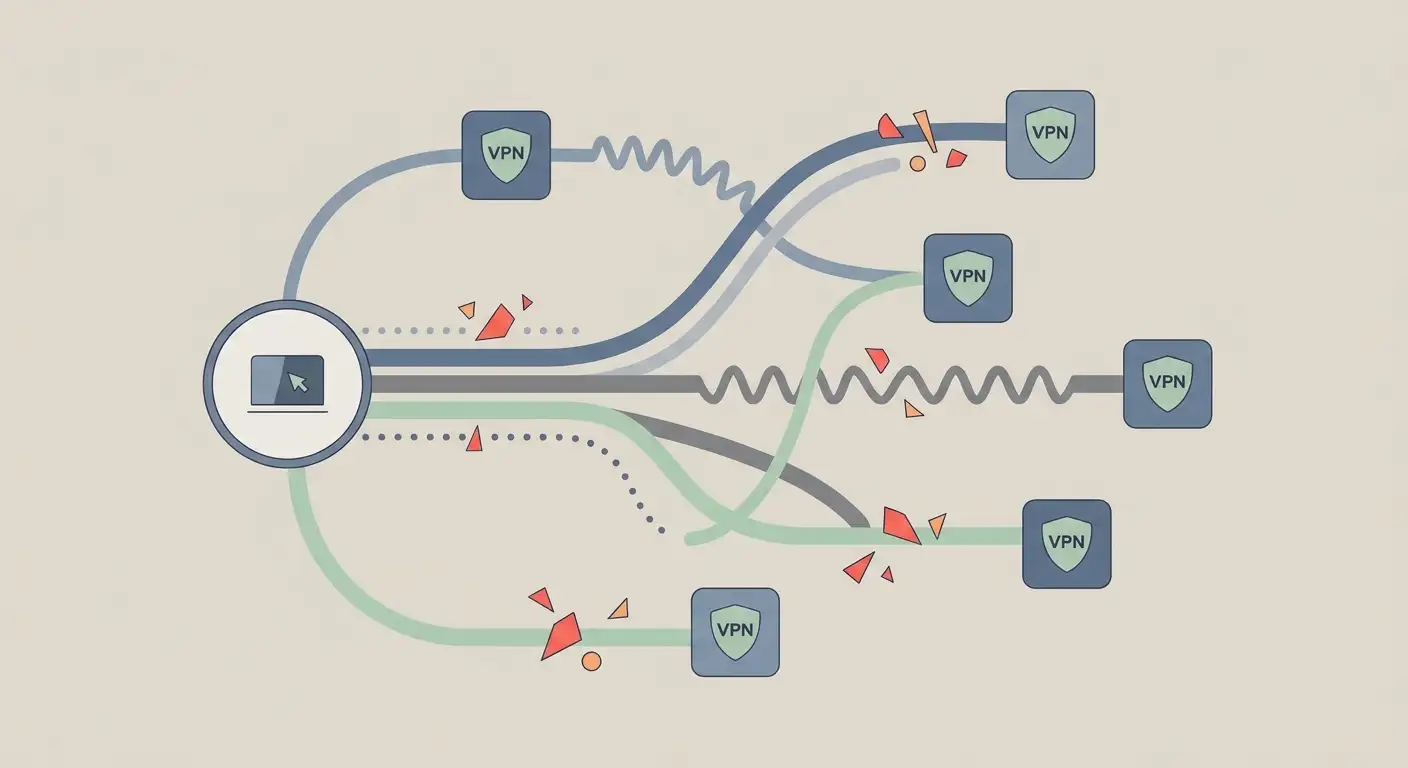
Networks rarely take a straight path. Two cities might be close geographically, but your traffic could route through a congested node, inefficient peering, or a long transit chain. Result: the server is nearby on the map, but the actual route (AS hops and backbone paths) is longer and less stable.
In reality, latency is influenced less by kilometers and more by:
- Route and peering: how your ISP connects with networks hosting VPN servers and target services.
- Queues and load at nodes (especially in the evening): jitter grows, and packet loss may appear.
- The last mile: Wi‑Fi in an apartment building, mobile networks, or public networks with restrictions often add more delay than an extra country on the path.
- Different traffic types: ICMP/UDP/TCP packets can take different routes, so a single ping test doesn’t tell the full story.
The takeaway: select a location based on the best route to your target(s), not just the "closest point on the globe."
Which metrics matter and how to interpret them
To make an informed and reversible choice, rely on a set of metrics rather than a single number.
| Metric | What it shows | Diagnostics (what to check) | Safe actions (what to change) |
|---|---|---|---|
| Average latency (ping) | Typical response time | Compare 2–3 locations on the same protocol; compare with "no VPN" baseline | Pick the location with lower latency; try a different protocol or port (without disabling TLS or checks) |
| Jitter | Consistency of latency (variation) | Look not only at the average but also spikes and peak values | Change location/protocol; switch to wired/Wi‑Fi 5 or 6; reduce background network load |
| Packet loss | Reliability of the connection | Test on different networks and times; compare with baseline without VPN | Switch network/access point; choose a location with less loss; try a protocol that handles loss better |
| “Worst 5–10%” values | Performance during peak issues | Record evening/prime-time separately | Choose a location with better “tail” performance, not just average values |
| Route (traceroute/MTR) | Where latency or loss occurs | Compare routes to VPN and to the target service | Change location (sometimes a neighboring region offers more direct peering) |
Practical tip: jitter and loss matter most for calls and gaming; for web browsing and downloads, bandwidth is key, though loss will also slow things down due to retransmissions.
Repeatable measurements: avoid buying a “lucky” server by chance
One test run can fall during a lucky window. To avoid decisions based on luck, follow a repeatable testing routine. For detailed step-by-step methods, metrics, and tools, see “How to Accurately Measure VPN: Step-by-Step Methodology, Metrics, and Tools”. Here, we focus on using that data to pick a location.
Step 1. Capture a baseline without VPN
Diagnostics: Measure ping/jitter/loss to 1–2 neutral nodes (e.g., DNS or ISP nodes) and to your target service (game server, work resource, cloud). Note the time and network (home Internet, mobile, public Wi‑Fi).
Action: Don’t change anything yet. The goal is to identify if the problem is in your network or the "you → VPN → target" chain.
Step 2. Test multiple locations and repeat at different times
Diagnostics: Choose 3–6 candidate locations (not just the “closest”) and test in the morning/day/evening. If you use both phone and home network, test both. Save results consistently for fair comparison.
Action: If jitter spikes or losses increase sharply in the evening, it might indicate congestion. In that case, sometimes “not closer but different” helps: a location with different peering, backbone, or ISP in the data center.
Step 3. Track losses and peak values separately
Diagnostics: If average ping looks good but you see spikes and stutters, examine the worst cases and packet loss. These usually impact voice, video calls, gaming, and remote desktop most.
Action: If you have loss, start by improving the last mile (wired connection/different access point/different Wi‑Fi channel) before changing location or protocol.
How to read the route and identify “bottlenecks”
The route is valuable not just for a clean list of nodes, but to understand whether latency builds before or after the VPN, and if different locations behave the same.
What to diagnose
- A jump in latency at one hop that remains high afterward: often a sign of an overloaded or distant segment.
- Losses that start before entering the VPN: changing location might not help much — fix your network or ISP first.
- Different routes to the same service from different locations: pick the one with fewer congested parts.
Safe conclusions you can draw
- If everything is stable before the VPN but jitter and loss increase after, try another location or protocol, or a less loaded server if your provider shares that info.
- If issues start on your Wi‑Fi or mobile network, first try a different network or improve your signal. Buying the “closest” server won’t fix Wi‑Fi interference.
Important: Some nodes may limit responses to diagnostic packets, so packet loss on intermediate hops doesn’t always mean real traffic loss. Always compare the full picture: endpoint and result stability.
Choosing a location by scenario: gaming, work, public Wi‑Fi
A single “best” location rarely fits all needs. Choose based on your goal and verify real improvements.
Gaming and voice chat
Diagnostics: jitter and loss matter more than just average ping. Compare several locations to the game server or regional cluster. For more details, check platform-specific networking docs, like Steam’s network troubleshooting guide.
Action: Pick locations with minimal loss and spikes. If you see dropouts on mobile, try a different network (Wi‑Fi or another SIM) before relocating.
Remote work, SaaS, corporate resources
Diagnostics: Test access not just to one site, but a variety — video calls, email, repositories, RDP/SSH if applicable. Stability often outweighs record-low ping.
Action: Sometimes a location closer to the company’s cloud or office is better than one closer to you. Don’t disable MFA, antivirus exceptions, or certificate checks just to gain speed — that’s not route optimization.
Public Wi‑Fi and mobile networks
Diagnostics: Public networks may block ports or traffic types, causing loss and drops. Compare 2–3 protocols and locations on the same network.
Action: Choose the "location + protocol" combo that minimizes loss and reconnections. If the network’s unstable physically (weak signal), no server location will help — improve radio conditions or switch access points first.
Pre-purchase checklist
- Define your goal: what service/game/work is most important and at what time of day.
- Capture baseline without VPN on all the networks you actually use (home, mobile, public).
- Pick 3–6 candidate locations (not just the closest) and test at least twice daily.
- Record not just averages but packet loss, jitter, and peak (worst) values.
- Compare routes to see where latency grows — before or after the VPN.
- Test on a second network (e.g., mobile vs. home); big differences may point to last-mile issues.
- Make a reversible choice: select location/protocol that objectively scores better on your metrics and keep 1–2 backup options.
- Check availability and pricing with your provider’s current catalog — locations and conditions can change.
FAQ
Why is ping to the VPN low, but worse inside the game/service?
Because the path "you → VPN" and "VPN → target service" are different. Diagnose by measuring to the target service with VPN enabled, comparing locations. Action: pick a location that’s closer network-wise (better peering/route) to the target service.
Is one speedtest enough?
No, a single bandwidth test isn’t sufficient. Diagnose by adding loss and jitter checks over multiple times. Choose based on stable "tail" performance, not just one-off speed records.
If there’s loss, should I immediately change protocol?
First, find out where losses occur. Diagnose by comparing loss without VPN and with VPN on the same network. Action: if loss exists without VPN, start by changing network or improving Wi‑Fi; if loss appears only with VPN, try another location, then another protocol.
Can jitter be fixed by picking a farther location?
Sometimes yes, if it has a better route and less congestion. Diagnose by comparing peak latency and loss at 2–3 locations. Action: pick the one with fewer spikes, even if average ping is slightly higher.
What matters more for video calls: ping or loss?
Loss and jitter often impact quality more, causing robotic voice and artifacts. Diagnose by monitoring stability and reconnections during prime time. Action: improve network quality and pick location/protocol with minimal loss.
If you want to lock in a solid route and reduce the impact of "neighbors" on shared servers, consider a personal VPN server with a dedicated IP. This is handy once you've found a location with a good route and need predictable connections across different networks (home, mobile, public Wi‑Fi). However, a personal server won’t fix instability caused by your last mile (Wi‑Fi interference, weak mobile signal) or poor peering from your ISP to the chosen data center. vpn.how offers personal VPN servers with dedicated IPs; check current locations, protocols, prices, and limits on the website and your account: https://vpn.how/ru/.
Interpreting a DNS test: it usually identifies the resolver, not the packet route. A familiar DNS provider alone does not prove a leak; compare the result with tunnel routing, IPv4/IPv6, and browser DNS-over-HTTPS settings.
Publisher: vpn.how