Steam Deck: How to Check VPN Separately in Desktop Mode and Gaming Mode
How to separately verify VPN operation on Steam Deck in Desktop and Gaming Modes: checking IP and DNS, behavior after sleep, and quick, safe diagnostic steps.
Content of the article
- Why vpn may behave differently in desktop mode and gaming mode
- Preparation: what to note before testing (and how to avoid issues)
- Testing in desktop mode: checking ip and dns separately
- Testing in gaming mode: ensuring game and system services use the same route
- Sleep, wake, and returning to the game: checking if vpn stays connected
- Checklist: comparing results between modes (ip, dns, sleep)
- Faq
Quick answer: On Steam Deck, Desktop Mode and Gaming Mode can use different network paths and handle sleep mode differently. Check IP and DNS separately in each mode, then test the "sleep → wake → return to game" scenario. If results vary, first identify what changes (IP or DNS), and only then adjust VPN settings — reversibly and one setting at a time.
Why VPN May Behave Differently in Desktop Mode and Gaming Mode
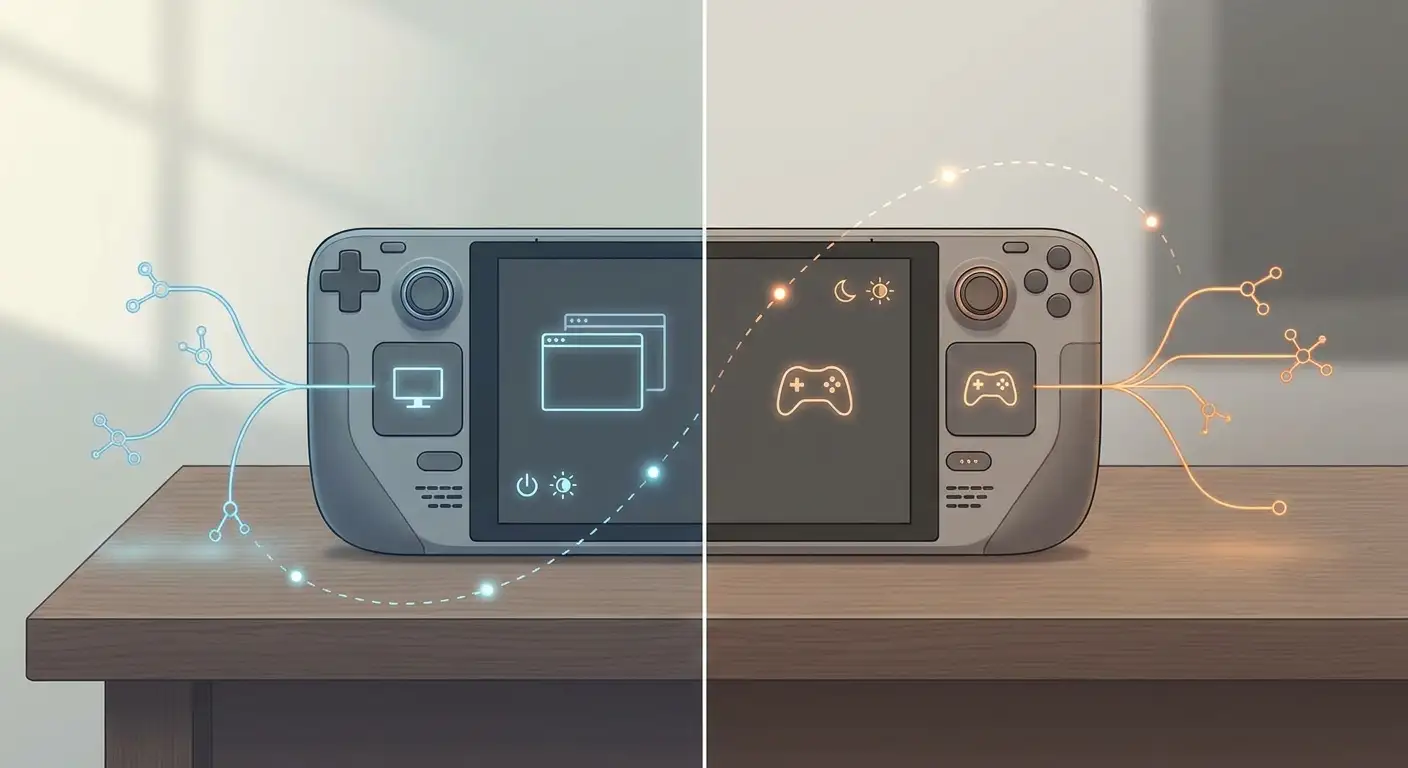
Steam Deck runs on SteamOS, where the gaming interface (Gaming Mode) and desktop environment (Desktop Mode) launch different system components. This can lead to situations where:
- VPN is "on" in Desktop Mode, but traffic in Gaming Mode goes directly;
- IP changes but DNS remains that of the provider (or vice versa);
- after sleep, the VPN tunnel appears active, but actual traffic doesn’t route through it;
- some connections in the game bypass VPN due to routing, split-tunneling, or VPN client specifics.
The goal of checking isn’t to "reconfigure" but to separate diagnostics by mode and pinpoint which layer causes discrepancies: VPN interface, routing, DNS, or reconnection after sleep.
If you need a full step-by-step guide for VPN setup on Steam Deck, refer to this detailed resource: VPN on Steam Deck — Complete Setup (Step-by-Step Guide). Below is focused solely on targeted checking.
Preparation: What to Note Before Testing (and How to Avoid Issues)
To ensure reproducible diagnostics, first record your baseline conditions. This is safe and fully reversible.
- Network: Wi-Fi/hotspot/public Wi-Fi. If possible, don’t switch networks during the test.
- VPN status: connected/disconnected. Don’t change protocols or switch servers before finishing the basic check.
- What you’re checking:
- external IP (to see if VPN server’s IP appears);
- DNS (which resolvers handle your queries);
- behavior after sleep and upon returning to the game (whether routing via VPN restores).
- Security: don’t disable certificate/TLS verification, don’t turn off MFA, don’t share keys/configs/QR codes. To share results, simple info like "IP changed/did not change" and "DNS via VPN/not via VPN" suffices without revealing access details.
It helps to open 2–3 independent IP-check sites and 1 DNS-check site in your browser beforehand (any popular "what is my IP" and "DNS leak test" sites). Specific names aren’t critical, but use the same sites in both modes.
Testing in Desktop Mode: Checking IP and DNS Separately
Start with Desktop Mode because it’s usually easier to monitor browser and system connections there.
1) Diagnose IP in Desktop Mode
- Turn off VPN (if it’s on) and refresh the IP check page.
- Note the result: "IP without VPN" (just the first or last groups can be enough if you don’t want to save the full IP).
- Enable VPN and wait for "connected" status in your client.
- Refresh the IP check page again and compare.
Interpretation: if the IP doesn’t change, it might mean VPN didn’t connect, connected but browser traffic isn’t tunneling, or split-tunneling is active. Don’t change anything yet — first check DNS separately.
2) Diagnose DNS in Desktop Mode
- With VPN off, run the DNS test and note what DNS servers the service detects (usually shown by provider/organization).
- Turn VPN on and repeat the DNS test.
Interpretation:
- IP changed but DNS did not — likely DNS traffic is bypassing VPN. Not always a fault, but can affect resource access and privacy.
- DNS changed but IP did not — rare; might be proxy settings, client quirks, or network policies. It helps to double-check with multiple IP services.
- Both IP and DNS changed — basic Desktop Mode check passed.
Safe (reversible) action if DNS is "off" location: first check your VPN client settings for an option like "use VPN provider DNS/secure DNS." Try toggling one setting at a time and rerun the DNS test. If unsure, revert changes and move on to Gaming Mode tests to spot behavioral differences.
Testing in Gaming Mode: Ensuring Game and System Services Use the Same Route
Gaming Mode is handy because it reflects the actual "in action" scenario: game launching, connecting to services, loading content, and waking from sleep. But checking IP/DNS "right in the game" can be tricky, so take a pragmatic approach: use quick checkpoints and ensure consistency.
1) Checkpoint: Quick browser/web widget access
Test Gaming Mode while remaining in that mode: use a browser or web application available there and compare the same IP/DNS tests. Switching back to Desktop Mode does not verify the Gaming Mode route. If a web test is unavailable, record that limitation: a working game alone does not prove that all its traffic uses the VPN.
If opening web checks from Gaming Mode isn’t convenient, you can use a simpler method: compare network behaviors in-game or in the client before and after enabling VPN (e.g., successful online connection). But remember, this is indirect diagnosis and doesn’t replace checking IP/DNS.
2) Separate recording: IP and DNS (same as Desktop)
Repeat the two tests:
- IP: compare with VPN off → on;
- DNS: compare with VPN off → on.
The goal is to capture four states and see if they match Desktop Mode.
3) Safe (reversible) actions if Gaming Mode "doesn’t recognize" VPN
- First, reconnect VPN (disconnect/connect) and retest.
- Then toggle Wi-Fi network mode (disable/enable Wi-Fi) — this often resets routing. Restore settings after testing.
- If your VPN client supports split-tunneling (app or route exceptions), temporarily disable exceptions and test again. Restore exceptions if needed afterwards.
Avoid broad changes (protocol swaps, server changes, system DNS changes) until you clearly see what exactly differs between modes: IP or DNS.
Sleep, Wake, and Returning to the Game: Checking if VPN Stays Connected
On a portable device, the sleep scenario is critical: connections may reconnect, routing can change, or restore partially. Testing should be brief and repeatable.
Test Scenario: "Sleep → Wake → Network"
- Enable VPN and verify IP and DNS match expectations in the current mode (Desktop or Gaming).
- Put Steam Deck to sleep for 1–2 minutes.
- Wake the device and wait for Wi-Fi to reconnect (if it reconnects).
- Without switching modes, repeat IP check and DNS check.
- If in Gaming Mode — additionally "return to the game" and verify network behavior persists (e.g., friends list updates/game connection/content loading).
Signs of a problem: VPN shows "connected" but IP reverts to original; or DNS reverts to provider’s; or the game loses connection and won’t restore without manual VPN/Wi-Fi reconnection.
Safe (reversible) steps if issues arise after sleep:
- First disconnect/reconnect VPN and redo IP/DNS tests.
- If needed, toggle Wi-Fi off/on again and recheck.
- If the issue happens only in Gaming Mode — try reconnecting VPN within that mode, noting if recovery requires switching to Desktop Mode.
Note: Some games keep active sessions. Even if VPN reconnects, the game session might need manual reconnect in its menu. This isn’t a VPN fault but a normal response of some network apps to routing changes.
Checklist: Comparing Results Between Modes (IP, DNS, Sleep)
Fill out a table to quickly spot differences.
| Scenario | Desktop Mode: IP | Desktop Mode: DNS | Gaming Mode: IP | Gaming Mode: DNS | Notes |
|---|---|---|---|---|---|
| VPN off | — | — | — | — | Baseline for comparison |
| VPN on | — | — | — | — | Check for discrepancies |
| After sleep (VPN on) | — | — | — | — | Is manual reconnection needed? |
| Return to game after sleep | N/A | N/A | — | — | Was session restored? |
Once the table is complete, your next steps will be clearer:
- Discrepancy only in DNS → look into DNS settings in VPN client;
- Discrepancy only in IP → likely routing, exceptions, or reconnection after sleep issues;
- Desktop’s fine, Gaming’s not → focus on how the VPN client integrates with Gaming Mode and on split-tunneling;
- Both modes break after sleep → focus on connection recovery: VPN/Wi-Fi reconnection and session resilience.
FAQ
1) Is checking only IP enough to confirm VPN works?
No: IP might change but DNS stay the same, or some traffic might bypass VPN due to exceptions. It’s more reliable to check both IP and DNS separately in each mode.
2) If Desktop Mode works fine, why is Gaming Mode different?
Modes can launch different network components and apps. Split-tunneling and the mode in which the VPN client connected can also matter. Diagnosing each mode separately helps reveal differences.
3) After sleep, VPN shows "connected" but websites/games behave as if no VPN. What should I do?
First check IP and DNS after waking. Then perform reversible steps: reconnect VPN, toggle Wi-Fi if needed. If it recurs, note which mode it mostly happens in—this narrows down causes.
4) Can I just switch VPN protocol to "fix everything"?
Changing protocols is a "second-level" troubleshooting step. First identify exactly what breaks (IP, DNS, or post-sleep recovery). Only then change one setting at a time so you understand effects and can revert if necessary.
5) Where can I find official Steam Deck mode documentation?
For verifying mode switching logic and basic steps, use Steam Support docs: Steam Support FAQ on Steam Deck. This helps align terms and navigation between modes.
When a personal VPN server can help: if your checks show unstable VPN due to congested shared IPs (e.g., some services often require re-verification) or you want a more predictable public IP for logging into accounts and services on Steam Deck across different networks (home/public Wi-Fi). In such cases, a dedicated IP without "neighbors" is beneficial.
When it won’t solve your issue: if discrepancies stem from client settings on Steam Deck (split-tunneling, DNS, recovery after sleep) or peculiarities of a particular game/session — first get your routing and post-sleep behavior in order.
vpn.how offers personal VPN servers with dedicated IPs; current locations, protocols, pricing, and limits are on the site and your dashboard: https://vpn.how/ru/.
Interpreting a DNS test: it usually identifies the resolver, not the packet route. A familiar DNS provider alone does not prove a leak; compare the result with tunnel routing, IPv4/IPv6, and browser DNS-over-HTTPS settings.
Publisher: vpn.how