VPN Connected but Browser IP Didn't Change: Step-by-Step Route Check
Why your browser IP stays the same with VPN on: system tunnel vs proxy, exceptions, IPv4/IPv6, and step-by-step troubleshooting before and after.
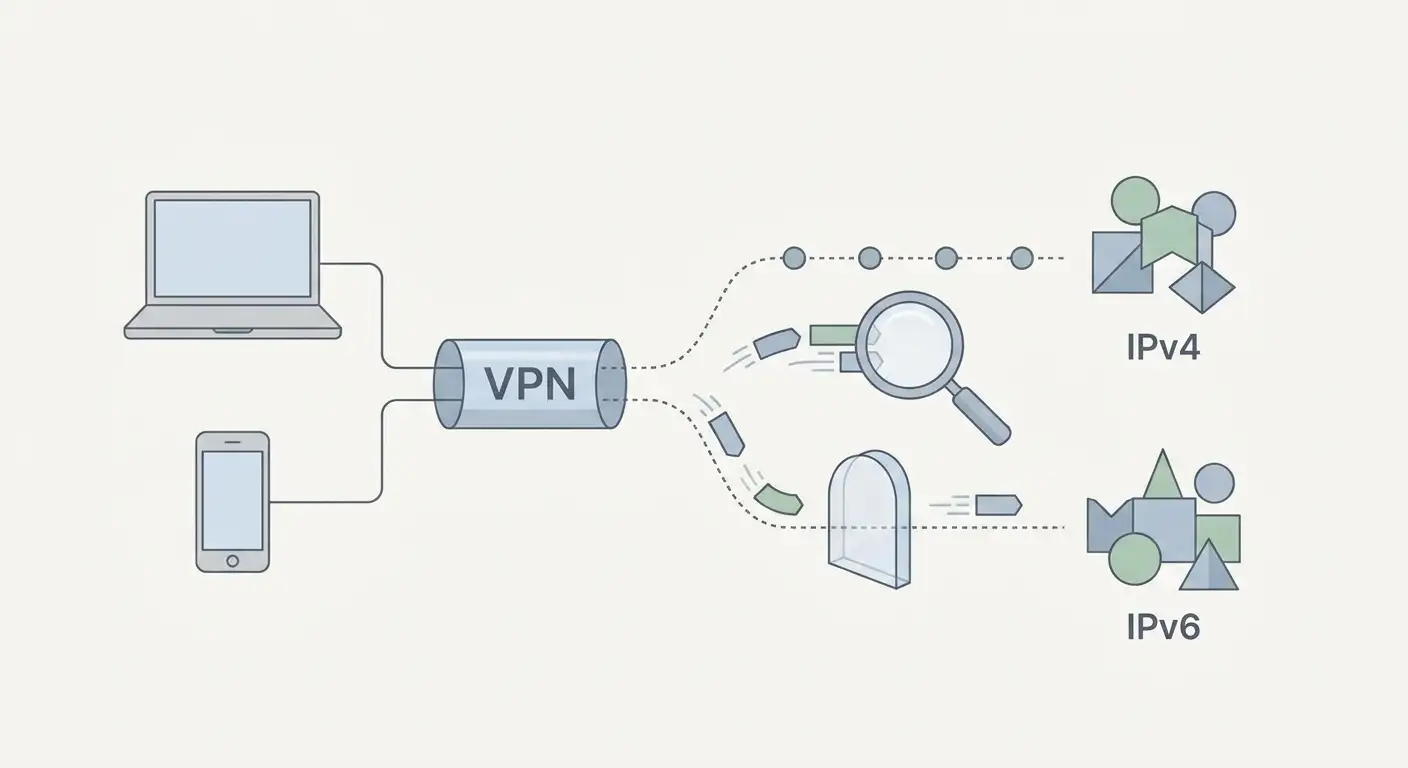
Content of the article
- Step 0. record "before and after" and don’t change everything at once
- System tunnel, proxy, and extension: what’s the difference and how it affects your ip
- Split tunneling and exceptions: vpn on but browser "outside the tunnel"
- Ipv4 vs ipv6: why you see the "old" ip or two different ones
- Dns, webrtc, and "it seems the ip didn’t change": what the site actually sees
- Checklist: quick causes of “vpn connected but ip unchanged”
- Faq: common questions
Quick answer: Most often, if your VPN is connected but your browser IP stays the same, it means your browser traffic isn’t going through the system tunnel (it might be using a proxy, browser extension, an exception, or split tunneling). Or the browser/site might be seeing a different address (like IPv6, WebRTC, or corporate proxy). The best way is to compare "before and after" and check step-by-step: active routes, DNS, IPv4/IPv6, exception settings, and if there's a secondary proxy involved.
Step 0. Record "before and after" and don’t change everything at once
Diagnostic mistakes often happen if you switch protocols, servers, browsers, extensions, and Wi-Fi all at once. Work step-by-step and take notes.
- Pick one test browser (your current one is fine) and one IP check page. Note the IP shown without VPN.
- Connect your VPN, refresh the page, and note if the IP changed. If not, continue with the steps below.
- Repeat the test in incognito/private mode (this temporarily disables some extensions and cache effects, which is reversible).
For a more thorough leak check (DNS, WebRTC, IPv6), use a step-by-step guide with control tests—see this resource: VPN Leak Testing in 2026: DNS, WebRTC & IPv6. It helps distinguish between "wrong route" and "correct route but unexpected result."
System tunnel, proxy, and extension: what’s the difference and how it affects your IP
The same "connected" status can mean very different things:
- System VPN (OS-level tunnel): routes traffic system-wide (unless exceptions are set). Your browser IP should change if it truly uses this tunnel.
- Proxy (in browser or system): changes routing only for apps/profiles using it. Your VPN client might show "connected," but your browser could still use the old proxy or connect directly.
- Browser extension: often acts as a proxy only inside the browser and might conflict with system VPN or not apply to certain tabs or profiles.
How to diagnose (reversible):
- On a personal device, check your own VPN/proxy extensions and temporarily disable only conflicting add-ons, recording their original settings. Do not disable corporate agents, security tools, or certificate checks; coordinate troubleshooting on managed devices with IT.
- Check if manual proxy settings are enabled in the browser. If yes, note the details, temporarily switch to "no proxy/system settings," check IP again, and revert if needed.
- If you use both system VPN and a proxy extension simultaneously, for testing leave only one active (either choice is reversible).
Safe step after diagnosis: pick a clear routing method for your browser (system tunnel or proxy) to avoid conflicting setups and unpredictable routes.
Split tunneling and exceptions: VPN on but browser "outside the tunnel"
Many VPN clients support split tunneling (separating traffic): some apps/sites go through the VPN, others connect directly. This is handy, but a common reason your IP won’t change.
Typical causes:
- Your browser (or its component) is listed in the split tunneling exceptions.
- VPN is set to "only selected apps use VPN," and the browser isn't selected.
- Certain addresses/domains are excluded—so your IP check page is bypassing the VPN.
How to diagnose (reversible):
- Open your VPN client settings and locate the split tunneling/exceptions/access control section.
- Check if your browser (or system WebView on Android) is listed, and whether it’s marked as "through VPN" or "bypassed."
- For testing, disable split tunneling entirely or remove your browser from exceptions. You can restore settings afterward.
Note for Android users: System VPN options affect all traffic (like always-on VPN or blocking traffic without VPN). The labels and location vary by Android version and skin, so consult official guides for extra help: Google’s VPN settings documentation for Android.
IPv4 vs IPv6: why you see the "old" IP or two different ones
Even if your VPN is working, unexpected results can come from differences between IPv4 and IPv6:
- Your VPN tunnels only IPv4, but your browser/site prefers IPv6—so some IP checks still show your original IPv6 address or a mixed result.
- Your ISP assigns IPv6 but your VPN doesn’t support or tunnel IPv6, causing some connections to go direct.
How to diagnose (reversible):
- Separate your tests for IPv4 and IPv6 (many services display both or clarify which one they show).
- If only IPv4 changes when VPN is on, check if your VPN client/config supports IPv6 or if "IPv4 only" mode is enabled.
Safe steps:
- If your VPN supports IPv6 tunneling, enable it and compare before/after results.
- If not, consider configurations or protocols that handle IPv6 properly, or use networks/settings where IPv6 preference doesn’t lead to direct internet access. Always keep track of original settings so you can revert.
DNS, WebRTC, and "it seems the IP didn’t change": what the site actually sees
Sometimes your IP check shows a changed IP, but the site still "recognizes" your old network by side channels. Sometimes you're looking at the wrong indicator.
- DNS: if DNS requests go to your ISP’s DNS, it can look like a leak—even if traffic flows through VPN. This isn’t a full reveal of your identity, but signals imperfect routing.
- WebRTC: browsers can expose local addresses or interface IPs, and some tests show these alongside your public IP.
- Cache/geo data: sites may use cookies, cached data, or saved region settings, so the displayed country or city might not update immediately after your IP changes.
How to diagnose (reversible):
- Compare public IPs across various tests and see if they match your VPN server’s address.
- Run separate DNS and WebRTC leak tests (see the linked step-by-step guide above). Use these as controls after changing settings.
- Test in a private browser window, and if issues appear only on one site, temporarily clear that site’s data (cookies/cache) while keeping passwords saved.
Important: VPN doesn’t guarantee total anonymity. Even with proper routing, sites may identify you via your account, browser fingerprint, tokens, or behavior patterns. The goal here is to ensure your network route works as expected.
Checklist: quick causes of “VPN connected but IP unchanged”
| Symptom | Likely Cause | How to Check | Reversible Action |
|---|---|---|---|
| IP doesn’t change in any browser | VPN isn’t the system route / connection is just superficial | Compare IP before/after; try a different network (Wi-Fi vs mobile) | Reconnect VPN; switch server/protocol in client; revert settings if needed |
| IP changes in one browser but not another | Proxy/extensions/browser profiles | Try incognito, disable extensions, check manual proxy | Choose one routing method; re-enable extensions one by one |
| IPv4 changes but IPv6 does not | IPv6 traffic goes direct | Separate IPv4/IPv6 tests | Enable IPv6 support in VPN (if available) or adjust config to handle IPv6 |
| Public IP changes but DNS looks like ISP’s | DNS queries leak outside the tunnel | DNS tests before/after | Use VPN’s DNS or client-provided DNS; retest |
| Site shows old country/city but IP is new | Cache/account/browser geolocation | Private window, log out, try another site | Clear site data, disable geolocation temporarily, then restore settings |
| VPN on but some sites/apps behave as before | Split tunneling/exceptions | Check exception lists in client | Disable split tunneling for testing or remove specific exceptions |
FAQ: common questions
1) Why does the VPN app say "Connected" but my browser IP stays the same?
Because "Connected" means the VPN connection is active—but doesn’t guarantee your browser traffic is routed through it. Check split tunneling exceptions, manual proxy settings in your browser, and conflicting extensions.
2) Can IP checks be wrong?
Generally, public IP detection is reliable, but you might be checking different things: IPv4 vs IPv6, public IP vs local WebRTC addresses, or cached site data. It helps to compare multiple tests and check before/after in a private window.
3) What’s more important: IP, DNS, or WebRTC?
They cover different layers. Your public IP shows the main route. DNS and WebRTC leaks can reveal extra network info. Start by verifying the IP route, then check DNS, WebRTC, and IPv6 leaks for quality control.
4) Can I just disable IPv6 to make sure it works?
Sometimes this fixes symptoms but isn’t the best solution: IPv6 is needed for some networks and services. Diagnose if it’s really IPv6 causing issues and choose reversible changes. If your VPN supports IPv6 properly, it’s better to enable that than globally disable IPv6.
5) If my IP changes, am I completely anonymous?
No. VPN changes your network route but doesn’t erase identification via accounts, browser fingerprinting, cookies, or behavior. Think of VPN as a privacy and routing tool—not as full anonymity.
A subtle choice when you need a stable, predictable IP: If it’s important to have the same external IP (for panel access, whitelists, corporate integration, or to avoid sharing an address with others), a personal VPN server with a dedicated IP might be the solution. The vpn.how service offers personal VPN servers with dedicated IPs; check current locations, protocols, pricing, and limits on the site and dashboard. This won’t fix it if your browser bypasses the tunnel due to proxies, exceptions, or IPv6 routes—first follow the diagnostic steps above.
Publisher: vpn.how