Configuration du VPN IKEv2 sur Windows
Configurez un VPN IKEv2 sur Windows : commandes PowerShell et étapes via l'interface, chiffrement GCMAES256/SHA384, ECP384, split tunneling et sauvegarde des identifiants

Configurer le VPN IKEv2 sur Windows avec PowerShell
Vous devrez exécuter quelques commandes dans PowerShell
$Response = Invoke-WebRequest -UseBasicParsing -Uri https://valid-isrgrootx1.letsencrypt.org
Cette commande règle la gestion des certificats
Puis, créez une nouvelle connexion
Add-VpnConnection -Name "{VPN_ID}.vpn.how" -ServerAddress "{VPN_ID}.vpn.how" -TunnelType IKEv2 -EncryptionLevel Maximum -AuthenticationMethod EAP -RememberCredential
Configurez cette connexion
Set-VpnConnectionIPsecConfiguration -ConnectionName "{VPN_ID}.vpn.how" -AuthenticationTransformConstants GCMAES256 -CipherTransformConstants GCMAES256 -EncryptionMethod GCMAES256 -IntegrityCheckMethod SHA384 -DHGroup ECP384 -PfsGroup ECP384 -Force
Set-VpnConnection -Name "{VPN_ID}.vpn.how" -SplitTunneling $True
Où {VPN_ID} est l’identifiant unique de votre serveur VPN
Configurer le VPN IKEv2 sur Windows via l’interface graphique
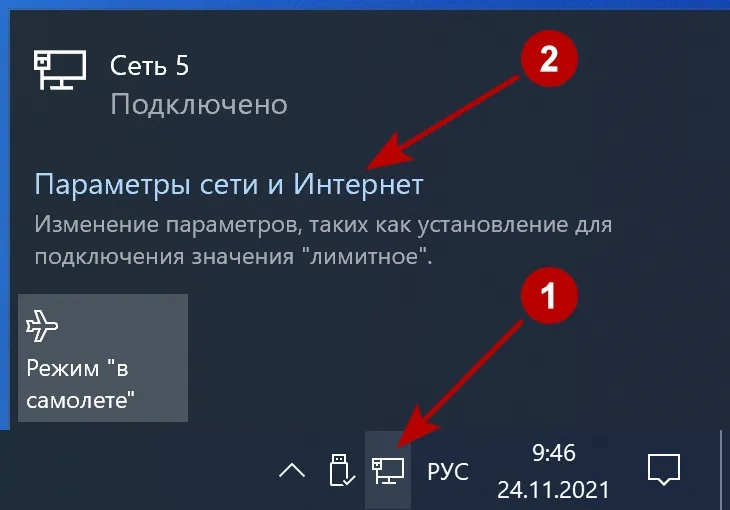
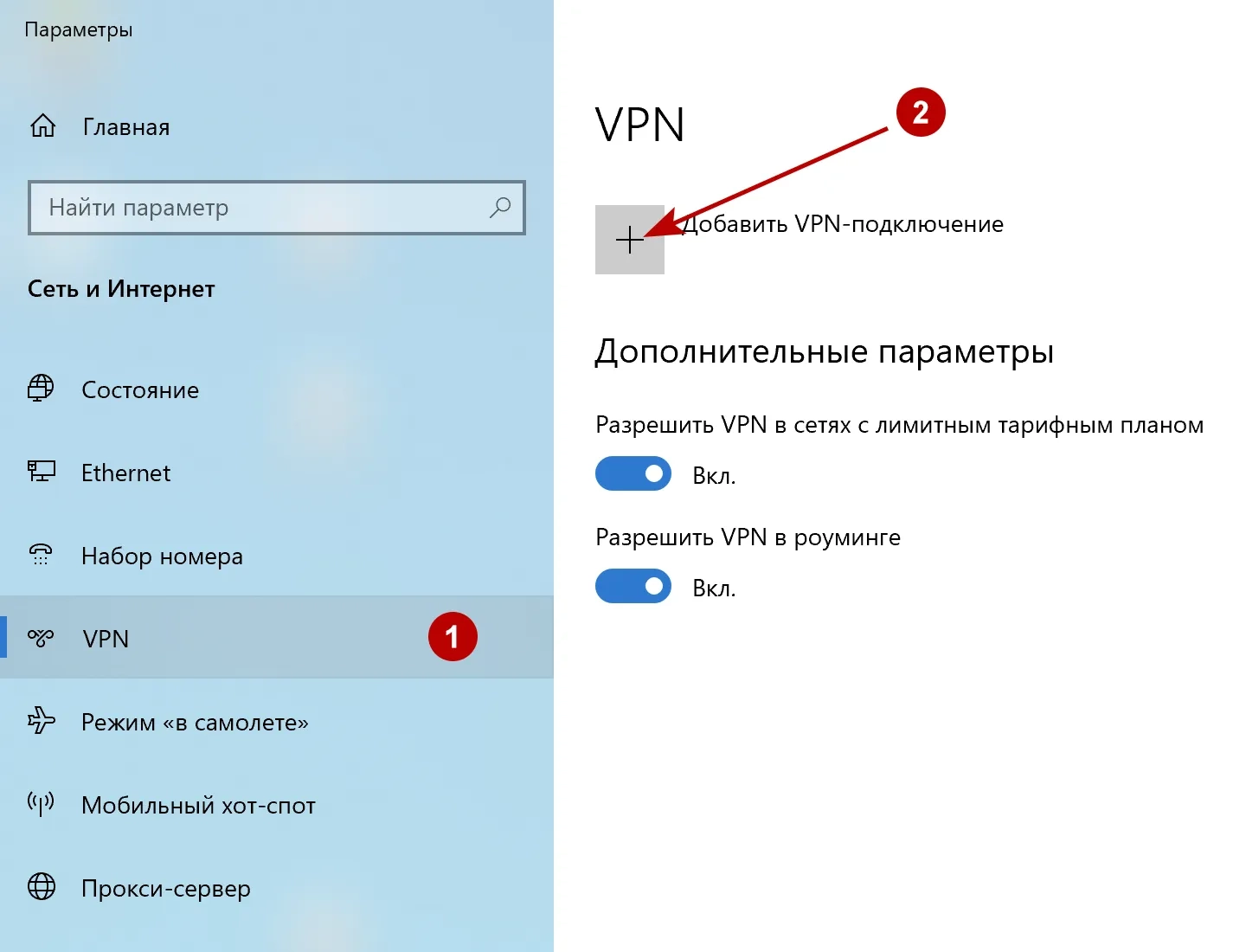
Dans l’onglet VPN, cliquez sur Ajouter une connexion VPN.
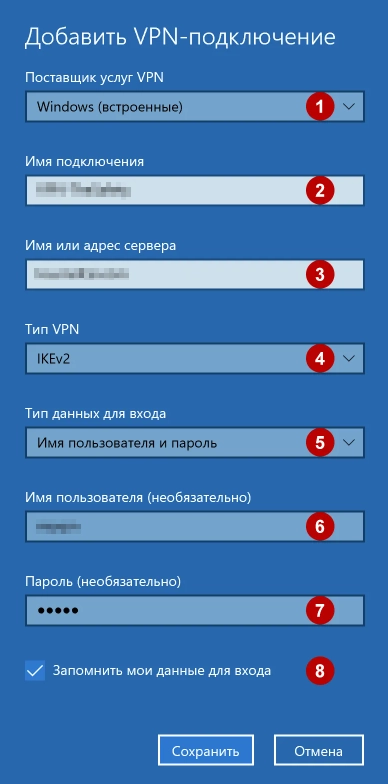
Entrez :
- Choisissez Windows (intégré)
- Un nom quelconque pour la connexion
- L’adresse du serveur VPN IKEv2
- IKEv2
- Sélectionnez Nom d’utilisateur et mot de passe
- Votre identifiant VPN
- Votre mot de passe VPN
- Cochez Mémoriser mes informations de connexion
Connectez-vous au VPN IKEv2.
Éditeur : vpn.how