Roblox в России в 2026: как запустить игру через VPN и оплатить Robux — пошаговый гайд
Пошаговая инструкция 2026: как запустить Roblox в России стабильно и с низким пингом, выбрать и настроить VPN на Windows, macOS, iOS, Android, оптимизировать соединение, а также как легально пополнить Robux разными способами. Время — от 30 до 90 минут.
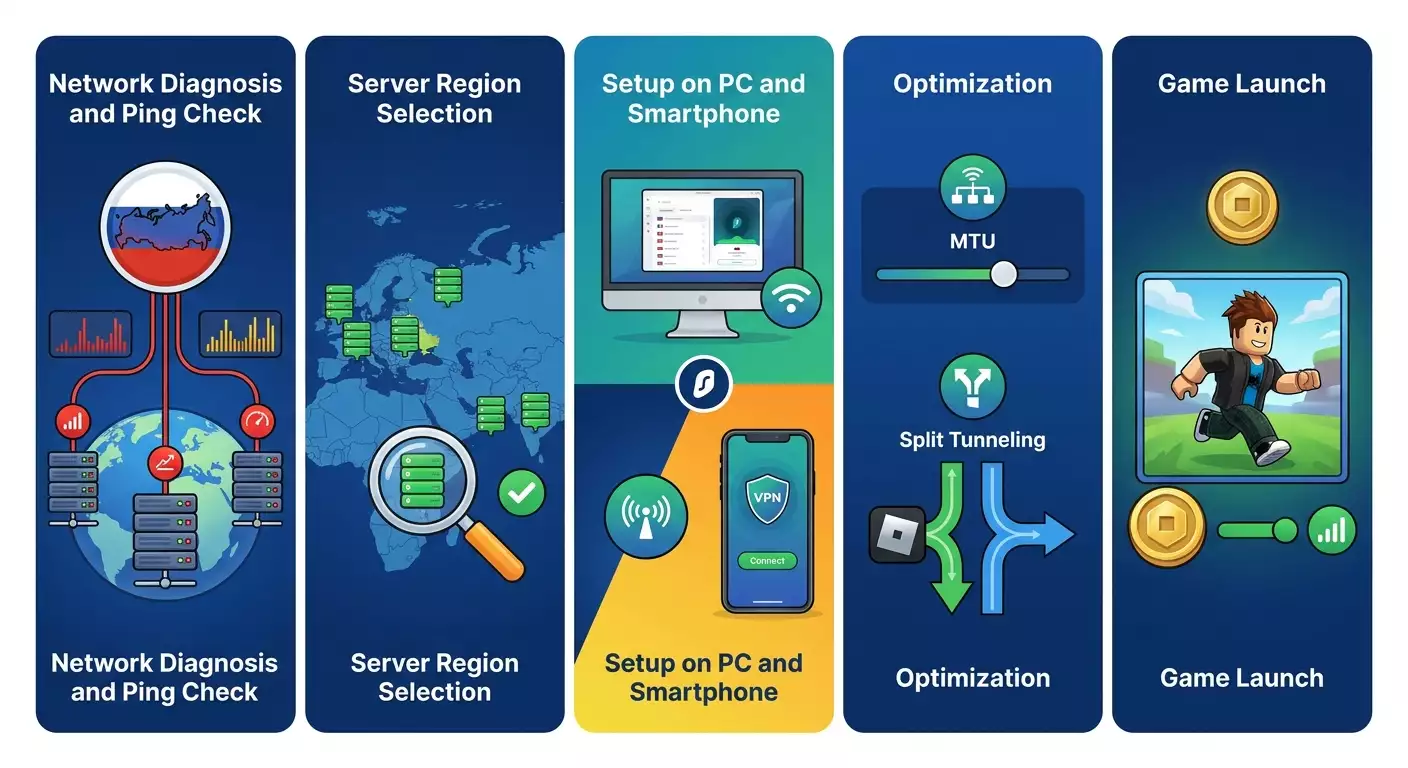
Содержание статьи
- Введение
- Предварительная подготовка
- Базовые понятия
- Шаг 1: диагностика — что именно не работает
- Шаг 2: выбор стратегии vpn и региона для низкого пинга
- Шаг 3: настройка vpn на windows и macos
- Шаг 4: настройка vpn на iphone/ipad и android
- Шаг 5: запускаем roblox через vpn, минимизируем пинг и решаем ошибки
- Шаг 6: оплата robux и подписок из россии в 2026 — рабочие способы
- Проверка результата
- Типичные ошибки и решения
- Дополнительные возможности
- Faq
- Заключение
Введение
В этом пошаговом гайде вы настроите стабильный доступ к Roblox из России в 2026 году, добьетесь низкого пинга, а также разберетесь с актуальными способами оплаты Robux и подписок. Мы пройдем путь от диагностики проблемы до запуска игры и покупки валюты без сбоев. Гайд составлен для начинающих, но включает продвинутые блоки: выбор протокола VPN, настройка split tunneling, оптимизация MTU, маршрутизация и QoS. Каждый шаг детализирован так, чтобы исключить ошибки.
Кому подойдет эта инструкция: игрокам, родителям, начинающим и опытным пользователям, кто хочет понятную схему «с нуля до результата». Вы получите: устойчивый вход в Roblox, правильный выбор региона VPN под ваш город для минимального пинга, понятные инструкции для Windows, macOS, iPhone/iPad, Android, а также работающие стратегии оплаты Robux в 2026.
Что нужно знать заранее: ничего сложного. Мы объясним термины простым языком. Желательно иметь доступ к своему устройству и, по возможности, к домашнему роутеру.
Сколько времени потребуется: базовая настройка займет 30–60 минут, продвинутая оптимизация — еще 30 минут. Настройка оплаты Robux — от 15 минут до 2 часов в зависимости от выбранного метода.
Предварительная подготовка
Необходимые инструменты и доступы
- Действующая учетная запись Roblox (e-mail и пароль, доступ к почте для подтверждений).
- Компьютер или смартфон с доступом в интернет.
- Готовность установить VPN-клиент или настроить подключение на устройстве/роутере.
- Способ оплаты для Robux: подарочная карта, кошелек в экосистеме платформы (Apple/Google/Xbox), или электронные средства (например, пополнение подарочными балансами).
Системные требования (минимум)
- Windows 10/11, macOS 12+, iOS 15+, Android 9+.
- Процессор x64 для PC и 64-битные мобильные устройства для более стабильной работы современного VPN.
- Интернет 20 Мбит/с и выше для комфортной игры; пинг целевой — до 80 мс (желательно до 50 мс).
Что скачать и установить
- Официальные клиенты: Roblox Player на PC/Mac, Roblox в App Store или Google Play на телефоне.
- VPN-клиент: мы опишем работу с WireGuard, IKEv2 и OpenVPN. На Windows/macOS можно установить WireGuard-клиент; на iOS — встроенная поддержка IKEv2 и профили; на Android — приложение WireGuard или OpenVPN.
Создание резервных копий (если актуально)
- Сохраните данные для входа в Roblox и почту в менеджер паролей.
- Зафиксируйте текущие сетевые настройки (скриншот IP, DNS в параметрах сети), чтобы легко откатить изменения.
✅ Проверка: У вас под рукой логин/пароль Roblox, устройство с интернетом, и вы готовы установить VPN-клиент, если его нет.
Базовые понятия
Ключевые термины простым языком
- VPN — защищенный «туннель» в интернет через удаленный сервер. Помогает обойти блокировки и улучшить маршрут, снижая задержки.
- Пинг — время в миллисекундах, пока сигнал летит до сервера и обратно. Чем меньше, тем отзывчивее игра.
- Маршрут — путь, по которому идут пакеты. Хороший маршрут может дать меньший пинг, чем «прямое» соединение.
- WireGuard/IKEv2/OpenVPN — протоколы VPN. WireGuard обычно самый быстрый; IKEv2 стабилен на мобильных; OpenVPN совместим почти везде.
- Split tunneling — когда через VPN идет только трафик Roblox, а остальное — напрямую. Экономит пропускную способность и снижает задержки.
- MTU — максимальный размер пакета. Правильная настройка устраняет фризы из-за фрагментации пакетов.
Как Roblox распределяет сервера
Игровые инстансы Roblox распределены в облаках по регионам и сетям. Подключение выбирается динамически по задержке и доступности. В 2026 для пользователей из России доступ часто ограничен провайдерами или на уровне маршрутов, поэтому правильный выбор VPN-сервера критически важен. Ближайшие к европейским кластерам точки обычно дают наилучший пинг и стабильность.
✅ Проверка: Вы понимаете, зачем нужен VPN, какие есть протоколы и что будем оптимизировать: маршрут, пинг, стабильность, оплату.
Шаг 1: Диагностика — что именно не работает
Цель этапа
Понять, где «ломается» доступ: у провайдера, на DNS, на маршруте или уже в самом Roblox. Это поможет выбрать правильную стратегию VPN и настроек.
Детальная инструкция
- Проверьте доступ к сайту Roblox. Откройте roblox.com в браузере. Если сайт не открывается или грузится с ошибками, отметьте это.
- Проверка DNS. На Windows нажмите Пуск и введите cmd. Запустите Командную строку и выполните ping roblox.com. На macOS откройте Терминал и сделайте то же. Если имени не удается разрешить, проблема в DNS.
- Проверка пинга. Если ответы есть, посмотрите значения времени. До 80 мс — хорошо, 100–150 мс — терпимо, выше — риск лагов.
- Трассировка маршрута. На Windows выполните tracert roblox.com. На macOS — traceroute roblox.com. Смотрите, где задержки резко растут или появляются тайм-ауты.
- Проверка клиента Roblox. Запустите Roblox Player. Если видите ошибки входа, бесконечную загрузку, капчу бесконечно крутит или выдаются коды ошибок, зафиксируйте скрин.
- Проверьте мобильную сеть против домашнего интернета. Включите точку доступа на телефоне и попробуйте подключиться с ноутбука. Сравните симптомы. Если через мобильную сеть лучше — провайдер дома фильтрует.
Возможные выводы диагностики: если сайт не открывается — DNS-блок или фильтрация; если трассировка рвется на ранних хопах — блок у провайдера; если вход в игры не идет при открывающемся сайте — вероятен блок отдельных доменов Roblox CDN или проблемы с NAT/портами.
Совет: Сразу сохраните результаты ping и tracert в текстовый файл. Это поможет оценить улучшения после настройки VPN.
✅ Проверка: У вас есть список симптомов: сайт открывается/нет, пинг, где обрыв в трассировке, ошибки Roblox. Это будет основой для подбора VPN.
Возможные проблемы и решения
- Проблема: ping не находит хост. Причина: DNS блокирует. Решение: позже настроим собственный DNS через VPN.
- Проблема: трассировка обрывается после 1–3 хопов. Причина: фильтрация у провайдера. Решение: нужен VPN с хорошим внешним маршрутом.
- Проблема: Roblox запускается, но сервера не подключаются. Причина: блок CDN-доменов или закрытые порты/CGNAT. Решение: VPN поверх UDP с корректной MTU.
Шаг 2: Выбор стратегии VPN и региона для низкого пинга
Цель этапа
Подобрать тип VPN, протокол и географию сервера так, чтобы Roblox стабильно работал и пинг был минимальным.
Как выбрать протокол
- WireGuard — обычно лучший выбор для игр: низкие накладные расходы, стабильный пинг, быстрый reconnection. Рекомендуется на Windows, macOS, Android. На iOS работает отлично через клиент WireGuard.
- IKEv2 — хорош для мобильных сетей и роуминга, быстро переключается между Wi‑Fi и LTE. На iOS настраивается системно.
- OpenVPN UDP — совместим почти везде. Если WireGuard блокируется у вашего провайдера, попробуйте OpenVPN UDP. Для сильно фильтруемых сетей — OpenVPN TCP, но пинг выше.
- SSTP/L2TP — запасные варианты для корпоративных сетей, когда остальное режется, но чаще с увеличенной задержкой.
Как выбрать регион сервера для Roblox
Идеальная точка — ближайшая к реальному кластеру Roblox, но с хорошим входом из России. На практике в 2026 следующие регионы часто дают наилучший баланс:
- Центр и Северо-Запад России (Москва, СПб, Карелия): Хельсинки, Стокгольм, Варшава, Франкфурт, Амстердам. Начните с Хельсинки или Варшавы, затем сравните с Франкфуртом.
- Юг и Поволжье: Варшава и Франкфурт обычно стабильнее; иногда Мадрид показывает хороший маршрут на европейские инстансы Roblox.
- Урал и Западная Сибирь: Варшава/Франкфурт для Европы или Сингапур, если Roblox отдает азиатские инстансы. Проверьте оба направления по пингу.
- Сибирь и Дальний Восток: Сингапур — частый победитель. Иногда лучше Сан-Хосе или Тихоокеанский берег США, но пинг выше.
Создаем стратегию тестирования: выберите 3–4 региона и один-два протокола (например, WireGuard и IKEv2). Сравните пинг до доменов Roblox и стабильность в игре.
Экспертная рекомендация по выбору поставщика
vpn.how предоставляет персональные VPN-серверы с выделенным IP. Доступные локации, протоколы и актуальная стоимость указаны на сайте и в кабинете. Способы оплаты и итоговая сумма отображаются при оформлении платежа. Выбрать сервер
Совет: Всегда тестируйте минимум два близких региона, например, Варшава и Франкфурт. Иногда разница в маршруте дает минус 10–20 мс.
⚠️ Внимание: Если Roblox недоступен из России, не используйте IP-адреса, которые явно помечены как из РФ для игрового трафика. Для запуска игры выбирайте зарубежный регион с наименьшим пингом.
✅ Проверка: У вас выбран протокол (первый — WireGuard, запасной — IKEv2/OpenVPN) и список из 3–4 регионов для тестов.
Шаг 3: Настройка VPN на Windows и macOS
Цель этапа
Установить и запустить VPN на компьютере с правильными параметрами для игр: ускоренный протокол, правильный MTU, отдельные DNS и, по возможности, split tunneling.
Windows: настройка WireGuard
- Скачайте и установите официальный клиент WireGuard. Откройте WireGuard.
- Импортируйте конфигурацию от вашего сервера (файл .conf). Нажмите «Add Tunnel» и «Import from file». Выберите .conf.
- Проверьте параметры. В разделе [Interface] должен быть ваш частный ключ, адреса, в [Peer] — публичный ключ сервера, Endpoint и AllowedIPs.
- Настройте DNS. В интерфейсе конфигурации укажите DNS сервера VPN (например, 1–2 адреса). Это поможет, если локальный DNS блокирует Roblox.
- Настройте MTU. Стандарт 1420 в WireGuard — хороший старт. Если видите фризы при входе в игру, снизьте до 1380 или 1360.
- Включите туннель. Нажмите «Activate». WireGuard покажет зеленую метку «Active» и трафик в байтах.
- Проверьте IP. Откройте в браузере сайт проверки IP (любой известный ресурс). Убедитесь, что видите выбранный регион.
Windows: настройка OpenVPN как запасного
- Установите OpenVPN Community или совместимый клиент.
- Импортируйте .ovpn профиль. Запустите и подключитесь.
- Выберите режим UDP для игр. Если сеть режет UDP — временно переключитесь на TCP, но ожидайте немного больший пинг.
Windows: split tunneling (селективный трафик)
- Проверьте, поддерживает ли ваш клиент раздельную маршрутизацию. Некоторые GUI для WireGuard/OpenVPN позволяют указать домены/подсети.
- Добавьте домены Roblox: roblox.com, www.roblox.com, rbxcdn.com, rbxcdn.xyz, rbxcdn.io, roblox.qq.com (если встречается), а также api*.roblox.com и точки входа, которые вы используете. Пропустите их через VPN. Остальной трафик — напрямую.
- Если ваш клиент не умеет по доменам, используйте AllowedIPs в WireGuard с подсетями, которые выдал провайдер VPN для Roblox-доменов, или примените скрипт маршрутизации в Windows PowerShell (продвинутый вариант).
macOS: настройка WireGuard
- Установите WireGuard из Mac App Store или с официального сайта.
- Импортируйте .conf и активируйте туннель.
- Проверьте DNS и MTU (в клиенте или через системные настройки сети). Стартовые значения такие же: MTU 1420, при проблемах — 1380.
macOS: IKEv2 (встроенно)
- Откройте Системные настройки — Сеть — Добавить сервис.
- Выберите VPN (IKEv2). Введите адрес сервера, удаленный ID и локальный ID согласно данным провайдера.
- Укажите аутентификацию (логин/пароль или сертификат). Сохраните и подключитесь.
Совет: На ноутбуках с Wi‑Fi 2,4 ГГц задержка выше и стабильность хуже. При возможности подключитесь по Ethernet или к Wi‑Fi 5 ГГц.
✅ Проверка: WireGuard/IKEv2 подключен, IP соответствует выбранному региону, DNS работает, Roblox сайт открывается быстрее. Пинг в командной строке до roblox.com снизился или стабилизировался.
Возможные проблемы и решения
- Проблема: VPN подключается, но интернет пропал. Причина: конфликт маршрутов/DNS. Решение: в конфигурации WireGuard временно удалите 0.0.0.0/0 из AllowedIPs и включите только нужные подсети; вручную укажите DNS от VPN.
- Проблема: Пинг стал выше. Причина: неудачный регион. Решение: переключитесь с Амстердама на Варшаву/Франкфурт или наоборот; сравните WireGuard против IKEv2.
- Проблема: Roblox не пускает в сессию. Причина: IP в «подозрительной» категории. Решение: используйте выделенный IP, а не общий; подождите 10–15 минут и перезапустите клиент.
Шаг 4: Настройка VPN на iPhone/iPad и Android
Цель этапа
Запустить Roblox на мобильных устройствах с минимальными задержками и без постоянных разрывов при смене сети.
iOS/iPadOS: IKEv2
- Откройте Настройки — Основные — VPN — Добавить конфигурацию VPN.
- Выберите IKEv2. Введите Сервер, Удаленный ID и Локальный ID из ваших данных. Введите логин/пароль или импортируйте сертификаты.
- В Дополнительно укажите «Использовать по требованию», чтобы соединение восстанавливалось автоматически.
- Сохраните и включите VPN. Иконка «VPN» появится в строке состояния.
iOS/iPadOS: WireGuard
- Установите приложение WireGuard из App Store.
- Импортируйте .conf через «Создать из файла или архива». Разрешите добавление VPN-профиля.
- Активируйте туннель и дайте приложению работать в фоне.
Android: WireGuard
- Установите приложение WireGuard из Google Play.
- Нажмите «+» и импортируйте .conf.
- Проверьте, что параметр MTU в конфигурации выставлен (старт: 1420). При фризах — 1380.
- Активируйте туннель. Разрешите приложению работать без ограничений батареи: Настройки — Батарея — Не оптимизировать для WireGuard.
Android: OpenVPN
- Установите OpenVPN for Android.
- Импортируйте .ovpn. Выберите UDP. Установите опцию «reconnect on network change».
- Запустите подключение и проверьте IP/пинг.
Совет: На iOS включите «Wi‑Fi Assist» и «Мобильные данные» для Roblox, чтобы при слабом Wi‑Fi устройство быстро переключалось на LTE без обрыва VPN.
✅ Проверка: На телефоне VPN включается одним касанием и держит соединение при переходе между Wi‑Fi и LTE. Roblox открывается, список игр подгружается стабильно.
Возможные проблемы и решения
- Проблема: VPN падает при блокировке экрана. Причина: энергосбережение. Решение: отключите оптимизацию батареи для клиента VPN, разрешите автозапуск.
- Проблема: Roblox не загружает текстуры. Причина: фильтрация CDN/DNS. Решение: укажите DNS в конфиге VPN, перезапустите приложение.
Шаг 5: Запускаем Roblox через VPN, минимизируем пинг и решаем ошибки
Цель этапа
Старт игры через выбранный регион, отладка подключений к инстансам, устранение капчи и кода ошибок, оптимизация пинга и стабильности.
Пошаговый запуск
- Подключите VPN к выбранному региону (например, Варшава, WireGuard).
- Откройте браузер и зайдите на roblox.com. Проверьте быстрый вход в аккаунт. Включите двухфакторную аутентификацию в настройках аккаунта для безопасности.
- Запустите Roblox Player или мобильное приложение. Выберите любую популярную игру и зайдите в сессию.
- Оцените задержку. Внутри игры откройте параметры и посмотрите пинг, если доступно. Либо параллельно запустите ping к доменам Roblox.
- Если пинг выше ожидаемого, переключитесь на соседний регион (например, Франкфурт) и повторите вход.
- Если появляются капчи на каждом входе, дайте аккаунту «устояться»: поиграйте 15–20 минут без частых переподключений; избегайте быстрых смен регионов.
Оптимизация пинга и стабильности
- MTU: если при заходе в новые сессии зависания — снизьте MTU в конфиге WireGuard до 1380/1360.
- Протокол: если UDP в вашей сети зажат, попробуйте IKEv2 или OpenVPN TCP как временную меру.
- Split tunneling: пропускайте только трафик Roblox через VPN. Соцсети и видео оставьте напрямую — разгрузит канал и снизит джиттер.
- QoS (роутер): если можете, включите приоритизацию для UDP-портов приложения Roblox или для IP вашего ПК/смартфона.
Совет: Всегда фиксируйте результат: регион — протокол — MTU — средний пинг — стабильность за 20 минут игры. Так вы быстро найдете идеальную связку.
⚠️ Внимание: Частые смены регионов и непривычная активность могут вызвать дополнительные проверки у игровых сервисов. Ддержите один стабильный регион для повседневной игры.
✅ Проверка: Вы можете зайти в 2–3 разные игры без вылетов, пинг держится стабильно, капча не появляется при каждом входе, задержка приемлемая.
Возможные проблемы и решения
- Проблема: Код ошибки при соединении с игровым сервером. Причина: IP попал в фильтр или несоответствие региона. Решение: попробуйте соседний регион, дождитесь 10–20 минут, перезапустите клиент, убедитесь, что используете выделенный IP, а не shared.
- Проблема: Текстуры и звуки грузятся медленно. Причина: блок CDN или плохой DNS. Решение: используйте DNS от VPN, снизьте MTU, проверьте, что rbxcdn* домены идут через туннель.
Шаг 6: Оплата Robux и подписок из России в 2026 — рабочие способы
Цель этапа
Выбрать и настроить способ оплаты, который реально работает в 2026 году для пользователей из России, с минимальными рисками и потерями на комиссиях.
Метод 1: Подарочные карты Roblox
- Найдите надежного продавца подарочных карт Roblox с цифровой доставкой. Ищите подтвержденную репутацию и отзывы, возможность оплатить в рублях, СБП, картами российских банков или популярными электронными активами.
- Выберите номинал, подходящий под вашу цель (например, 800, 1700 Robux и т. п. в эквиваленте). Проверьте регион карты — многие коды глобальные, но некоторые привязаны к стране.
- Совершите покупку. Получите цифровой код моментально или на e‑mail.
- Включите VPN и зайдите в свой аккаунт Roblox. Откройте раздел Redeem (в профиле аккаунта есть пункт для ввода кода подарочной карты).
- Введите код и подтвердите. Robux или кредит должны зачислиться на баланс.
Плюсы: простота, высокая вероятность срабатывания. Минусы: иногда повышенная наценка, риск нарваться на региональный код.
Совет: Если вы не уверены в регионе кода, выбирайте «глобальную» пометку. Перед вводом кода убедитесь, что VPN подключен к нейтральному региону (Варшава/Франкфурт) и часовой пояс системы соответствует вашему.
Метод 2: Покупка через Apple ID (iPhone/iPad/Mac)
- Создайте отдельный Apple ID или временно смените регион вашего существующего аккаунта на страну с доступным Roblox и удобной оплатой (например, Турция, Казахстан, ЕС). Учтите ограничения: после смены региона могут действовать правила Apple по периодичности изменений и наличию активных подписок.
- Пополните баланс Apple ID подарочной картой выбранного региона. Карты продают многие маркетплейсы с цифровой доставкой. Убедитесь, что номинал и регион карты совпадают с регионом Apple ID.
- Включите на устройстве VPN на выбранный регион или ближайший нейтральный. Запустите Roblox и купите Robux напрямую через встроенную покупку. Оплата спишется с баланса Apple ID.
- Храните чеки о пополнении и покупках в почте. Это поможет при спорных ситуациях с биллингом.
Плюсы: интеграция в экосистему Apple, быстрая зачисление. Минусы: правила смены региона, комиссии и курс подарочных карт.
Метод 3: Покупка через Google Play (Android/Chromebook)
- Подготовьте аккаунт Google. Регион Google Play может меняться ограниченно, обычно не чаще раза в год. Альтернатива — отдельный аккаунт для покупок.
- Пополните баланс Google Play подарочной картой выбранной страны. Проверьте соответствие региона карты и аккаунта.
- Подключите VPN на соответствующий регион во время покупки в приложении Roblox.
- Совершите покупку Robux через Google Play. Проверьте мгновенное зачисление.
Плюсы: знакомый процесс для Android. Минусы: редкая смена региона, возможные комиссии при покупке подарочных карт.
Метод 4: Microsoft Store/Xbox (если играете на консоли)
- На Xbox или в Microsoft Store на ПК выберите регион, из которого есть стабильная оплата. Альтернатива — создать отдельный аккаунт.
- Пополните баланс подарочными картами соответствующего региона. Используйте цифровую доставку с проверенных площадок.
- Совершите покупку Robux из игры или магазина. Убедитесь, что VPN активен, если требуется доступ к игре.
Метод 5: Платежные решения через цифровые активы
В 2026 многие игроки используют схему с покупкой цифровых подарочных карт за электронные активы через P2P-сервисы. Суть: вы приобретаете подарочную карту нужного региона, оплачивая через доступный вам метод (например, СБП или электронные активы), и моментально получаете код. Далее Redeem в Roblox, либо пополнение в экосистеме (Apple/Google/Microsoft) — и покупка Robux оттуда.
⚠️ Внимание: Не покупайте «слишком дешевые» коды у неизвестных продавцов. Риск получить ворованный или уже активированный код высок. Храните скриншоты заказа и кода до зачисления Robux.
✅ Проверка: Вы выбрали и успешно реализовали один из методов: на балансе аккаунта появились Robux или кредит, который можно конвертировать в Robux при покупке.
Возможные проблемы и решения
- Проблема: Код подарочной карты не принимается. Причина: неверный регион/уже активирован. Решение: свяжитесь с продавцом, предоставьте видео ввода кода; проверьте региональную совместимость, пробуйте нейтральный VPN‑регион.
- Проблема: Встроенная покупка не проходит. Причина: регион аккаунта и баланс не совпадают. Решение: выровняйте регион аккаунта и подарочной карты, перезайдите в магазин, очистите кэш магазина на телефоне.
Проверка результата
Чек‑лист
- Roblox открывается без ошибок и заходит в сессию с первого раза.
- Пинг стабильно ниже 100 мс, без резких скачков.
- VPN подключается к выбранному региону, при обрыве быстро восстанавливается.
- Robux зачислены или доступны к покупке без блоков.
Как протестировать
- Сыграйте 30 минут в одну игру и 15 минут в другую. Отметьте средний пинг и наличие фризов.
- Сделайте три подключения подряд к разным сессиям. Проверяйте, нет ли постоянной капчи.
- Сравните результат с исходными замерами из Шага 1.
Показатели успеха: стабильно низкий пинг (на 20–50% ниже исходного или без провалов), отсутствие повторяющихся ошибок входа, быстрая покупка и зачисление Robux.
✅ Проверка: Все пункты чек‑листа выполнены. Вы можете играть и оплачивать контент устойчиво.
Типичные ошибки и решения
- Проблема: Игра запускается, но пинг скачет от 40 до 200 мс. Причина: неудачный маршрут или загруженный shared‑IP. Решение: переключите регион на соседний (Варшава ↔ Франкфурт), используйте выделенный IP и WireGuard, настройте QoS на роутере.
- Проблема: Через 10 минут соединение обрывается. Причина: энергосбережение или сброс сотовой сети. Решение: отключите оптимизацию батареи для VPN‑клиента, включите «переподключение при смене сети», попробуйте IKEv2 на телефоне.
- Проблема: Roblox просит капчу на каждом входе. Причина: частая смена IP/региона. Решение: зафиксируйте один регион и IP, поиграйте 20–30 минут без переключений, включите 2FA.
- Проблема: Сайт Roblox не открывается при активном VPN. Причина: DNS‑конфликт. Решение: укажите DNS от VPN в конфиге, очистите кэш DNS (ipconfig /flushdns на Windows), перезапустите браузер.
- Проблема: OpenVPN UDP не подключается. Причина: блокируется UDP. Решение: переключитесь на WireGuard или временно на OpenVPN TCP, затем подберите другой порт/регион.
- Проблема: Покупка Robux не проходит в App Store/Google Play. Причина: регион и баланс не совпадают. Решение: измените регион аккаунта под регион подарочной карты, выйдите/зайдите в магазин, очистите кэш и повторите.
- Проблема: В игре подлагивают только текстуры и аудио. Причина: фрагментация пакетов и CDN. Решение: снизьте MTU до 1380/1360, убедитесь, что rbxcdn домены идут через VPN.
Дополнительные возможности
Продвинутые настройки
- Маршрутизация доменов: в WireGuard используйте скрипт, который обновляет списки IP для доменов Roblox и добавляет их в AllowedIPs. Это дает точечный split tunneling.
- QoS на роутере: включите приоритизацию по DSCP/портам для UDP‑трафика игрового ПК. Выделите минимум 5–10 Мбит/с гарантированной полосы.
- Переход на IPv4‑только для игры: если провайдер навязывает «сверху» IPv6 и бывают обрывы, выключите IPv6 на интерфейсе для теста стабильности.
- Профили на каждый регион: создайте по .conf на Хельсинки, Варшаву, Франкфурт. Назовите их WG‑Helsinki, WG‑Warsaw, WG‑Frankfurt и держите под рукой.
Оптимизация под разные провайдеры
- Домашний ШПД: чаще выигрывает Европа (Варшава/Франкфурт). Пробуйте WireGuard. MTU 1420 → 1380 при фризах.
- Мобильный интернет: IKEv2 для устойчивого роуминга между LTE/Wi‑Fi, WireGuard при хорошей поддержке сети. Включите автоблокировку оптимизаций батареи.
- Корпоративные сети/университеты: нередко спасает OpenVPN TCP на нестандартном порту. С пингом миримся, но игра запускается.
Совет: Ведите журнал изменений. Каждый тест — это запись: регион, протокол, MTU, пинг, субъективная плавность. Так вы быстро находите лучшую комбинацию.
Совет: Для командной игры договоритесь с друзьями об одном регионе VPN — так вы чаще попадаете на близкие инстансы Roblox.
FAQ
- Какой протокол выбрать для минимального пинга? Начните с WireGuard. Если сеть режет UDP или часто меняете Wi‑Fi/LTE — попробуйте IKEv2. OpenVPN держите как резерв.
- Как понять, какой регион мне лучше? Протестируйте 3–4 точки: Варшава, Франкфурт, Хельсинки, Амстердам. Сравните средний пинг и стабильность в игре 20 минут каждая.
- Нужно ли включать VPN всегда? Для стабильного входа и снижения пинга — да, держите VPN включенным. Но с split tunneling пропускайте через него только Roblox.
- Безопасно ли менять регион в магазинах (Apple/Google)? Это предусмотрено правилами, но есть ограничения по частоте и условиям. Делайте изменения осознанно, храните чеки и данные аккаунта.
- Что делать, если капча появляется каждый раз? Перестаньте часто менять регионы, используйте выделенный IP, поиграйте 20–30 минут без переподключений, включите 2FA.
- Сколько Robux покупать за раз? Лучше несколько небольших покупок с паузой, чем один крупный платеж — это снижает шансы на дополнительные проверки.
- Могу ли я настроить VPN на роутере? Да. Это удобно для консолей и ТВ. Но учитывайте производительность роутера: старые модели могут не тянуть WireGuard/OpenVPN на высоких скоростях.
- Как вернуть все назад, если что‑то не так? Отключите VPN, удалите профили, верните DNS/MTU по умолчанию, перезагрузите устройство. На Apple/Google верните регион в исходное состояние.
- Поможет ли DNS без VPN? Иногда ускорит резолвинг доменов, но не обойдет сетевые блокировки. Для устойчивого запуска Roblox в 2026 обычно нужен VPN.
- Можно ли играть через мобильный интернет стабильно? Да, при хорошем сигнале LTE/5G и IKEv2/WireGuard. Отключите оптимизации батареи для VPN‑клиента, тестируйте MTU.
Заключение
Вы прошли полный путь: диагностировали проблему доступа к Roblox из России, выбрали оптимальную стратегию VPN, настроили подключение на Windows/macOS и iOS/Android, запустили игру с минимальным пингом и решили вопрос с оплатой Robux в 2026. Ключ к стабильности — персональный подход: правильный протокол (чаще WireGuard), взвешенный выбор региона (Варшава/Франкфурт/Хельсинки/Сингапур — в зависимости от вашего города), аккуратная настройка MTU и DNS, а также использование выделенного IP, который не попадает под массовые фильтры. Для оплаты — наиболее предсказуемы подарочные карты и балансы экосистем (Apple/Google/Microsoft) при соблюдении региональных правил.
Что дальше: зафиксируйте лучший регион, храните отдельные профили VPN, примените split tunneling, чтобы через туннель шел только Roblox. Настройте QoS на роутере, если часто играете по сети в часы пик. Следите за изменениями маршрутов раз в пару месяцев: иногда соседний регион внезапно дает более низкий пинг.
Куда развиваться: осваивайте продвинутую маршрутизацию, автоматические скрипты обновления подсетей для доменов Roblox, мониторинг пинга и потерь пакетов. Это позволит поддерживать «соревновательный» уровень стабильности даже в непростых сетях. Вы все сделали правильно — вперед к стабильной игре и комфортным покупкам Robux!
Издатель: vpn.how